BeyondERP.Newsletter
Menu

Setup step on the Attributes page · Product information management

Set up Attributes

Use this page to create an attribute, assign its attribute type and enter its friendly name, description and help text.

Used by
Purchasing agent, Purchasing Agent - Public Sector, Product designer and 10 more roles
Business process
Develop product strategy
Menu item
EcoResAttribute
Main table
EcoResAttribute
Data entity
EcoResProductAttributeEntity
Setup steps
1 on this page
Show what matters for
SETUP GUIDEHow to set it up8 sections. Choose a role to highlight what matters to you.
Everyone

1What it is and why

What it isA setup page where you define attributes, which describe products and their characteristics through user-defined fields.
What you do hereUse this page to create an attribute, assign its attribute type and enter its friendly name, description and help text.
ExampleFor example, you can define attributes such as memory size, hard disk capacity or Energy Star compliance.
Attributes page in Dynamics 365
The page in Dynamics 365. page title tab to open what to set or check
Functional consultant · Solution architect

2Where it fits

Business processDevelop product strategy
Menu pathProduct information management › Setup › Categories and attributes › Attributes
Set up firstAttribute types Microsoft Learn
Used next byAttribute groups Microsoft Learn
In this process Set up Product nomenclature · Set up Sizes
End user · Functional consultant

3How to do it

About the examples: Examples and screenshots in this guide use BEAT, a demo company in a Dynamics 365 test environment. Use your own company's codes and values instead of copying them.

Setup steps on this page

Set up Attributes

Use this page to create an attribute, assign its attribute type and enter its friendly name, description and help text.

Steps from Microsoft

  1. Go to Product information management > Setup > Categories and attributes > Attributes.
  2. Select New to add a new attribute.
  3. Enter a name, friendly name and description for the attribute, and any help text that you want to show to the user.
  4. In the Attribute type field, select the attribute type to assign to the attribute.
  5. Depending on the attribute type, enter the value or range of values in the Default value field.
  6. Select Translate to enter the name, description, friendly name and help text in other languages.

Source: Microsoft Learn

Fields on the page

FieldWhat it meansTable column
Attribute typeThe attribute type that the attribute is based on, which specifies the type of data that can be entered.Microsoft Learn Name
Help textText that is shown to the user for the attribute.Microsoft Learn HelpText

Test checklist

  1. Create an attribute with Name and Attribute type and save.
  2. Add it to an attribute group assigned to a category.
  3. Open Product attributes for a product in that category and enter a value.
  4. Check the value is saved and shown for the product.

Source: Microsoft Learn

Functional consultant

4Setup decisions

Setup stepRecommended value and whyDecision, common mistake and test
Set up AttributesChoose the attribute type carefully at creation; when a refinable attribute needs a different type, create a new attribute and retire the old oneLearn says not to update the attribute type after the attribute is refinable for a channel, and to create a new attribute instead.Changing the attribute type of a refinable attribute. It affects publication of product data to the search index.
Solution architect

5Design impact

Shared or per companyShared: the same records are used by every legal entity. Microsoft data model
Can it be undoneHard to reverse: Once refinable for a channel, the attribute type should stay as it is; the fix is a new attribute.
If you change it laterAfter an attribute is marked as refinable for a channel, its attribute type should not be updated, because that affects the publication of product data to the search index. Microsoft Learn
Technical architect

6Technical

Menu itemEcoResAttribute Checked in Dynamics 365
FormEcoResAttribute Checked in Dynamics 365
TableEcoResAttributeShown as “ATTRIBUTES” in Record infoKey field: NameChecked in Dynamics 365
Data entitiesEcoResProductAttributeEntityProduct attributes Microsoft data model
Who can open itPrivilegesMaintain product attributes EcoResAttributeView product attributes EcoResAttributeViewDutiesInquire into category hierarchy details EcoResCategoryMasterInquireMaintain all category hierarchy details EcoResCategoryMasterMaintainMaintain derived financial hierarchy filters LedgerDerivedFinancialHierarchyMaintain
13 security rolesProduct designer BOMProductDesignerProduct design manager BOMProductDesignManagerMaterials manager InventMaterialsManagerAccounting manager LedgerAccountingManagerFinancial controller LedgerFinancialControllerRetail catalog manager RetailCatalogManagerRetail merchandising manager RetailMerchandisingManagerRetail service RetailServiceProcess engineer RouteProcessEngineerProcess engineering manager RouteProcessEngineeringManagerPurchasing manager TradePurchasingManagerPurchasing agent VendPurchasingAgentPurchasing Agent - Public Sector VendPurchasingAgent_PSN
Checked in Dynamics 365
Roles to set it up and use itTo set it up or change itProduct designer BOMProductDesignerProcess engineer RouteProcessEngineerRetail service RetailServiceRetail merchandising manager RetailMerchandisingManagerRetail catalog manager RetailCatalogManagerTo use itProduct design manager BOMProductDesignManagerProcess engineering manager RouteProcessEngineeringManagerMaterials manager InventMaterialsManagerGive people one of these roles. On this system, 13 roles can open this page.Checked in Dynamics 365
Actions on the page(Action Pane without tabs): Translate, Filter settingsChecked in Dynamics 365
Developer

7Developer

Open it by URLhttps://<your-environment>/?mi=EcoResAttribute
Integrate withEcoResProductAttributeEntity data entity Microsoft data model
Data migrationEcoResProductAttributeEntity (Product attributes): shared by all companies, in Microsoft's default template 310 - Product information management.Load order: Microsoft's default template 310 - Product information management loads Product attributes at execution unit 1, level 40, sequence 10. Lower levels load first, and entities at the same level load in sequence order.Load first: the default templates at lower levels (System setup to dependency bands 30 to 90)Microsoft Learn
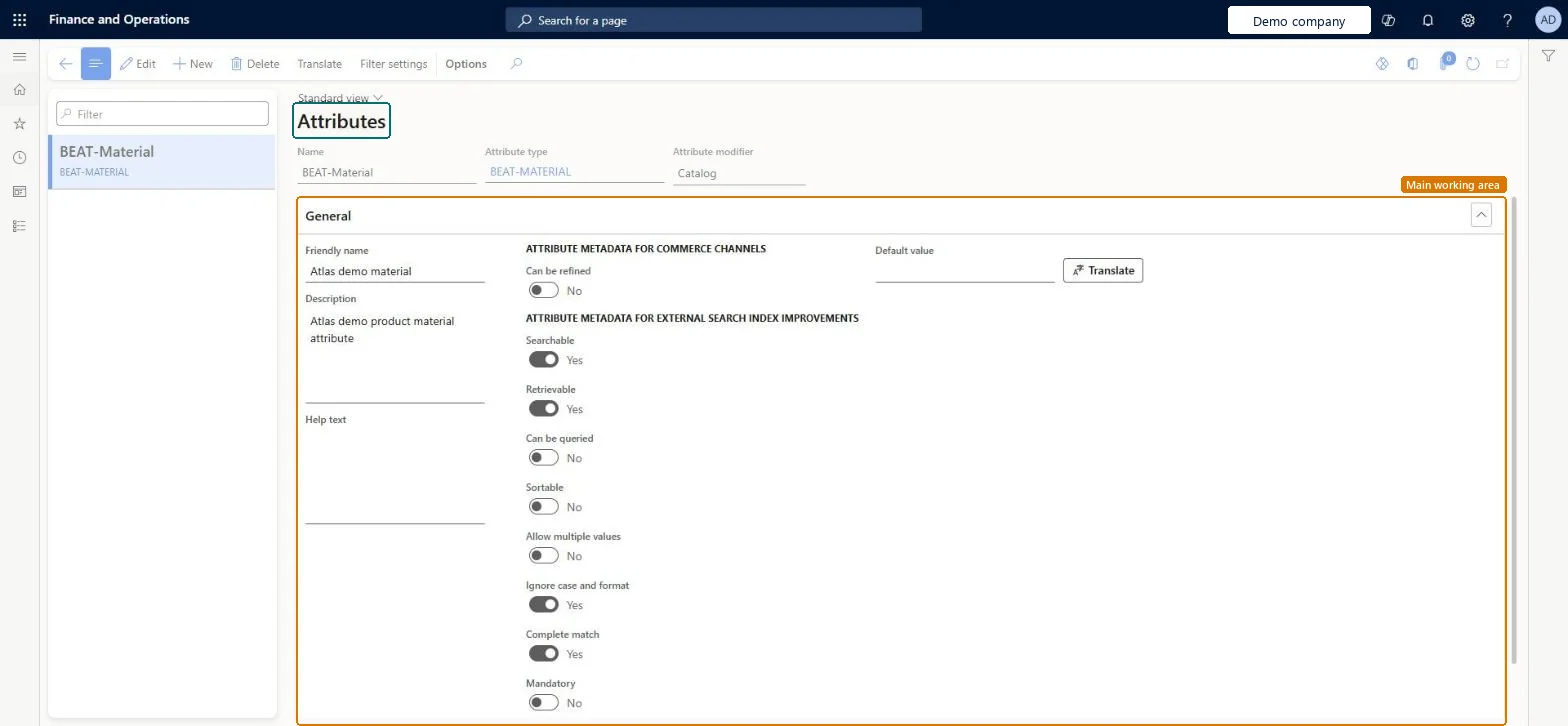
Table definitionEcoResAttribute columns and relations Microsoft data model
Everyone

8Sources

To cite this step: PIM-CAT-040, Set up Attributes. Beyond ERP Atlas Hub, 2026-11-11. https://www.beyonderp.cloud/atlas/step/PIM-CAT-040