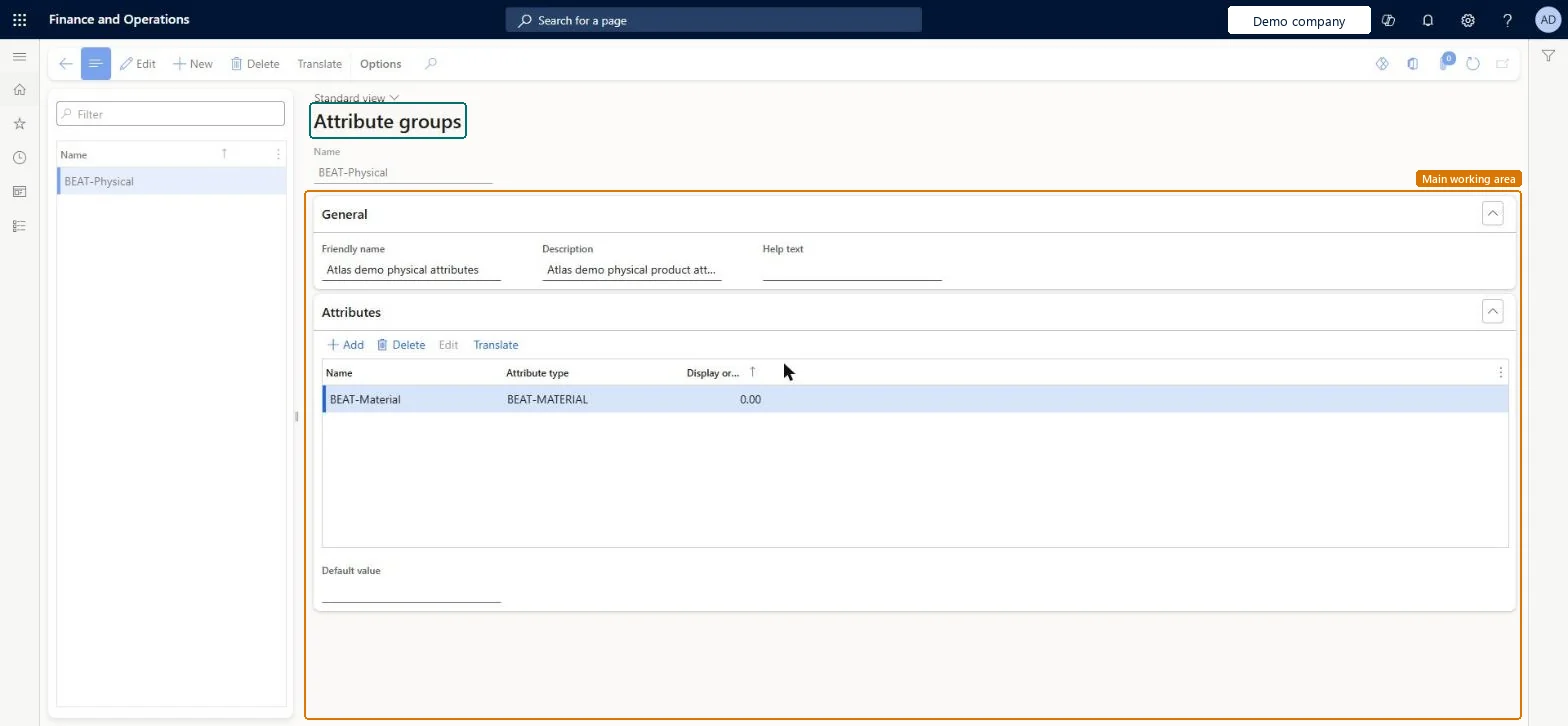
A setup page where you create attribute groups that collect individual product attributes so that they can be assigned together to categories or channels.
Product information managementSetupCategories and attributes
EcoResAttributeGroup
Used by
Product design manager, Materials manager, Retail catalog manager and 5 more roles
Business process
Develop product strategy
Menu item
EcoResAttributeGroup
Main table
EcoResAttributeGroup
Data entity
EcoResAttributeGroupEntity
Setup steps
1 on this page
Show what matters for
PAGE GUIDEWhat the page does and how to use it8 sections. Choose a role to highlight what matters to you.
Everyone
1What it is and why
What it is
A setup page where you create attribute groups that collect individual product attributes so that they can be assigned together to categories or channels.
What you do here
Use this page to group related attributes under one name, so that products placed in a category that uses the group inherit those attributes. You can also set default values for the attributes in a group.
Example
For example, you can create an attribute group named Dress Shirts that holds the CleaningMethod, CollarType, Collection and Design attributes.
The page in Dynamics 365. page title tab to open what to set or check
About the examples: Examples and screenshots in this guide use BEAT, a demo company in a Dynamics 365 test environment. Use your own company's codes and values instead of copying them.
Setup steps on this page
Set up Attribute groups
Use this page to group related attributes under one name, so that products placed in a category that uses the group inherit those attributes. You can also set default values for the attributes in a group.
Steps from Microsoft
Go to Product information management > Setup > Categories and attributes > Attribute groups.
On the Action Pane, select New.
In the Name field, enter a name for the attribute group.
On the Attributes FastTab, add the attributes that belong to the group.
Assign attribute groups to category nodes on the Product attribute groups FastTab; at channel level assign only dimension-based attribute groupsLearn says to associate attribute groups only on the Product attribute groups FastTab, because Commerce Scale Unit doesn't fetch attributes by category, and to keep channel-level groups to dimension-based ones.
Adding groups on the Category attribute values FastTab. Those attributes aren't fetched by Commerce Scale Unit.
Reversible: You can add or remove attributes in a group and remove the group from categories. Products in those categories inherit attributes from the groups assigned at the time. Microsoft Learn
Technical architect
6Technical
Menu item
EcoResAttributeGroupChecked in Dynamics 365
Form
EcoResAttributeGroupChecked in Dynamics 365
Table
EcoResAttributeGroupShown as “ATTRIBUTE GROUP” in Record infoKey field: NameChecked in Dynamics 365
PrivilegesMaintain attribute groups EcoResAttributeGroupMaintainView product attribute groups EcoResAttributeGroupViewDutiesMaintain all category hierarchy details EcoResAttributeGroupMaintainInquire into category hierarchy details EcoResCategoryMasterInquire8 security rolesProduct design manager BOMProductDesignManagerMaterials manager InventMaterialsManagerRetail catalog manager RetailCatalogManagerRetail merchandising manager RetailMerchandisingManagerRetail service RetailServiceProcess engineer RouteProcessEngineerProcess engineering manager RouteProcessEngineeringManagerPurchasing manager TradePurchasingManagerChecked in Dynamics 365
Roles to set it up and use it
To set it up or change itProcess engineer RouteProcessEngineerRetail service RetailServiceRetail merchandising manager RetailMerchandisingManagerRetail catalog manager RetailCatalogManagerTo use itProduct design manager BOMProductDesignManagerProcess engineering manager RouteProcessEngineeringManagerMaterials manager InventMaterialsManagerPurchasing manager TradePurchasingManagerGive people one of these roles. On this system, 8 roles can open this page.Checked in Dynamics 365
Actions on the page
(Action Pane without tabs): TranslateChecked in Dynamics 365
EcoResAttributeGroupEntity (Attribute group): shared by all companies, in Microsoft's default template 310 - Product information management.Load order: Microsoft's default template 310 - Product information management loads Attribute group at execution unit 1, level 30, sequence 10. Lower levels load first, and entities at the same level load in sequence order.Load first: the default templates at lower levels (System setup to General ledger)Microsoft Learn