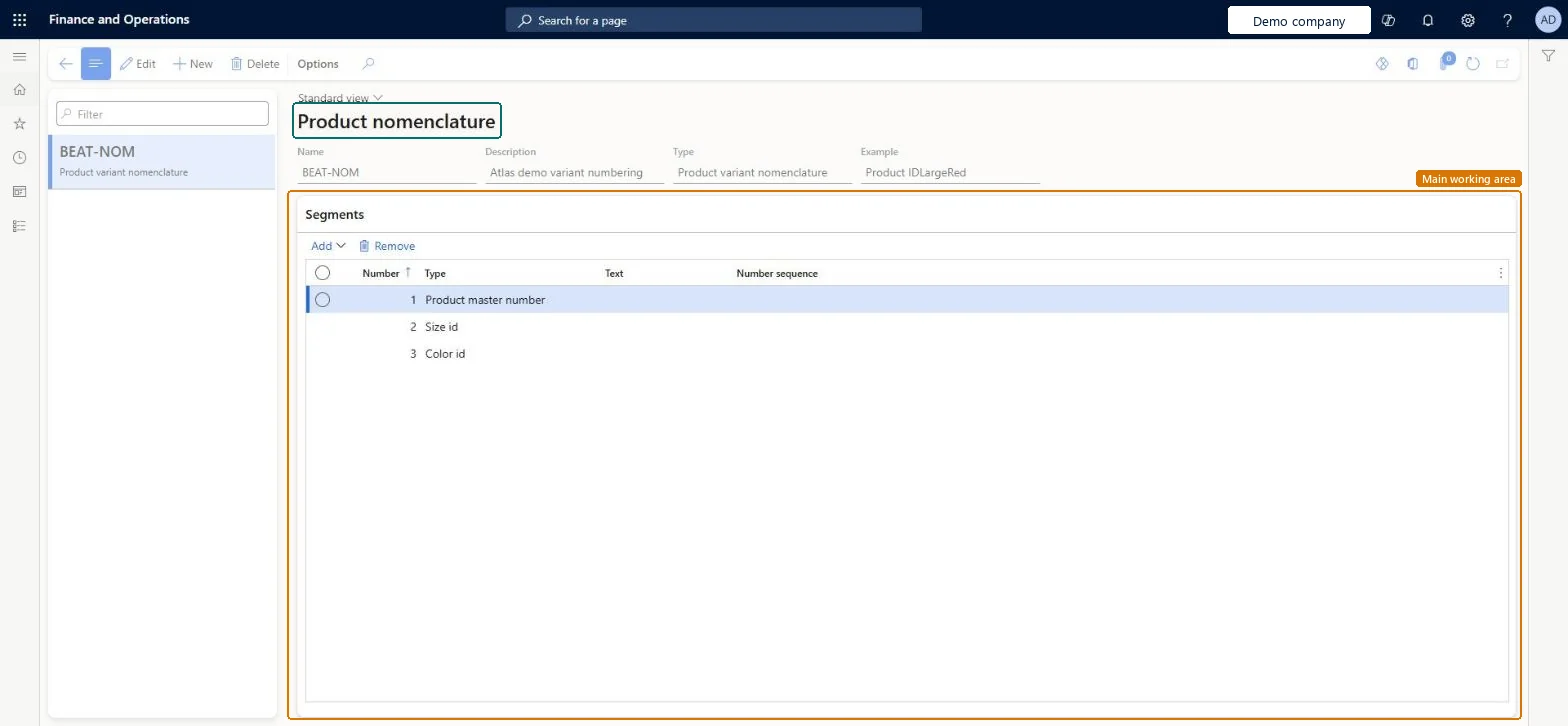
Setup step on the Product nomenclature page · Product information management
Set up Product nomenclature
Use this page to set up a targeted format for product variant numbers and names, using segments such as the product master number, product dimensions, number sequences and text constants.
Purchasing agent, Purchasing Agent - Public Sector, Product designer and 5 more roles
Business process
Develop product strategy
Menu item
EcoResNomenclature
Main table
EcoResNomenclature
Setup steps
1 on this page
Show what matters for
SETUP GUIDEHow to set it up8 sections. Choose a role to highlight what matters to you.
Everyone
1What it is and why
What it is
A setup page where you define nomenclatures, built from segments, that form the numbers and names of product variants and configurations.
What you do here
Use this page to set up a targeted format for product variant numbers and names, using segments such as the product master number, product dimensions, number sequences and text constants.
Example
For example, a nomenclature of the product master number, colour, size and style separated by hyphens gives a red, small, polo T-shirt the product variant number TS1234-Red-Small-Polo.
The page in Dynamics 365. page title tab to open what to set or check
About the examples: Examples and screenshots in this guide use BEAT, a demo company in a Dynamics 365 test environment. Use your own company's codes and values instead of copying them.
Setup steps on this page
Set up Product nomenclature
Use this page to set up a targeted format for product variant numbers and names, using segments such as the product master number, product dimensions, number sequences and text constants.
Steps from Microsoft
Go to Product information management > Setup > Product nomenclature.
Select New.
In the Name field, enter a nomenclature name that helps to identify the target product dimension group.
In the Description field, enter a description.
Select Add, and select a segment such as Product master number, Text constant, Color or Size.
For a Text constant segment, enter the value in the Text field.
Repeat for each segment that you need, and then close the page.
The kind of segment in the nomenclature, such as the product master number or name, a product dimension, a number sequence value, a text constant or an attribute.Microsoft Learn
Test checklist
Create a variant number nomenclature: Product master number, text constant "-", Color, "-", Size.
Assign it to a product dimension group with Color and Size.
Create a product master with that group and generate variants.
Check a variant number reads like MASTER-Red-Small.
Product master number, a text delimiter, and every active product dimension of the group (or a number sequence segment)Learn says a variant number nomenclature produces unique numbers only when it includes all active product dimensions of the product dimension group, or a number sequence.
Leaving an active dimension out of the nomenclature. For predefined variants, generating variants then fails with an error because two variants get the same number.Test: Nomenclature creates unique variant numbers
Reversible: The nomenclature is applied when variants are created or configured. Learn doesn't describe renumbering existing variants, so a change affects variants created afterwards.
Technical architect
6Technical
Menu item
EcoResNomenclatureChecked in Dynamics 365
Form
EcoResNomenclatureChecked in Dynamics 365
Table
EcoResNomenclatureShown as “PRODUCT NOMENCLATURE” in Record infoChecked in Dynamics 365
To set it up or change itProduct designer BOMProductDesignerTo use itMaterials manager InventMaterialsManagerWarehouse manager WMSWarehouseManagerPurchasing manager TradePurchasingManagerPurchasing agent VendPurchasingAgentQuality control manager InventQualityControlManagerGive people one of these roles. On this system, 8 roles can open this page.Checked in Dynamics 365