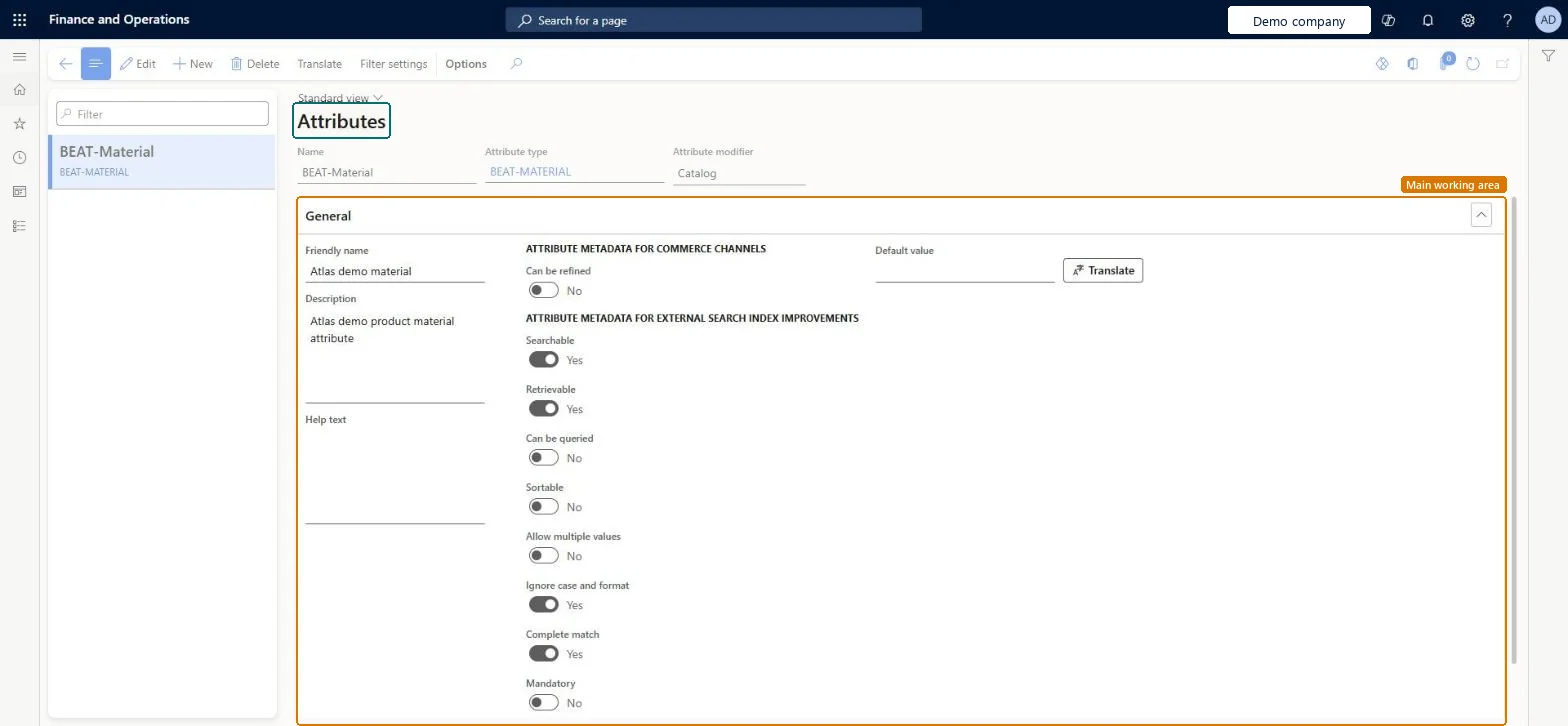
About the examples: Examples and screenshots in this guide use BEAT, a demo company in a Dynamics 365 test environment. Use your own company's codes and values instead of copying them.
Setup steps on this page
Set up Attributes
Use this page to create an attribute, assign its attribute type and enter its friendly name, description and help text.
Steps from Microsoft
Go to Product information management > Setup > Categories and attributes > Attributes.
Select New to add a new attribute.
Enter a name, friendly name and description for the attribute, and any help text that you want to show to the user.
In the Attribute type field, select the attribute type to assign to the attribute.
Depending on the attribute type, enter the value or range of values in the Default value field.
Select Translate to enter the name, description, friendly name and help text in other languages.
Choose the attribute type carefully at creation; when a refinable attribute needs a different type, create a new attribute and retire the old oneLearn says not to update the attribute type after the attribute is refinable for a channel, and to create a new attribute instead.
Changing the attribute type of a refinable attribute. It affects publication of product data to the search index.
Hard to reverse: Names, help text and metadata can be edited, but the attribute type of a refinable attribute shouldn't change. Retire an attribute by removing it from attribute groups. Microsoft Learn
If you change it later
After an attribute is marked as refinable for a channel, its attribute type should not be updated, because that affects the publication of product data to the search index. Microsoft Learn
Technical architect
6Technical
Menu item
EcoResAttributeChecked in Dynamics 365
Form
EcoResAttributeChecked in Dynamics 365
Table
EcoResAttributeShown as “ATTRIBUTES” in Record infoKey field: NameChecked in Dynamics 365
To set it up or change itProduct designer BOMProductDesignerProcess engineer RouteProcessEngineerRetail service RetailServiceRetail merchandising manager RetailMerchandisingManagerRetail catalog manager RetailCatalogManagerTo use itProduct design manager BOMProductDesignManagerProcess engineering manager RouteProcessEngineeringManagerMaterials manager InventMaterialsManagerGive people one of these roles. On this system, 13 roles can open this page.Checked in Dynamics 365
Actions on the page
(Action Pane without tabs): Translate, Filter settingsChecked in Dynamics 365
EcoResProductAttributeEntity (Product attributes): shared by all companies, in Microsoft's default template 310 - Product information management.Load order: Microsoft's default template 310 - Product information management loads Product attributes at execution unit 1, level 40, sequence 10. Lower levels load first, and entities at the same level load in sequence order.Load first: the default templates at lower levels (System setup to dependency bands 30 to 90)Microsoft Learn