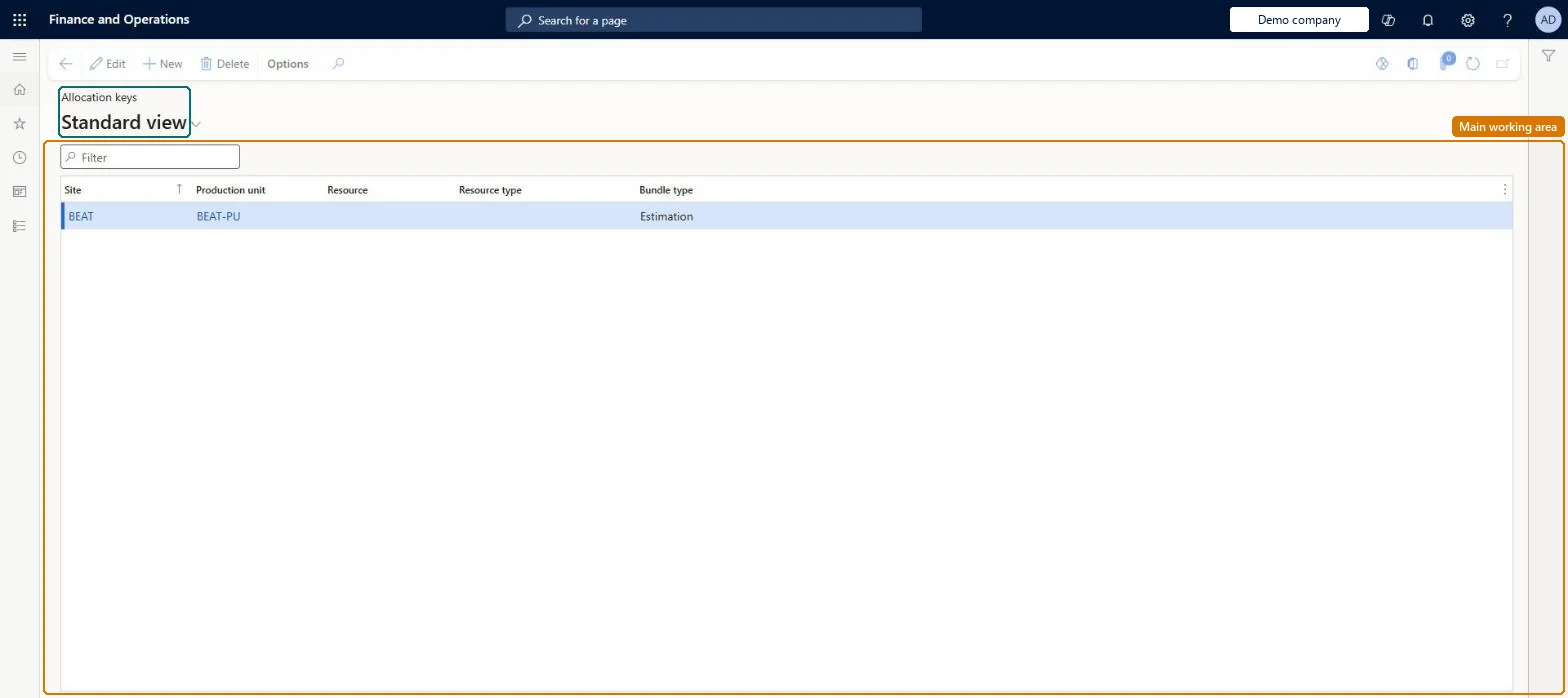
Setup step on the Allocation keys page · Production control
Set up Allocation keys
Use this page to assign a bundle type (estimation, jobs, net time or real time) to specific areas of the shop floor, overriding the general allocation key.
SETUP GUIDEHow to set it up8 sections. Choose a role to highlight what matters to you.
Everyone
1What it is and why
What it is
A setup page where you decide, per site, production unit or resource, how the time a worker spends on a bundle of jobs started together is split between those jobs.
What you do here
Use this page to assign a bundle type (estimation, jobs, net time or real time) to specific areas of the shop floor, overriding the general allocation key.
Example
For example, choose Estimation for a work area so that bundled time is split between the jobs in proportion to their estimated times.
The page in Dynamics 365. page title tab to open what to set or check
About the examples: Examples and screenshots in this guide use BEAT, a demo company in a Dynamics 365 test environment. Use your own company's codes and values instead of copying them.
Setup steps on this page
Set up Allocation keys
Use this page to assign a bundle type (estimation, jobs, net time or real time) to specific areas of the shop floor, overriding the general allocation key.
How to use it
Go to Production control > Setup > Production > Allocation keys.
Select New to add a key, or select a row in the list.
Enter the Site and Production unit, and optionally the Resource and Resource type the key applies to.
Select the Bundle type that decides how a worker's time on a bundle of jobs is split between them.
Select Edit to change a key, or Delete to remove it.
How should time on bundled jobs be split between the jobs (Bundle type)?Choosing Real time where payroll is not used. The Real time allocation key is available only if the company uses the payroll functionality in Time and attendance; for real-cost calculation the Cost category option on Production order defaults must also be cleared.
Reversible: The key decides how time registered on bundled jobs is divided between those jobs; it can be changed for a site, production unit or resource.
If you change it later
Where no specific key exists the general allocation key applies, so adding or removing a key changes how registered time is split into job costs for that area. Microsoft Learn
Technical architect
6Technical
Menu item
JmgBundleSlizeChecked in Dynamics 365
Form
JmgBundleSlizeChecked in Dynamics 365
Table
JmgBundleSlizeShown as “BUNDLE ALLOCATION” in Record infoKey field: InventSiteId, ProdUnitId, WrkCtrIdChecked in Dynamics 365
Data entities
JmgBundledJobsTimeAllocationKeyEntityBundled jobs time allocation keys Microsoft data model
Who can open it
PrivilegesMaintain allocation keys JmgBundleSlizeMaintainView allocation keys JmgBundleSlizeViewDutiesInquire into manufacturing execution policies JmgManufacturingExecutionPoliciesInquirEnable manufacturing execution process JmgManufacturingExecutionProcessEnable1 security roleProduction manager ProdProductionManagerChecked in Dynamics 365
Roles to set it up and use it
To set it up or change itProduction manager ProdProductionManagerGive people one of these roles. On this system, 1 role can open this page.Checked in Dynamics 365