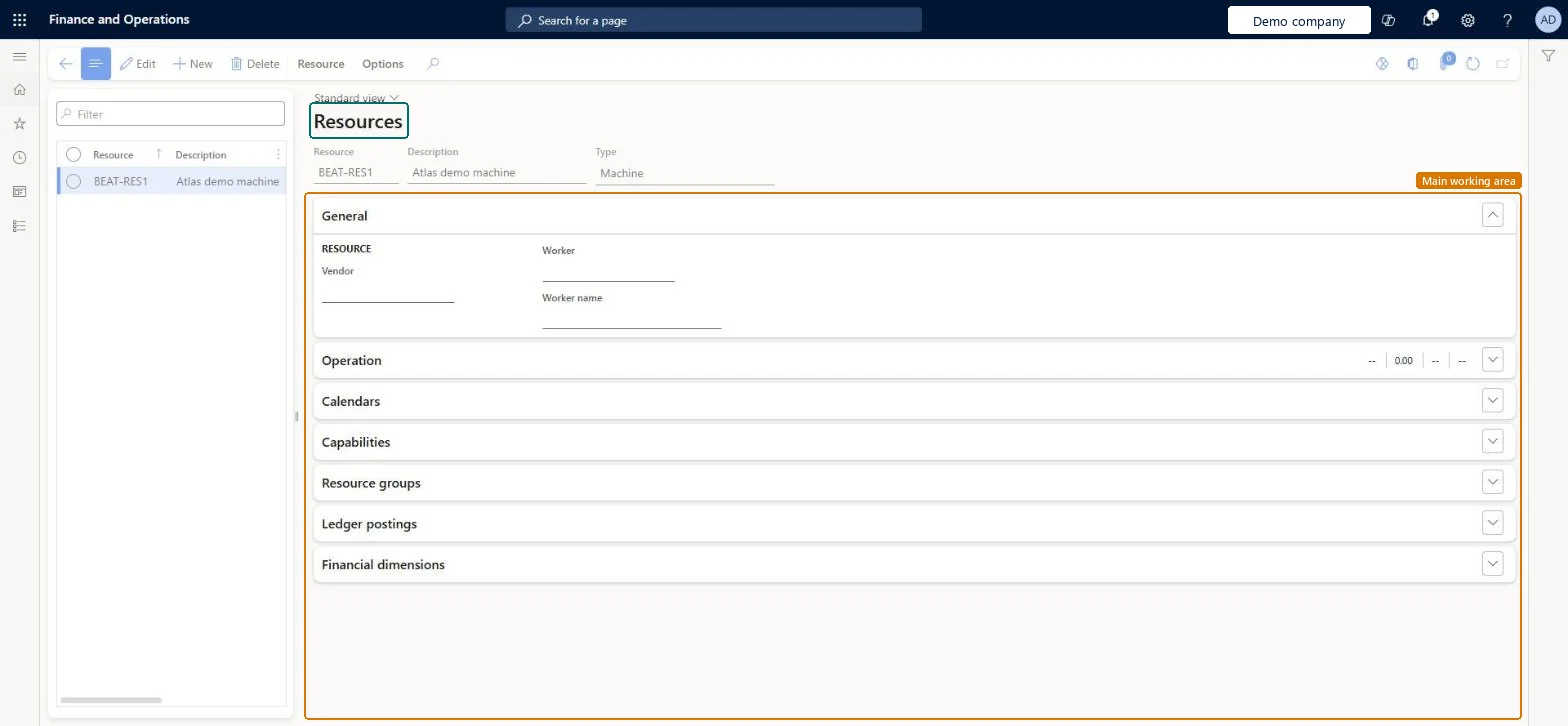
A setup page where you create operations resources, such as machines, tools, workers, facilities, locations and vendors, that do the work in production and projects.
Inventory accountant, Inventory accountant clerk, Machine operator and 9 more roles
Business process
Administer system features
Menu item
WrkCtrTable
Main table
WrkCtrTable
Data entity
OpResOperationsResourceEntity
Setup steps
1 on this page
Show what matters for
PAGE GUIDEWhat the page does and how to use it8 sections. Choose a role to highlight what matters to you.
Everyone
1What it is and why
What it is
A setup page where you create operations resources, such as machines, tools, workers, facilities, locations and vendors, that do the work in production and projects.
What you do here
Use this page to set each resource's capacity, efficiency, calendar, capabilities and resource group so that scheduling can reserve it.
Example
For example, a subcontractor can be set up as a Vendor resource linked to a vendor account, so that purchases for the subcontracted work can be generated.
The page in Dynamics 365. page title tab to open what to set or check
About the examples: Examples and screenshots in this guide use BEAT, a demo company in a Dynamics 365 test environment. Use your own company's codes and values instead of copying them.
Step by step, with screenshots
Set up Resources1 screen
Use this page to set each resource's capacity, efficiency, calendar, capabilities and resource group so that scheduling can reserve it.
Screen 1
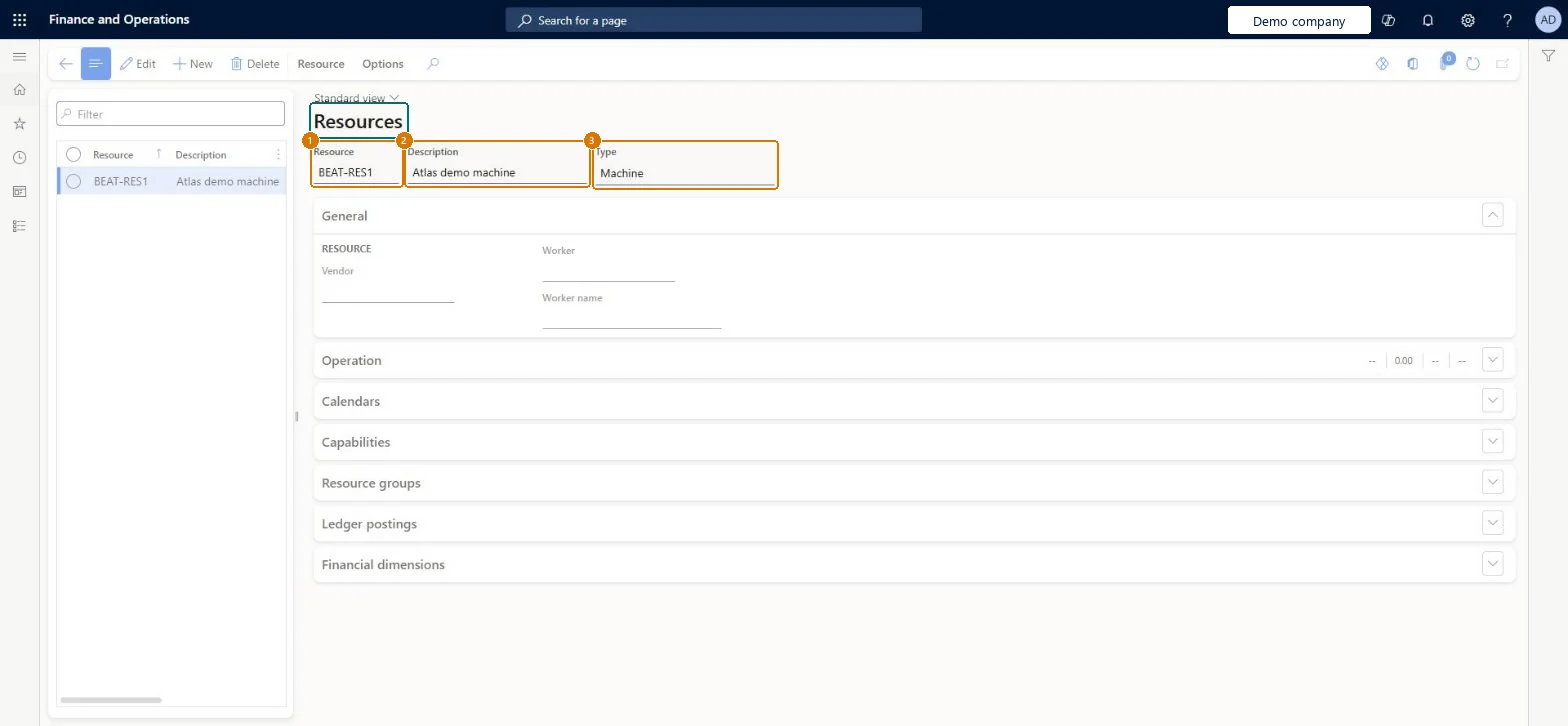
Create a resource
Go to Organization administration > Resources > Resources
Select New
Enter the resource ID and description
Select the type
Select Save
Add calendars, capabilities and resource groups when the resource is used in scheduling
1Resource
BEAT-RES1
2Description
Machine
3Type
Machine
Show the full screen page title tab to open what to set or check
Steps from Microsoft
Go to Organization administration > Resources > Resources.
Select New.
In the Resource field, enter an ID, and in the Description field, enter a description.
On the Operation FastTab, enter the Scrap percentage and the Setup, Run time and Quantity cost categories.
Select the Capacity unit and enter the Capacity, Efficiency percentage and Operations scheduling percentage.
Set Finite capacity and Bottleneck resource as needed.
On the Calendars FastTab, select Add and select the working time calendar.
On the Capabilities FastTab, select Add and enter the Capability, Level and Priority.
On the Resource groups FastTab, select Add and select the Resource group and Input location.
Operations scheduling percentage below 100, with Finite capacity set to Yes on resources that must not be overbooked.Learn says to set Operations scheduling percentage below 100 percent to leave flexibility for job scheduling; Finite capacity makes scheduling respect existing reservations.
Hard to reverse: Capacity settings and group assignments apply to new scheduling runs and new reservations; existing reservations stay until orders are rescheduled. Microsoft Learn
If you change it later
Moving a resource to another resource group applies only to new capacity reservations; work already scheduled isn't changed. Microsoft Learn
Technical architect
6Technical
Menu item
WrkCtrTableChecked in Dynamics 365
Form
WrkCtrTableChecked in Dynamics 365
Table
WrkCtrTableShown as “Resources” in Record infoKey field: WrkCtrIdChecked in Dynamics 365
PrivilegesResource manager ProjResourceManagerMaintain resources WrkCtrTableMaintainView resources WrkCtrTableViewDutiesInquire into manufacturing costing policies CostProdPoliciesInquireMaintain manufacturing costing policies CostProdPoliciesMaintainMaintain production order feedback ProdProductionOrderFeedbackMaintainInquire into production orders ProdProductionOrderProgressInquireResource manager ProjResourceManagerInquire into resource master WrkCtrResourcesMasterInquireMaintain resource master WrkCtrResourcesMasterMaintain12 security rolesInventory accountant InventCostAccountantInventory accountant clerk InventCostCostClerkMachine operator JmgMachineOperatorShop supervisor JmgShopSupervisorAccounting manager LedgerAccountingManagerProduction manager ProdProductionManagerProduction supervisor ProdProductionSupervisorProject manager ProjProjectManagerResource manager ProjResourceManagerProduction planner ReqProductionPlannerProcess engineer RouteProcessEngineerProcess engineering manager RouteProcessEngineeringManagerChecked in Dynamics 365
Roles to set it up and use it
To set it up or change itAccounting manager LedgerAccountingManagerProject manager ProjProjectManagerProcess engineer RouteProcessEngineerProduction supervisor ProdProductionSupervisorResource manager ProjResourceManagerTo use itProduction manager ProdProductionManagerProcess engineering manager RouteProcessEngineeringManagerInventory accountant clerk InventCostCostClerkInventory accountant InventCostAccountantProduction planner ReqProductionPlannerGive people one of these roles. On this system, 12 roles can open this page.Checked in Dynamics 365
Actions on the page
Resource: Maintain, View, Applicable for, Reserved forOptions: Personalize, Page options, ShareChecked in Dynamics 365
OpResOperationsResourceEntity (Operations resource): loaded for each company, in Microsoft's default template 410 - Production control.Load order: Microsoft's default template 410 - Production control loads Operations resource at execution unit 1, level 40, sequence 10. Lower levels load first, and entities at the same level load in sequence order.Load first: the default templates at lower levels (System setup to dependency bands 30 to 90)Microsoft Learn
Checked in a working Dynamics 365 system, version 10.0.49: the menu item, form, table and security, the page, the demo records and the values in the screenshots.