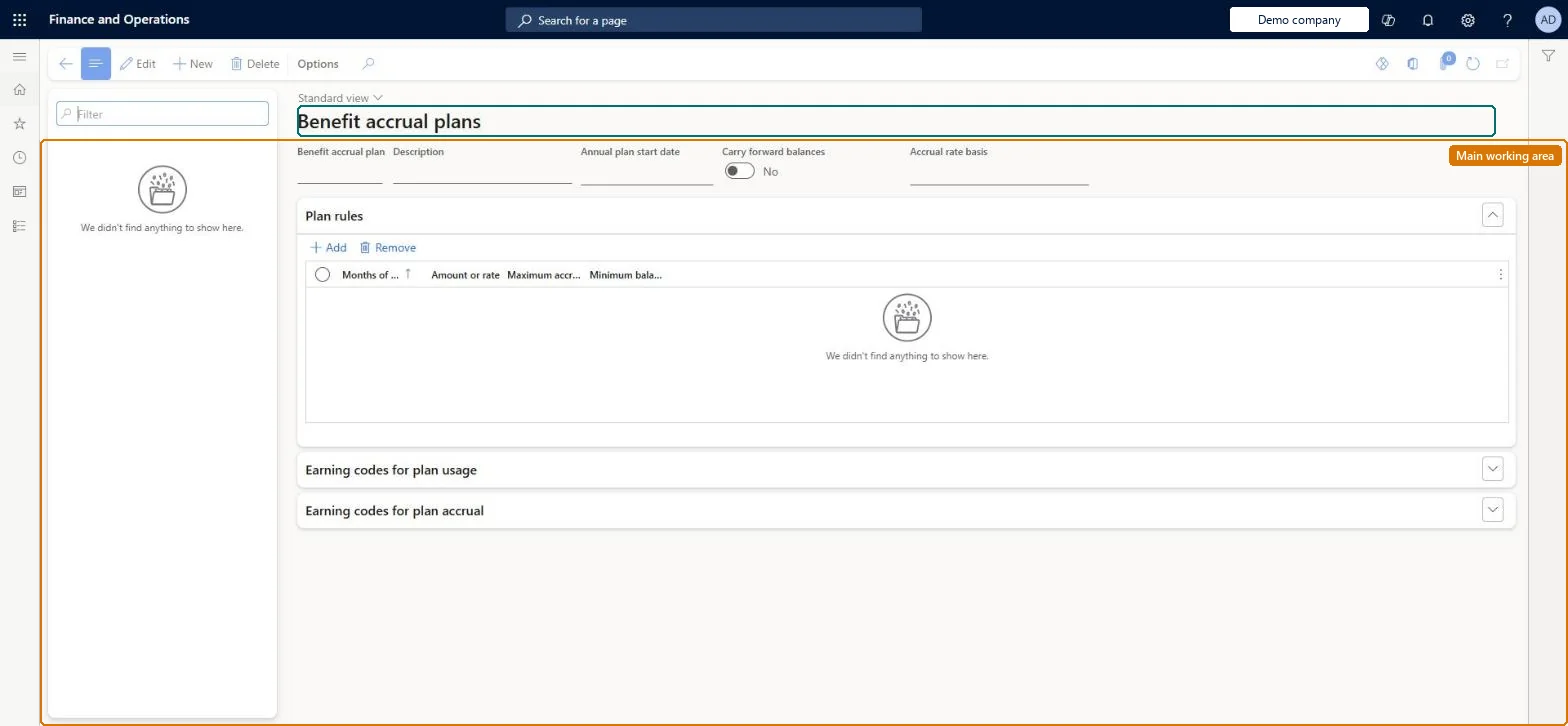
Setup step on the Benefit accrual plans page · Payroll
Set up Benefit accrual plans
Use this page to set the plan year, carry-forward, accrual rate basis and plan rules (rate, maximum accrual, minimum balance, carry-forward limit), and the earning codes that use or accrue the plan.
Compensation and benefits manager, Payroll administrator, Payroll manager
Business process
Manage compensation and benefits
Menu item
PayrollAccrual
Main table
PayrollAccrual
Data entity
PayrollAccrualPlanEntity
Setup steps
1 on this page
Show what matters for
SETUP GUIDEHow to set it up8 sections. Choose a role to highlight what matters to you.
Everyone
1What it is and why
What it is
A setup page where you define benefit accrual plans, such as paid time off, with the rules for how hours accrue and are used based on months of service.
What you do here
Use this page to set the plan year, carry-forward, accrual rate basis and plan rules (rate, maximum accrual, minimum balance, carry-forward limit), and the earning codes that use or accrue the plan.
Example
For example, a PTO plan of 10, 15 and 20 days a year at 0, 60 and 120 months of service uses hourly rates of 0.03846, 0.05769 and 0.07692.
The page in Dynamics 365. page title tab to open what to set or check
About the examples: Examples and screenshots in this guide use BEAT, a demo company in a Dynamics 365 test environment. Use your own company's codes and values instead of copying them.
Setup steps on this page
Set up Benefit accrual plans
Use this page to set the plan year, carry-forward, accrual rate basis and plan rules (rate, maximum accrual, minimum balance, carry-forward limit), and the earning codes that use or accrue the plan.
Steps from Microsoft
Go to Payroll > Setup > Benefits > Benefit accrual plans.
Select New and enter the plan name, description and annual plan start date.
Select the accrual rate basis and, if shown, the frequency or accrual date.
On the Plan rules FastTab, add a row from 0 months of service with rate and limits.
Add earning codes on the Earning codes for plan usage and plan accrual FastTabs.
Accrual rate basis = Hourly rate with rules starting at 0 months of service (rate = days per year x 8 / 2,080); fill Annual plan start date so the plan resets yearlyLearn's worked example converts days per year to an hourly rate and requires a row at 0 months; a blank annual start date means the plan never resets and plan-year totals cover the whole plan life.
Basing months of service on Seniority date when the worker's Seniority date is blank: the worker can use hours but nothing accrues.Test: Minimum balance blocks release
Solution architect
5Design impact
Can it be undone
Hard to reverse: A worker enrollment with balances from submitted pay statements can't be deleted, only stopped with Stop accrual and Stop balance reduction. Balance fixes are manual adjustments that must be offset to undo.
If you change it later
If an earnings statement would take a plan below its minimum balance, the lines with those hours are not released. Microsoft Learn
Technical architect
6Technical
Menu item
PayrollAccrualChecked in Dynamics 365
Form
PayrollAccrualChecked in Dynamics 365
Table
PayrollAccrualShown as “BENEFIT ACCRUAL PLAN” in Record infoKey field: AccrualIdChecked in Dynamics 365
PrivilegesCreate and modify benefit accrual plans PayrollAccrualPlanSetupMaintainInquire into benefit accrual plans PayrollAccrualPlanSetupViewDutiesInquire into payroll master data PayrollMasterDataInquireSet up payroll master data PayrollMasterDataMaintain3 security rolesCompensation and benefits manager HcmCompensationAndBenefitsManagerPayroll administrator HcmPayrollAdministratorPayroll manager HcmPayrollManagerChecked in Dynamics 365
Roles to set it up and use it
To set it up or change itPayroll administrator HcmPayrollAdministratorCompensation and benefits manager HcmCompensationAndBenefitsManagerTo use itPayroll manager HcmPayrollManagerGive people one of these roles. On this system, 3 roles can open this page.Checked in Dynamics 365