About the examples: Examples and screenshots in this guide use BEAT, a demo company in a Dynamics 365 test environment. Use your own company's codes and values instead of copying them.
Setup steps on this page
Set up Payroll parameters
Use this page to set up the parameters for Payroll, including the clearing account, how arrears are handled and how worker payments are issued.
How to use it
Go to Payroll > Setup > Parameters > Payroll parameters.
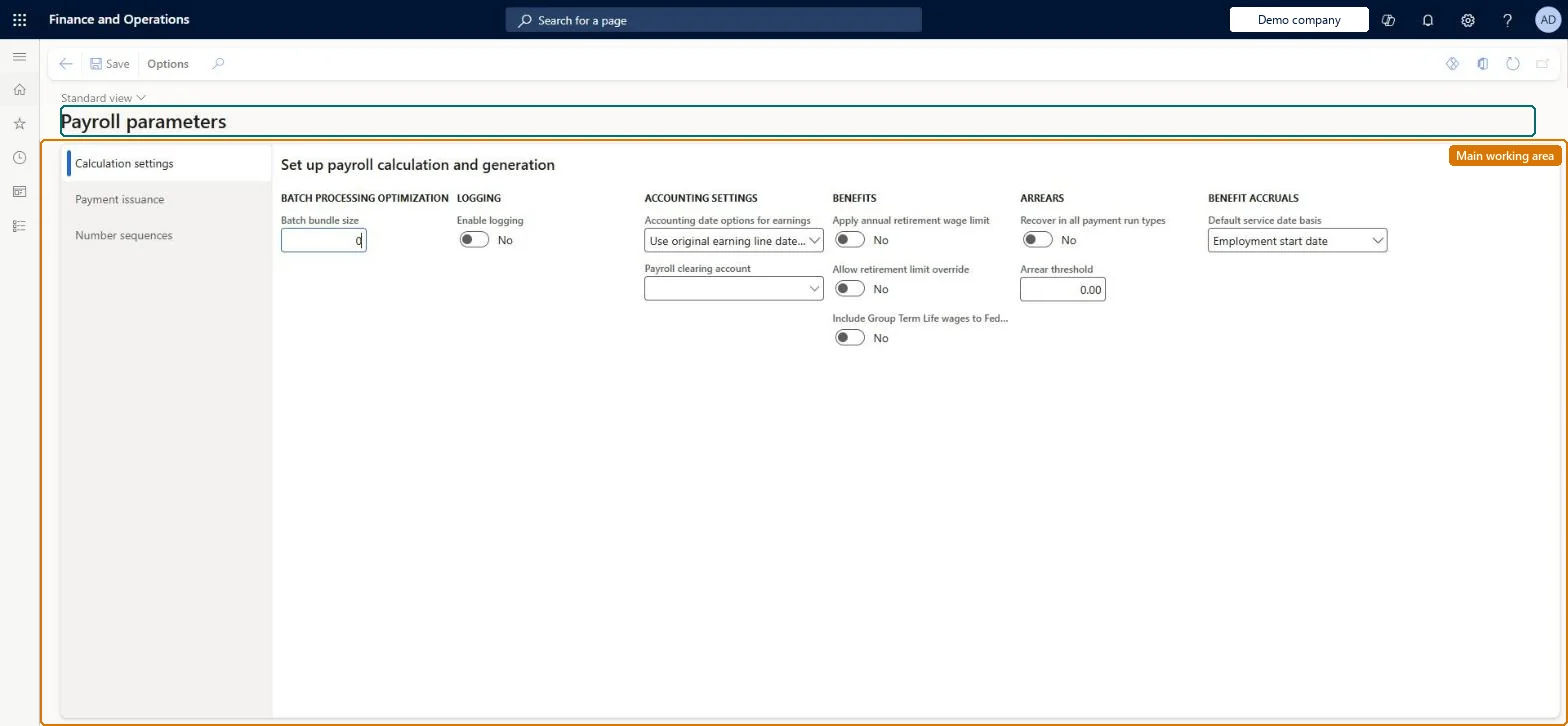
On Calculation settings, set the Batch bundle size and Enable logging.
Under Accounting settings, select the Accounting date options for earnings and the Payroll clearing account.
Set the Benefits, Arrears and Benefit accruals options, such as Arrear threshold and Default service date basis.
Select Payment issuance or Number sequences to set those options.
Select Save.
Source: Checked in Dynamics 365
Fields on the page
Field
What it means
Table column
Batch bundle size
How many pay or earnings statements are grouped into one batch task; change it only for performance tuning.Microsoft Learn
PaymentTaskGroupingCount
Payroll clearing account
The ledger account that collects earnings before they are distributed to other liability accounts; needed to post pay statements.Microsoft Learn
SalaryClearingAccountLedgerDimension
Apply annual retirement wage limit
Stops retirement benefit calculations when a worker reaches the annual wage limit.Microsoft Learn
ApplyRetirementAnnualWageLimit
Recover arrears in all payment run types
Whether arrears are recovered in every payment run type or only in primary payment runs.Microsoft Learn
Arrear threshold
The amount at which repeated arrears recalculation stops; the default is 1.00.Microsoft Learn
ArrearThresholdOverride
Vendor account for worker payments
The single vendor account used to pay all worker pay statements through Accounts payable.Microsoft Learn
VendorAccountNum
Payment journal name
The payment journal used for worker payments; it must be a Payroll disbursement journal.Microsoft Learn
PaymentJournalName
Print employer contributions
Whether employer tax and benefit contributions are printed on workers' pay statements.Microsoft Learn
PaySlipContributions
Test checklist
Fill the Calculation settings and Payment issuance fields and the payroll number sequences.
Generate pay statements for a pay period in batch.
Submit the pay statements and check a vendor invoice for total net pay is posted to the Vendor account for worker payments.
Open the payment journal created under the Payment journal name and generate check and electronic payments.
Before the first pay run, set Payroll clearing account (Calculation settings), and Check method of payment, Vendor account for worker payments, Payment journal name and Procurement category (Payment issuance); add Electronic method of payment if you pay by direct depositMicrosoft lists these as prerequisites for posting payroll, generating vendor invoices and issuing worker payments. Submitting pay statements creates the net pay invoice for the vendor set here.
Setting up electronic payment but not entering bank account disbursements for each worker before pay statements are generated: those workers are paid by check.Test: Pay statement submission creates net pay invoice
Number sequences
Reference
Shared or per company
Note
Earnings statement number
Per company
BEAT uses number sequence Payr_3. Checked in Dynamics 365
Pay statement document number
Per company
BEAT uses number sequence Payr_7. Checked in Dynamics 365
Pay statement voucher
Per company
BEAT uses number sequence Payr_11. Checked in Dynamics 365
Vendor invoice number
Per company
BEAT uses number sequence Payr_15. Checked in Dynamics 365
Batch number
Per company
BEAT uses number sequence Payr_19. Checked in Dynamics 365
Electronic payment number
Per company
BEAT uses number sequence Payr_23. Checked in Dynamics 365
Solution architect
5Design impact
Can it be undone
Reversible: Parameters are read when pay statements are generated, submitted and posted. Changing them affects later runs; invoices and payments already posted are not changed. Microsoft Learn
If you change it later
Changing the batch bundle size affects how payroll statements are processed in batch, so Microsoft advises changing it only for performance tuning or on product support's advice. Microsoft Learn
Technical architect
6Technical
Menu item
PayrollParametersChecked in Dynamics 365
Form
PayrollParametersChecked in Dynamics 365
Table
PayrollParametersShown as “PAYROLL PARAMETER” in Record infoChecked in Dynamics 365
PrivilegesMaintain payroll parameters PayrollParametersMaintainView payroll parameters PayrollParametersViewDutiesInquire into payroll master data PayrollMasterDataInquireSet up payroll master data PayrollMasterDataMaintain3 security rolesCompensation and benefits manager HcmCompensationAndBenefitsManagerPayroll administrator HcmPayrollAdministratorPayroll manager HcmPayrollManagerChecked in Dynamics 365
Roles to set it up and use it
To set it up or change itPayroll administrator HcmPayrollAdministratorCompensation and benefits manager HcmCompensationAndBenefitsManagerTo use itPayroll manager HcmPayrollManagerGive people one of these roles. On this system, 3 roles can open this page.Checked in Dynamics 365