Product designer, Product design manager, Materials manager and 3 more roles
Business process
Administer system features
Menu item
UnitOfMeasure
Main table
UnitOfMeasure
Data entity
UnitOfMeasureEntity
Setup steps
1 on this page
Show what matters for
SETUP GUIDEHow to set it up8 sections. Choose a role to highlight what matters to you.
Everyone
1What it is and why
What it is
A setup page where you create and maintain the units of measure used in the system, with their unit class, decimal precision, translations and conversions.
What you do here
Use this page to define units of measure, translate their names and descriptions, and set up conversion rules for related units.
Example
For example, if gallon is the base unit for the Volume unit class, you only set up conversions from quart and pint to gallon, and the system can then also convert between quart and pint.
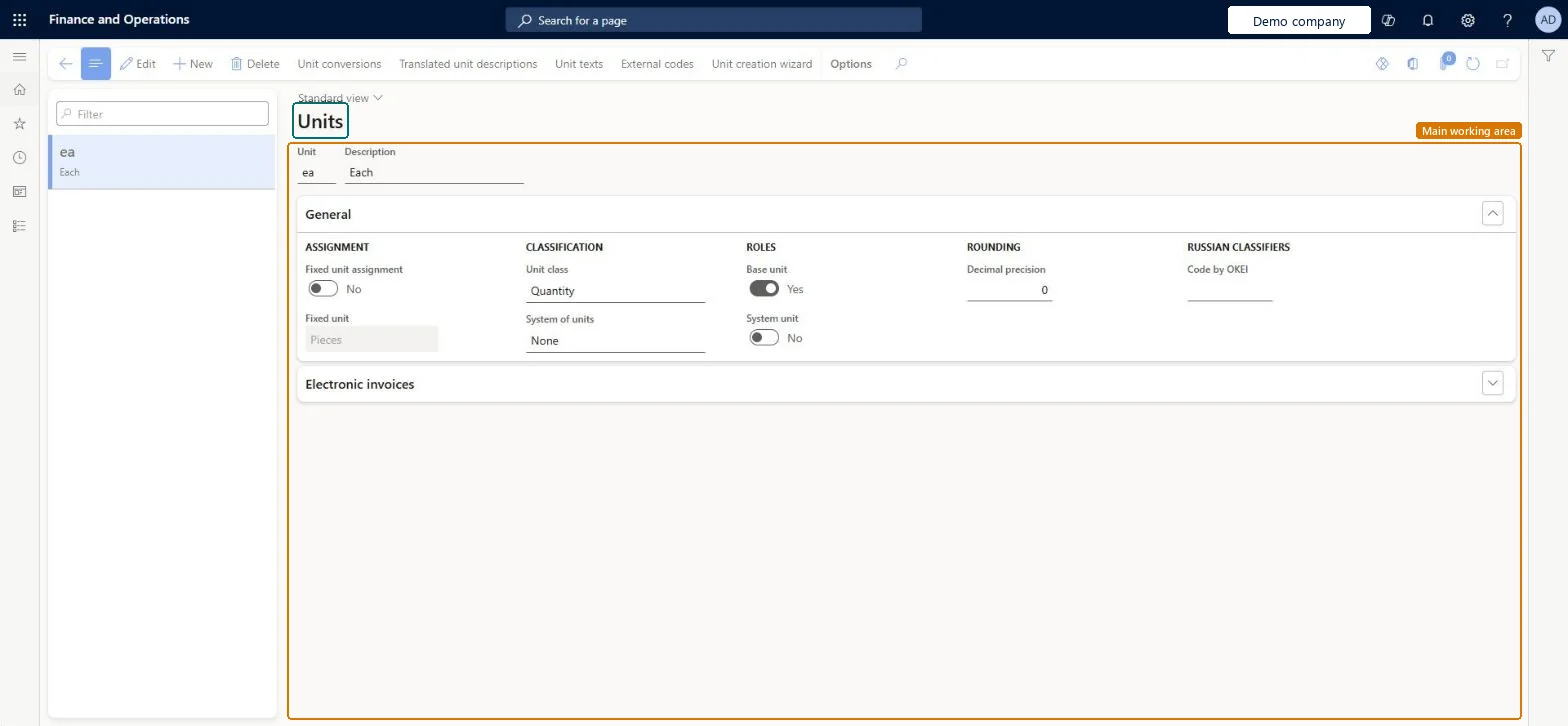
The page in Dynamics 365. page title tab to open what to set or check
About the examples: Examples and screenshots in this guide use BEAT, a demo company in a Dynamics 365 test environment. Use your own company's codes and values instead of copying them.
Step by step, with screenshots
Set up Units1 screen
Use this page to define units of measure, translate their names and descriptions, and set up conversion rules for related units.
Screen 1
Check a unit
Go to Organization administration > Setup > Units > Units
Select the unit in the list
Check its unit class and whether it is the base unit of that class
Check the decimal precision used for rounding
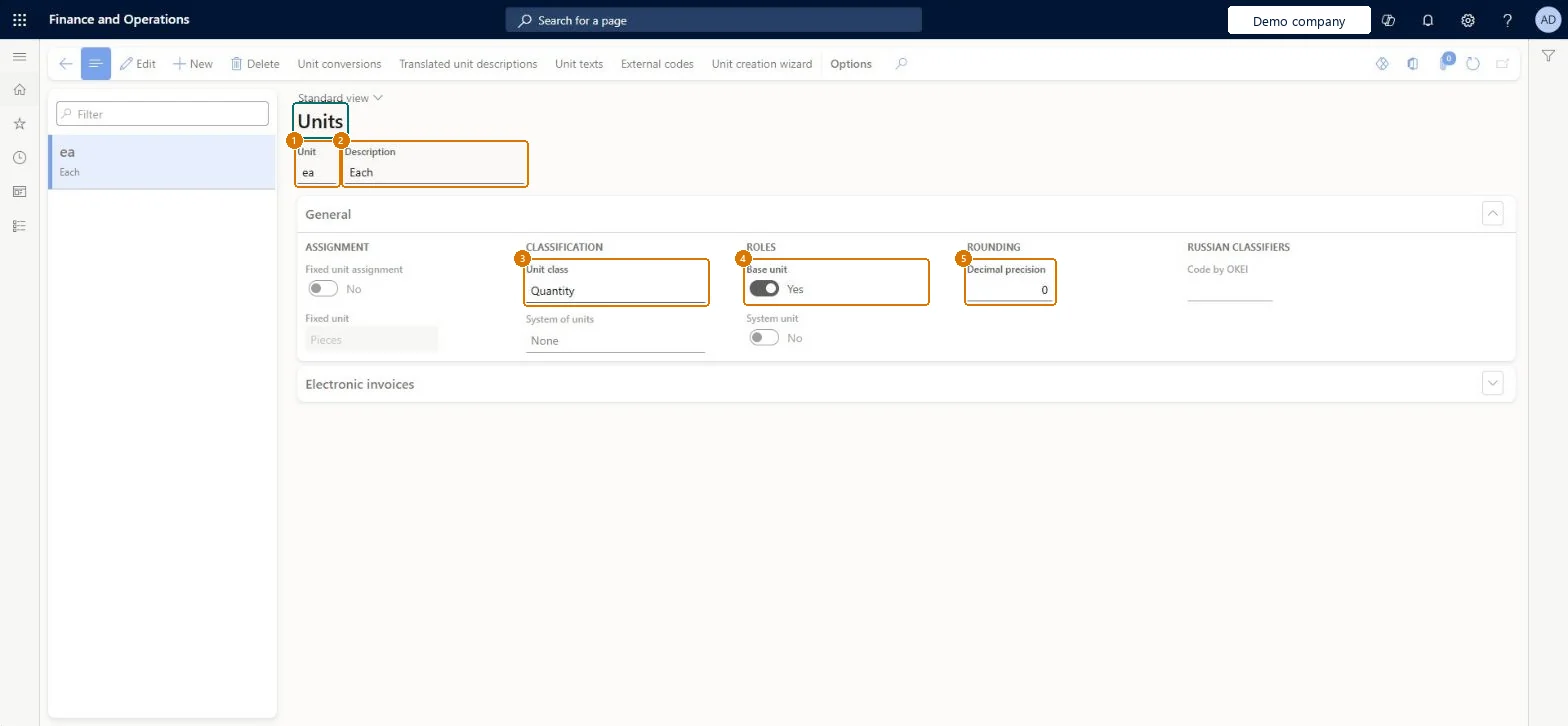
1Unit
ea
2Description
Each
3Unit class
Quantity
4Base unit
Yes
5Decimal precision
0
Show the full screen page title tab to open what to set or check
Steps from Microsoft
Go to Organization administration > Setup > Units > Units.
Select New on the Action Pane, or select an existing unit to edit it.
In the Unit field, enter the ID or symbol, such as ea or cm.
In the Description field, enter the full name, such as Each.
On the General FastTab, select the Unit class and the System of units.
Set Base unit and System unit as needed, and enter the Decimal precision.
Run the Unit creation wizard for the metric and/or US customary system, then set one Base unit and one System unit per unit classThe wizard creates the common units and conversions. One base unit per class means you only need conversions to the base unit; the system unit is used where no unit is given.
Setting Decimal precision too low on a unit: values entered in or converted to that unit are rounded to that number of decimals.
Solution architect
5Design impact
Can it be undone
Hard to reverse: Units are shared master data used by products and documents. Once in use, changing a unit's class or precision affects every product and conversion that uses it.
Technical architect
6Technical
Menu item
UnitOfMeasureChecked in Dynamics 365
Form
UnitOfMeasureChecked in Dynamics 365
Table
UnitOfMeasureShown as “Units” in Record infoKey field: SymbolChecked in Dynamics 365
PrivilegesMaintain units UnitOfMeasureMaintainView units UnitOfMeasureViewDutiesInquire into units of measurement master UnitOfMeasureMasterInquireMaintain unit of measure master UnitOfMeasureMasterMaintain6 security rolesProduct designer BOMProductDesignerProduct design manager BOMProductDesignManagerMaterials manager InventMaterialsManagerProcess engineer RouteProcessEngineerProcess engineering manager RouteProcessEngineeringManagerWarehouse manager WMSWarehouseManagerChecked in Dynamics 365
Roles to set it up and use it
To set it up or change itProcess engineer RouteProcessEngineerMaterials manager InventMaterialsManagerProduct designer BOMProductDesignerTo use itProcess engineering manager RouteProcessEngineeringManagerProduct design manager BOMProductDesignManagerWarehouse manager WMSWarehouseManagerGive people one of these roles. On this system, 6 roles can open this page.Checked in Dynamics 365
Actions on the page
Options: Personalize, Page options, ShareChecked in Dynamics 365
Checked in a working Dynamics 365 system, version 10.0.49: the menu item, form, table and security, the page, the demo records and the values in the screenshots.
To cite this step: OA-SETUP-250, Set up Units. Beyond ERP Atlas Hub, 2026-11-11. https://www.beyonderp.cloud/atlas/step/OA-SETUP-250