BeyondERP.Newsletter
Menu

Setup page · Organization administration

Unit conversions

A setup page where you define the rules for converting a unit of measure to and from other units.

Used by
Product designer, Product design manager, Materials manager and 3 more roles
Business process
Administer system features
Menu item
UnitOfMeasureConversion
Main table
UnitOfMeasureConversion
Data entity
UnitOfMeasureConversionEntity
Setup steps
1 on this page
Show what matters for
PAGE GUIDEWhat the page does and how to use it8 sections. Choose a role to highlight what matters to you.
Everyone

1What it is and why

What it isA setup page where you define the rules for converting a unit of measure to and from other units.
What you do hereUse this page to set standard conversions for all products and product-specific conversions within a unit class or across unit classes.
ExampleFor example, for a unit group with pieces, boxes and pallets, you might define 10 pieces = 1 box and 100 pieces = 1 pallet.
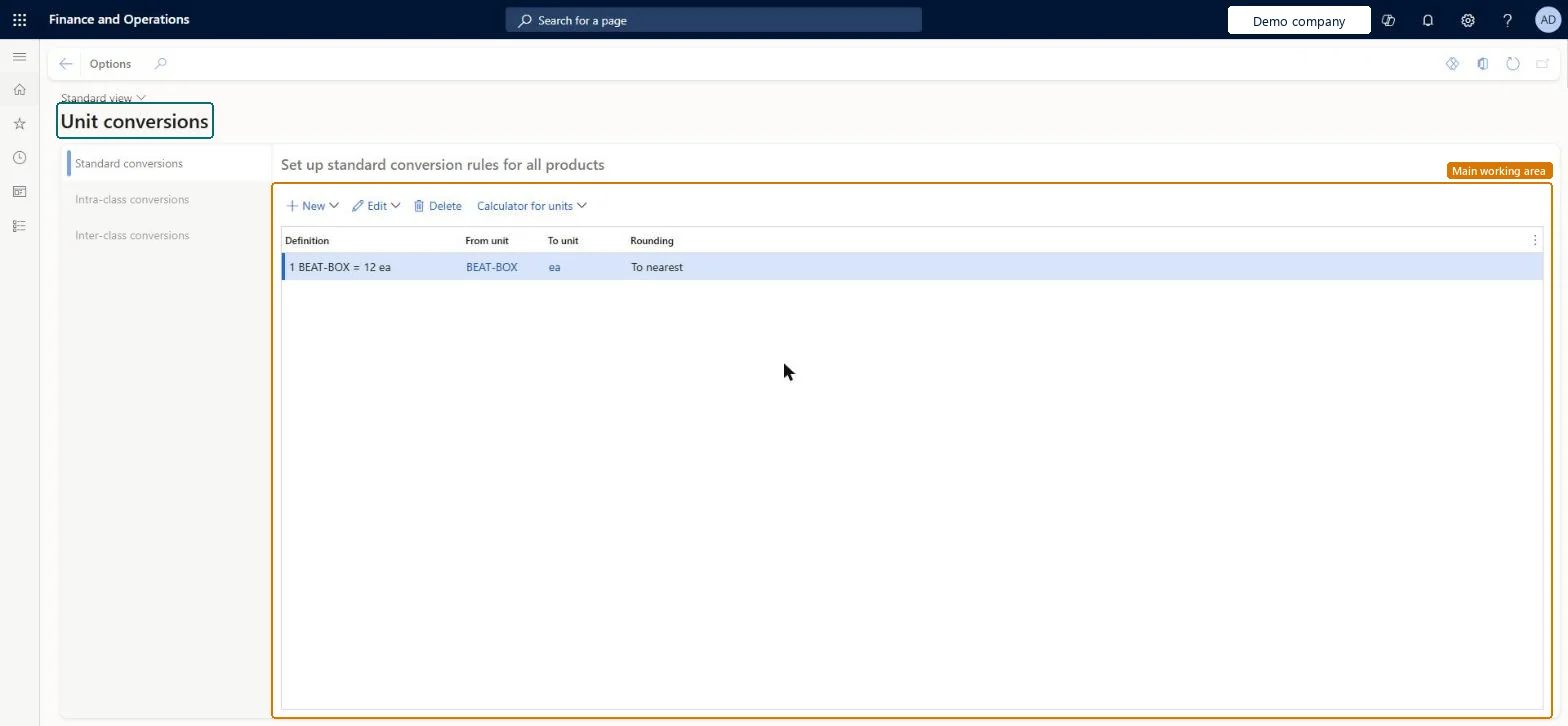
Unit conversions page in Dynamics 365
The page in Dynamics 365. page title tab to open what to set or check
Functional consultant · Solution architect

2Where it fits

Business processAdminister system features
Menu pathOrganization administration › Setup › Units › Unit conversions
Set up firstUnits Microsoft Learn Set up Units
Used next bySales tax codes Microsoft Learn
End user · Functional consultant

3How to do it

About the examples: Examples and screenshots in this guide use BEAT, a demo company in a Dynamics 365 test environment. Use your own company's codes and values instead of copying them.

Setup steps on this page

Set up Unit conversions

Use this page to set standard conversions for all products and product-specific conversions within a unit class or across unit classes.

Steps from Microsoft

  1. Go to Organization administration > Setup > Units > Unit conversions, or select Unit conversions on the Units page.
  2. Select the Standard conversions, Intra-class conversions or Inter-class conversions tab.
  3. Select New, or select a conversion and then select Edit.
  4. For a product-specific conversion, select the product.
  5. Leave Formula layout set to Simple for a single factor, or select Advanced for a more complex formula.
  6. Select the To unit and the Rounding method.
  7. Enter the conversion formula, and then select OK.

Source: Microsoft Learn

Fields on the page

FieldWhat it means
ProductThe product that a product-specific conversion applies to. Used only for intra-class and inter-class conversions.Microsoft Learn
Formula layoutSimple uses a single factor. Advanced lets you set up a more complex formula.Microsoft Learn
From unitThe unit you are converting from. Usually you don't change it.Microsoft Learn
To unitThe unit you are converting to.Microsoft Learn
RoundingHow fractions are rounded (To nearest, Up or Down), based on the decimal precision of the unit.Microsoft Learn
Create conversion forProduct sets a conversion for the product master that acts as a fallback. Product variant sets one for a single variant.Microsoft Learn

Test checklist

  1. Set gallon as base unit for Volume and add standard conversions quart to gallon and pint to gallon.
  2. Check a quantity in quarts converts to pints without a direct quart-to-pint rule.
  3. Add an inter-class conversion for one product (for example ea to kg).
  4. Enter a sales line for that product in ea and check the weight in kg.

Source: Microsoft Learn

Functional consultant

4Setup decisions

Setup stepRecommended value and whyDecision, common mistake and test
Set up Unit conversionsStandard conversions for all products between each unit and its class base unit; intra-class or inter-class conversions only for products that need them (for example each to kilogram)With a base unit per class, you only need a factor from each unit to the base unit and the system converts between the others. Product-specific conversions are set on the Intra-class and Inter-class tabs.Choosing the wrong Rounding: rounding uses the Decimal precision of the To unit, so a coarse precision with Up or Down rounding can distort quantities.
Solution architect

5Design impact

Can it be undoneReversible: Edit or add a conversion at any time; it applies to conversions done after the change. Quantities already converted on documents are not recalculated. Microsoft Learn
Technical architect

6Technical

Menu itemUnitOfMeasureConversion Checked in Dynamics 365
FormUnitOfMeasureConversion Checked in Dynamics 365
TableUnitOfMeasureConversionShown as “Unit conversions” in Record infoChecked in Dynamics 365
Data entitiesUnitOfMeasureConversionEntityUnit conversions Microsoft data model
Who can open itPrivilegesMaintain conversions for units UnitOfMeasureConversionMaintainView unit conversions UnitOfMeasureConversionViewDutiesInquire into units of measurement master UnitOfMeasureMasterInquireMaintain unit of measure master UnitOfMeasureMasterMaintain
6 security rolesProduct designer BOMProductDesignerProduct design manager BOMProductDesignManagerMaterials manager InventMaterialsManagerProcess engineer RouteProcessEngineerProcess engineering manager RouteProcessEngineeringManagerWarehouse manager WMSWarehouseManager
Checked in Dynamics 365
Roles to set it up and use itTo set it up or change itProcess engineer RouteProcessEngineerMaterials manager InventMaterialsManagerProduct designer BOMProductDesignerTo use itProcess engineering manager RouteProcessEngineeringManagerProduct design manager BOMProductDesignManagerWarehouse manager WMSWarehouseManagerGive people one of these roles. On this system, 6 roles can open this page.Checked in Dynamics 365
Actions on the pageOptions: Personalize, Page options, ShareChecked in Dynamics 365
Developer

7Developer

Open it by URLhttps://<your-environment>/?mi=UnitOfMeasureConversion
Integrate withUnitOfMeasureConversionEntity data entity Microsoft data model
Everyone

8Sources