About the examples: Examples and screenshots in this guide use BEAT, a demo company in a Dynamics 365 test environment. Use your own company's codes and values instead of copying them.
Step by step, with screenshots
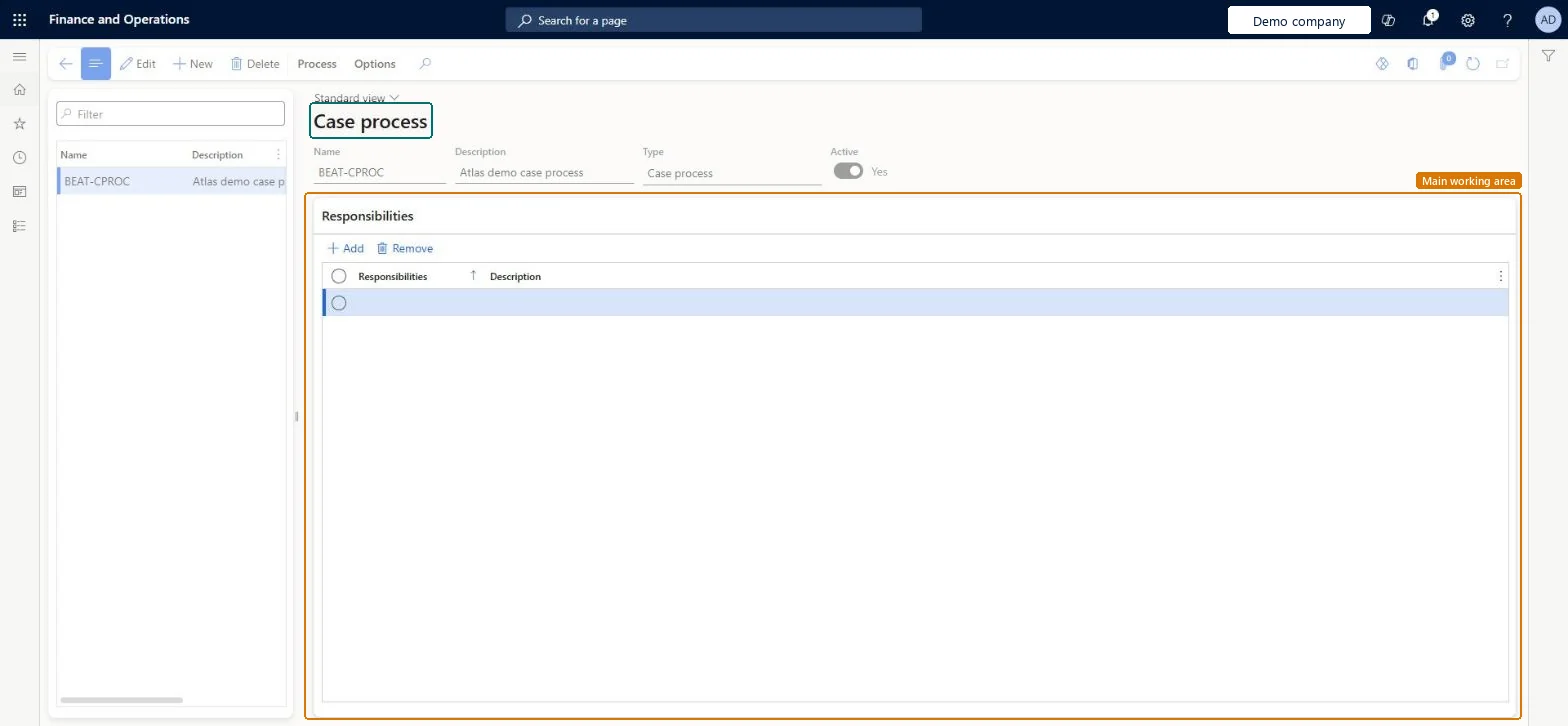
Set up Case processes1 screen
Use this page to create a process for each case category, with its levels, activities and the people responsible for them.
Screen 1
Create a case process
Go to Organization administration > Setup > Cases > Case processes
Select New
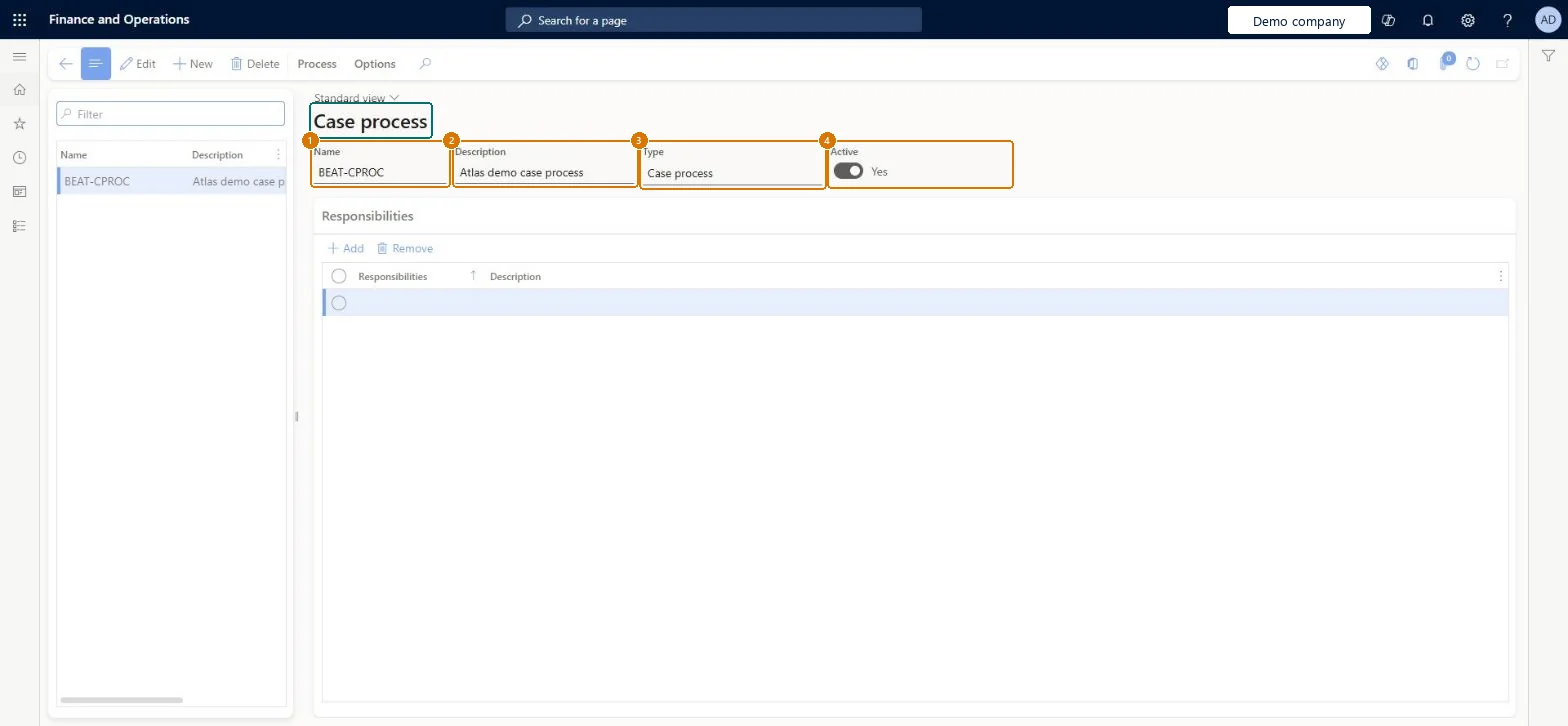
Enter the name and description; the type is set to Case process
Leave Active set to Yes
Select Save
1Name
BEAT-CPROC
2Description
Case process
3Type
Case process
4Active
Yes
Show the full screen page title tab to open what to set or check
Steps from Microsoft
Go to Organization administration > Setup > Cases > Case processes.
Select New, or copy an existing process by using Copy from.
Enter a name and description, and select the process type.
Use Actions to add a level or an activity to the process.
On the General FastTab, select the Responsibility and Responsible worker, and add any notes.
On the Responsibilities FastTab, add or remove the responsibility types involved.
For a child process, on the Exit criteria FastTab, choose whether to check for required activities.
Optionally, save the process as a template by using Save as template.
One active process for each case category that you assign cases to, with the responsible areas namedMicrosoft advises a process for each case category, because planned processes keep case handling consistent and help employees resolve cases faster.
Solution architect
5Design impact
Can it be undone
Reversible: Use the Active setting to stop employees using a process on cases it's assigned to, without deleting it.
Technical architect
6Technical
Menu item
CaseProcessDefinitionChecked in Dynamics 365
Form
HierarchyChecked in Dynamics 365
Table
HierarchyShown as “Hierarchies” in Record infoKey field: HierarchyId, NameChecked in Dynamics 365
Who can open it
PrivilegesMaintain case processes CaseProcessDefinitionMaintainView case process CaseProcessDefinitionViewDutiesEnable case management CaseCaseManagementEnableInquire into case management policies CaseCaseManagementPolicyInquire10 security rolesProduct design manager BOMProductDesignManagerCaseCategorySetupTestRoleCollections manager CollectionLetterCollectionsManagerHuman resource assistant HcmHumanResourceAssistantProject manager ProjProjectManagerProcess engineering manager RouteProcessEngineeringManagerService delivery manager SMAServiceDeliveryManagerCustomer service manager TradeCustomerServiceManagerPurchasing manager TradePurchasingManagerSales manager TradeSalesManagerChecked in Dynamics 365
Roles to set it up and use it
To set it up or change itProject manager ProjProjectManagerHuman resource assistant HcmHumanResourceAssistantCollections manager CollectionLetterCollectionsManagerSales manager TradeSalesManagerCustomer service manager TradeCustomerServiceManagerGive people one of these roles. On this system, 9 roles can open this page.Checked in Dynamics 365
Actions on the page
Process: View, InquiryOptions: Personalize, Page options, ShareChecked in Dynamics 365
Checked in a working Dynamics 365 system, version 10.0.49: the menu item, form, table and security, the page, the demo records and the values in the screenshots.
To cite this step: OA-SETUP-120, Set up Case processes. Beyond ERP Atlas Hub, 2026-11-11. https://www.beyonderp.cloud/atlas/step/OA-SETUP-120