About the examples: Examples and screenshots in this guide use BEAT, a demo company in a Dynamics 365 test environment. Use your own company's codes and values instead of copying them.
Step by step, with screenshots
Set up Office app parameters1 screen
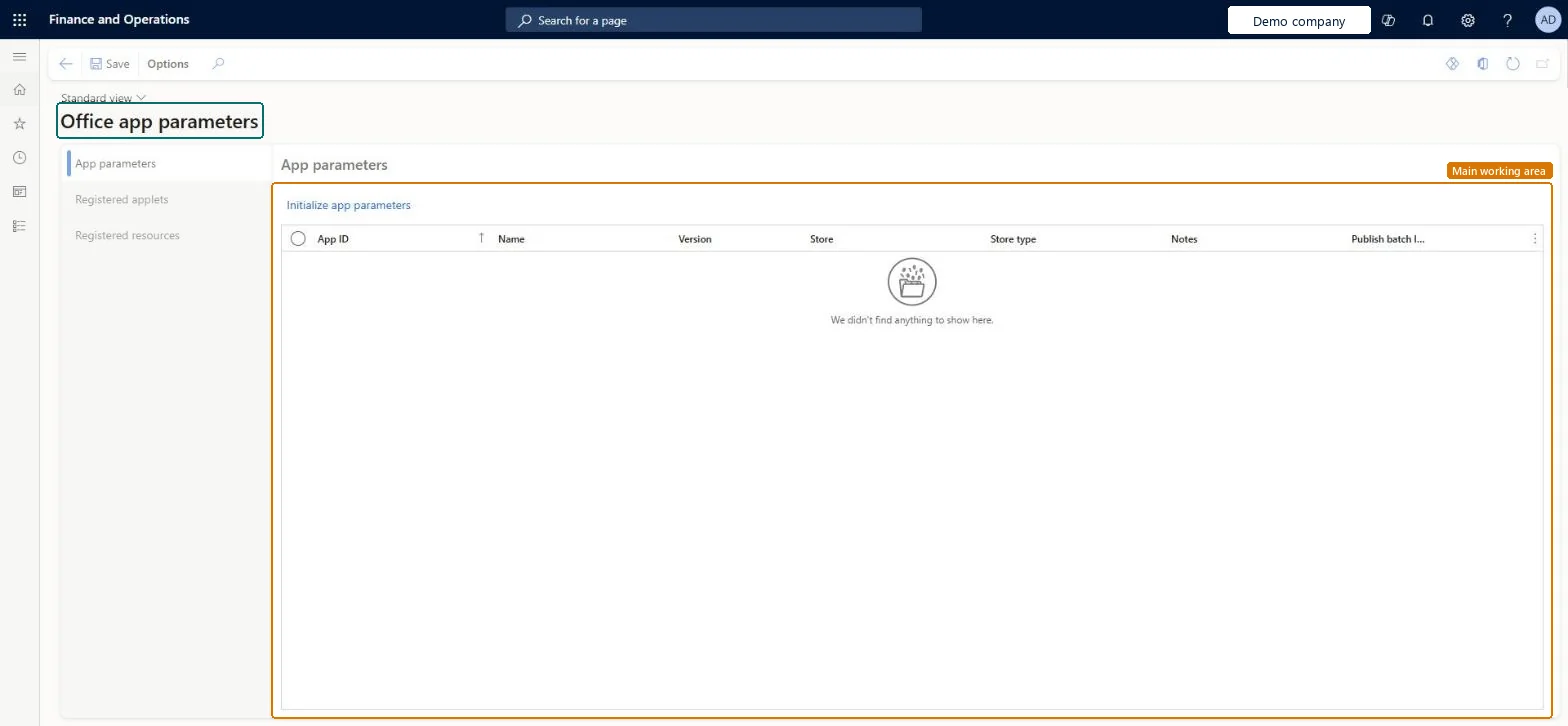
Use this page to control how the Excel and Word add-ins are loaded and how many rows are published from Excel at a time.
Screen 1
Review the Office app parameters
Go to System administration > Setup > Office app parameters
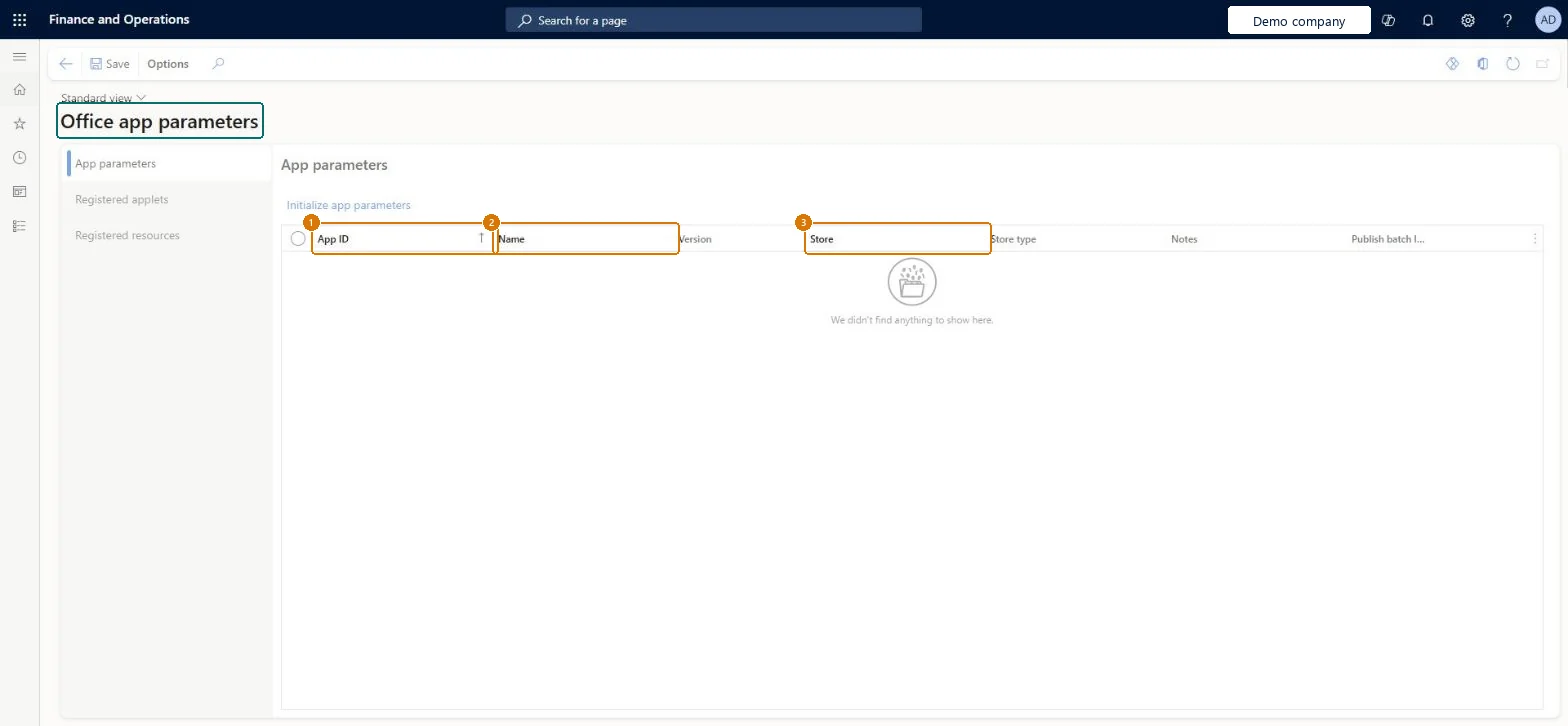
Open the App parameters tab and review the apps listed
Open the Registered applets and Registered resources tabs to review what is registered
Change the number of rows published from Excel at a time only when needed
Show the full screen page title tab to open what to set or check
How to use it
Go to System administration > Setup > Office app parameters.
On the App parameters tab, select Initialize app parameters.
Review the App ID, Name, Version, Store, Store type, Notes and Publish batch columns.
Select Registered applets or Registered resources to see those lists.
Select Save.
Source: Checked in Dynamics 365
Fields on the page
Field
What it means
Example
Table column
Publish batch limit
The most rows an Open in Excel workbook publishes in one batch, for all users.Microsoft Learn
100
DataPublishBatchLimit
Common errors and fixes
Message
What to do
Users get time-outs when publishing from Excel
Lower Publish batch limit; users can also set a smaller size per workbook in the add-in options, but not above the system limit. Microsoft Learn
Test checklist
Set Publish batch limit on the App parameters section.
Open a list page in Excel with Open in Excel, change more rows than the limit, and select Publish.
Check all rows publish without a time-out.
In the add-in options, try a Publish batch size above the system limit and check it isn't accepted.
Keep Publish batch limit at 100 (the default and maximum); lower it only if users get time-outs when publishing from ExcelExcel add-in updates are published in batches of up to 100 rows. The Publish batch limit sets a system-wide cap; users can set a lower size per workbook.
Allow configuration of the publish batch size in the Excel add-in (Optional)
Licence or add-in
On this system the page opens for Information technology manager and Chief executive officer. IT administrators maintain it. The publish batch size needs the optional feature Allow configuration of the publish batch size in the Excel add-in.
Reversible: Values can be changed at any time. Microsoft documents the standard Office Store values (App ID WA104379629, Store en-US, Store Type Office Store) to switch back.
If you change it later
The App ID, Store and Store Type values are also used by the Word add-in when it runs from the Document templates page. Microsoft Learn
Technical architect
6Technical
Menu item
OfficeAppParametersPageChecked in Dynamics 365
Form
OfficeAppParametersChecked in Dynamics 365
Table
OfficeAppParametersChecked in Dynamics 365
Who can open it
PrivilegesMaintain system parameters SystemParametersMaintainView system parameters SystemParametersViewDutiesMaintain system parameters master SystemParametersMasterMaintainInquire into system parameters master SystemParametersMasterView2 security rolesChief executive officer CompanyChiefExecutiveOfficerInformation technology manager SysServerITManagerChecked in Dynamics 365
Roles to set it up and use it
To set it up or change itInformation technology manager SysServerITManagerTo use itChief executive officer CompanyChiefExecutiveOfficerGive people one of these roles. On this system, 2 roles can open this page.Checked in Dynamics 365
Actions on the page
Options: Personalize, Page options, Edit, ShareChecked in Dynamics 365
Load order: Office app parameters has no data entity in Data management, so it can't be loaded from a file or a configuration template. Select Initialize app parameters and set the values by hand in each environment.Checked in Dynamics 365
Checked in a working Dynamics 365 system, version 10.0.49: the menu item, form, table and security, the page, the demo records and the values in the screenshots.
To cite this step: SA-SETUP-120, Set up Office app parameters. Beyond ERP Atlas Hub, 2026-11-11. https://www.beyonderp.cloud/atlas/step/SA-SETUP-120