SETUP GUIDEHow to set it up8 sections. Choose a role to highlight what matters to you.
Everyone
1What it is and why
What it is
A setup page where you create Gantt chart setups for chosen resources and resource groups.
What you do here
Use this page to keep separate Gantt chart setups for different sets of resources and to open the Gantt chart from each one.
Example
For example, a planner who controls production for one set of machines can keep a separate setup for those resources and open their Gantt chart from it.
The page in Dynamics 365. page title tab to open what to set or check
About the examples: Examples and screenshots in this guide use BEAT, a demo company in a Dynamics 365 test environment. Use your own company's codes and values instead of copying them.
Step by step, with screenshots
Set up Gantt charts1 screen
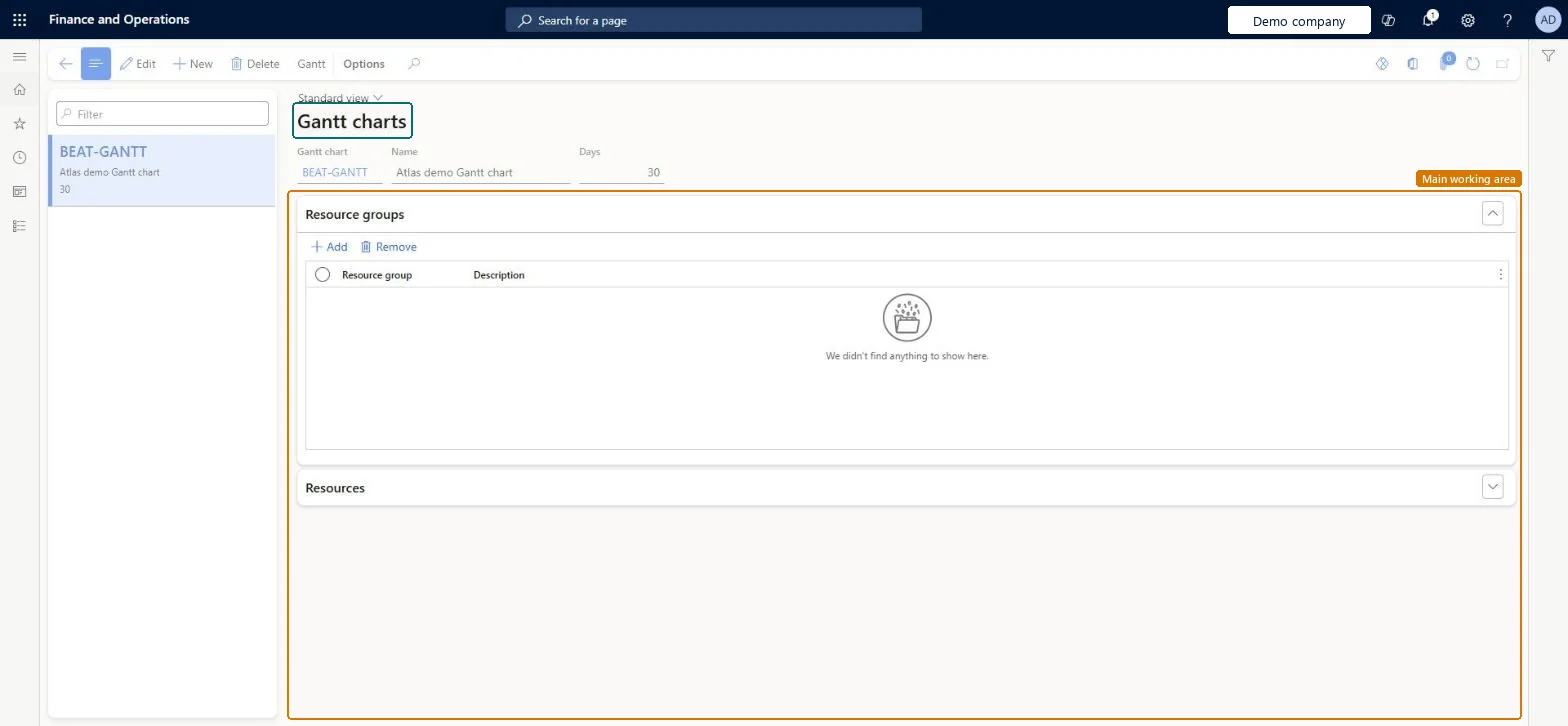
Use this page to keep separate Gantt chart setups for different sets of resources and to open the Gantt chart from each one.
Screen 1
Create a Gantt chart setup
Go to Organization administration > Resources > Gantt charts
Select New
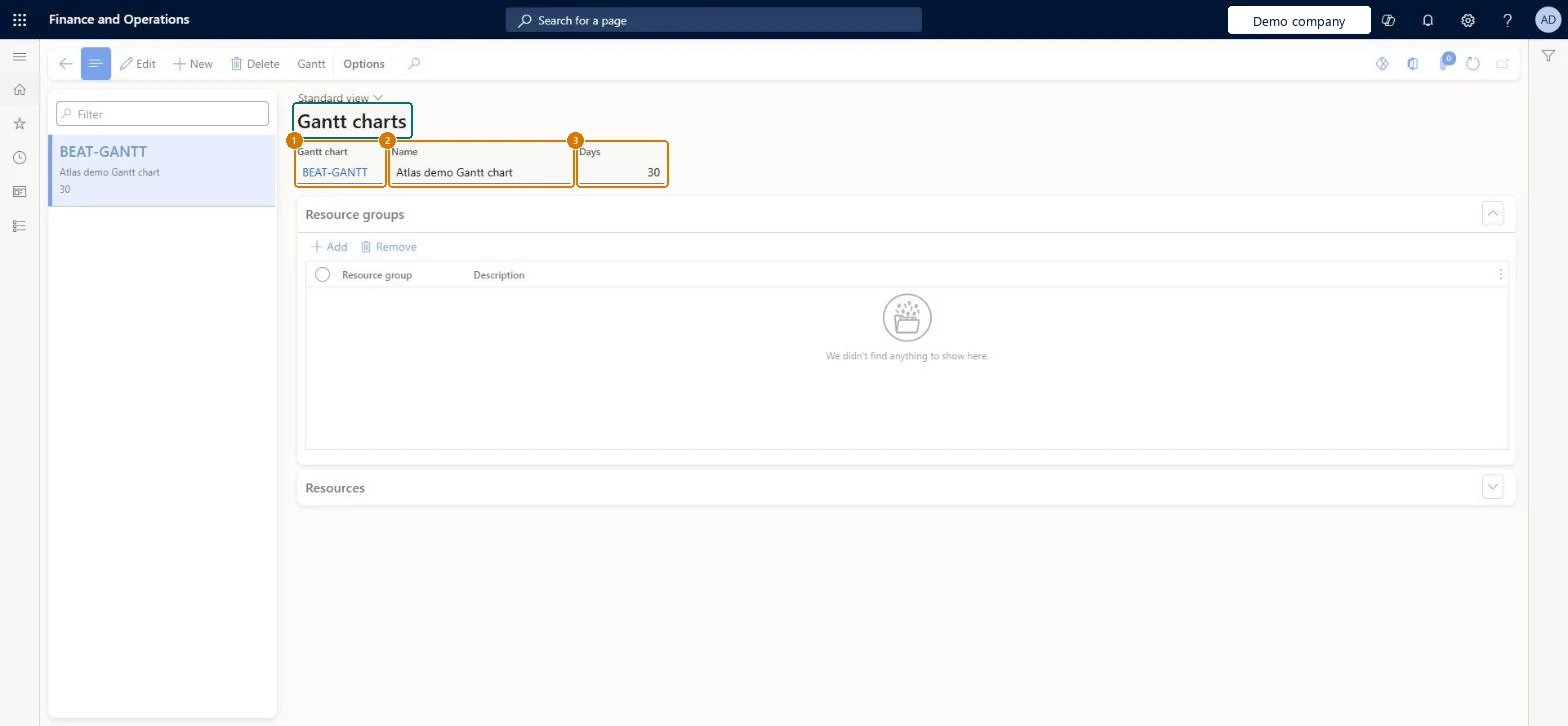
Enter the Gantt chart ID, name and number of days to show
Select Save
Add resource groups or resources when the chart should show them
1Gantt chart
BEAT-GANTT
2Name
Gantt chart
3Days
30
Show the full screen page title tab to open what to set or check
How to use it
Go to Organization administration > Resources > Gantt charts.
Select New to add a Gantt chart.
Enter the Gantt chart code, a Name and the number of Days.
In the Resource groups section, select Add to choose resource groups, or Remove to take one out.
Open the Resources section to work with the individual resources.
Select Gantt on the Action Pane to open the Gantt chart.
Source: Checked in Dynamics 365
Fields on the page
Field
What it means
Example
Table column
Gantt chart
Production
GanttSchedId
Name
The name of the Gantt chart setup.Checked in Dynamics 365
Gantt chart
Name
Days
30
TimeFence
Common errors and fixes
Message
What to do
Could not schedule the job within the loaded time period.
Widen the chart's start and end dates so the target date is inside the loaded interval, then schedule the job again. Microsoft Learn
Test checklist
Create a Gantt chart setup with the resources of one work cell.
Open the Gantt chart from the setup and switch to Resource view.
Turn on Show capacity bar and check overbooked periods show in red.
Drag a job on the same resource and check its scheduled start changes.
One Gantt chart setup per set of resources or resource groups that a planner controls.Learn describes the Gantt charts page for keeping individual configurations for specific sets of resources or resource groups and opening the chart from each one.
Loading too short a time interval: a job can't be scheduled outside the loaded interval and is left unscheduled.
Reversible: A setup only decides which resources are loaded; it can be changed at any time.
Technical architect
6Technical
Menu item
GanttTableChecked in Dynamics 365
Form
GanttTableChecked in Dynamics 365
Table
GanttTableShown as “Gantt table” in Record infoKey field: GanttSchedId, NameChecked in Dynamics 365
Roles to set it up and use it
To set it up or change itProduction supervisor ProdProductionSupervisorProduction planner ReqProductionPlannerBuying agent TradeBuyingAgentSales clerk TradeSalesClerkTo use itProduction manager ProdProductionManagerProject manager ProjProjectManagerSales manager TradeSalesManagerService delivery manager SMAServiceDeliveryManagerMaterials manager InventMaterialsManagerGive people one of these roles. On this system, 14 roles can open this page.Checked in Dynamics 365
Actions on the page
Options: Personalize, Page options, ShareChecked in Dynamics 365
Checked in a working Dynamics 365 system, version 10.0.49: the menu item, form, table and security, the page, the demo records and the values in the screenshots.
To cite this step: OA-RES-010, Set up Gantt charts. Beyond ERP Atlas Hub, 2026-11-11. https://www.beyonderp.cloud/atlas/step/OA-RES-010