About the examples: Examples and screenshots in this guide use BEAT, a demo company in a Dynamics 365 test environment. Use your own company's codes and values instead of copying them.
Step by step, with screenshots
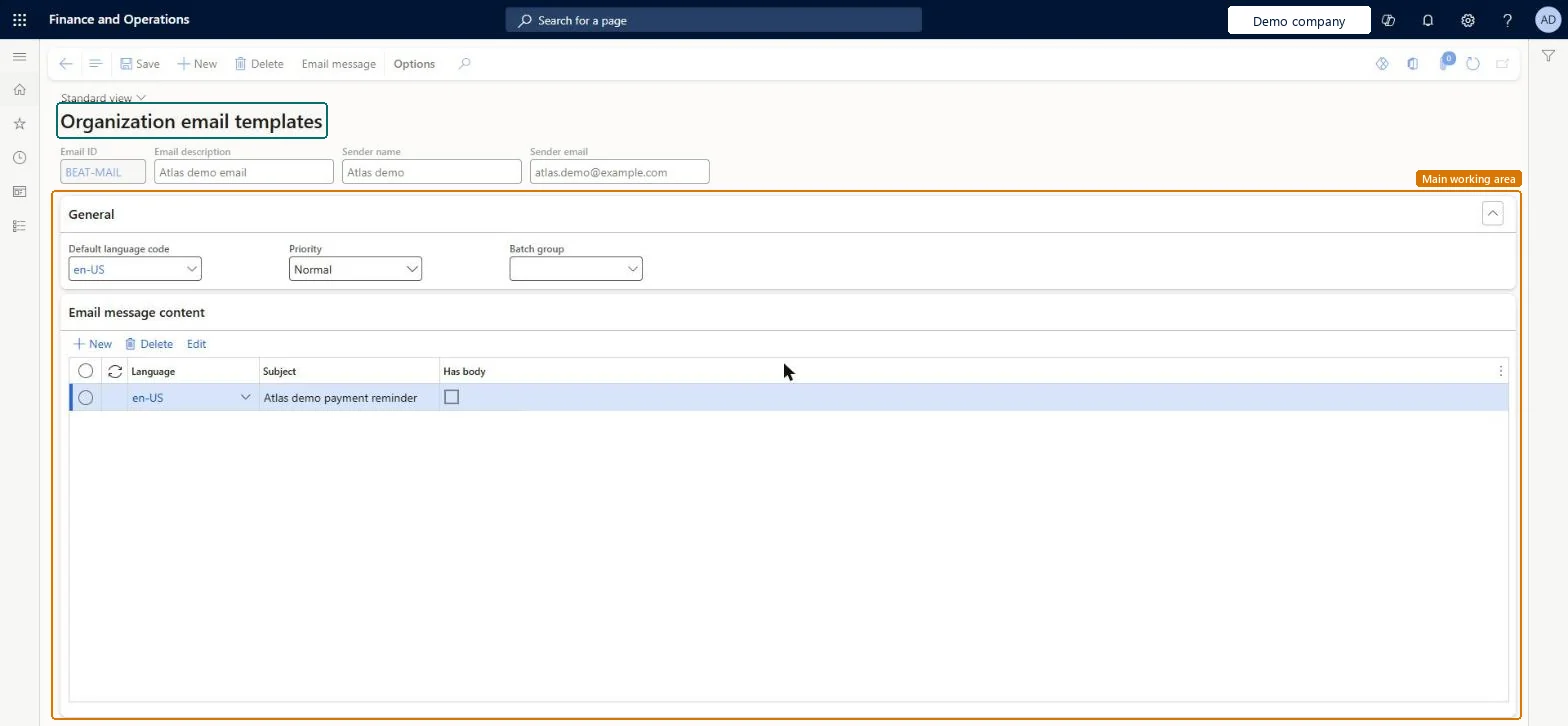
Set up Organization email templates1 screen
Use this page to set up the email templates that company-specific workflows and Commerce transactional emails use.
Screen 1
Create an email template
Go to Organization administration > Setup > Organization email templates
Select New
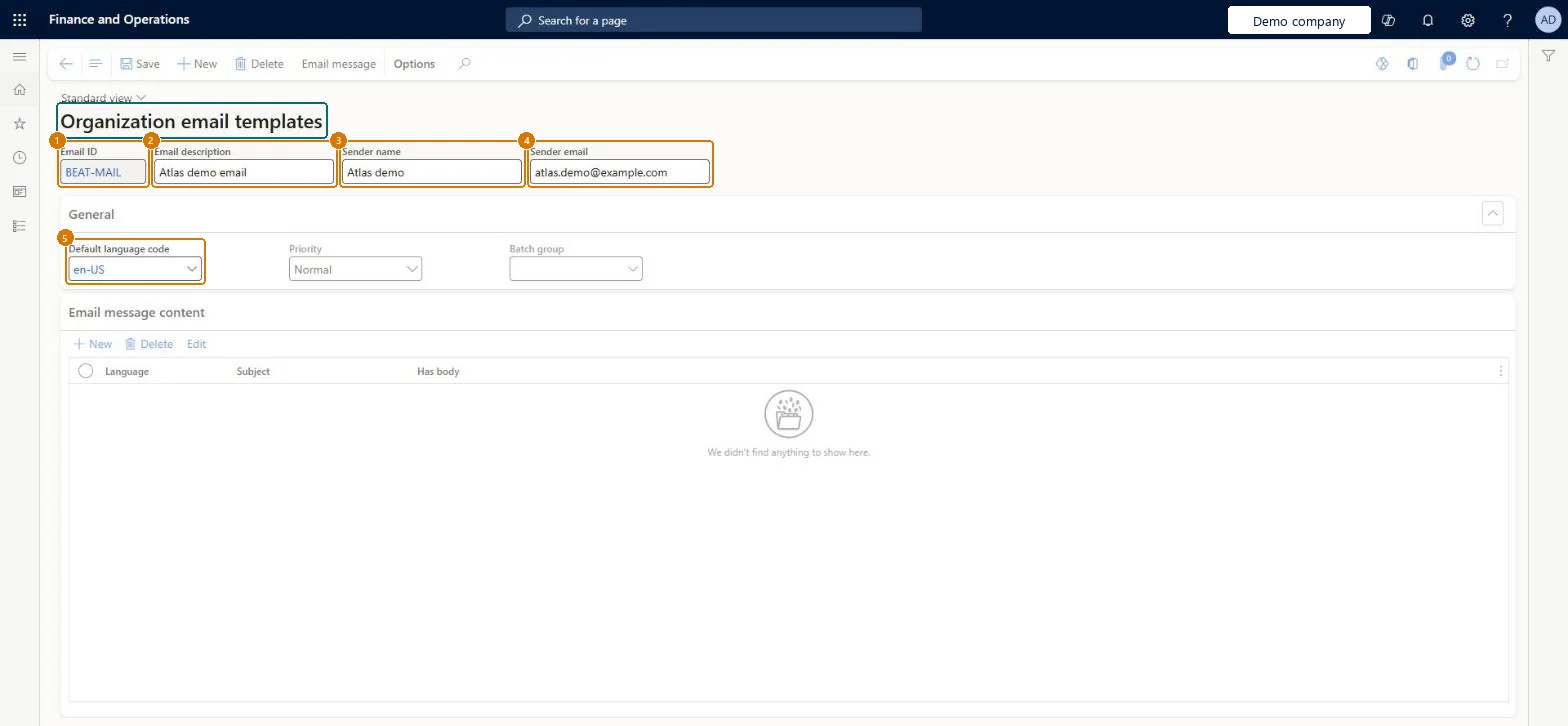
Enter the email ID, description, sender name and sender email
Select the default language code
Select Save
Add the message content for each language under Email message content
1Email ID
BEAT-MAIL
2Email description
Email
3Sender name
Customer service
4Sender email
sales@example.com
5Default language code
en-US
Show the full screen page title tab to open what to set or check
Steps from Microsoft
Go to Organization administration > Setup > Organization email templates.
Select New.
Under General, enter the Email ID and, optionally, an Email description.
Client does not have permissions to send as this sender
Give the SMTP account Send As permission for the sender address used on the template, or change the Sender email to an address it can send as. Microsoft Learn
Test checklist
Check that the Email distributor batch is running (System administration > Periodic tasks > Email processing > Email distributor batch).
Assign the template to a company-specific workflow and turn on a notification event for a test user whose User options send workflow notifications by email.
Submit a document to the workflow and check the workflow history shows the work item assigned to that user.
Check Batch email sending status shows the email from the template's Sender email, then check Email history has no Failed entry.
Check the email arrives with the template's subject and body.
A valid Sender email on every template that company-specific workflows useCompany-specific (organization-level) workflows take their notification emails from these templates, and Microsoft's workflow email setup asks you to check that the Sender email field is set and valid.
With SMTP, the sender address on the template must be one the SMTP account can Send As. If it isn't, emails fail with "Client does not have permissions to send as this sender".Test: Workflow notification uses the organization email template
Reversible: You can edit a template at any time. Only emails generated after the change use the new content; emails already sent stay on the Email history page.
Technical architect
6Technical
Menu item
SysEmailTableChecked in Dynamics 365
Form
SysEmailTableChecked in Dynamics 365
Table
SysEmailTableShown as “Emails” in Record infoKey field: EmailId, Description, DefaultLanguage, SenderName, SenderAddrChecked in Dynamics 365
PrivilegesMaintain email templates SysEmailTableMaintainView email templates SysEmailTableViewChecked in Dynamics 365
Roles to set it up and use it
To set it up or change itMaintain email templates SysEmailTableMaintainTo use itView email templates SysEmailTableViewGive people a role that holds these privileges. On this system, 0 roles give access to this page.Checked in Dynamics 365
Actions on the page
Options: Personalize, Page options, Edit, ShareChecked in Dynamics 365
EmailTemplateOrganizationEntity (Organization email template): loaded for each company, in Microsoft's default template 025 - General ledger.Load order: Microsoft's default template 025 - General ledger loads Organization email template at execution unit 1, level 25, sequence 10. Lower levels load first, and entities at the same level load in sequence order.Load first: the default templates at lower levels (System setup to Workflow)Microsoft Learn
Checked in a working Dynamics 365 system, version 10.0.49: the menu item, form, table and security, the page, the demo records and the values in the screenshots.
To cite this step: OA-SETUP-010, Set up Organization email templates. Beyond ERP Atlas Hub, 2026-11-11. https://www.beyonderp.cloud/atlas/step/OA-SETUP-010