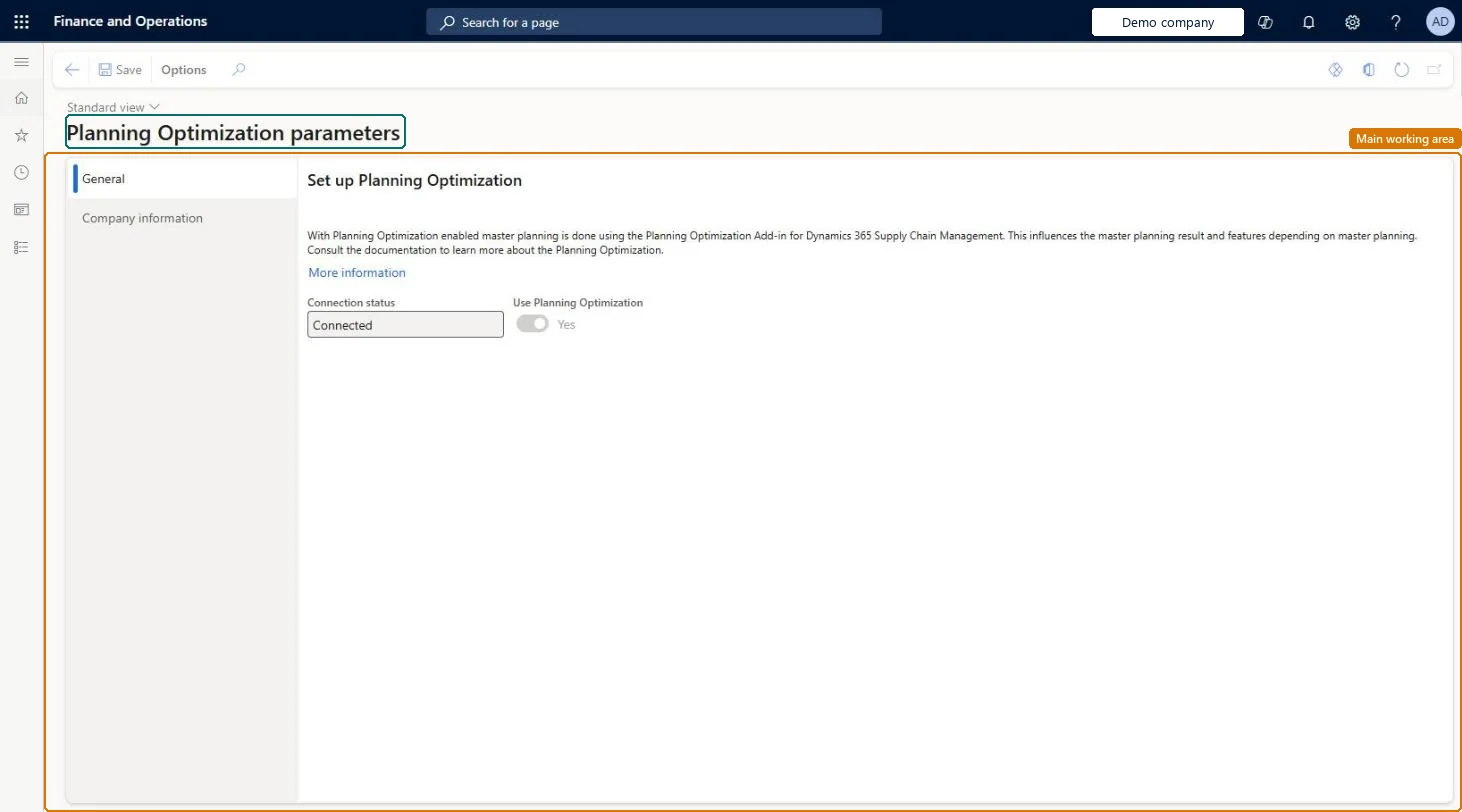
Setup step on the Planning Optimization parameters page · Master planning
Set up Planning Optimization parameters
Use this page to check the connection to Planning Optimization after the add-in is installed, and, for companies that Microsoft allows to keep the deprecated engine, to exclude a company from Planning Optimization.
SETUP GUIDEHow to set it up8 sections. Choose a role to highlight what matters to you.
Everyone
1What it is and why
What it is
A setup page that shows whether Supply Chain Management is connected to the Planning Optimization service and whether master planning uses it.
What you do here
Use this page to check the connection to Planning Optimization after the add-in is installed, and, for companies that Microsoft allows to keep the deprecated engine, to exclude a company from Planning Optimization.
Example
For example, after the Planning Optimization Add-in is installed from Lifecycle Services, an administrator opens this page to confirm that the Connection status is Connected.
The page in Dynamics 365. page title tab to open what to set or check
About the examples: Examples and screenshots in this guide use BEAT, a demo company in a Dynamics 365 test environment. Use your own company's codes and values instead of copying them.
Setup steps on this page
Set up Planning Optimization parameters
Use this page to check the connection to Planning Optimization after the add-in is installed, and, for companies that Microsoft allows to keep the deprecated engine, to exclude a company from Planning Optimization.
Steps from Microsoft
Go to Master planning > Setup > Planning Optimization parameters.
Open the General tab.
Check that the Connection status is Connected.
Check that the Use Planning Optimization option is set to Yes.
Connection status Connected, with Use Planning Optimization = YesLearn states Planning Optimization is the master planning engine; when connected, Use Planning Optimization is read-only Yes.
Keeping batch jobs created for the deprecated master planning engine. They fail when triggered while Use Planning Optimization is Yes.
Feature management and licence
Licence or add-in
Configuration key Planning Optimization and the Planning Optimization Add-in installed from Lifecycle Services; no extra licence beyond Supply Chain Management
One-way: Warning: once the connection is Connected, Use Planning Optimization is read-only and set to Yes; it can't be turned off. Only Microsoft Support can make the deprecated engine available for specific companies.
If you change it later
While Use Planning Optimization is Yes, planning batch jobs created for the deprecated master planning engine fail when they run. Microsoft Learn
Technical architect
6Technical
Menu item
MpsIntegrationParametersChecked in Dynamics 365
Form
MpsIntegrationParametersChecked in Dynamics 365
Table
MpsIntegrationParametersShown as “PLANNING OPTIMIZATION INTEGRATION PARAMETERS” in Record infoChecked in Dynamics 365
Who can open it
PrivilegesGrants access to the forms and controls related to the setup of the Planning Optimization MpsMasterPlanningServiceSetupDutiesGrants access to the forms and controls related to the setup of the Planning Optimization MpsMasterPlanningServiceMaintain1 security roleProduction planner ReqProductionPlannerChecked in Dynamics 365
Roles to set it up and use it
To set it up or change itProduction planner ReqProductionPlannerGive people one of these roles. On this system, 1 role can open this page.Checked in Dynamics 365
Checked in a working Dynamics 365 system, version 10.0.49: the menu item, form, table and security, the page.
To cite this step: MP-SETUP-060, Set up Planning Optimization parameters. Beyond ERP Atlas Hub, 2026-11-11. https://www.beyonderp.cloud/atlas/step/MP-SETUP-060