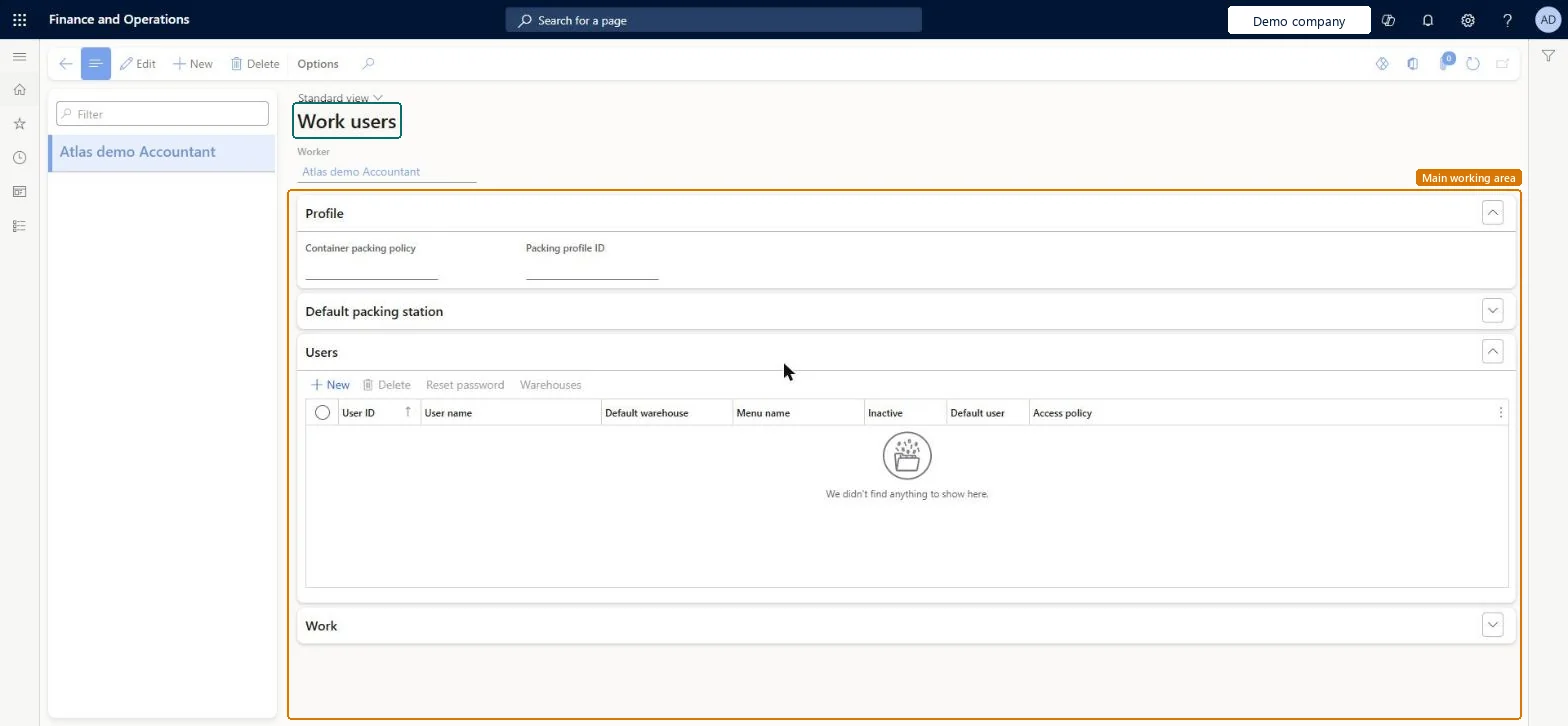
A details page, titled Work users, where you set up a warehouse worker and the mobile device user accounts that the worker uses to sign in to the Warehouse Management mobile app.
PAGE GUIDEWhat the page does and how to use it8 sections. Choose a role to highlight what matters to you.
Everyone
1What it is and why
What it is
A details page, titled Work users, where you set up a warehouse worker and the mobile device user accounts that the worker uses to sign in to the Warehouse Management mobile app.
What you do here
Use this page to link a worker from Human resources to one or more mobile device user accounts and to set the packing and work options for them.
The page in Dynamics 365. page title tab to open what to set or check
About the examples: Examples and screenshots in this guide use BEAT, a demo company in a Dynamics 365 test environment. Use your own company's codes and values instead of copying them.
Setup steps on this page
Set up Worker
Use this page to link a worker from Human resources to one or more mobile device user accounts and to set the packing and work options for them.
Steps from Microsoft
Go to Warehouse management > Setup > Worker.
To edit an existing worker, select it in the list pane. To add one, select New on the Action Pane and, in the Worker field, select the related employee record.
On the Profile FastTab, set the Container packing policy and Packing profile ID if the worker packs containers.
On the Users FastTab, add the mobile device user accounts and set the User ID, User name, Default warehouse and Menu name for each.
On the Work FastTab, set the work options that the worker needs.
Select Save. If you added a new user account, enter a simple password in the Set password dialog box and select Save password.
One mobile device user account per warehouse role, each with its own Default warehouse and a root Menu name tailored to that role; mark one account as Default user when each worker signs in with their own Microsoft Entra ID accountThe root menu controls which menu items the worker sees, and the Default user account lets the app sign the worker in automatically after their Entra ID sign-in.
Leaving Is a cycle count supervisor = No with the maximum percentage, quantity and value limits at 0. Every counting difference that user reports then goes to Pending review and waits for approval.Test: Cycle count approval follows the work user limits
Reversible: Work user settings (default warehouse, menu, packing profile, counting limits) can be changed at any time and apply to the next work the user does. Clear Inactive to reactivate a locked account. Microsoft Learn
Technical architect
6Technical
Menu item
WHSWorkerChecked in Dynamics 365
Form
WHSWorkerChecked in Dynamics 365
Table
WHSWorkerShown as “WORKER” in Record infoKey field: Worker_DirPerson_FK_NameChecked in Dynamics 365
To set it up or change itWarehouse manager WMSWarehouseManagerWarehouse planner WHSWarehousePlannerGive people one of these roles. On this system, 2 roles can open this page.Checked in Dynamics 365