BeyondERP.Newsletter
Menu

Setup step on the Activities page · Landed cost

Set up Activities

Use this page to add, edit or remove the activities that users estimate and record durations for on shipping containers, and that tracking control rules refer to.

Used by
Landed cost manager
Business process
Manage freight and transportation
Menu item
ITMActivityTable
Main table
ITMActivityTable
Data entity
ITMShippingActivityEntity
Setup steps
1 on this page
Show what matters for
SETUP GUIDEHow to set it up7 sections. Choose a role to highlight what matters to you.
Everyone

1What it is and why

What it isA setup page where you define the types of activities that can occur at the destination port of a leg.
What you do hereUse this page to add, edit or remove the activities that users estimate and record durations for on shipping containers, and that tracking control rules refer to.
ExampleFor example, Sailing and Clearance are typical activities, and a fumigation activity can be added manually to a voyage when needed.
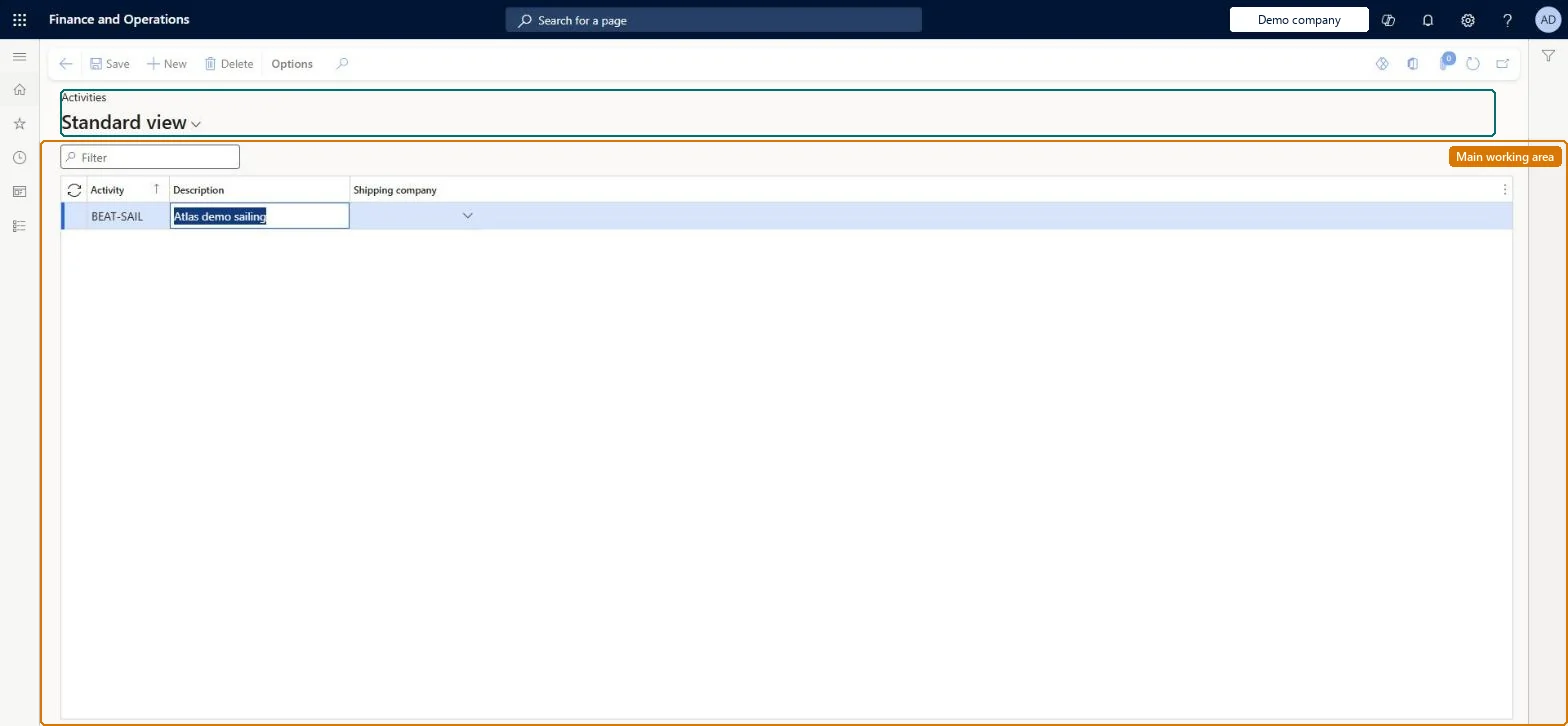
Activities page in Dynamics 365
The page in Dynamics 365. page title tab to open what to set or check
Functional consultant · Solution architect

2Where it fits

End user · Functional consultant

3How to do it

About the examples: Examples and screenshots in this guide use BEAT, a demo company in a Dynamics 365 test environment. Use your own company's codes and values instead of copying them.

Setup steps on this page

Set up Activities

Use this page to add, edit or remove the activities that users estimate and record durations for on shipping containers, and that tracking control rules refer to.

How to use it

  1. Go to Landed cost > Multi-leg journeys setup > Activities.
  2. Use the Filter box to find an activity.
  3. Select New and enter the Activity code and its Description.
  4. Select the Shipping company that performs the activity, if any.
  5. Select Save, or select an activity and choose Delete to remove it.

Source: Checked in Dynamics 365

Fields on the page

FieldWhat it meansTable column
ActivityThe name of the activity.Microsoft Learn ActivityId
DescriptionA description of the activity.Microsoft Learn Description
Shipping companyThe vendor account of the shipping company linked to the activity.Microsoft Learn ShipVendAccount

Test checklist

  1. Create activities such as Sailing and Clearance.
  2. Select an activity on a lead time rule in the Tracking control center.
  3. Create a voyage and check the activity is listed on Inbound tracking with its estimated days.

Source: Microsoft Learn

Solution architect

4Design impact

Can it be undoneReversible: Activities can be added, edited and removed; they are referenced by tracking control rules and container tracking.
Technical architect

5Technical

Menu itemITMActivityTable Checked in Dynamics 365
FormITMActivityTable Checked in Dynamics 365
TableITMActivityTableShown as “ACTIVITIES” in Record infoKey field: ActivityIdChecked in Dynamics 365
Data entitiesITMShippingActivityEntityShipping activities Checked in Dynamics 365
Who can open itPrivilegesMaintain journey setup ITMJourneyTableMaintainDutiesMaintain journey setup ITMJourneyMaintain
1 security roleLanded cost manager ITMManager
Checked in Dynamics 365
Roles to set it up and use itTo set it up or change itLanded cost manager ITMManagerGive people one of these roles. On this system, 1 role can open this page.Checked in Dynamics 365
Developer

6Developer

Open it by URLhttps://<your-environment>/?mi=ITMActivityTable
Integrate withITMShippingActivityEntity data entity Checked in Dynamics 365
Everyone

7Sources

To cite this step: LC-JOURNEY-030, Set up Activities. Beyond ERP Atlas Hub, 2026-11-11. https://www.beyonderp.cloud/atlas/step/LC-JOURNEY-030