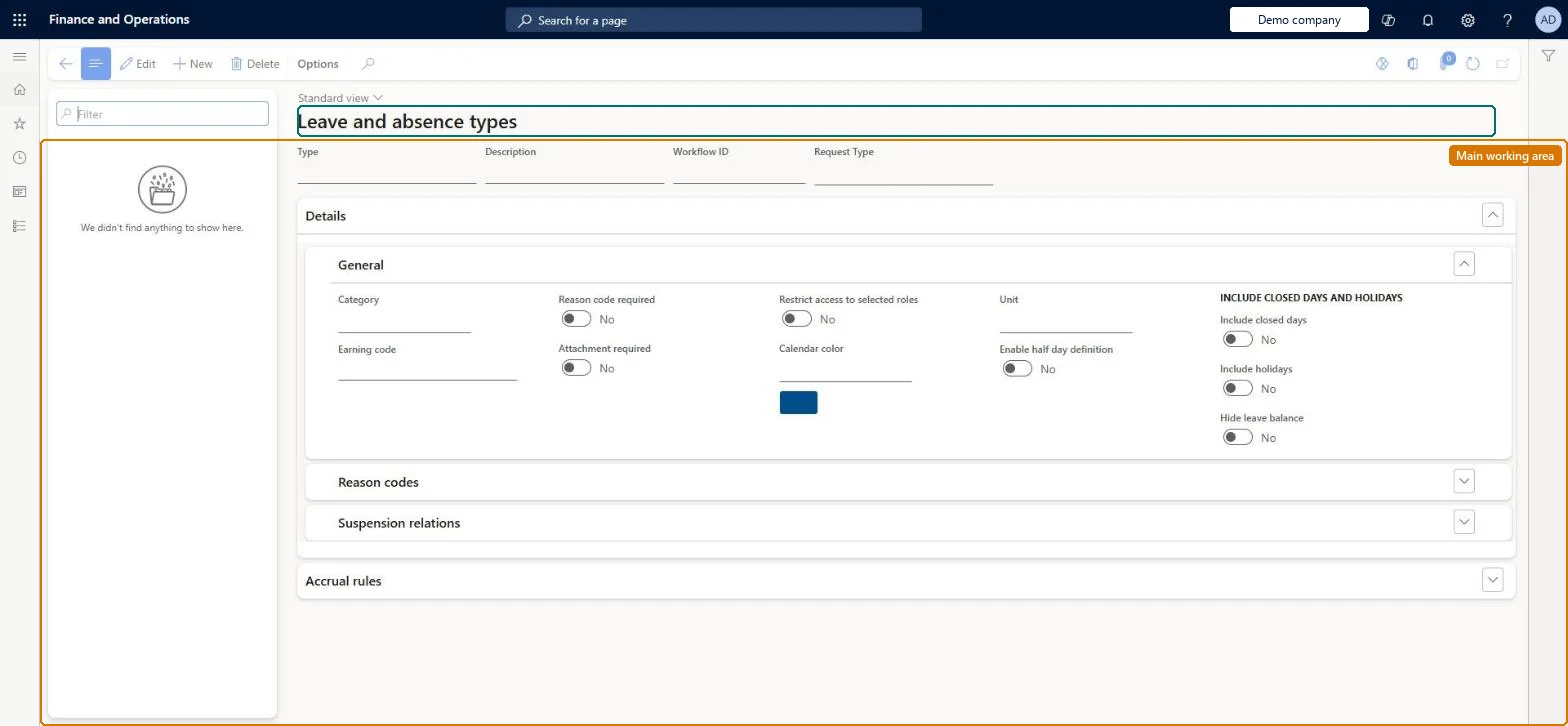
Setup step on the Leave and absence types page · Leave and absence
Set up Leave and absence types
Use this page to create each leave type and set its request type, workflow, category, earning code, reason codes, calendar colour, suspension relations and accrual rules such as rounding, holiday correction, carry-forward and expiration.
SETUP GUIDEHow to set it up8 sections. Choose a role to highlight what matters to you.
Everyone
1What it is and why
What it is
A setup page where you define the types of absence employees can report, such as paid time off, sick leave or bereavement leave.
What you do here
Use this page to create each leave type and set its request type, workflow, category, earning code, reason codes, calendar colour, suspension relations and accrual rules such as rounding, holiday correction, carry-forward and expiration.
Example
For example, with Holiday correction set, a holiday that falls on a Monday reduces that leave type's accrual by one day.
The page in Dynamics 365. page title tab to open what to set or check
About the examples: Examples and screenshots in this guide use BEAT, a demo company in a Dynamics 365 test environment. Use your own company's codes and values instead of copying them.
Setup steps on this page
Set up Leave and absence types
Use this page to create each leave type and set its request type, workflow, category, earning code, reason codes, calendar colour, suspension relations and accrual rules such as rounding, holiday correction, carry-forward and expiration.
Steps from Microsoft
Go to Leave and absence > Setup > Leave and absence types.
Select New.
Enter the Type and Description, select a Workflow ID and a Request type.
In General, select the Category and the Earning code.
Set Reason code required and add the reason codes if needed.
Select the Calendar color and any Suspension relations.
Decide each type's Unit (Hours or Days) before any leave is recorded against it, and keep all types that are requested together on the same unit.The leave unit can be changed only while the type has no leave transactions, and all leave types in a single request must use the same unit.
Setting a Carry-forward leave type that isn't included in the leave and absence plan. The carry-forward balance needs that type to be part of the plan.Test: Leave unit locks after first transaction
Feature management and licence
Feature to turn on
Configure leave units per leave type (Optional)Configure required attachment for leave requests (Optional)
One-way: Warning: Configure leave units per leave type can't be turned off once enabled, and a type's Unit can't be changed after it has leave transactions.
If you change it later
The leave unit of a type can be changed only while the type has no leave transactions. Microsoft Learn
Technical architect
6Technical
Menu item
Leave_LeaveTypeChecked in Dynamics 365
Form
Leave_LeaveTypeChecked in Dynamics 365
Table
LeaveTypeShown as “LEAVE AND ABSENCE TYPE” in Record infoKey field: TypeChecked in Dynamics 365
Data entities
LeaveTypeEntityLeave and absence type Checked in Dynamics 365
Who can open it
PrivilegesMaintain leave and absence types Leave_LeaveTypeMaintainView leave and absence types Leave_LeaveTypeViewDutiesView leave and absence setup LeaveSetupInquireMaintain leave and absence setup LeaveSetupMaintain2 security rolesHuman resource assistant HcmHumanResourceAssistantHuman resource manager HcmHumanResourceManagerChecked in Dynamics 365
Roles to set it up and use it
To set it up or change itHuman resource assistant HcmHumanResourceAssistantTo use itHuman resource manager HcmHumanResourceManagerGive people one of these roles. On this system, 2 roles can open this page.Checked in Dynamics 365
Developer
7Developer
Open it by URL
https://<your-environment>/?mi=Leave_LeaveType
Integrate with
LeaveTypeEntity data entity Checked in Dynamics 365