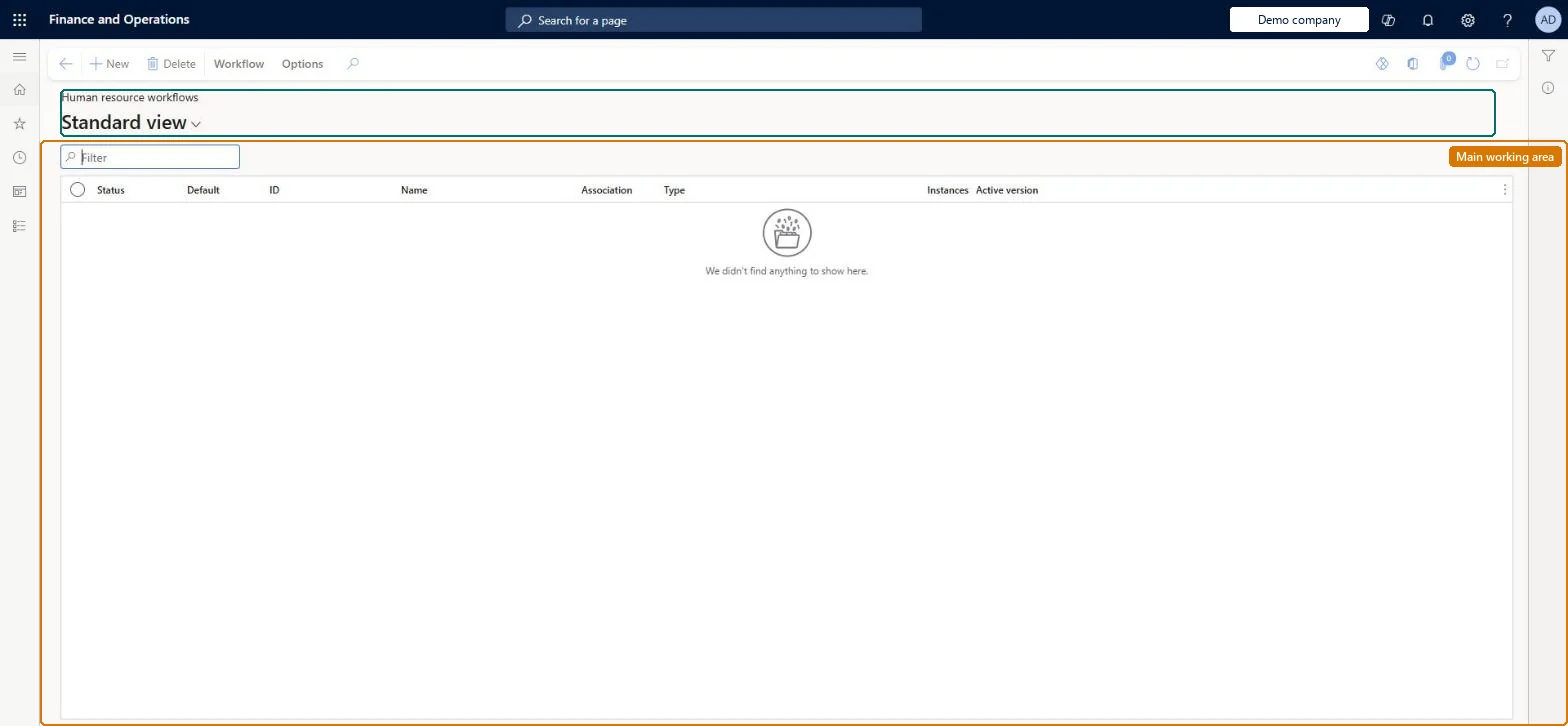
A setup page that lists the Human resources workflows and where you create new ones, such as approvals for changes to employee information or leave requests.
PAGE GUIDEWhat the page does and how to use it7 sections. Choose a role to highlight what matters to you.
Everyone
1What it is and why
What it is
A setup page that lists the Human resources workflows and where you create new ones, such as approvals for changes to employee information or leave requests.
What you do here
Use this page to create and configure approval workflows for Human resources activities, so that changes require approval before they are saved.
Example
For example, a workflow can require approval when employees change their identification numbers.
The page in Dynamics 365. page title tab to open what to set or check
About the examples: Examples and screenshots in this guide use BEAT, a demo company in a Dynamics 365 test environment. Use your own company's codes and values instead of copying them.
Steps from Microsoft
Go to Leave and absence > Setup > Human resource workflows.
Select New.
In the list of available workflows, select the workflow type, such as Identification numbers.
Select Run to open the workflow designer and sign in.
Add the approval element and connect it to Start and Finish.
Set the assignment and other properties, then select Save and close and activate the workflow.
Reversible: Workflows can be edited and a new version made active. Routing is decided by the submitter's primary position when a document is submitted, so position or hierarchy changes change who approves later submissions. Microsoft Learn
If you change it later
When a document is submitted for approval, routing depends on the submitter's primary position, so changes to positions and hierarchies affect who approves. Microsoft Learn
Technical architect
5Technical
Menu item
WorkflowConfigurationHcmChecked in Dynamics 365
Form
WorkflowTableListPageRnrChecked in Dynamics 365
Table
WorkflowTableShown as “WORKFLOW CONFIGURATIONS” in Record infoKey field: SequenceNumberChecked in Dynamics 365
Who can open it
PrivilegesMaintain human resources workflows WorkflowAuthorHumanResourcesWorkflowsDutiesSet up position action workflows HcmPositionActionWFProcessEnableSet up worker action workflows HcmWorkerActionWFProcessEnable2 security rolesHuman resource assistant HcmHumanResourceAssistantHuman resource manager HcmHumanResourceManagerChecked in Dynamics 365
Roles to set it up and use it
To set it up or change itHuman resource assistant HcmHumanResourceAssistantHuman resource manager HcmHumanResourceManagerGive people one of these roles. On this system, 2 roles can open this page.Checked in Dynamics 365
Actions on the page
Workflow: Manage, HierarchyChecked in Dynamics 365