PAGE GUIDEWhat the page does and how to use it8 sections. Choose a role to highlight what matters to you.
Everyone
1What it is and why
What it is
A setup page where you define leave and absence plans: the leave types offered and how and when employees accrue them.
What you do here
Use this page to create a plan for each kind of leave you offer and set its accrual frequency, accrual rules and accrual schedule (amounts, minimum balance, carry-forward and grants).
Example
For example, you might create a plan that grants floating holidays once a year.
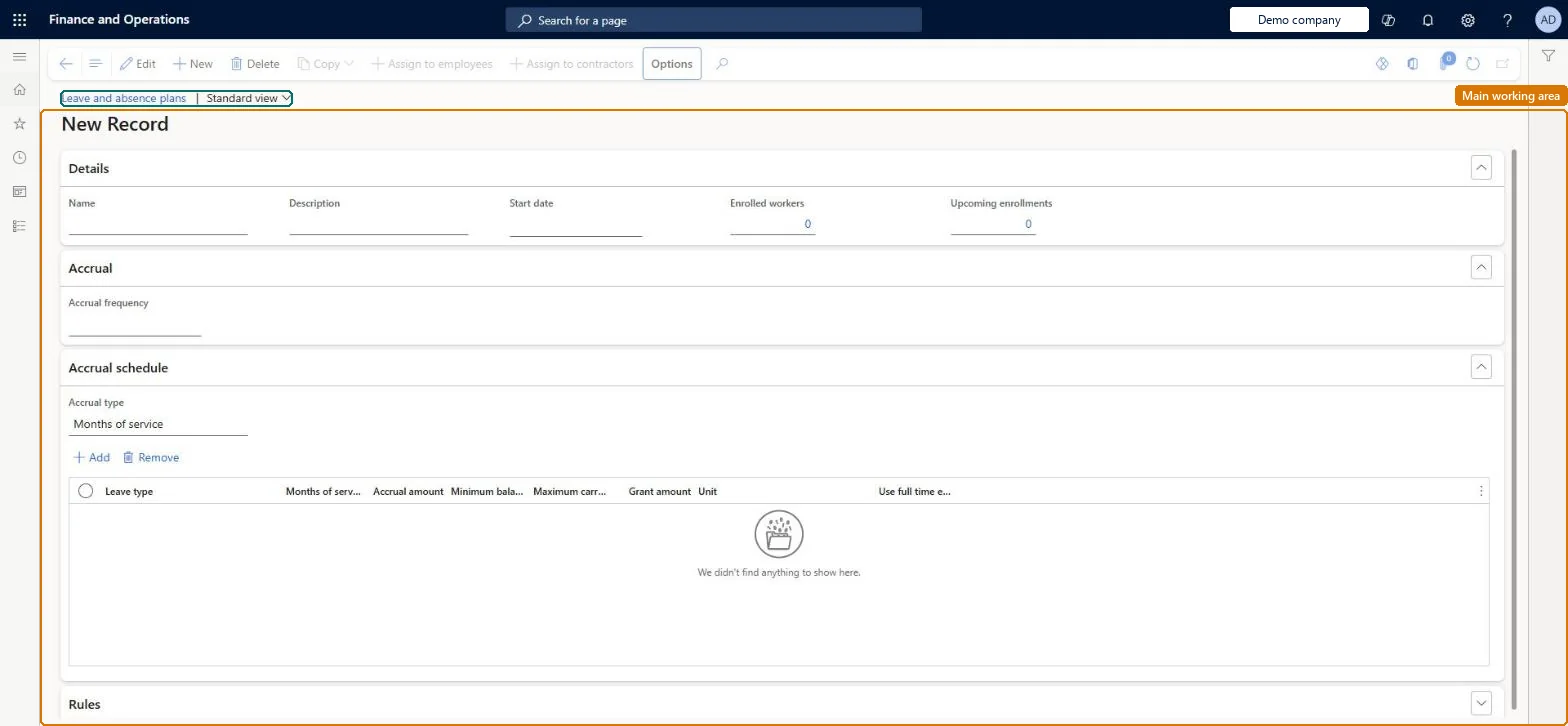
The page in Dynamics 365. page title tab to open what to set or check
About the examples: Examples and screenshots in this guide use BEAT, a demo company in a Dynamics 365 test environment. Use your own company's codes and values instead of copying them.
Setup steps on this page
Set up Leave and absence plans
Use this page to create a plan for each kind of leave you offer and set its accrual frequency, accrual rules and accrual schedule (amounts, minimum balance, carry-forward and grants).
Steps from Microsoft
Go to Leave and absence > Setup > Leave and absence plans.
Select New.
Under Details, enter the Name, Start date, Description and Leave type.
On the Accruals tab, set the accrual frequency, accrual period basis, award date and enrolment and unenrolment policies.
On the Accrual schedule tab, choose the accrual type and enter the tiers and amounts.
How often time off accrues, from daily to annually, or none.Microsoft Learn
AccrualFrequency
Accrual period basis
The start date used to calculate accrual periods: the plan start date or an employee-specific date.Microsoft Learn
Accrual award date
Whether time off is awarded on the first or last day of the accrual period.Microsoft Learn
Accrual policy on enrollment
How accrual is calculated when an employee enrols part-way through a period: prorated, full or none.Microsoft Learn
Accrual amount
The hours or days accrued in each accrual period.Microsoft Learn
AccrualAmount
Minimum balance
The lowest balance allowed; a negative value lets employees request more leave than they have.Microsoft Learn
MinimumBalance
Maximum carry-forward
The most leave that can be carried forward; higher balances are reduced on the start-date anniversary.Microsoft Learn
MaximumCarryover
Grant amount
A one-off amount given when the employee first enrols in the plan.Microsoft Learn
Grant
Test checklist
Create a monthly plan starting 1 January with Accrual period basis = Plan start date, Accrual award date = Accrual period end date and an accrual amount of 10.
Assign the plan to a test employee with an enrollment date of 1 January.
Run Accrue leave and absence plans as of 1 February.
Check the employee's current balance is 10 for the leave type.
Set Maximum carry-forward and check the forecasted balance applies the carry-forward adjustment.
One plan for each kind of leave you offer, with service-based entitlements set up as tiers in the accrual schedule.Learn describes defining a plan for each type of leave, and tiered plans award more time off automatically as months of service grow.
One-way: Warning: Configure multiple leave types for a single leave and absence plan can't be turned off once enabled. Plan values can be edited, but accruals already processed can be deleted only for accrual dates today or later. Microsoft Learn
If you change it later
If the feature for several leave types per plan is turned on, leave types move to the accrual schedule, new V2 data entities must be used, and the feature cannot be turned off again. Microsoft Learn
Technical architect
6Technical
Menu item
LeavePlanChecked in Dynamics 365
Form
LeavePlanChecked in Dynamics 365
Table
LeavePlanShown as “LEAVE AND ABSENCE PLAN” in Record infoKey field: NameChecked in Dynamics 365
Data entities
LeavePlanV2EntityLeave and absence plan V2 Checked in Dynamics 365LeavePlanTierV2EntityLeave and absence plan tier V2 Checked in Dynamics 365
Who can open it
PrivilegesMaintain leave and absence plans LeavePlanMaintainView leave and absence plans LeavePlanViewDutiesView leave and absence setup LeaveSetupInquireMaintain leave and absence setup LeaveSetupMaintain2 security rolesHuman resource assistant HcmHumanResourceAssistantHuman resource manager HcmHumanResourceManagerChecked in Dynamics 365
Roles to set it up and use it
To set it up or change itHuman resource assistant HcmHumanResourceAssistantTo use itHuman resource manager HcmHumanResourceManagerGive people one of these roles. On this system, 2 roles can open this page.Checked in Dynamics 365
Actions on the page
(Action Pane without tabs): Copy, Assign to employees, Assign to contractorsChecked in Dynamics 365
Developer
7Developer
Open it by URL
https://<your-environment>/?mi=LeavePlan
Integrate with
LeavePlanV2Entity data entity Checked in Dynamics 365