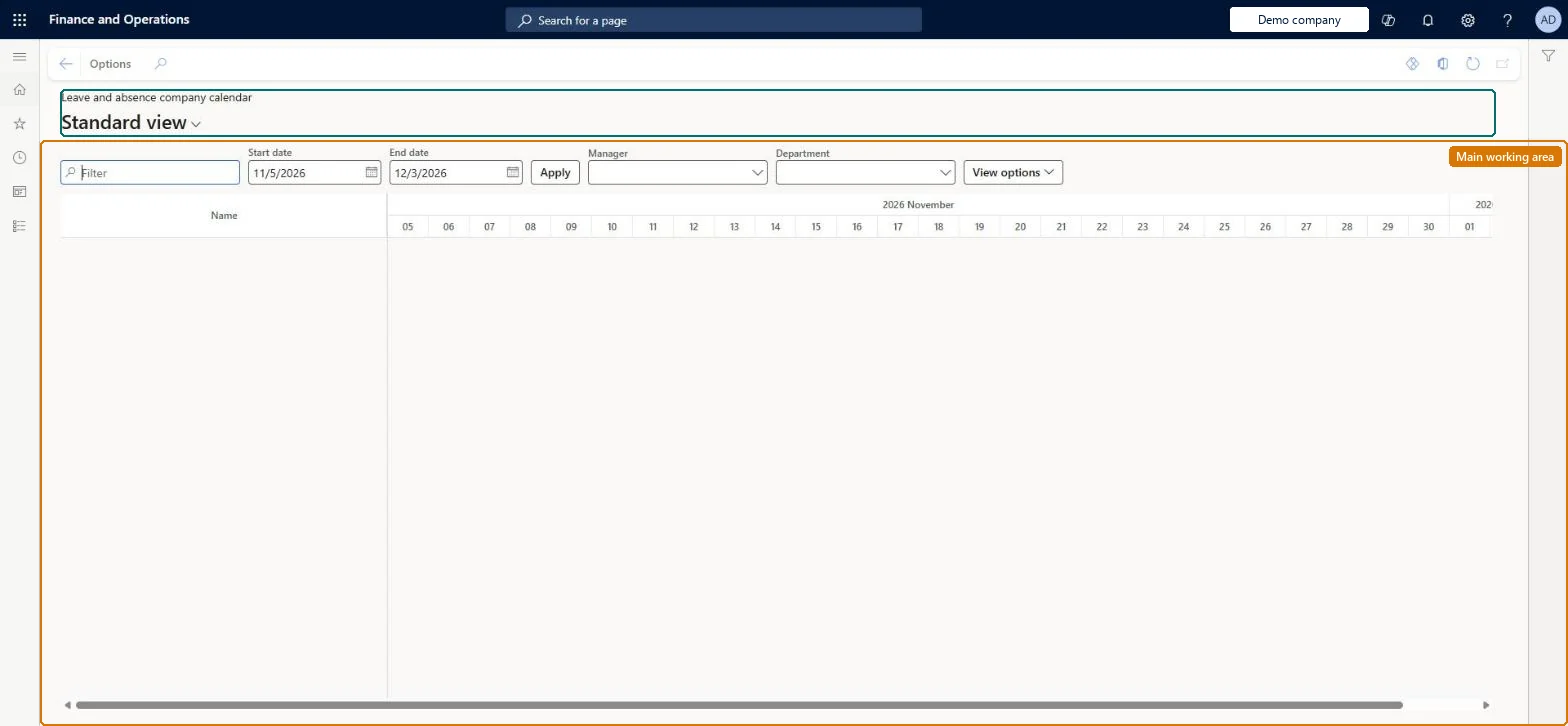
About the examples: Examples and screenshots in this guide use BEAT, a demo company in a Dynamics 365 test environment. Use your own company's codes and values instead of copying them.
Steps from Microsoft
Go to Leave and absence > Manage leave > Leave and absence company calendar.
Change the date range if needed (the default is today plus 28 days).
Filter by Name, Personnel number or Leave type, or by manager or department.
Select the view options to show, such as approved or pending requests.
Filters that narrow the calendar to particular employees or leave types.Microsoft Learn
Manager / Department
Filters based on the employees' primary position assignment.Microsoft Learn
Legal entity
Filters by company; clear it to see all employees. Shown only when cross-company leave view is turned on.Microsoft Learn
View options
Choose to show approved or pending requests, employees with or without leave, birthdays, time-off requests and leave of absence requests.Microsoft Learn
Test checklist
Approve a time-off request for a test employee.
Open the Leave and absence calendar and check it shows today plus 28 days by default.
Filter by Personnel number and Leave type and check the approved leave is shown in the leave type's calendar colour.
Filter by manager or department and check employees are selected by their primary position.
If Cross company leave view is on and enabled on Human resources shared parameters, check that the Legal entity filter appears.
Reversible: The calendar is a view. Its filters and date range can be changed at any time; the view options available come from the calendar settings on Leave and absence parameters. Microsoft Learn
Technical architect
6Technical
Menu item
LeaveCompanyCalendarChecked in Dynamics 365
Form
LeaveGanttCalendarChecked in Dynamics 365
Table
HcmWorkerShown as “WORKER” in Record infoKey field: Person_NameChecked in Dynamics 365
PrivilegesView the leave and absence company calendar LeaveCompanyCalendarViewDutiesView worker-specific leave and absence processes LeaveProcessInquireMaintain worker-specific leave and absence processes LeaveProcessMaintain2 security rolesHuman resource assistant HcmHumanResourceAssistantHuman resource manager HcmHumanResourceManagerChecked in Dynamics 365
Roles to set it up and use it
To use itHuman resource assistant HcmHumanResourceAssistantHuman resource manager HcmHumanResourceManagerGive people one of these roles. On this system, 2 roles can open this page.Checked in Dynamics 365