| What it is | A setup page where you group batch attributes so that they can be managed and assigned together. |
|---|---|
| What you do here | Use this page to manage many batch attributes without adding each attribute individually. |
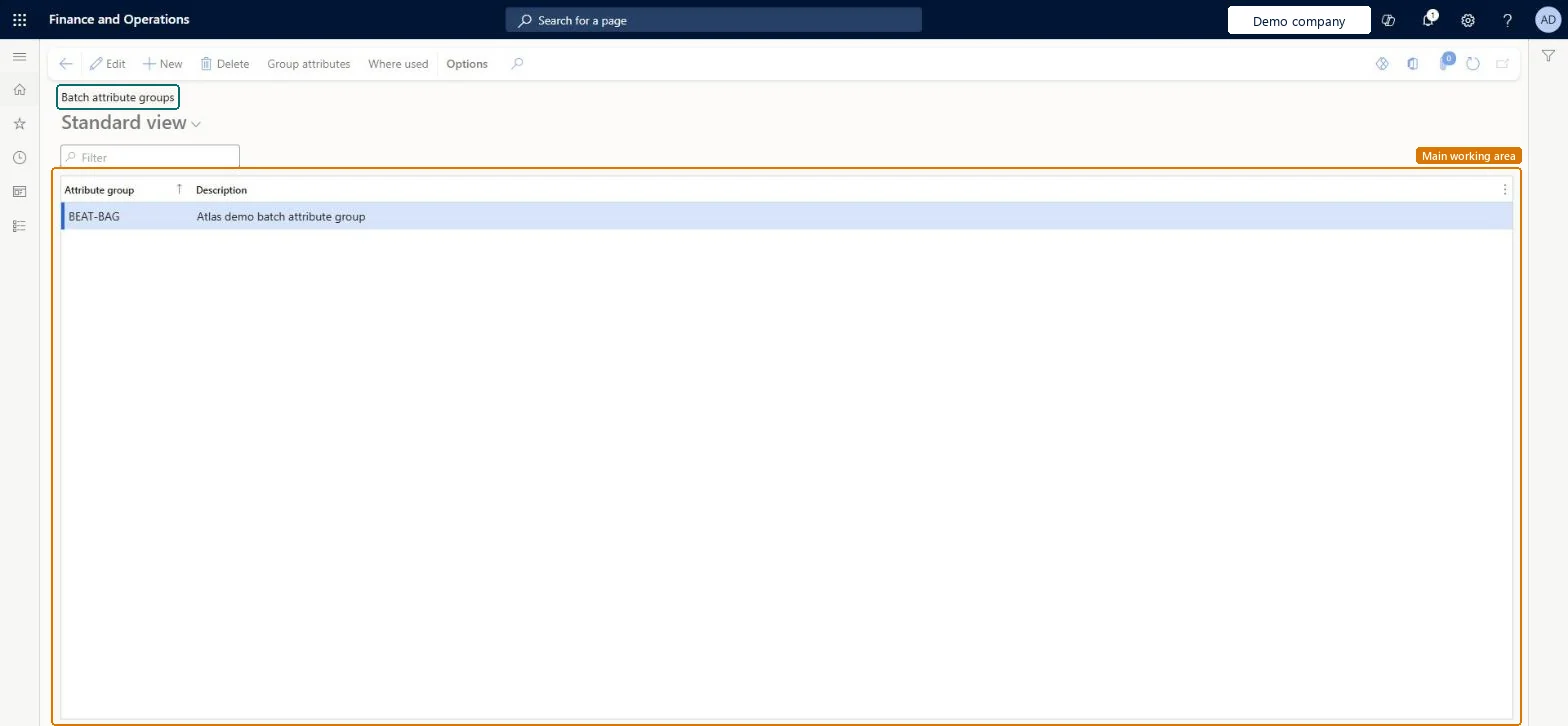
Setup step on the Batch attribute groups page · Inventory management
Use this page to manage many batch attributes without adding each attribute individually.
PdsBatchAttribGroupPdsBatchAttribGroupPdsItemBatchAttributeGroupEntity| What it is | A setup page where you group batch attributes so that they can be managed and assigned together. |
|---|---|
| What you do here | Use this page to manage many batch attributes without adding each attribute individually. |
| Business process | Maintain inventory levels |
|---|---|
| Menu path | Inventory management › Setup › Batch › Batch attribute groups |
| Set up first | Batch attributes Microsoft Learn Set up Batch attributes |
| Related pages | Batch attributes Microsoft Learn |
| In this process | Set up Batch attributes · Set up Restricted products regional lists |
About the examples: Examples and screenshots in this guide use BEAT, a demo company in a Dynamics 365 test environment. Use your own company's codes and values instead of copying them.
Use this page to manage many batch attributes without adding each attribute individually.
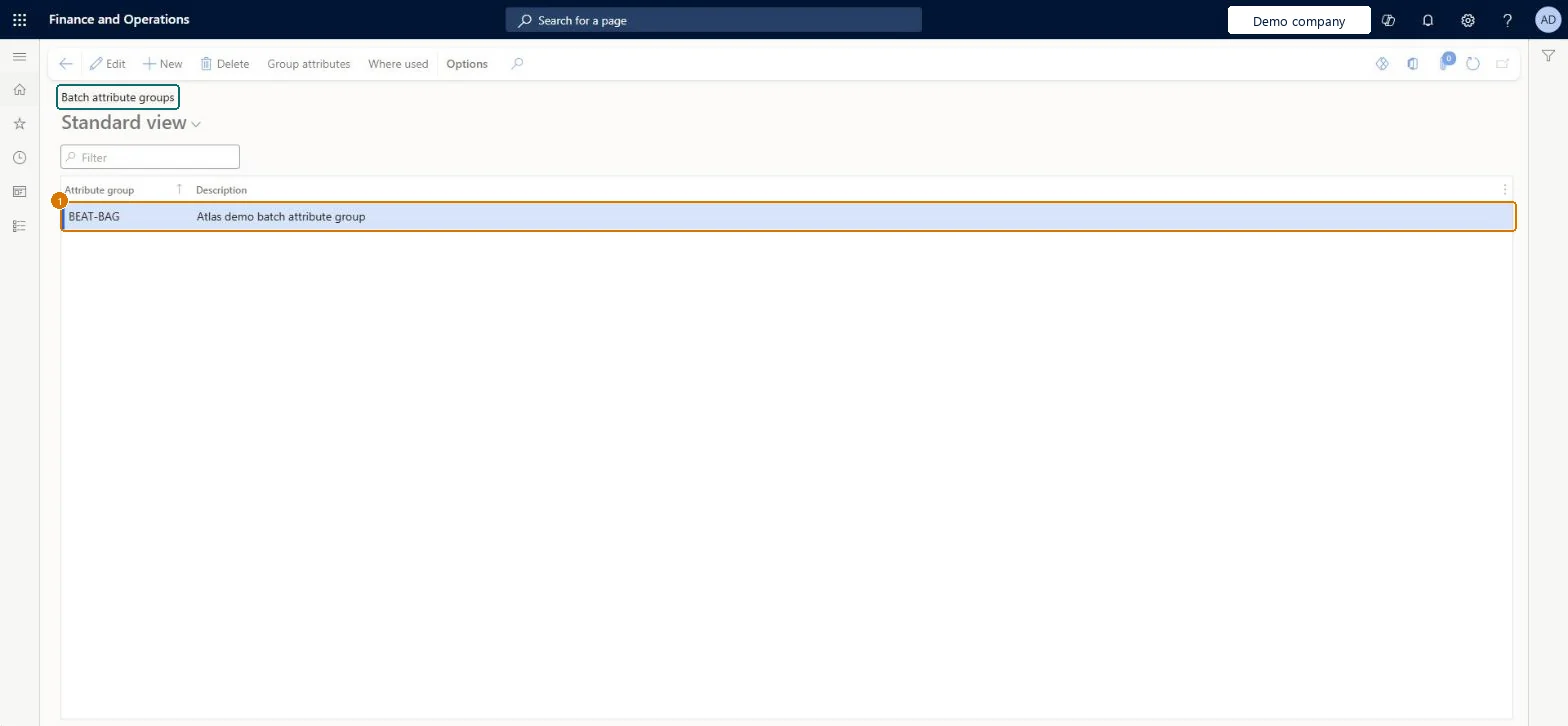
Screen 1
Go to Inventory management > Setup > Batch > Batch attribute groups
| 1Attribute group | BEAT-BAG |
|---|---|
| Description | Batch attribute group |
Source: Microsoft Learn
| Field | What it means | Example | Table column |
|---|---|---|---|
| Attribute group | QUALITY | PdsBatchAttribGroupId | |
| Description | A description of the batch attribute group.Microsoft Learn | Batch attribute group | Description |
Source: Microsoft Learn
| Setup step | Recommended value and why | Decision, common mistake and test |
|---|---|---|
| Set up Batch attribute groups | One group per product family or quality specification, holding the attributes that family always carriesBatch attribute groups let you manage many attributes without adding each attribute individually, and an attribute can be included in any of the groups. | Creating the group but not adding attributes with Group attributes, so assigning the group to a product adds nothing. |
| Shared or per company | Per company: each legal entity has its own records. Microsoft data model |
|---|---|
| Can it be undone | Reversible: Groups are a convenience for assigning attributes. You can add or remove attributes in a group at any time; an attribute can sit in several groups. |
| Menu item | PdsBatchAttribGroup Checked in Dynamics 365 |
|---|---|
| Form | PdsBatchAttribGroup Checked in Dynamics 365 |
| Table | PdsBatchAttribGroupShown as “Batch attribute groups” in Record infoChecked in Dynamics 365 |
| Data entities | PdsItemBatchAttributeGroupEntityItem batch attribute groups Microsoft data model |
| Who can open it | PrivilegesMaintain batch attribute group PdsBatchAttribGroupMaintainView batch attribute group PdsBatchAttribGroupViewDutiesInquire into logistic policies InventLogisticPoliciesInquireEnable the logistic process InventLogisticProcessEnable7 security rolesProduct design managerBOMProductDesignManagerMaterials manager InventMaterialsManagerProduction manager ProdProductionManagerProduction supervisor ProdProductionSupervisorProcess engineer RouteProcessEngineerProcess engineering manager RouteProcessEngineeringManagerWarehouse manager WMSWarehouseManager |
| Roles to set it up and use it | To set it up or change itWarehouse manager WMSWarehouseManagerMaterials manager InventMaterialsManagerProduction manager ProdProductionManagerTo use itProduction supervisor ProdProductionSupervisorProcess engineer RouteProcessEngineerProduct design manager BOMProductDesignManagerProcess engineering manager RouteProcessEngineeringManagerGive people one of these roles. On this system, 7 roles can open this page.Checked in Dynamics 365 |
| Actions on the page | Options: Personalize, Page options, ShareChecked in Dynamics 365 |
| Open it by URL | https://<your-environment>/?mi=PdsBatchAttribGroup |
|---|---|
| Integrate with | PdsItemBatchAttributeGroupEntity data entity Microsoft data model |
| Data migration | PdsItemBatchAttributeGroupEntity (Item batch attribute groups): loaded for each company, in Microsoft's default template 412 - Process manufacturing.Load order: Microsoft's default template 412 - Process manufacturing loads Item batch attribute groups at execution unit 1, level 412, sequence 10. Lower levels load first, and entities at the same level load in sequence order.Load first: the default templates at lower levels (System setup to Production control)Microsoft Learn |
| Table definition | PdsBatchAttribGroup columns and relations Microsoft data model |
To cite this step: IM-SETUP-470, Set up Batch attribute groups. Beyond ERP Atlas Hub, 2026-11-11. https://www.beyonderp.cloud/atlas/step/IM-SETUP-470