Product designer, Product design manager, Materials manager and 5 more roles
Business process
Maintain inventory levels
Menu item
PdsMRCReportingList
Main table
PdsMRCReportingList
Data entity
PdsRegionalRegulatedProductListEntity
Setup steps
1 on this page
Show what matters for
PAGE GUIDEWhat the page does and how to use it8 sections. Choose a role to highlight what matters to you.
Everyone
1What it is and why
What it is
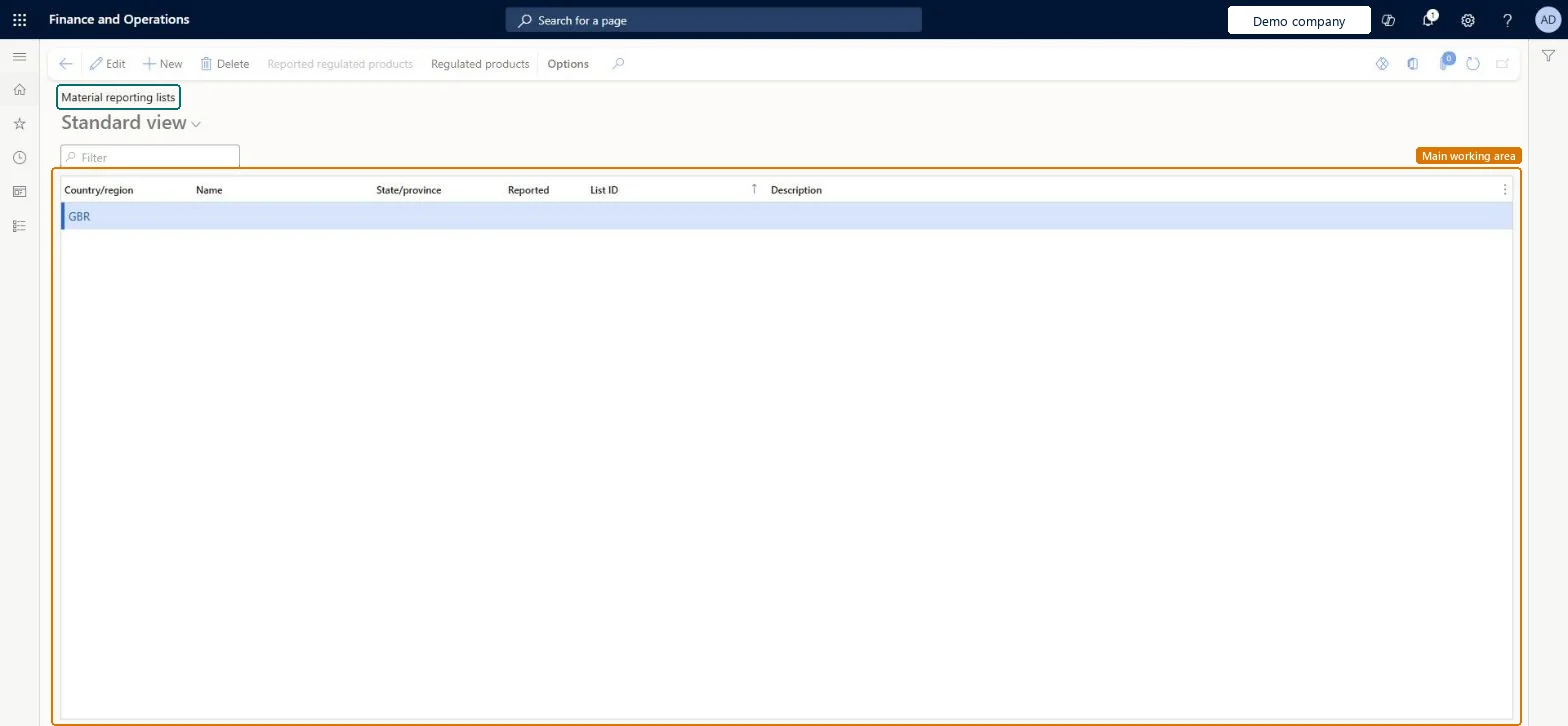
A setup page where you create regulated product lists for a country, or a country and region, which are required for every controlled item.
What you do here
Use this page to track products regulated by a government authority and, when a list is marked as reported, to report their usage to regulatory agencies.
Example
For example, a list can be set for a country and a region when the region, such as California, has stricter reporting rules than the country.
The page in Dynamics 365. page title tab to open what to set or check
About the examples: Examples and screenshots in this guide use BEAT, a demo company in a Dynamics 365 test environment. Use your own company's codes and values instead of copying them.
Setup steps on this page
Set up Regulated products regional lists
Use this page to track products regulated by a government authority and, when a list is marked as reported, to report their usage to regulatory agencies.
Steps from Microsoft
Go to Inventory management > Setup > Product compliance > Regulated products regional lists.
In the Country/region field, select the country and region for the list.
Select Reported if the list must be reported.
In the List ID field, enter a unique ID.
Select Reported regulated products and add the regulated items.
One list per country, or per country and region where the region has stricter rules (for example California); set Reported only on lists whose usage must be reportedA regulated list can be set for a country or a country and region depending on reporting requirements, and is flagged as reported when usage of its items must be reported to regulatory agencies.
Leaving a controlled item off every regulated list. Regulated lists are mandatory for controlled items, and the PSDS doesn't print correctly unless the item is on a regulated list.
Reversible: List settings can be changed at any time; reporting quantities are recalculated from transactions over the parameter date range when you run Update quantities. Microsoft Learn
Technical architect
6Technical
Menu item
PdsMRCReportingListChecked in Dynamics 365
Form
PdsMRCReportingListChecked in Dynamics 365
Table
PdsMRCReportingListShown as “Regulated products regional lists” in Record infoChecked in Dynamics 365
Data entities
PdsRegionalRegulatedProductListEntityRegulated products regional lists Microsoft data model
Who can open it
PrivilegesMaintain MRC report item list PdsMRCReportingListItemsMaintainMaintain MRC report list PdsMRCReportingListMaintainView MRC report list PdsMRCReportingListViewDutiesInquire into logistic policies InventLogisticPoliciesInquireEnable the logistic process InventLogisticProcessEnableMaintain products for operations master InventProductsForOperationsMasterMainta8 security rolesProduct designer BOMProductDesignerProduct design manager BOMProductDesignManagerMaterials manager InventMaterialsManagerProduction manager ProdProductionManagerProduction supervisor ProdProductionSupervisorProcess engineer RouteProcessEngineerProcess engineering manager RouteProcessEngineeringManagerWarehouse manager WMSWarehouseManagerChecked in Dynamics 365
Roles to set it up and use it
To set it up or change itWarehouse manager WMSWarehouseManagerMaterials manager InventMaterialsManagerProduction manager ProdProductionManagerTo use itProduction supervisor ProdProductionSupervisorProcess engineer RouteProcessEngineerProduct design manager BOMProductDesignManagerProcess engineering manager RouteProcessEngineeringManagerProduct designer BOMProductDesignerGive people one of these roles. On this system, 8 roles can open this page.Checked in Dynamics 365
Actions on the page
Options: Personalize, Page options, ShareChecked in Dynamics 365