SETUP GUIDEHow to set it up8 sections. Choose a role to highlight what matters to you.
Everyone
1What it is and why
What it is
A page of cases that track Family and Medical Leave Act (FMLA) eligibility and the hours of leave taken (USA).
What you do here
Use this page to create an FMLA case for each leave of absence, record approval and dates, link the employment leave, recalculate eligibility, and log FMLA hours taken.
Example
For example, a BEAT US employee asks for 6 weeks of medical leave from 4 May 2026; HR calculates FMLA eligibility, creates the case with Approved hours 240, links the employment leave, and Payroll adds 40 hours a week to the case from the earning code MEDLV.
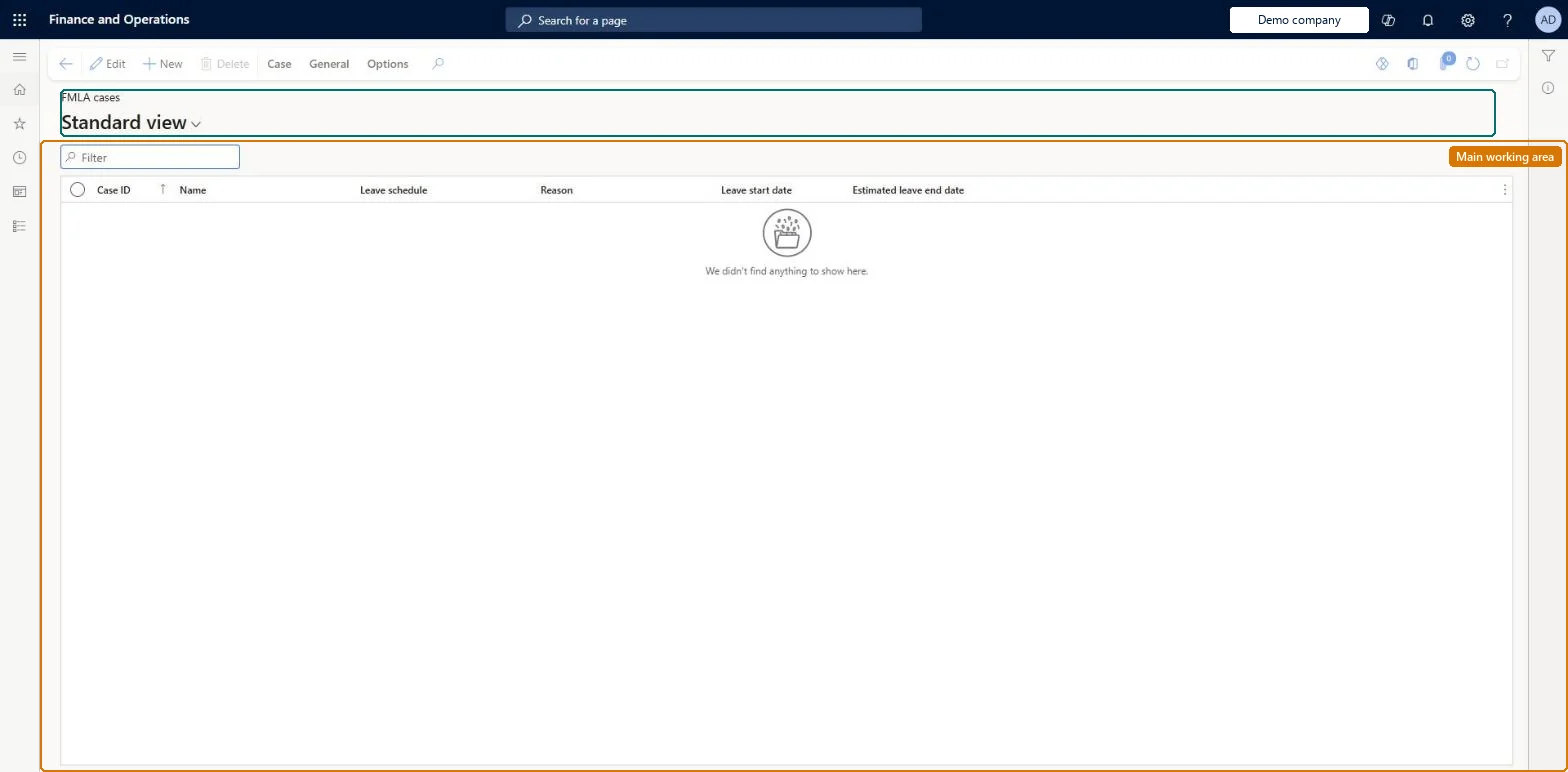
The page in Dynamics 365. page title tab to open what to set or check
About the examples: Examples and screenshots in this guide use BEAT, a demo company in a Dynamics 365 test environment. Use your own company's codes and values instead of copying them.
Setup steps on this page
Open an FMLA case for every leave of absence (US)
Track FMLA eligibility and hours for each US leave of absence.
Steps from Microsoft
Go to Human resources > Workers > Leave > FMLA cases.
In the New group, select Case.
If the case is already approved, select Approved on the General tab.
Enter the reason, leave dates, approved hours, and leave schedule.
On the Associated leave FastTab, select Add and choose the matching employment leave.
Optionally, add certifications and case log notes.
Reduce remaining FMLA time can't be selected on an earning code
The check box is available only when Productive is cleared and Unit of measure is Hours on the earning code. Microsoft Learn
Released earnings don't add hours to the case
Automatic updates from Payroll are off by default. Set the option To manually enter and maintain the hours worked, uncheck this box to No, and mark the earning code Reduce remaining FMLA time. Microsoft Learn
The leave isn't offered on Associated leave
Create the employment leave first; the case links to an existing leave. Microsoft Learn
Test checklist
Calculate FMLA eligibility for a US worker as of the leave start date.
Create the employment leave, then an FMLA case with Approved hours 240 and the leave on Associated leave.
Add 40 FMLA hours by hand on the case.
Run the FMLA leave taken report for the period and check it shows 40 hours for the case.
Create an FMLA case for every leave of absence, whether or not it qualifies, after the employment leave; decide once whether hours come from Payroll (earning codes with Reduce remaining FMLA time) or are entered by hand.Learn says the case is needed for all leaves of absence, and the case holds eligibility, approved hours and the hours taken.
FMLA administrator maintains FMLA cases. FMLA applies to US legal entities only: the primary address of the legal entity must be in the United States. No Feature management feature is needed for this page.
Per company: Data management lists the Case detail and FMLA case details entities as not shared, so cases belong to the legal entity. US only: the legal entity's primary address must be in the United States. Checked in Dynamics 365
Can it be undone
Reversible: Case dates, approved hours and FMLA hours can be updated at any time.
Feature or country
US
If you change it later
When Payroll integration is used, released earning lines with earning codes set to reduce FMLA time are added automatically to the case's FMLA hours. Microsoft Learn
Technical architect
6Technical
Menu item
HcmFMLACaseListPageChecked in Dynamics 365
Form
CaseDetailChecked in Dynamics 365
Table
CaseDetailBaseShown as “CASE” in Record infoKey field: CaseIdChecked in Dynamics 365
Data entities
CaseDetailBaseEntityCase detail Microsoft data model HcmFMLACaseDetailEntityFMLA case details (The FMLA details of each case.) HcmFMLACaseAssociationEntityEmployee leave associated with the FMLA case (The employee leaves linked to a case.) HcmFMLACaseCertificationEntityFMLA case certificates (The certifications of a case.) HcmFMLAHoursTrackingDetailEntityFMLA hours (The FMLA hours logged on a case.)
To set it up or change itFMLA administrator HcmFMLAAdministratorGive people one of these roles. On this system, 1 role can open this page.Checked in Dynamics 365
Actions on the page
Case: Maintain, Process, Service level agreement, Product changeGeneral: Set up, Follow up, Related information, Activities(Action Pane without tabs): New, DeleteChecked in Dynamics 365
CaseDetailBaseEntity Case detail: the case header. Per company.HcmFMLACaseDetailEntity FMLA case details. Per company.HcmFMLACaseAssociationEntity Employee leave associated with the FMLA case.HcmFMLAHoursTrackingDetailEntity FMLA hours taken.Load order: Load with the Case management template after the workers and their employee leaves: Case detail, then the FMLA case details, associated leave, certificates and FMLA hours.Load first: HcmEmploymentLeaveEntity, HcmWorkerBaseEntityMicrosoft Learn
Checked in a working Dynamics 365 system, version 10.0.49: the menu item, form, table and security, the page.
To cite this step: HR-RWRK-100, Open an FMLA case for every leave of absence (US). Beyond ERP Atlas Hub, 2026-11-11. https://www.beyonderp.cloud/atlas/step/HR-RWRK-100