Compensation and benefits manager, Human resource assistant, Human resource manager and 3 more roles
Business process
Develop people strategy
Menu item
HcmLeaveType
Main table
HcmLeaveType
Setup steps
1 on this page
Show what matters for
PAGE GUIDEWhat the page does and how to use it8 sections. Choose a role to highlight what matters to you.
Everyone
1What it is and why
What it is
A setup page that lists the types of leave of absence workers can take, such as maternity, educational, or medical leave.
What you do here
Use this page to define leave types and, where payroll is used, the earning code that sets the pay rate for each leave type.
Example
For example, BEAT creates the leave type Medical with the earning code MEDLV for paid medical leave and Educational without an earning code; a salaried worker on 3 days of medical leave gets earnings lines with a daily breakout, while educational leave reduces the salary amount.
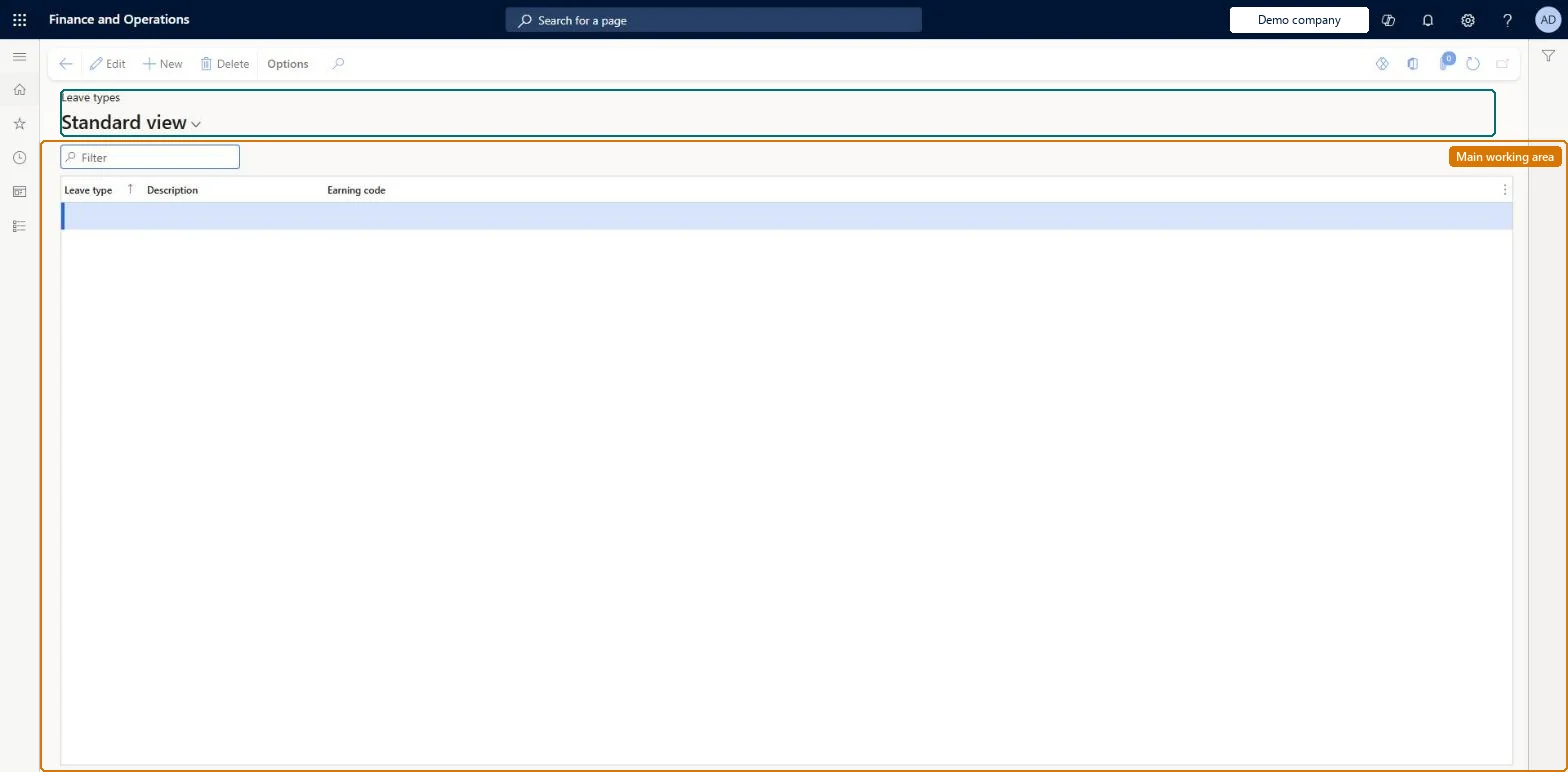
The page in Dynamics 365. page title tab to open what to set or check
About the examples: Examples and screenshots in this guide use BEAT, a demo company in a Dynamics 365 test environment. Use your own company's codes and values instead of copying them.
Setup steps on this page
Set up Leave types
Use this page to define leave types and, where payroll is used, the earning code that sets the pay rate for each leave type.
Steps from Microsoft
Go to Human resources > Workers > Leave > Leave types.
Use the Filter box to find a row.
Select New and enter the Leave type, its Description and Earning code.
Review the Leave type, Description and Earning code columns.
Select Save; select Delete to remove a selected row.
The earning code used when earnings are generated for this leave type; it sets the rate of pay.Microsoft Learn
MEDLV
EarningCode
Common errors and fixes
Message
What to do
No earnings lines are generated for a paid leave
The leave type has no earning code. Create an earning code for the paid leave and set it on the leave type before workers go on that leave. Microsoft Learn
Vacation or sick time was set up as a leave type
Time off that is part of a benefit accrual plan, such as vacation or sick time, isn't leave. Set it up in a benefit accrual plan instead. Microsoft Learn
Test checklist
Create an earning code for paid medical leave.
Create a leave type Medical with that earning code, and an unpaid leave type with no earning code.
Put a salaried test worker on the paid leave type for three days and generate earnings statements; check the leave days show as a daily breakout with the leave earning code.
Repeat with the unpaid leave type and check no earnings lines are generated for those days and the salary is adjusted.
One leave type per kind of leave (medical, educational, parental). Paid leave types always carry an earning code; unpaid leave types either have no earning code or a zero-rate earning code if Payroll should track the hours.Earning codes are required for paid leave so that earnings lines are generated for the leave days. A zero-rate earning code on unpaid leave lets Payroll track time on leave, force deduction arrears and update FMLA hours.
Human resource manager and assistant, Compensation and benefits manager, Payroll administrator and manager, and Recruiter have access. No Feature management feature is needed for this page.
Reversible: Leave types and their earning codes can be changed; the change applies to earnings lines generated afterwards. Create the earning codes for paid leave before the leave types. Microsoft Learn
If you change it later
The earning code on the leave type decides the earnings lines generated during a leave: paid leave gives lines with a daily breakout; no earning code gives no lines and the salary amount is adjusted; a zero-rate earning code tracks the hours in Payroll, lets you force deduction arrears and update FMLA hours taken. Microsoft Learn
Technical architect
6Technical
Menu item
HcmLeaveTypeChecked in Dynamics 365
Form
HcmLeaveTypeChecked in Dynamics 365
Table
HcmLeaveTypeShown as “LEAVE TYPES” in Record infoKey field: LeaveTypeIDChecked in Dynamics 365
Who can open it
PrivilegesMaintain leave types HcmLeaveTypeMaintainView leave types HcmLeaveTypeViewDutiesEnable workforce management process HcmWorkforceProcessEnableInquire into workforce management process HcmWorkforceProcessInquireSet up payroll master data PayrollMasterDataMaintain6 security rolesCompensation and benefits manager HcmCompensationAndBenefitsManagerHuman resource assistant HcmHumanResourceAssistantHuman resource manager HcmHumanResourceManagerPayroll administrator HcmPayrollAdministratorPayroll manager HcmPayrollManagerRecruiter HcmRecruiterChecked in Dynamics 365
Roles to set it up and use it
To set it up or change itHuman resource assistant HcmHumanResourceAssistantCompensation and benefits manager HcmCompensationAndBenefitsManagerPayroll administrator HcmPayrollAdministratorTo use itHuman resource manager HcmHumanResourceManagerRecruiter HcmRecruiterPayroll manager HcmPayrollManagerGive people one of these roles. On this system, 6 roles can open this page.Checked in Dynamics 365
Developer
7Developer
Open it by URL
https://<your-environment>/?mi=HcmLeaveType
Data migration
Load order: Leave types has no data entity in Data management, so it can't be loaded from a file or a configuration template. Create them by hand in each company after the earning codes; the Leave and absence type entity belongs to the Leave and absence module's own leave types, not to this page.Microsoft Learn