BeyondERP.Newsletter
Menu

Setup step on the Anniversaries report page · Human resources

Plan service anniversaries

List workers reaching a service anniversary in the coming period.

Business process
Analyze HR programs
Menu item
HRMAnniversary
Setup steps
1 on this page
Show what matters for
SETUP GUIDEHow to set it up8 sections. Choose a role to highlight what matters to you.
Everyone

1What it is and why

What it isA report that lists worker service anniversaries, calculated from each worker's seniority date.
What you do hereUse this page to print the worker anniversaries that fall in a chosen period, for the anniversary years you select.
ExampleFor example, BEAT runs the report for 1 to 31 January 2027 with the 5, 10 and 25 year toggles on and gets 6 workers: 4 reaching 5 years, 1 reaching 10 and 1 reaching 25, for the January service awards.
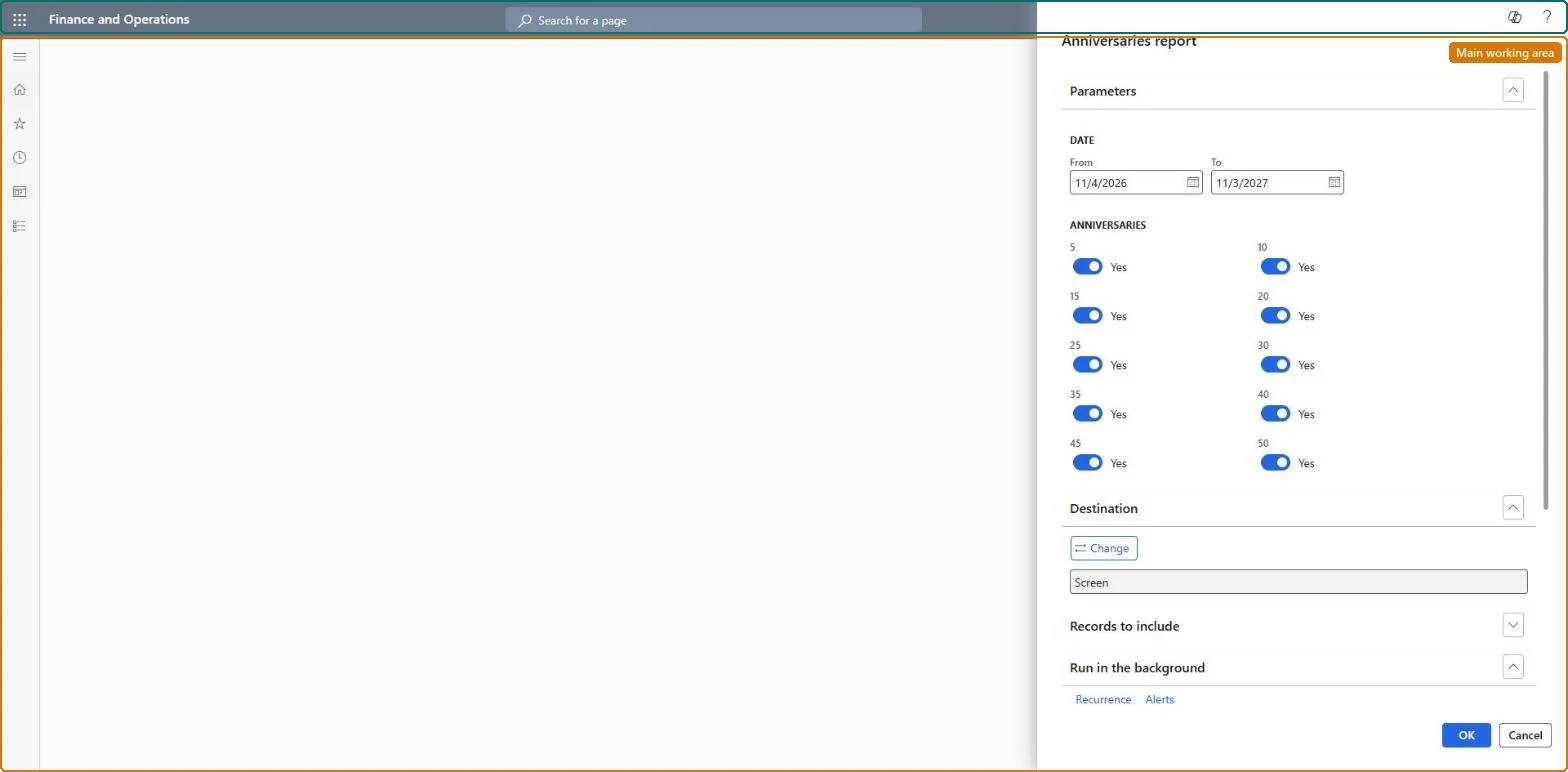
Anniversaries report page in Dynamics 365
The page in Dynamics 365. page title tab to open what to set or check
Functional consultant · Solution architect

2Where it fits

Business processAnalyze HR programs
Menu pathHuman resources › Workers › Inquiries and reports › Anniversaries report
Set up firstWorkers (seniority date) Microsoft Learn
Used next byWorkers (correct a wrong seniority date) Microsoft Learn
Related pagesSeniority list report Microsoft Learn Birthdays report Microsoft Learn
In this process Analyze the workforce by group · Rank workers by seniority
End user · Functional consultant

3How to do it

About the examples: Examples and screenshots in this guide use BEAT, a demo company in a Dynamics 365 test environment. Use your own company's codes and values instead of copying them.

When to run it

When to run itWhen you plan service awards or recognition for workers who reach a service anniversary.
How oftenOn demand, for example each month or quarter.
What the output showsWorkers whose service anniversary falls in the period, for the years you selected. A wrong anniversary usually means the worker's seniority date is wrong.

Source: Microsoft Learn

Setup steps on this page

Plan service anniversaries

List workers reaching a service anniversary in the coming period.

Steps from Microsoft

  1. Go to Human resources > Workers > Inquiries and reports > Anniversaries report.
  2. Under Parameters, set the From and To dates of the period whose service anniversaries you want to see.
  3. Turn the anniversary toggles from 5 to 50 on for the anniversary years you celebrate, and off for the rest.
  4. In Records to include, filter on the department or legal entity whose anniversaries you plan.
  5. Read the list and plan recognition for each worker. Anniversaries are calculated from the seniority date.

Source: Microsoft Learn

Fields on the page

FieldWhat it meansExample
DateThe period to show anniversaries for.Microsoft Learn 1 to 31 January 2027
AnniversariesCheck boxes for the anniversaries to include.Microsoft Learn 5, 10 and 25 years on

Common errors and fixes

MessageWhat to do
A worker's anniversary year is wrongAnniversaries are calculated from the worker's seniority date. Correct the seniority date on the worker and run the report again. Microsoft Learn
A known anniversary is missingIts anniversary year toggle is off, or the date falls outside the period. Turn the year on or widen the period. Microsoft Learn

Test checklist

  1. Give a worker a seniority date exactly 5 years before a date next month.
  2. Run the report for next month with the 5 year toggle on.
  3. Check the worker is listed with 5 years.

Source: Microsoft Learn

Functional consultant

4Setup decisions

Setup stepRecommended value and whyDecision, common mistake and test
Plan service anniversariesRun it monthly for the next month with only the anniversary years your recognition policy rewards turned on.Anniversaries come from each worker's seniority date, so the list follows the policy only when seniority dates are right and the rewarded years are selected.Which anniversaries are recognized?Trusting the year shown when the seniority date was migrated as a later rehire date instead of the original service start.Test: Anniversary is listed

Feature management and licence

Licence or add-inHR managers and payroll staff run it to plan service recognition. No Feature management feature is needed for this page.

Microsoft Learn

Solution architect

5Design impact

Shared or per companyShared worker data: Data management lists the Worker, Employment V2 and Person details entities as shared, so the report reads the same worker records from any legal entity; narrow it with Records to include. Checked in Dynamics 365
Can it be undoneNothing to undo: The report only reads seniority dates.
If you change it laterChanging a worker's seniority date changes which anniversaries the report shows for that worker. Microsoft Learn
Technical architect

6Technical

Menu itemHRMAnniversary Checked in Dynamics 365
FormSysOperationTemplateForm Checked in Dynamics 365
Roles to set it up and use itTo use itHuman resource manager HcmHumanResourceManagerCompensation and benefits manager HcmCompensationAndBenefitsManagerRecruiter HcmRecruiterPayroll administrator HcmPayrollAdministratorPayroll manager HcmPayrollManagerGive people one of these roles. On this system, 6 roles can run this page.Checked in Dynamics 365
Developer

7Developer

Open it by URLhttps://<your-environment>/?mi=HRMAnniversary
Data migrationLoad order: The Anniversaries report has no data entity in Data management, so it can't be loaded from a file or a configuration template. It reads the workers' seniority dates; load the workers with the Worker data migration template and run the report in each environment.Microsoft Learn
Everyone

8Sources

To cite this step: HR-RWIR-140, Plan service anniversaries. Beyond ERP Atlas Hub, 2026-11-11. https://www.beyonderp.cloud/atlas/step/HR-RWIR-140