Chief executive officer, Chief financial officer, Compensation and benefits manager and 7 more roles
Business process
Analyze HR programs
Menu item
HcmWorkerDistribution
Main table
CCTmpStatistics
Setup steps
1 on this page
Show what matters for
SETUP GUIDEHow to set it up8 sections. Choose a role to highlight what matters to you.
Everyone
1What it is and why
What it is
An inquiry page that shows how workers are distributed by criteria you choose, such as department and age.
What you do here
Use this page to group workers by selected criteria as of a date and see the counts per group.
Example
For example, BEAT groups by Department and Age with Age 10 as of 31 December 2026 and sees that the Warehouse department has 9 of its 20 workers in the 50-59 band.
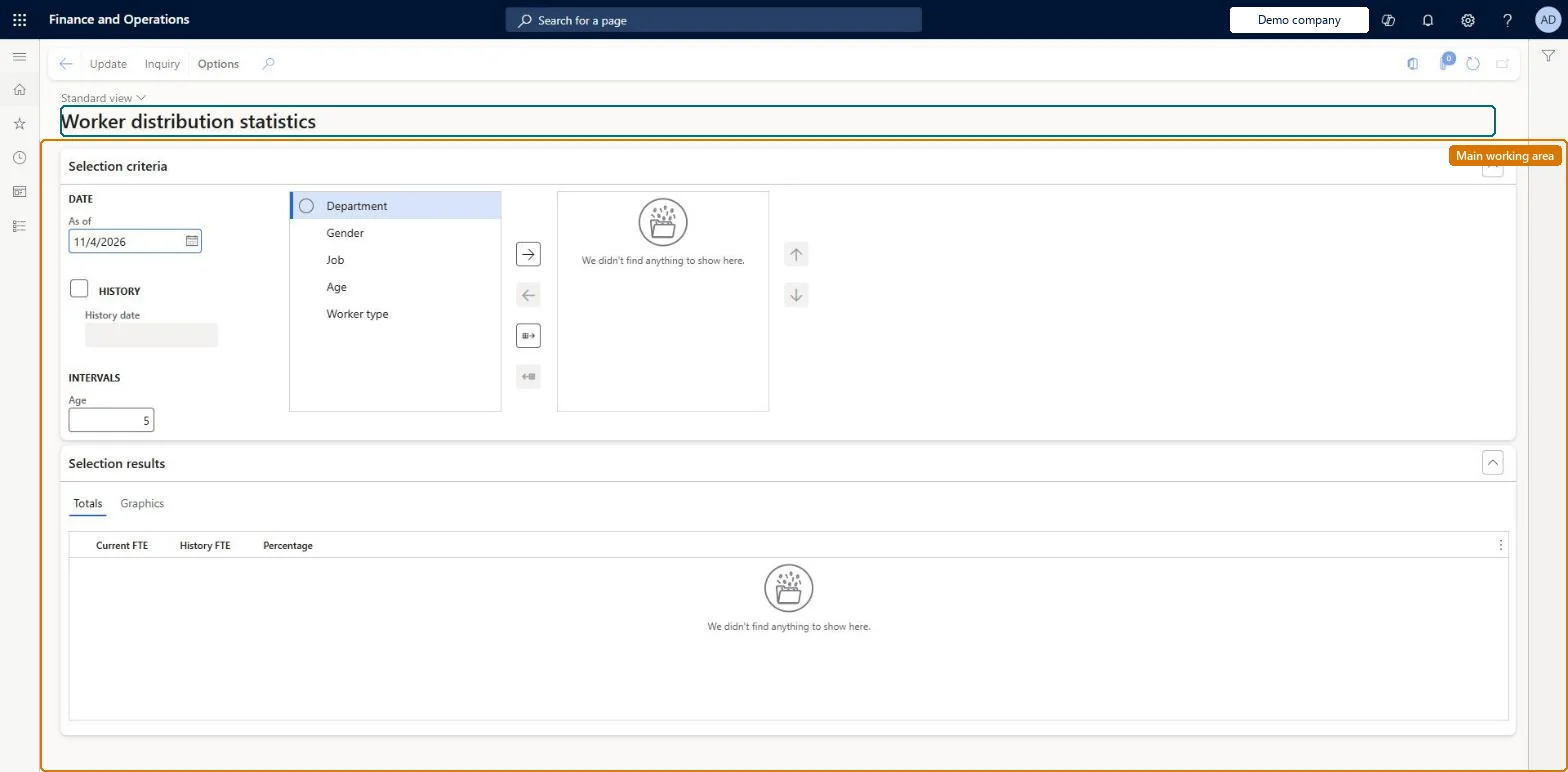
The page in Dynamics 365. page title tab to open what to set or check
About the examples: Examples and screenshots in this guide use BEAT, a demo company in a Dynamics 365 test environment. Use your own company's codes and values instead of copying them.
Setup steps on this page
Analyze the workforce by group
See how workers are spread across departments and age bands on a date.
Steps from Microsoft
Go to Human resources > Workers > Inquiries and reports > Worker distribution statistics.
In the Groupings field group, double-click Department, and then double-click Age.
In the Age field, enter 5 to group results into five-year age bands.
On the Setup tab, enter a date in the As of box.
Select Update, and then review the results on the Totals tab.
Set the As of date and the groupings first (for example Department, then Age with a band of 5 or 10 years), then select Update.The page calculates only when Update is selected, for the groupings and date entered.
Calculated, not stored as master data: the page fills a temporary statistics table (CCTmpStatistics) from the shared worker records each time it is updated. Checked in Dynamics 365
Can it be undone
Nothing to undo: The page changes no data.
If you change it later
Nothing downstream reads the result; it changes only when the As of date, the groupings or the worker records change and Update is selected again. Microsoft Learn
Technical architect
6Technical
Menu item
HcmWorkerDistributionChecked in Dynamics 365
Form
HcmWorkerDistributionChecked in Dynamics 365
Table
CCTmpStatisticsShown as “STATISTICS” in Record infoChecked in Dynamics 365
Who can open it
PrivilegesView worker distribution statistics HcmWorkerDistributionViewDutiesInquire into jobs and positions HcmJobPositionInquireInquire into organizational process HcmOrganizationalProcessInquireInquire into workforce management process HcmWorkforceProcessInquireReview workforce management information HcmWorkforceReview10 security rolesChief executive officer CompanyChiefExecutiveOfficerChief financial officer CompanyChiefFinancialOfficerCompensation and benefits manager HcmCompensationAndBenefitsManagerHuman resource assistant HcmHumanResourceAssistantHuman resource manager HcmHumanResourceManagerPayroll administrator HcmPayrollAdministratorPayroll manager HcmPayrollManagerRecruiter HcmRecruiterTraining manager HcmTrainingManagerAccounting manager LedgerAccountingManagerChecked in Dynamics 365
Roles to set it up and use it
To use itHuman resource manager HcmHumanResourceManagerHuman resource assistant HcmHumanResourceAssistantCompensation and benefits manager HcmCompensationAndBenefitsManagerRecruiter HcmRecruiterPayroll administrator HcmPayrollAdministratorGive people one of these roles. On this system, 10 roles can open this page.Checked in Dynamics 365
Actions on the page
(Action Pane without tabs): Update, InquiryChecked in Dynamics 365
Load order: Worker distribution statistics has no data entity in Data management, so it can't be loaded from a file or a configuration template. It calculates from the worker records; load them with the Worker data migration template and calculate the distribution in each environment.Microsoft Learn