SETUP GUIDEHow to set it up8 sections. Choose a role to highlight what matters to you.
Everyone
1What it is and why
What it is
A report that lists workers by length of service as of a date you enter.
What you do here
Use this page to rank workers by seniority when a decision depends on years of service.
Example
For example, before the 2027 shift bidding BEAT runs the report as of 1 January 2027 for the Warehouse department and ranks its 20 workers from 31 years of service down to 2 months.
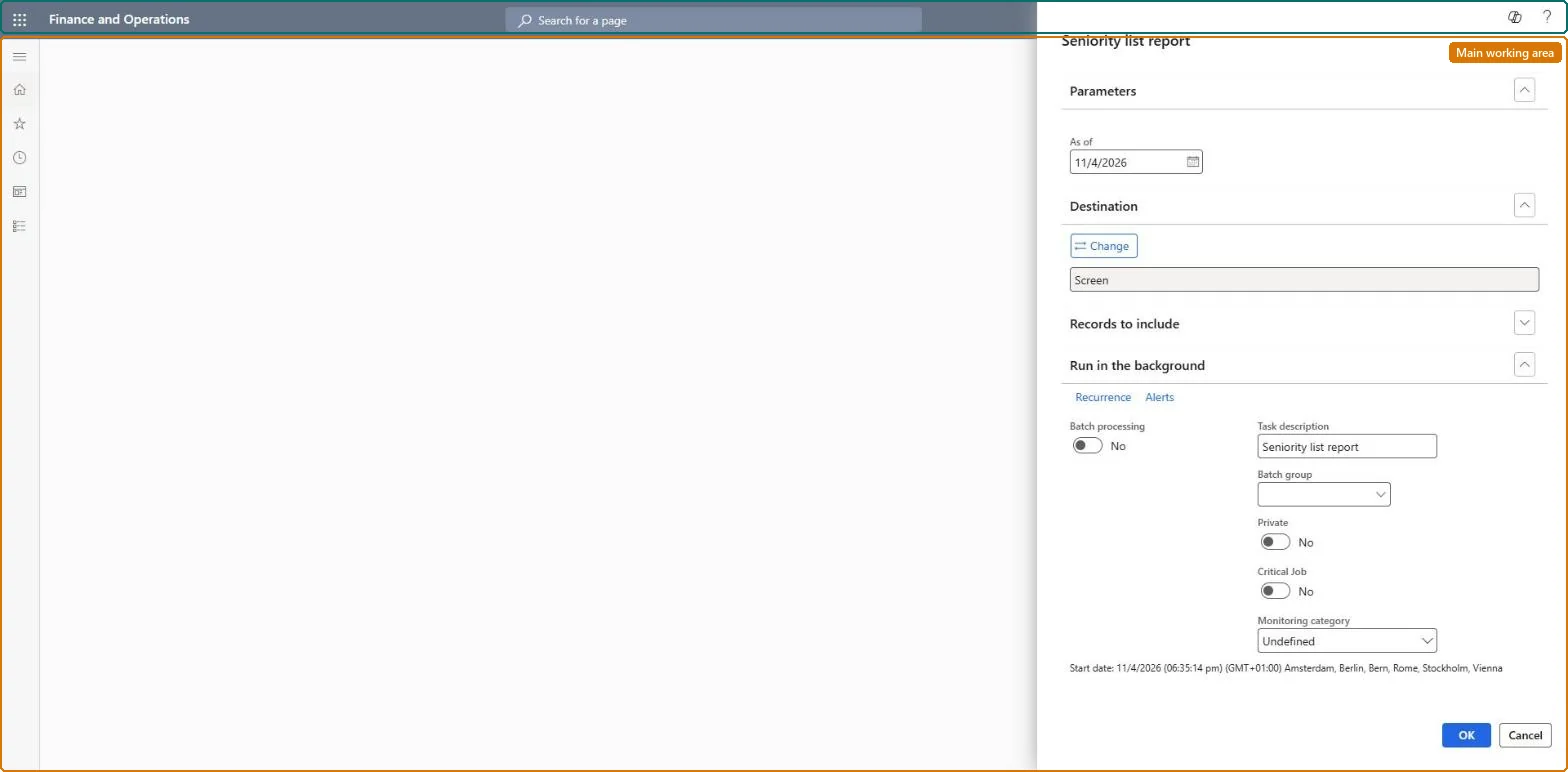
The page in Dynamics 365. page title tab to open what to set or check
About the examples: Examples and screenshots in this guide use BEAT, a demo company in a Dynamics 365 test environment. Use your own company's codes and values instead of copying them.
When to run it
When to run it
When you need workers ranked by length of service, for example for layoffs, shift bidding or union rules.
How often
On demand, when a seniority-based decision is made.
What the output shows
Workers listed by seniority as of the date. Years of service that look wrong usually come from a wrong seniority date on the worker.
The date used to calculate years of service in Human resources parameters isn't the one your policy uses. Change it on the General tab and run the report again. Microsoft Learn
Rankings differ between two companies
Human resources parameters are company specific, so each company can use a different date for years of service. Set the same date in every company. Microsoft Learn
Set the date used for years of service in Human resources parameters in each company first, then run the report as of the decision date.A setup option added in 10.0.25 chooses which date the years of service calculation uses, so the ranking follows that choice.
Shared worker data: Data management lists the Worker, Employment V2 and Person details entities as shared, so the report reads the same worker records from any legal entity; narrow it with Records to include. Checked in Dynamics 365
Can it be undone
Nothing to undo: The report only reads worker dates.
If you change it later
Years of service are calculated from the date selected in Human resources parameters (General tab); changing that setting, which is per company, changes the order on the next run. Microsoft Learn
Technical architect
6Technical
Menu item
HRMSeniorityChecked in Dynamics 365
Form
SysOperationTemplateFormChecked in Dynamics 365
Roles to set it up and use it
To use itHuman resource manager HcmHumanResourceManagerCompensation and benefits manager HcmCompensationAndBenefitsManagerRecruiter HcmRecruiterPayroll administrator HcmPayrollAdministratorPayroll manager HcmPayrollManagerGive people one of these roles. On this system, 11 roles can run this page.Checked in Dynamics 365
Developer
7Developer
Open it by URL
https://<your-environment>/?mi=HRMSeniority
Data migration
Load order: The Seniority list report has no data entity in Data management, so it can't be loaded from a file or a configuration template. It reads the workers' service dates; load the workers with the Worker data migration template, set the years of service date in Human resources parameters and run the report in each environment.Microsoft Learn