Human resource assistant, Human resource manager, Payroll administrator and 2 more roles
Business process
Onboard new employees
Menu item
BusinessProcessGroupAssignment
Main table
BusinessProcessGroupAssignment
Data entity
BusinessProcessGroupAssignmentEntity
Setup steps
2 on this page
Show what matters for
SETUP GUIDEHow to set it up8 sections. Choose a role to highlight what matters to you.
Everyone
1What it is and why
What it is
A setup page where you create assignment groups, which are groups of positions that onboarding, offboarding or transition tasks can be assigned to.
What you do here
Use this page to set up groups so that a task can be assigned to everyone in a set of positions.
Example
For example, BEAT's group IT Laptop holds the 3 IT engineer positions; the Configure laptop task assigned to the group is created for all 3 position holders at hire, and is Completed as soon as one of them completes it.
The page in Dynamics 365. page title tab to open what to set or check
About the examples: Examples and screenshots in this guide use BEAT, a demo company in a Dynamics 365 test environment. Use your own company's codes and values instead of copying them.
Step by step, with screenshots
Set up assignment groups
Create groups of positions for tasks that any one of several people can complete.
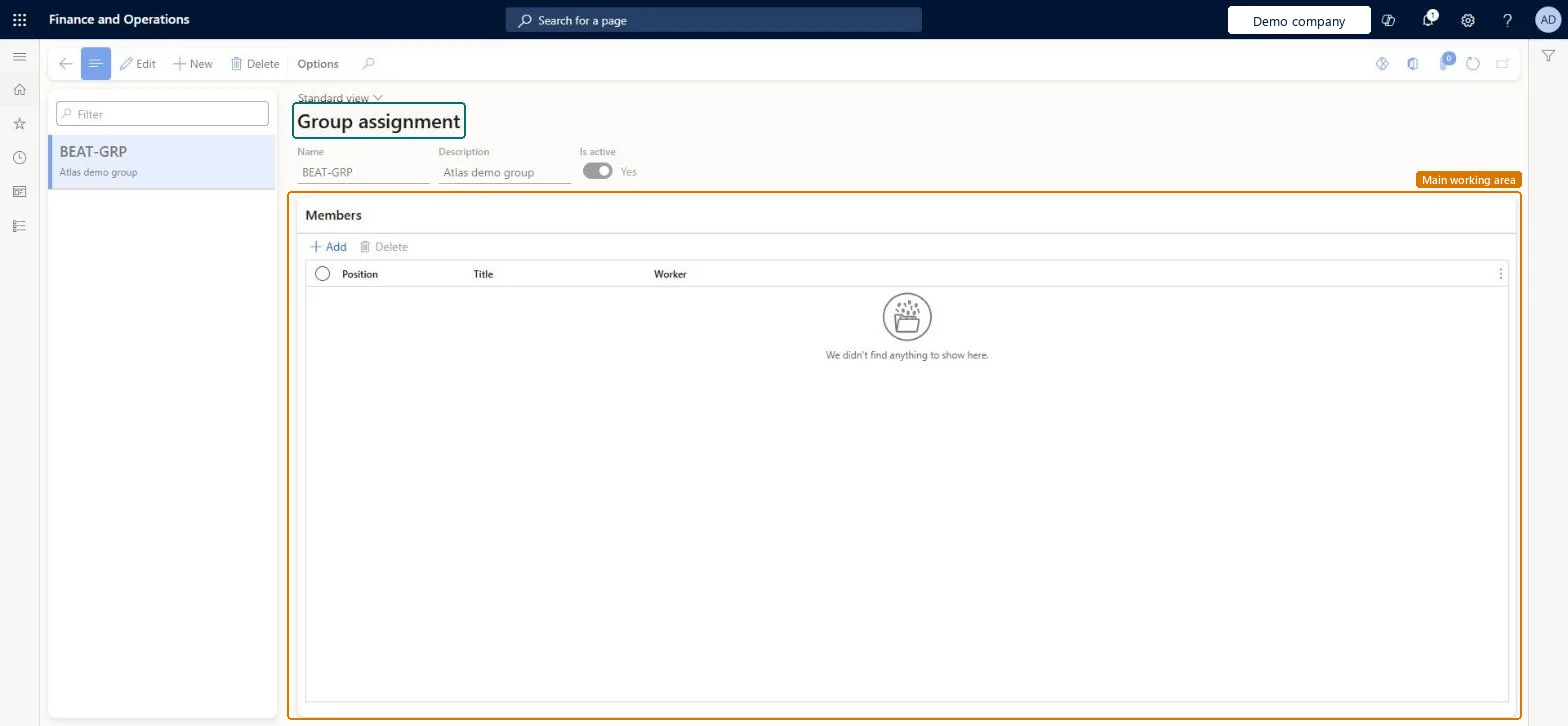
Set up Group assignment1 screen
Use this page to set up groups so that a task can be assigned to everyone in a set of positions.
Screen 1
Create a business process group
Go to Organization administration > Setup > Business process > Group assignment
Select New
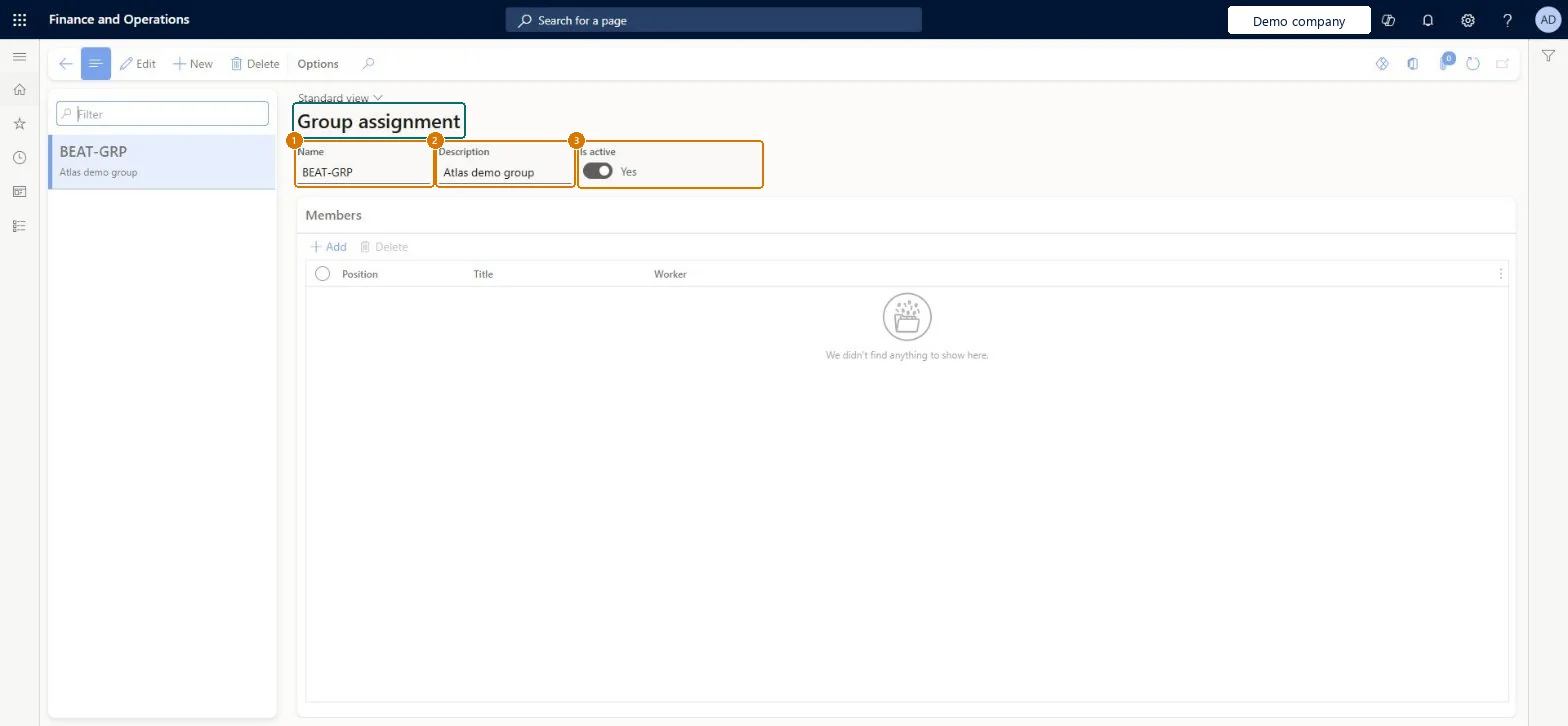
Enter the group name and description
Leave Is active set to Yes
Select Save; use Add under Members to add positions
1Name
BEAT-GRP
2Description
Group
3Is active
Yes
Show the full screen page title tab to open what to set or check
Steps from Microsoft
Go to Human resources > Task management > Group assignment.
Select New.
Enter a name, for example IT Laptop, and a description.
Select Save.
On the Members FastTab, select Add.
In the Positions field, select all positions that are responsible for the task.
A group only where a set of positions shares a task and any one of them can complete it (for example IT Laptop), with every responsible position added on the Members FastTab.A group task is created for the users in the group's positions at hire, termination or transition, and is Completed when one of them completes it.
A group only where a set of positions shares a task and any one of them can complete it (for example an IT laptop team)A task assigned to a group is created for the users in the group's positions and is marked completed as soon as one person completes it.
Groups whose positions are empty when the hire, termination or transition is completed. The task then goes to the checklist owner instead.
Feature management and licence
Licence or add-in
On BEAT the page is maintained by Human resource assistant, Human resource manager, Payroll administrator, Payroll manager and Retail task manager; the full list is under the page's security roles. No Feature management feature is needed for this page.
Shared: assignment groups are not per company. Data management lists the Group assignment entity as shared. Checked in Dynamics 365
Can it be undone
Reversible: Members can be changed at any time; tasks already created aren't regenerated.
If you change it later
A task assigned to a group is marked as completed as soon as one person in the group completes it. Microsoft Learn
Technical architect
6Technical
Menu item
BusinessProcessGroupAssignmentChecked in Dynamics 365
Form
BusinessProcessGroupAssignmentChecked in Dynamics 365
Table
BusinessProcessGroupAssignmentShown as “GROUP ASSIGNMENT” in Record infoKey field: NameChecked in Dynamics 365
Data entities
BusinessProcessGroupAssignmentEntityGroup assignment Checked in Dynamics 365BusinessProcessGroupAssignmentMemberEntityGroup assignment member (The positions that are members of each group.)
Who can open it
PrivilegesMaintain business process group assignments BusinessProcessGroupAssignmentMaintainDutiesMaintain generic business processes. BusinessProcessGenericMaintainMaintain onboarding task configuration HcmOnboardConfigurationMaintain5 security rolesHuman resource assistant HcmHumanResourceAssistantHuman resource manager HcmHumanResourceManagerPayroll administrator HcmPayrollAdministratorPayroll manager HcmPayrollManagerRetail task manager RetailTaskManagerChecked in Dynamics 365
Roles to set it up and use it
To set it up or change itHuman resource assistant HcmHumanResourceAssistantHuman resource manager HcmHumanResourceManagerPayroll administrator HcmPayrollAdministratorPayroll manager HcmPayrollManagerRetail task manager RetailTaskManagerGive people one of these roles. On this system, 5 roles can open this page.Checked in Dynamics 365
BusinessProcessGroupAssignmentEntity data entity Checked in Dynamics 365
Data migration
BusinessProcessGroupAssignmentEntity Group assignment. Shared.BusinessProcessGroupAssignmentMemberEntity Group assignment member: the positions.Load order: Load with the Task management template in its order: Business calendar, Business calendar days, Group assignment, Group assignment member, Business process library task, task group and task grouping, then Business process template and template task. Positions must be loaded before the group members.Load first: HcmPositionV2EntityMicrosoft Learn
Checked in a working Dynamics 365 system, version 10.0.49: the menu item, form, table and security, the page, the demo records and the values in the screenshots.
To cite this step: HR-RORG-160, Set up assignment groups. Beyond ERP Atlas Hub, 2026-11-11. https://www.beyonderp.cloud/atlas/step/HR-RORG-160