Compensation and benefits manager, Human resource assistant, Human resource manager and 4 more roles
Business process
Administer system features
Menu item
BusinessProcessCalendarList
Main table
BusinessProcessCalendar
Data entity
BusinessProcessCalendarEntity
Setup steps
2 on this page
Show what matters for
PAGE GUIDEWhat the page does and how to use it8 sections. Choose a role to highlight what matters to you.
Everyone
1What it is and why
What it is
A setup page where you create calendars of working and nonworking days that are used to calculate due dates for checklist tasks.
What you do here
Use this page to define working days, weekends and holidays so that task due dates skip nonworking days.
Example
For example, BEAT's calendar BEAT working days covers 2026 and 2027 with Saturdays, Sundays and public holidays as nonworking days; a task with offset 5 for a start on Thursday December 24, 2026 is due on January 4, 2027, skipping the weekends, December 25 and January 1.
The page in Dynamics 365. page title tab to open what to set or check
About the examples: Examples and screenshots in this guide use BEAT, a demo company in a Dynamics 365 test environment. Use your own company's codes and values instead of copying them.
Step by step, with screenshots
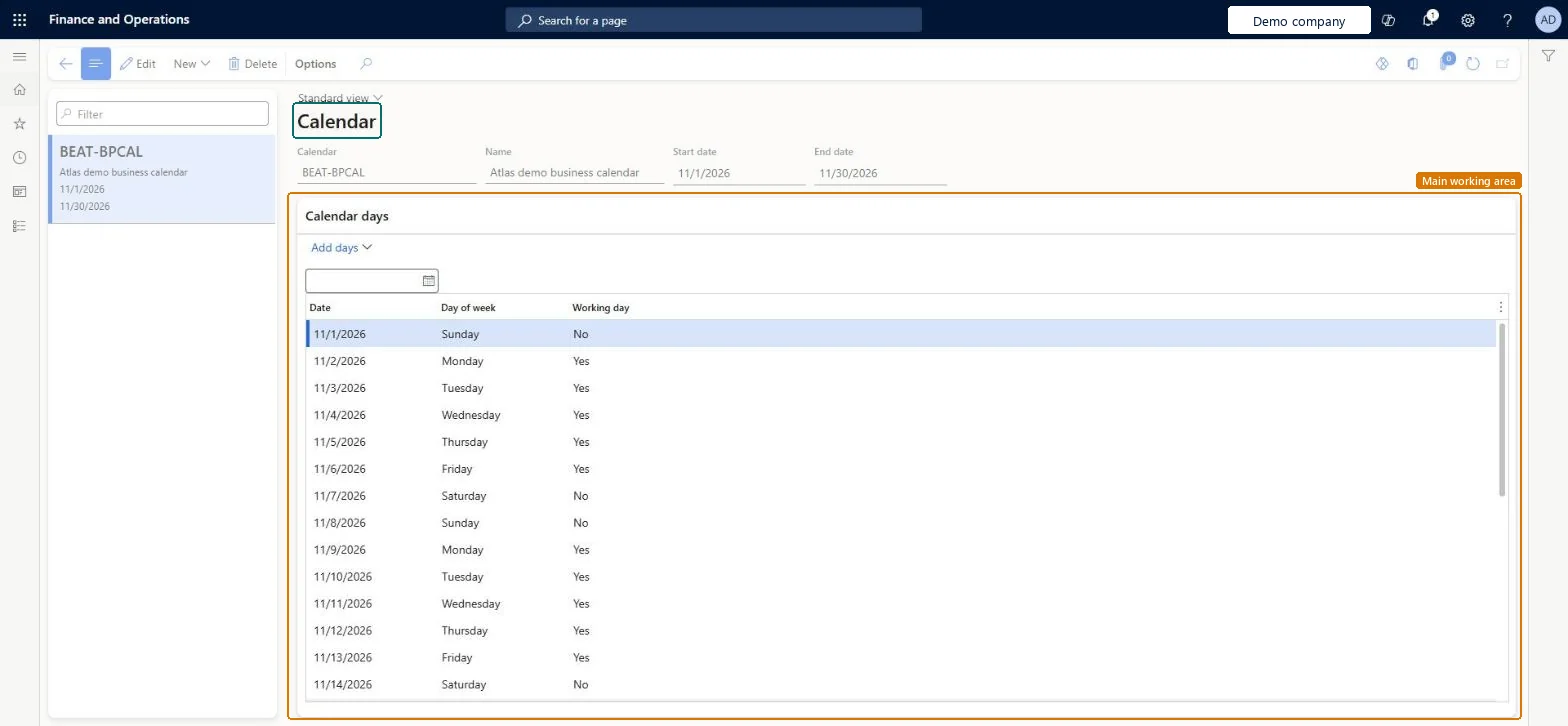
Set up Calendar1 screen
Use this page to define working days, weekends and holidays so that task due dates skip nonworking days.
Screen 1
Create a business process calendar
Go to Organization administration > Setup > Business process > Calendar
Select New
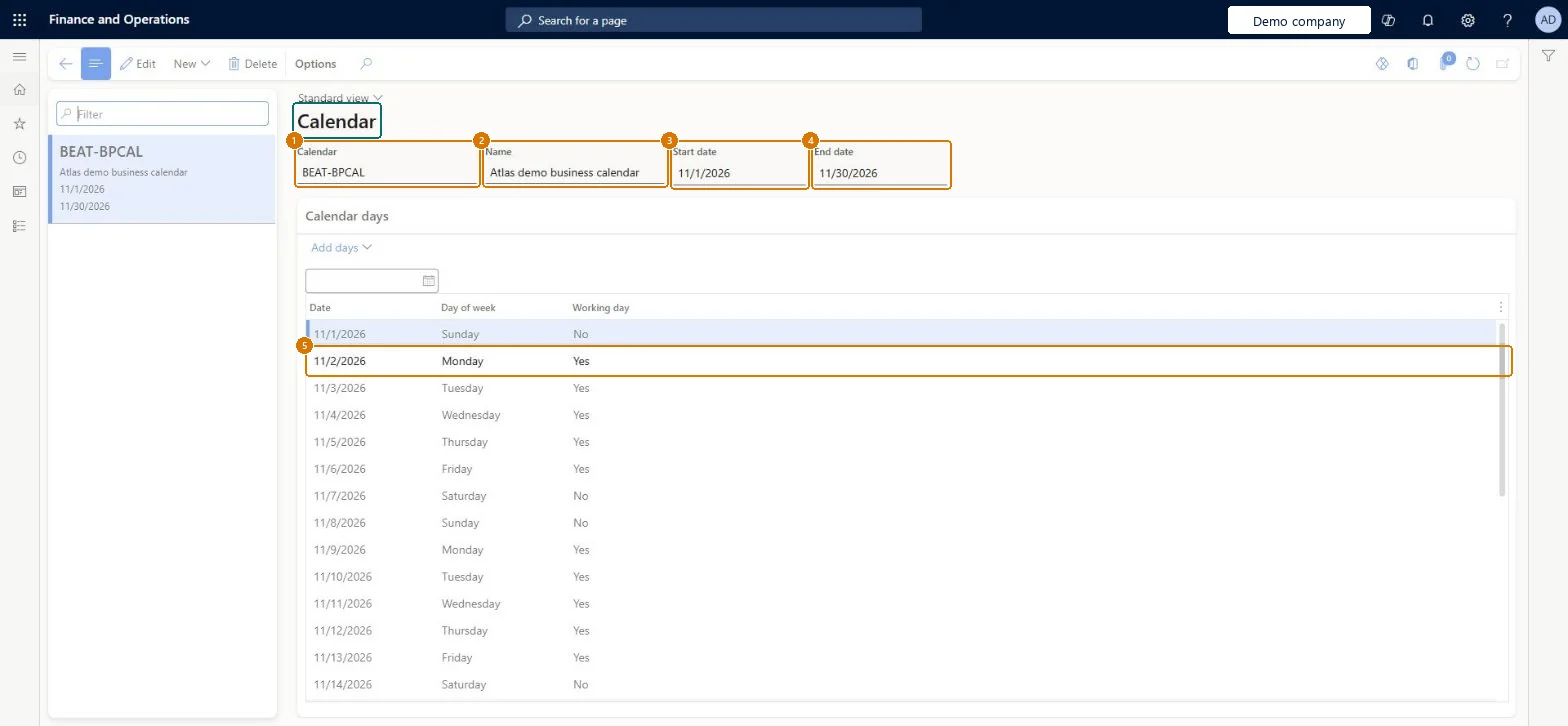
Enter the calendar ID, name, start date and end date
Leave the working weekdays selected
Select Create; the days are added with their working day flag
1Calendar
BEAT-BPCAL
2Name
Business calendar
3Start date
11/1/2026
4End date
11/30/2026
Working days
Monday to Friday
Show the full screen page title tab to open what to set or check
Keep the task calendar current
Maintain working and nonworking days so checklist due dates land on working days.
Steps from Microsoft
Go to Human resources > Task management > Calendar.
Select New to create a calendar.
Enter the Calendar, Name, Start date and End date.
Under Calendar days, select Add days to add dates.
In the Calendar days list, set the Working day value for each date.
The first date of the calendar.Checked in Dynamics 365
1/1/2026
StartDate
End date
The last date of the calendar.Checked in Dynamics 365
12/31/2027
EndDate
Working days
Whether each date counts as a working day; nonworking days are skipped when due dates are calculated.Microsoft Learn
Monday to Friday
Common errors and fixes
Message
What to do
A task's due date falls on a weekend or holiday
The checklist's calendar doesn't mark those days as nonworking. Correct the calendar; adjust the due dates of tasks already created by hand. Microsoft Learn
Due dates stop skipping weekends
The calendar's days don't reach the due date. Extend the End date and add the days with Add days. Microsoft Learn
Test checklist
Create a calendar with Saturday and Sunday as nonworking days and a public holiday.
Link it to a checklist and add a task with a due date offset that crosses the weekend and the holiday.
Apply the checklist and check the due date skips the weekend and the holiday.
A calendar with working days, weekends and holidays for each set of checklists that share the same working patternTask due dates on a checklist are calculated from its calendar: working days count and nonworking days, including weekends and holidays, are skipped. Each checklist uses one calendar.
Missing holidays or an End date that has passed, so due date offsets land on nonworking days.
One calendar per working pattern, covering at least the next two years, with weekends and public holidays set as nonworking.Each checklist uses one calendar, and its working and nonworking days decide every task's due date.
On BEAT the page is maintained by Human resource assistant, Human resource manager, Payroll administrator, Payroll manager and Retail task manager; viewed by Compensation and benefits manager and Training manager; the full list is under the page's security roles. No Feature management feature is needed for this page.
Shared: calendars are not per company. Data management lists the Business calendar entity as shared. Checked in Dynamics 365
Can it be undone
Reversible: The calendar is used to calculate task due dates when tasks are created from a checklist: working days count and nonworking days are skipped. Changes affect tasks created afterwards; due dates on existing tasks can be adjusted by hand. Each checklist uses one calendar. Microsoft Learn
If you change it later
Due dates of checklist tasks are calculated from the checklist's calendar: working days count and nonworking days, including weekends and holidays, are skipped. A change affects tasks created afterwards; existing due dates are adjusted by hand. Microsoft Learn
Technical architect
6Technical
Menu item
BusinessProcessCalendarListChecked in Dynamics 365
Form
BusinessProcessCalendarChecked in Dynamics 365
Table
BusinessProcessCalendarShown as “BUSINESS CALENDAR” in Record infoKey field: CalendarIdChecked in Dynamics 365
Data entities
BusinessProcessCalendarEntityBusiness calendar Checked in Dynamics 365BusinessProcessCalendarDayEntityBusiness calendar days (The days of each calendar with their working day setting.)
To set it up or change itHuman resource assistant HcmHumanResourceAssistantHuman resource manager HcmHumanResourceManagerPayroll administrator HcmPayrollAdministratorPayroll manager HcmPayrollManagerRetail task manager RetailTaskManagerTo use itCompensation and benefits manager HcmCompensationAndBenefitsManagerTraining manager HcmTrainingManagerGive people one of these roles. On this system, 7 roles can open this page.Checked in Dynamics 365
Actions on the page
(Action Pane without tabs): New, DeleteChecked in Dynamics 365
BusinessProcessCalendarEntity data entity Checked in Dynamics 365
Data migration
BusinessProcessCalendarEntity Business calendar. Shared.BusinessProcessCalendarDayEntity Business calendar days.Load order: Load with the Task management template in its order: Business calendar, Business calendar days, Group assignment, Group assignment member, Business process library task, task group and task grouping, then Business process template and template task. The calendar loads first, before the checklists that use it.Microsoft Learn
Checked in a working Dynamics 365 system, version 10.0.49: the menu item, form, table and security, the page, the demo records and the values in the screenshots.