SETUP GUIDEHow to set it up8 sections. Choose a role to highlight what matters to you.
Everyone
1What it is and why
What it is
A page of checklists, each a reusable group of onboarding, offboarding or transition tasks with an owner and a calendar.
What you do here
Use this page to group tasks into checklists that are applied when an employee is hired, terminated or transferred.
Example
For example, BEAT keeps US-based employees (14 tasks) and Executives only (3 tasks, such as assign a company car), both owned by Ana Bowman on the BEAT working days calendar; hiring a US executive selects both checklists and creates 17 tasks.
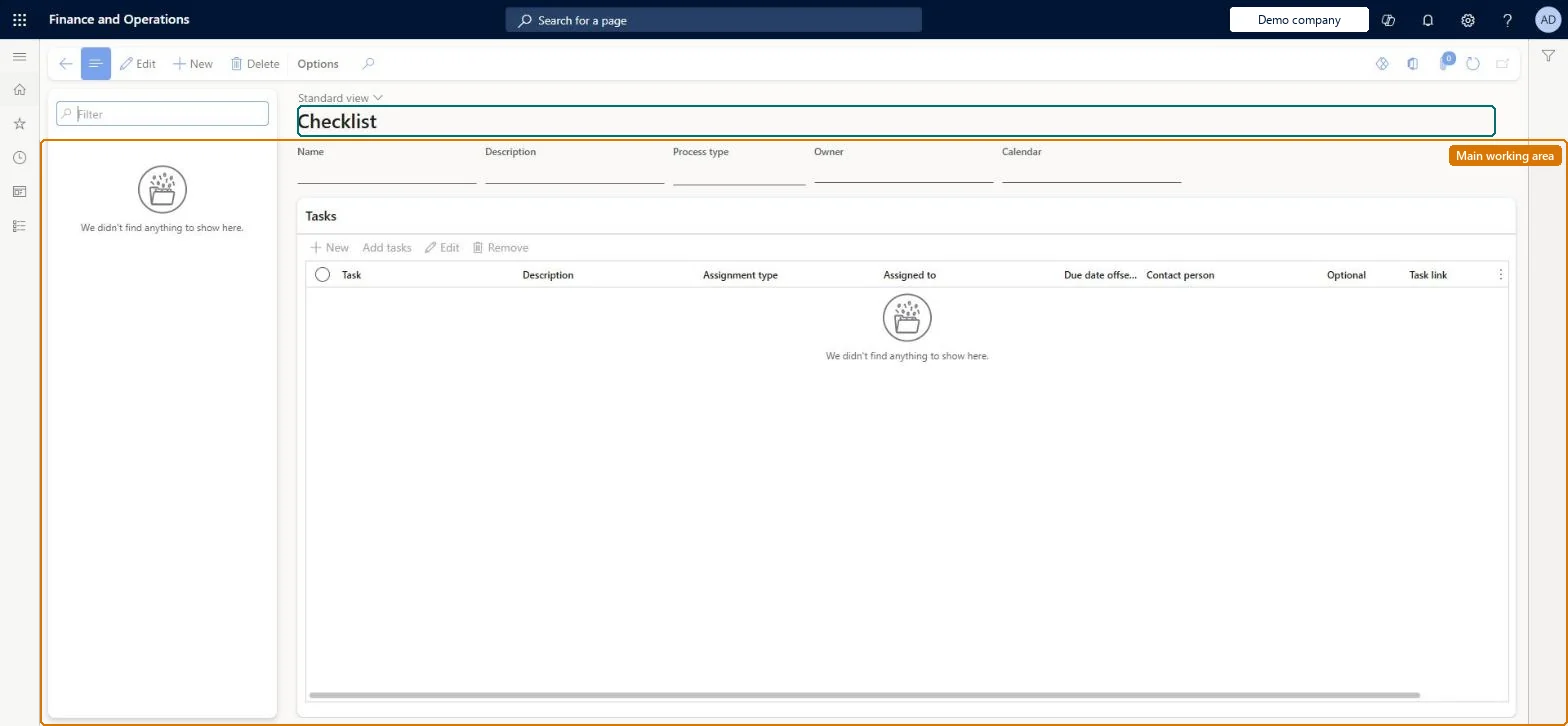
The page in Dynamics 365. page title tab to open what to set or check
About the examples: Examples and screenshots in this guide use BEAT, a demo company in a Dynamics 365 test environment. Use your own company's codes and values instead of copying them.
Setup steps on this page
Set up onboarding checklists
Group onboarding tasks into checklists per hiring situation, each with an owner and a calendar.
Steps from Microsoft
Go to Human resources > Task management > Onboarding checklists.
Use the Filter box to find a checklist.
Select New and enter the Name, Description, Process type, Owner and Calendar.
Under Tasks, select New or Add tasks to add tasks from the task library, with their assignment type, assignee, due date offset and contact person.
Select Save; select Delete to remove a selected checklist.
The person who gets tasks that cannot be assigned to anyone else.Microsoft Learn
Ana Bowman
Name
Calendar
The calendar used to work out task due dates, skipping non-working days.Microsoft Learn
BEAT working days
CalendarId
Common errors and fixes
Message
What to do
Tasks for the manager or a position go to the checklist owner
No person could be found: the employee has no position (so no manager), or the position or group was vacant when the tasks were created. Assign a position before applying the checklist. Microsoft Learn
A task's due date falls on a weekend or holiday
The checklist's calendar doesn't mark those days as nonworking. Correct the calendar; adjust the due dates of tasks already created by hand. Microsoft Learn
Test checklist
Create a checklist with an owner and a calendar that has weekends as nonworking days.
Add a Manager task and hire a worker without a position, selecting the checklist.
Check the Manager task is assigned to the checklist owner.
Check a task with a due date offset that crosses a weekend skips the nonworking days.
One checklist per hiring situation (for example US-based employees, Executives only), each with an owner who can take unrouted tasks and a calendar with weekends and holidays as nonworking days.Several checklists can be selected for one hire, tasks that can't be routed go to the owner, and due dates follow the checklist's calendar.
On BEAT the page is maintained by Human resource assistant and Human resource manager; the full list is under the page's security roles. No Feature management feature is needed for this page.
To set it up or change itHuman resource assistant HcmHumanResourceAssistantHuman resource manager HcmHumanResourceManagerGive people one of these roles. On this system, 2 roles can open this page.Checked in Dynamics 365
HcmOnboardingChecklistTemplateHeaderEntity data entity Checked in Dynamics 365
Data migration
HcmOnboardingChecklistTemplateHeaderEntity Onboarding checklist template header. Shared.HcmOnboardingChecklistTemplateTaskEntity Onboarding checklist template task.Load order: Load with the Task management template in its order: Business calendar, Business calendar days, Group assignment, Group assignment member, Business process library task, task group and task grouping, then Business process template and template task.Load first: BusinessProcessCalendarEntity, BusinessProcessLibraryTaskEntityMicrosoft Learn