SETUP GUIDEHow to set it up8 sections. Choose a role to highlight what matters to you.
Everyone
1What it is and why
What it is
A setup page where you build the task library and checklists used for onboarding, offboarding and transition tasks.
What you do here
Use this page to create reusable tasks, set who they are assigned to and when they are due, and add them to checklists.
Example
For example, BEAT's library task Configure laptop is assigned to the IT engineer position with Due date offset -2; for a hire starting on May 5 the task is due on May 3, and it is applied to the US-based employees and Executives only checklists.
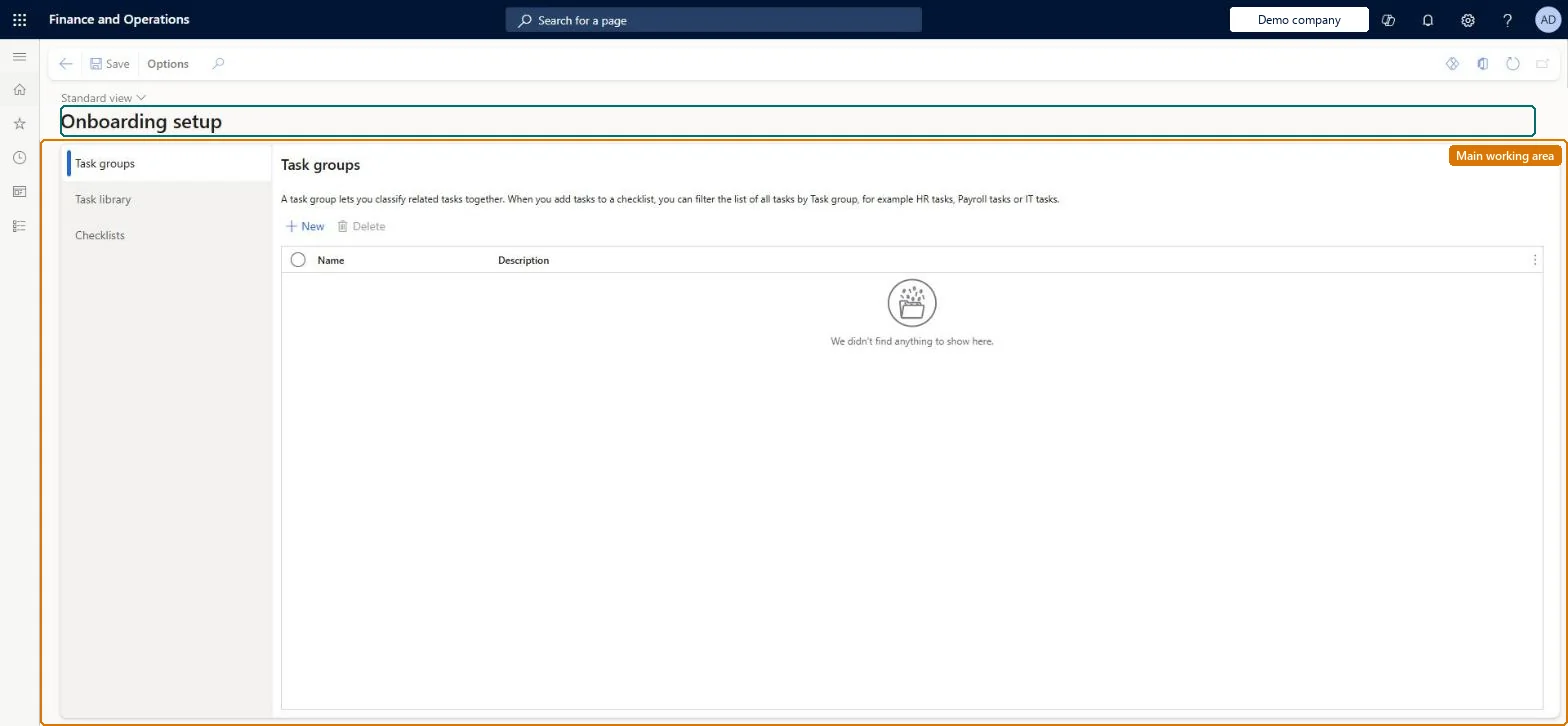
The page in Dynamics 365. page title tab to open what to set or check
About the examples: Examples and screenshots in this guide use BEAT, a demo company in a Dynamics 365 test environment. Use your own company's codes and values instead of copying them.
Setup steps on this page
Build the onboarding task library
Create onboarding tasks once in the library and apply them to checklists.
Steps from Microsoft
Go to Human resources > Task management > Onboarding setup.
On the Tasks tab, select New.
Enter the task name, description and instructions.
Select the assignment type and who the task is assigned to.
Enter the due date offset.
Select Apply to checklists to add the task to checklists.
A task deleted from the library still appears on a checklist
Deleting from the library doesn't remove it from checklists. Remove it from each checklist separately. Microsoft Learn
Tasks for the manager or a position go to the checklist owner
No person could be found: the employee has no position (so no manager), or the position or group was vacant when the tasks were created. Assign a position before applying the checklist. Microsoft Learn
Test checklist
Create a library task with Assignment type Position, a Due date offset of -2 and instructions.
Apply it to an onboarding checklist with Apply to checklists.
Hire a worker with a start date and select the checklist.
Check the task is created for the worker in the position, due two working days before the start date.
Create every onboarding task in the library (not directly on a checklist), assigned to a Position, Group or the Manager, with a Due date offset from the start date, and apply it to checklists with Apply to checklists.Library tasks can be reused in several checklists, while a task added directly to a checklist can't; due dates are the start date plus the offset on the checklist's calendar.
Shared: library tasks are not per company. Data management lists the Business process library task entity as shared. Checked in Dynamics 365
Can it be undone
Hard to reverse: Tasks are created at hire; deleting a library task doesn't remove it from checklists, and edits reach other checklists only when selected.
If you change it later
Deleting a task from the library does not remove it from checklists that already use it. Microsoft Learn
Technical architect
6Technical
Menu item
HcmOnboardTaskConfigurationChecked in Dynamics 365
Form
HcmOnboardTaskConfigurationChecked in Dynamics 365
Table
BusinessProcessLibraryTaskShown as “BUSINESS PROCESS LIBRARY TASK GROUP” in Record infoChecked in Dynamics 365
Data entities
HcmOnboardingChecklistTemplateHeaderEntityOnboarding checklist template header Checked in Dynamics 365HcmOnboardingLibraryTaskEntityOnboarding library task Checked in Dynamics 365HcmOnboardingLibraryTaskGroupEntityOnboarding library task group Checked in Dynamics 365HcmOnboardingLibraryTaskGroupingEntityOnboarding library task grouping Checked in Dynamics 365BusinessProcessLibraryTaskGroupEntityBusiness process library task group Checked in Dynamics 365BusinessProcessLibraryTaskEntityBusiness process library task
To set it up or change itHuman resource assistant HcmHumanResourceAssistantHuman resource manager HcmHumanResourceManagerGive people one of these roles. On this system, 2 roles can open this page.Checked in Dynamics 365
HcmOnboardingChecklistTemplateHeaderEntity data entity Checked in Dynamics 365
Data migration
BusinessProcessLibraryTaskEntity Business process library task. Shared.BusinessProcessLibraryTaskGroupEntity Library task groups. Shared.Load order: Load with the Task management template in its order: Business calendar, Business calendar days, Group assignment, Group assignment member, Business process library task, task group and task grouping, then Business process template and template task.Load first: BusinessProcessGroupAssignmentEntity, BusinessProcessCalendarEntityMicrosoft Learn