SETUP GUIDEHow to set it up8 sections. Choose a role to highlight what matters to you.
Everyone
1What it is and why
What it is
A report that prints the total compensation statement, showing the totals of the benefits, earnings and taxes set up in each statement section.
What you do here
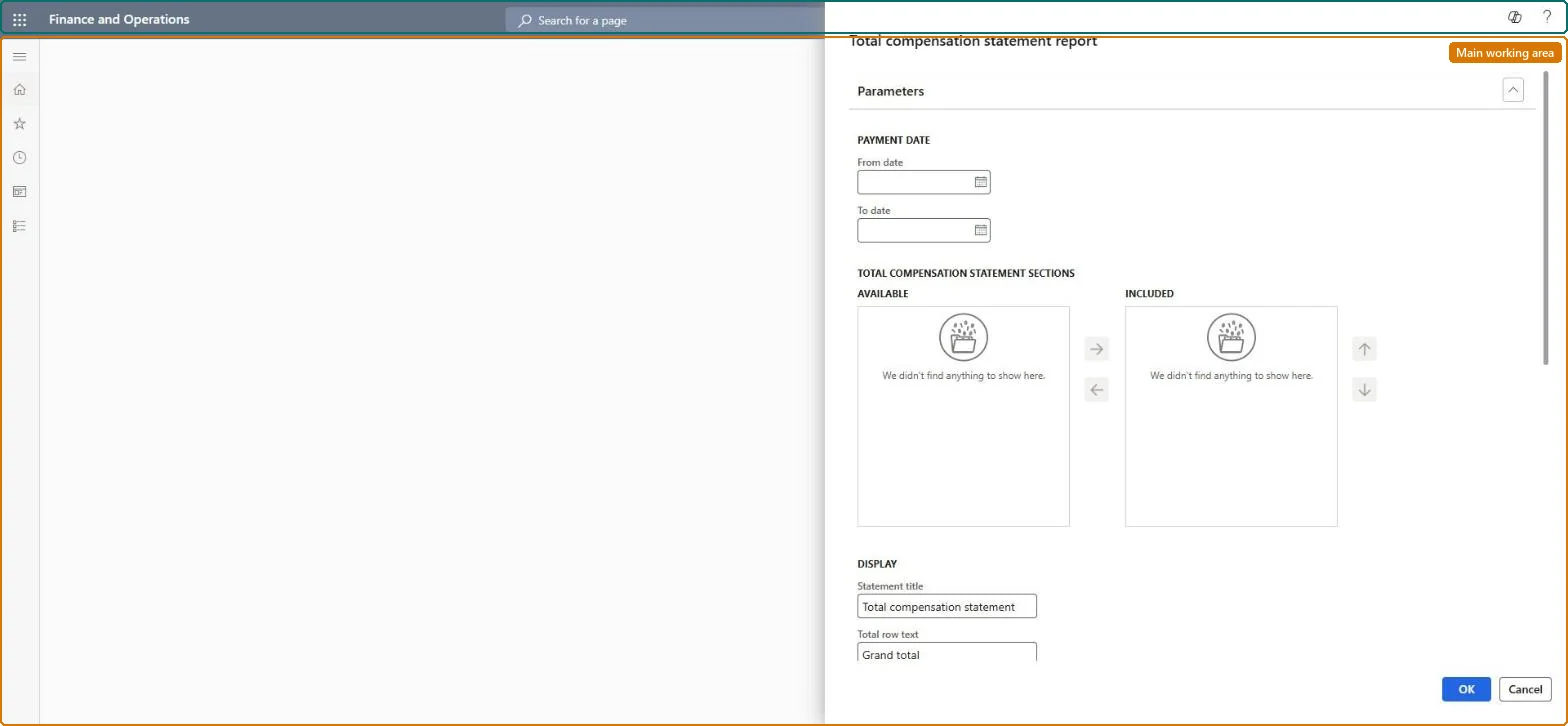
Use this page to produce total compensation statements for employees from the sections you have set up.
Example
For example, during open enrollment BEAT prints statements for 1 January to 31 December 2025 with the sections PAY, BEN and TAX included, the title Your 2025 total rewards and the total row text Total value; an employee with 52,000 EUR pay and 9,400 EUR benefits sees both section totals and their sum.
The page in Dynamics 365. page title tab to open what to set or check
About the examples: Examples and screenshots in this guide use BEAT, a demo company in a Dynamics 365 test environment. Use your own company's codes and values instead of copying them.
When to run it
When to run it
When you give employees a yearly view of the total value of their pay and benefits, for example during compensation reviews or open enrollment.
How often
On demand, usually once a year.
What the output shows
One statement per worker with a total per section and an overall total row. A section total that is wrong usually means an earning, benefit or tax code is missing from the section setup.
No earning, benefit or tax code of the section has amounts in the From date to To date period. Check the dates and the section's codes. Microsoft Learn
Run it once a year for the full year, with every statement section included, after the last pay run of the year; check the totals of a few employees against their pay records before handing statements out.The statement totals the codes set up in each included section for the dates entered, so the dates and sections decide what employees see.
Shared setup: the report reads the shared statement sections and the pay and benefit data of the workers selected in Records to include. Checked in Dynamics 365
Can it be undone
Nothing to undo: The report only totals pay and benefit data; it changes nothing.
If you change it later
The report only totals pay and benefit data and changes nothing; section changes show on statements printed after them. Microsoft Learn
Technical architect
6Technical
Menu item
HcmTotalCompStatementReportChecked in Dynamics 365
Form
SysOperationTemplateFormChecked in Dynamics 365
Roles to set it up and use it
To use itCompensation and benefits manager HcmCompensationAndBenefitsManagerPayroll administrator HcmPayrollAdministratorPayroll manager HcmPayrollManagerGive people one of these roles. On this system, 3 roles can run this page.Checked in Dynamics 365
Load order: The Total compensation statement report has no data entity in Data management, so it can't be loaded from a file or a configuration template. It prints existing pay and benefit data; load the statement sections with the Compensation management template and run the report in each environment.Microsoft Learn
Checked in a working Dynamics 365 system, version 10.0.49: the menu item, form, table and security, the page.
To cite this step: HR-RCMP-030, Print total compensation statements. Beyond ERP Atlas Hub, 2026-11-11. https://www.beyonderp.cloud/atlas/step/HR-RCMP-030