Compensation and benefits manager, Human resource manager, Payroll administrator and 1 more role
Business process
Develop people strategy
Menu item
HcmTotalCompStatementSections
Main table
HcmTotalCompStatementSec
Data entity
HcmTotalCompStatementSectionHeaderEntity
Setup steps
1 on this page
Show what matters for
PAGE GUIDEWhat the page does and how to use it8 sections. Choose a role to highlight what matters to you.
Everyone
1What it is and why
What it is
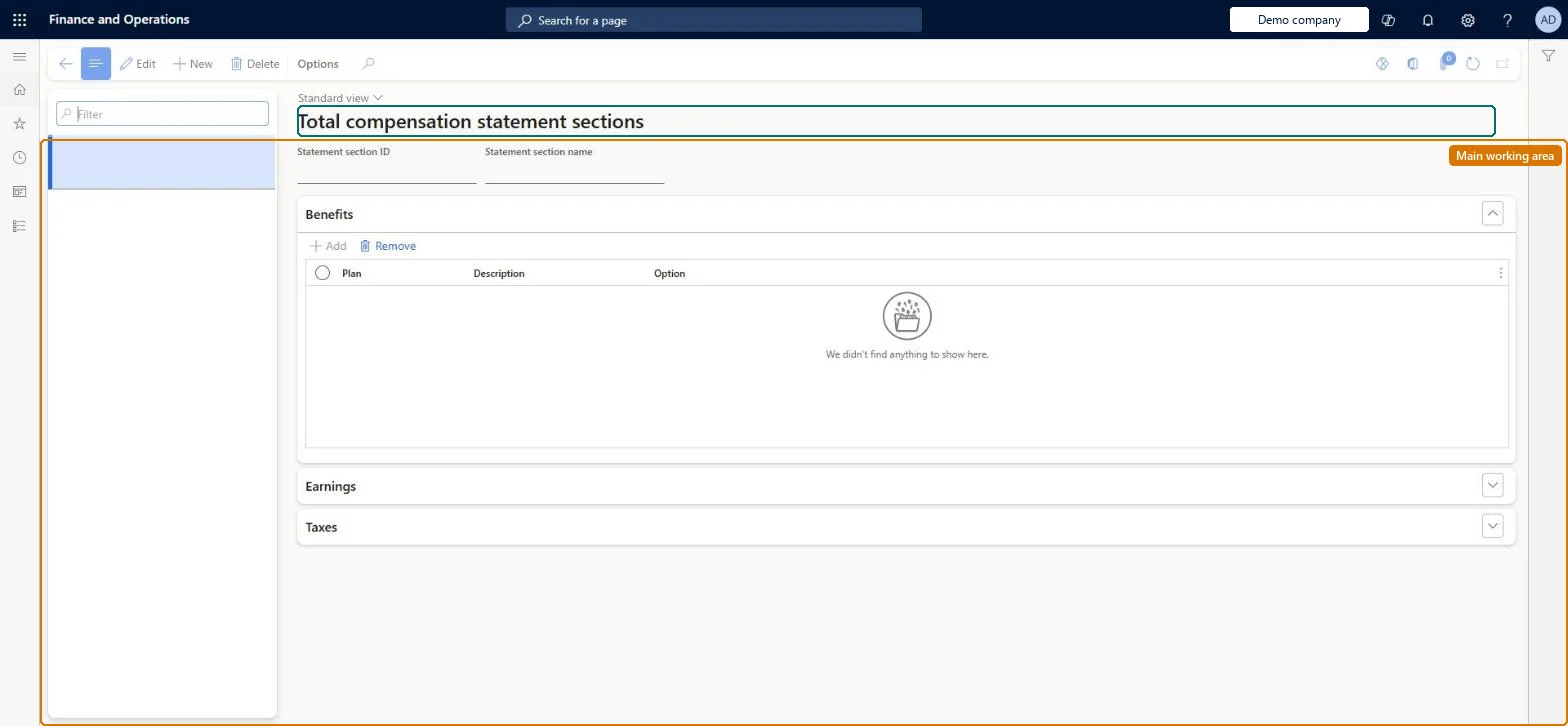
A setup page where you create the sections of a total compensation statement and add benefits, earnings and taxes to each section.
What you do here
Use this page to organise compensation elements into logical groups; each section's totals appear on the total compensation statement.
Example
For example, BEAT creates the section PAY (Cash pay) with the earning group Regular earnings, BEN (Health and retirement) with the Medical and 401K benefit plans, and TAX (Employer taxes) with the employer FICA tax codes; each employee's statement then shows three section totals and an overall total.
The page in Dynamics 365. page title tab to open what to set or check
About the examples: Examples and screenshots in this guide use BEAT, a demo company in a Dynamics 365 test environment. Use your own company's codes and values instead of copying them.
Setup steps on this page
Set up Total compensation statement sections
Use this page to organise compensation elements into logical groups; each section's totals appear on the total compensation statement.
Steps from Microsoft
Go to Human resources > Compensation > Total compensation statement sections.
Select New.
In the Statement section ID field, enter a unique ID.
In the Statement section name field, enter the name to show on the statement.
On the Benefits FastTab, select Add and choose benefit plans.
On the Earnings FastTab, add earning codes or earning groups.
On the Taxes FastTab, add tax codes or tax groups.
Earning codes and earning groups included in the section; fringe benefit recovery codes are excluded.Microsoft Learn
Earning group Regular earnings
Taxes
Tax codes and tax groups included in the section.Microsoft Learn
Employer FICA tax codes
Common errors and fixes
Message
What to do
A section total on the statement is too low
An earning code, benefit plan or tax code is missing from the section. Add it on the Earnings, Benefits or Taxes FastTab and run the report again. Microsoft Learn
Test checklist
Create a section with one earning code group, one benefit plan and one tax code.
Run the Total compensation statement report for one worker with only that section included.
Check the section total equals the worker's earnings, benefit and tax amounts for the dates.
A small set of sections (for example cash pay, benefits, employer taxes), each with every earning code group, benefit plan and tax code that belongs to it.Each section's totals appear on the total compensation statement, so the sections decide how employees see their pay and benefits.
Compensation and benefits managers and payroll roles maintain sections; earnings and taxes come from Payroll. No Feature management feature is needed for this page.
Shared: total compensation statement sections are not per company. Data management lists the HcmTotalCompStatementSectionHeaderEntity entity as shared, so every legal entity uses the same list. Checked in Dynamics 365
Can it be undone
Reversible: Sections and their lines can be changed at any time and the report run again; statements already printed don't change. Microsoft Learn
If you change it later
The statement report totals the benefits, earnings and taxes listed in each section included in a run, so a code added to a section shows only on statements printed after the change. Fringe benefit recovery earning codes are excluded. Microsoft Learn
Technical architect
6Technical
Menu item
HcmTotalCompStatementSectionsChecked in Dynamics 365
Form
HcmTotalCompStatementSectionsChecked in Dynamics 365
Table
HcmTotalCompStatementSecShown as “THE TOTAL COMPENSATION STATEMENT SECTION FORM” in Record infoKey field: StatementSectionIdChecked in Dynamics 365
Data entities
HcmTotalCompStatementSectionTaxEntityThe tax codes in tax groups of the Total compensation statement section (The tax code and tax group lines of a section.) Microsoft data model HcmTotalCompStatementSectionHeaderEntityTotal compensation statement sections Microsoft data model HcmTotalCompStatementSectionBenefitEntityTotal compensation statement sections (The benefit lines of a section.) Microsoft data model HcmTotalCompStatementSectionEarningEntityTotal compensation statement sections (The earning code lines of a section.) Microsoft data model
Who can open it
PrivilegesCreate total compensation statement report sections HcmTotalCompStatementSectionsMaintainView total compensation statement report sections HcmTotalCompStatementSectionsViewDutiesInquire into compensation process HcmCompensationInquireInquire into payroll master data PayrollMasterDataInquireSet up payroll master data PayrollMasterDataMaintain4 security rolesCompensation and benefits manager HcmCompensationAndBenefitsManagerHuman resource manager HcmHumanResourceManagerPayroll administrator HcmPayrollAdministratorPayroll manager HcmPayrollManagerChecked in Dynamics 365
Roles to set it up and use it
To set it up or change itCompensation and benefits manager HcmCompensationAndBenefitsManagerHuman resource manager HcmHumanResourceManagerPayroll administrator HcmPayrollAdministratorPayroll manager HcmPayrollManagerGive people one of these roles. On this system, 4 roles can open this page.Checked in Dynamics 365
HcmTotalCompStatementSectionHeaderEntity Total compensation statement sections header. Shared by all companies.HcmTotalCompStatementSectionBenefitEntity Benefit lines of a section.HcmTotalCompStatementSectionEarningEntity Earning code lines of a section.HcmTotalCompStatementSectionTaxEntity Tax code and tax group lines of a section.Load order: Load with the Compensation management template: the sections header, then its tax, benefit and earning code lines (listed at the end of the template), after benefit plans, earning codes and tax codes exist.Load first: HcmBenefitPlanEntity, PayrollEarningCodeEntityMicrosoft Learn