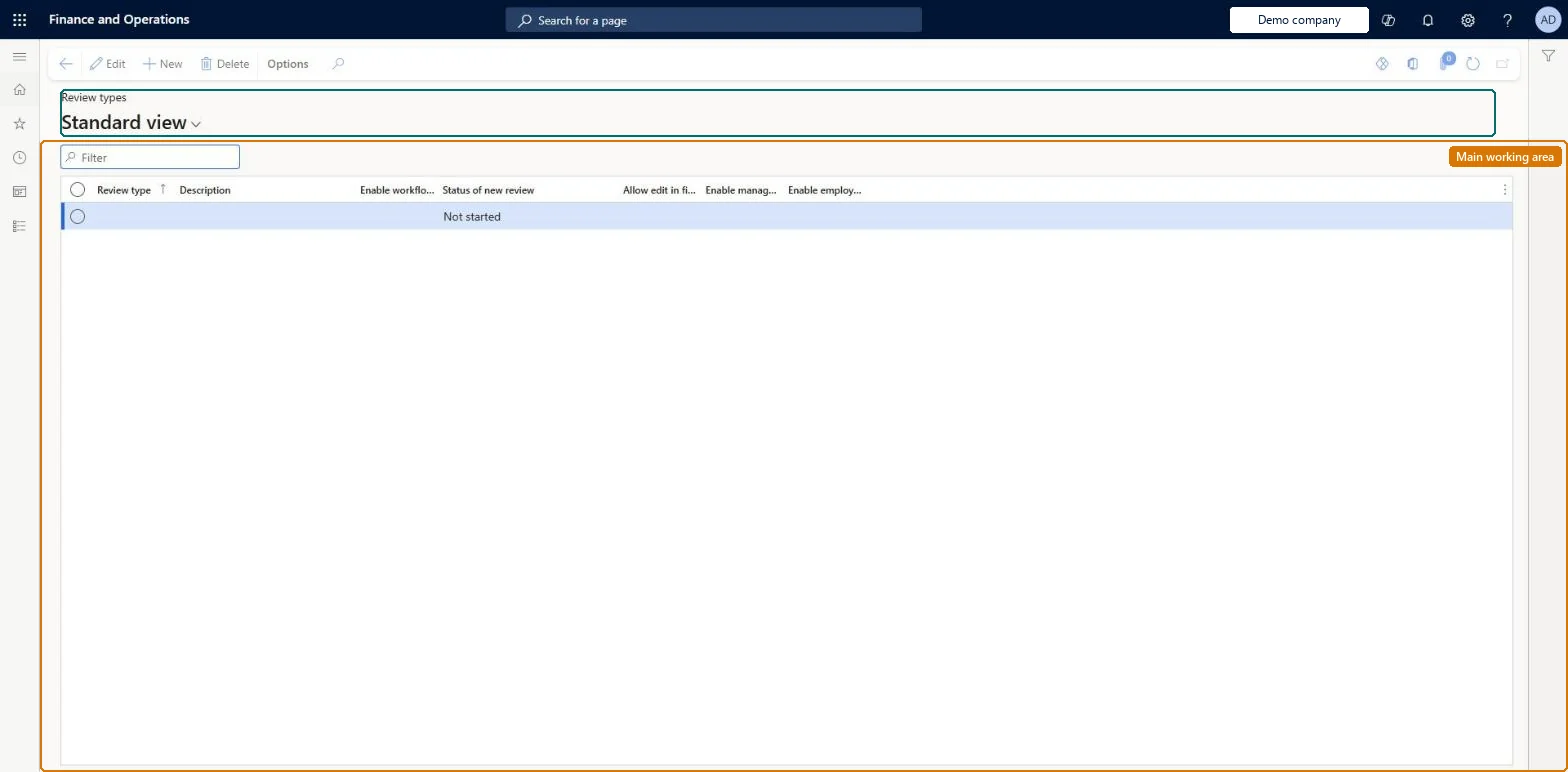
Setup step on the Review types page · Human resources
Set up Review types
Use this page to decide whether a review uses workflow, which default status a review gets when workflow is not used, and whether the employee, the manager or both must sign off.
SETUP GUIDEHow to set it up8 sections. Choose a role to highlight what matters to you.
Everyone
1What it is and why
What it is
A setup page where you define review types, which control how a performance review behaves.
What you do here
Use this page to decide whether a review uses workflow, which default status a review gets when workflow is not used, and whether the employee, the manager or both must sign off.
Example
For example, BEAT keeps 2 review types: One-on-one, without workflow, default status Not started and manager sign-off only; and Annual review, with the Worker review workflow and both employee and manager sign-off required.
The page in Dynamics 365. page title tab to open what to set or check
About the examples: Examples and screenshots in this guide use BEAT, a demo company in a Dynamics 365 test environment. Use your own company's codes and values instead of copying them.
Setup steps on this page
Set up Review types
Use this page to decide whether a review uses workflow, which default status a review gets when workflow is not used, and whether the employee, the manager or both must sign off.
Steps from Microsoft
Go to Human resources > Performance > Setup > Review types.
Use the Filter box to find a row.
Select New and enter the Review type and Description, set the workflow option and Status of new review (Not started by default).
Set the Allow edit and Enable manager and employee check box columns as needed.
Select Edit to change a selected row, or Delete to remove it.
Whether the employee and manager can still edit the review when it has the Final review status.Microsoft Learn
Yes
EditFinalReview
Sign-off required
Whether the employee, the manager or both must sign off on reviews of this type.Microsoft Learn
Employee and manager
Common errors and fixes
Message
What to do
The Sign offs tab stays empty on a review
The review type uses workflow; sign-offs appear only after the workflow is complete. Use a type without workflow for simple reviews. Microsoft Learn
Employee and manager can't edit a review in Final review
Select Allow edit in final review on the review type. Microsoft Learn
Test checklist
Create a review type without workflow, with a default status and both employee and manager sign-off required.
Create a review of that type and check it starts in the default status and the Sign offs tab lists both people as Required.
Create a second review type with workflow and Allow edit in final review set; create a review and check sign-offs appear only after the workflow completes.
Move the second review to Final review and check both employee and manager can edit it.
Separate review types per review style: workflow on for formal periodic reviews, workflow off with a default status for simple one-on-ones; set which of employee and manager must sign off.Review types switch the Worker review workflow on or off, set the default status when workflow isn't used, and decide whether the employee, the manager or both must sign off. Learn positions the no-workflow route for simpler documents such as a one-on-one.
HR sets up performance management; employees and managers use goals, journals and reviews in Employee self service and Manager self service. The Worker review workflow is set up under Human resource workflows. No Feature management feature is needed for this page.
Shared: Data management lists the Discussion types entity as shared, so the records are not kept per legal entity and every company sees the same list. Checked in Dynamics 365
Can it be undone
Reversible: Review type settings can be changed; they drive workflow, default status, Allow edit in final review and which sign-offs are marked Required on reviews of that type. Completed reviews stay read only.
If you change it later
The review type settings decide which sign-offs are marked as required on each review and whether reviews can be edited in final review. Microsoft Learn
Technical architect
6Technical
Menu item
HcmDiscussionTypeChecked in Dynamics 365
Form
HcmDiscussionTypeChecked in Dynamics 365
Table
HcmDiscussionTypeShown as “DISCUSSION TYPES” in Record infoKey field: DiscussionTypeIdChecked in Dynamics 365
Data entities
HcmDiscussionTypeEntityDiscussion types Checked in Dynamics 365
Who can open it
PrivilegesMaintain discussion types HcmDiscussionTypeMaintainView discussion types HcmDiscussionTypeViewDutiesEnable performance process HcmPerformanceProcessEnableInquire into performance process HcmPerformanceProcessInquire2 security rolesHuman resource assistant HcmHumanResourceAssistantHuman resource manager HcmHumanResourceManagerChecked in Dynamics 365
Roles to set it up and use it
To set it up or change itHuman resource manager HcmHumanResourceManagerTo use itHuman resource assistant HcmHumanResourceAssistantGive people one of these roles. On this system, 2 roles can open this page.Checked in Dynamics 365
Developer
7Developer
Open it by URL
https://<your-environment>/?mi=HcmDiscussionType
Integrate with
HcmDiscussionTypeEntity data entity Checked in Dynamics 365
Data migration
HcmDiscussionTypeEntity Discussion types: the review types. Shared by all companies.Load order: Discussion types load early in the Employee development template, before Performance reviews and Review template.Microsoft Learn