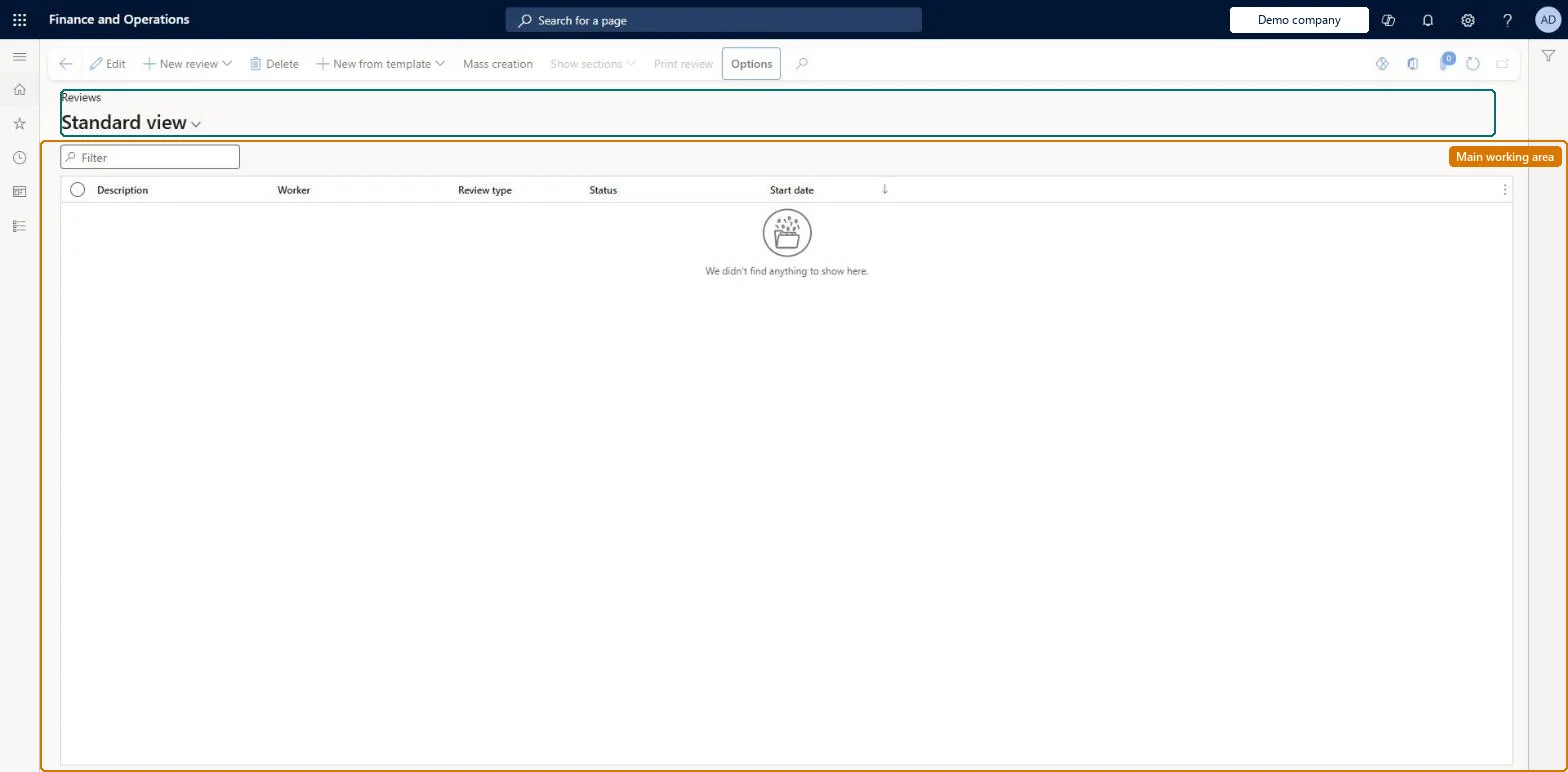
A page for performance reviews (discussions), from simple one-on-ones to formal reviews with goals, competencies, measurements, ratings, sign-offs and attachments.
Compensation and benefits manager, Human resource assistant, Human resource manager
Business process
Asses worker performance
Menu item
HcmDiscussion
Main table
HcmDiscussion
Data entity
HcmDiscussionEntity
Setup steps
1 on this page
Show what matters for
PAGE GUIDEWhat the page does and how to use it8 sections. Choose a role to highlight what matters to you.
Everyone
1What it is and why
What it is
A page for performance reviews (discussions), from simple one-on-ones to formal reviews with goals, competencies, measurements, ratings, sign-offs and attachments.
What you do here
Use this page to create and run reviews, rate goals and competencies, and move reviews through their statuses to completion.
Example
For example, BEAT runs the 2026 annual review for 40 sales staff from the template Annual review: each review pulls in the employee's 3 goals and 2 competencies, the manager rates them on the Ratings tab, and when employee and manager both sign off the review becomes Completed and read only.
The page in Dynamics 365. page title tab to open what to set or check
About the examples: Examples and screenshots in this guide use BEAT, a demo company in a Dynamics 365 test environment. Use your own company's codes and values instead of copying them.
Setup steps on this page
Run reviews from templates through their statuses
Create each review from a template and move it through the statuses to sign-off.
Steps from Microsoft
Go to Human resources > Performance > Reviews.
Select New.
Select a Review type and Performance period, and enter the Start date and End date.
Select OK.
Select Add goal to review and Add competency to add content.
On the Ratings tab enter ratings, then complete the Sign offs tab.
The review type, which controls workflow, default status and required sign-offs.Microsoft Learn
Annual review
DiscussionType
Performance period
The period being reviewed; it sets the default start and end dates.Microsoft Learn
2026
Status
Controls who can see and edit the review at each stage.Microsoft Learn
Ready for review
DiscussionApprovalStatus
Final employee rating
The rating selected for the employee on the Ratings tab.Microsoft Learn
Exceeds expectations
Sign offs
The employee and manager sign-offs; when all required sign-offs are done the review is completed.Microsoft Learn
Employee and manager, both Required
Common errors and fixes
Message
What to do
The Ratings tab shows no employee rating details
Turn on showing employee ratings on Human resources shared parameters; the default performance review rating model is set on its Performance tab. Microsoft Learn
The Sign offs tab is empty
The review type uses workflow: sign-offs appear only after the workflow is complete. Microsoft Learn
The manager can't see the review the employee is working on
In progress lets only the employee view and edit the review. The employee moves it to Ready for review. Microsoft Learn
Test checklist
In Employee self service, select New review, choose a Review type and Performance period, and check the start and end dates default from the period and can be edited.
Add a goal with Add goal to review and a competency with Add competency.
Move the review through In progress, Ready for review and Final review and check who can see and edit it at each status.
On the Sign offs tab, check the Required checkboxes match the review type, then complete the sign-offs.
Check the status is Completed and the review can no longer be edited.
Create each review from a review template, add goals and competencies, rate them on the Ratings tab, and complete the required sign-offs only when the ratings are final.Learn calls creating a review from a template the best way, because each section already holds what the review needs. The status decides who can see and edit the review.
HR sets up performance management; employees and managers use goals, journals and reviews in Employee self service and Manager self service. The Print review button appears only when its feature is turned on in Feature management. No Feature management feature is needed for this page.
Shared: Data management lists the Performance reviews entity as shared, so the records are not kept per legal entity and every company sees the same list. Checked in Dynamics 365
Can it be undone
Irreversible: When all required sign-offs are complete the review status changes to Completed and no more changes can be made; Completed and Canceled reviews are read only. A Rejected review goes back to the employee, and both employee and manager can edit it before it is resubmitted. Microsoft Learn
If you change it later
When the review is finalised, a snapshot of its measurements is kept; a completed review can no longer be changed. Microsoft Learn
Technical architect
6Technical
Menu item
HcmDiscussionChecked in Dynamics 365
Form
HcmDiscussionChecked in Dynamics 365
Table
HcmDiscussionShown as “REVIEWS” in Record infoKey field: DiscussionId, Worker_DirPerson_FK_NameChecked in Dynamics 365
Data entities
HcmDiscussionEntityPerformance reviews Checked in Dynamics 365HcmDiscussionGoalEntityReview goals (The goals added to reviews.) HcmDiscussionTopicEntityReview competencies (The competencies on reviews.) HcmDiscussionSignOffEntityReview sign off (The sign-offs on reviews.)
Who can open it
PrivilegesMaintain discussions HcmDiscussionMaintainView discussions HcmDiscussionViewDutiesView discussions HcmDiscussionViewEnable performance process HcmPerformanceProcessEnableInquire into performance process HcmPerformanceProcessInquire3 security rolesCompensation and benefits manager HcmCompensationAndBenefitsManagerHuman resource assistant HcmHumanResourceAssistantHuman resource manager HcmHumanResourceManagerChecked in Dynamics 365
Roles to set it up and use it
To set it up or change itHuman resource manager HcmHumanResourceManagerTo use itHuman resource assistant HcmHumanResourceAssistantCompensation and benefits manager HcmCompensationAndBenefitsManagerGive people one of these roles. On this system, 3 roles can open this page.Checked in Dynamics 365
Actions on the page
(Action Pane without tabs): New review, Delete, New from template, Mass creation, Show sections, Print reviewChecked in Dynamics 365
Developer
7Developer
Open it by URL
https://<your-environment>/?mi=HcmDiscussion
Integrate with
HcmDiscussionEntity data entity Checked in Dynamics 365
Data migration
HcmDiscussionEntity Performance reviews. Shared by all companies.HcmDiscussionGoalEntity Review goals.HcmDiscussionSignOffEntity Review sign off.Load order: Load with the Employee development template: Discussion types, Rating models and Performance period load early in the template; Performance reviews, Review template and Goals load later.Load first: HcmDiscussionTypeEntity, HcmPerfPeriodEntity, HcmRatingModelEntity, HcmGoalEntityMicrosoft Learn