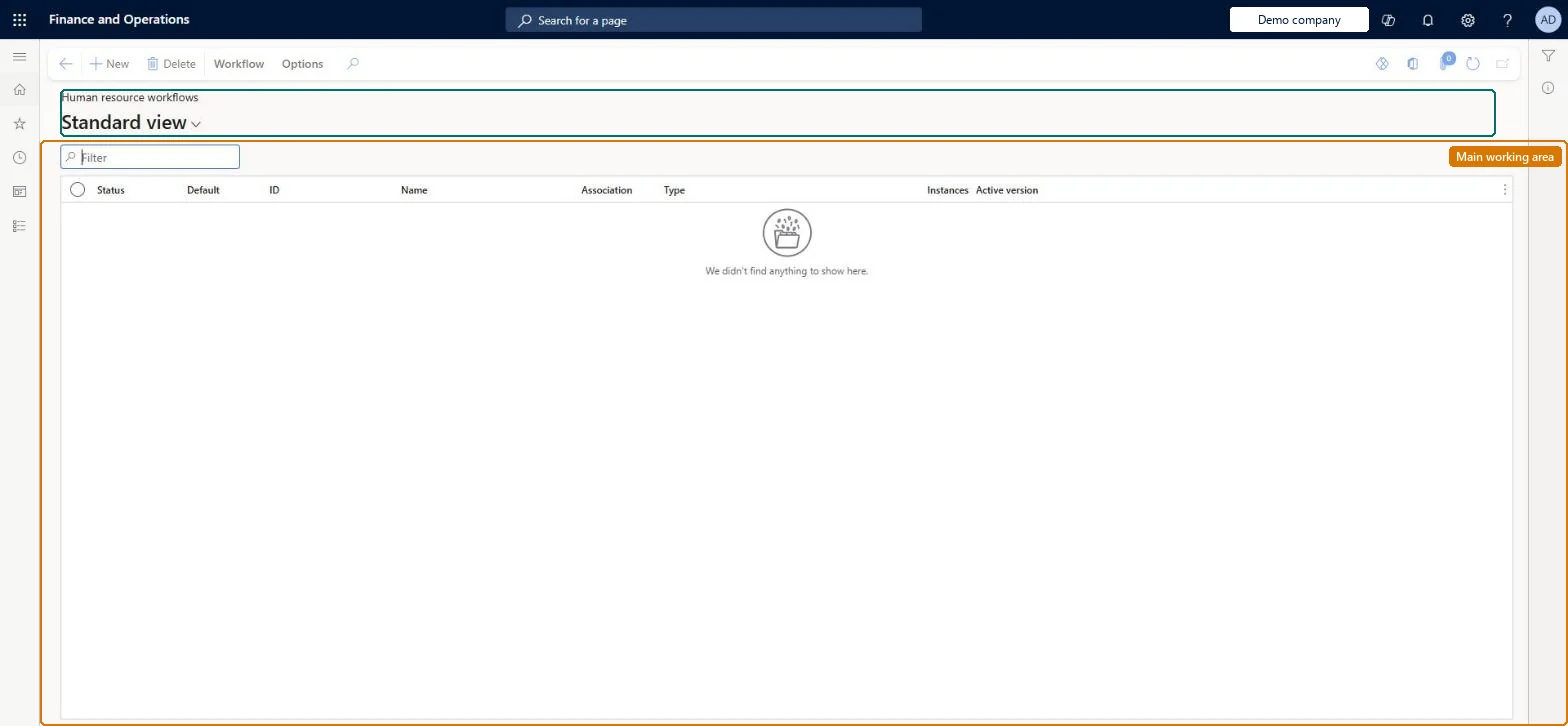
A setup page that lists the Human resources workflows and where you create new ones, such as approvals for changes to employee information or leave requests.
PAGE GUIDEWhat the page does and how to use it8 sections. Choose a role to highlight what matters to you.
Everyone
1What it is and why
What it is
A setup page that lists the Human resources workflows and where you create new ones, such as approvals for changes to employee information or leave requests.
What you do here
Use this page to create and configure approval workflows for Human resources activities, so that changes require approval before they are saved.
Example
For example, BEAT creates an Identification numbers workflow with one approval step routed by the Configurable hierarchy; when one of its 60 employees changes a passport number in self service, the change waits and is saved only after the manager approves it.
The page in Dynamics 365. page title tab to open what to set or check
About the examples: Examples and screenshots in this guide use BEAT, a demo company in a Dynamics 365 test environment. Use your own company's codes and values instead of copying them.
Setup steps on this page
Set up Human resources approval workflows
Decide which employee information changes need approval and create one active workflow per information type.
Steps from Microsoft
Go to Human resources > Setup > Human resource workflows.
Select New.
In the list of available workflows, select the workflow type, such as Identification numbers.
Select Run to open the workflow designer and sign in.
Add the approval element and connect it to Start and Finish.
Set the assignment and other properties, then select Save and close and activate the workflow.
No active workflow exists for that information type in the company. Create it here, connect the approval element to Start and Finish, and select Make active. Microsoft Learn
The approval goes to the wrong manager
Routing follows the submitter's primary position. Check the worker's primary position and its reports-to position, or the Use position hierarchy option under Hierarchy routing in Workflow parameters. Microsoft Learn
Test checklist
Select New, choose Identification numbers and add an Approve identification number element with Assignment type Hierarchy.
Save, close and select Make active.
As an employee, change an identification number in Employee self service.
Check the change waits for approval and the work item goes to the expected manager.
One active workflow per information type that needs approval (for example Identification numbers and Human resources actions), routed by Hierarchy with the Managerial or Configurable hierarchy, and the completion policy set per step.With a workflow active, a change an employee makes to that information waits for approval before it is saved, and routing follows the submitter's primary position.
Human resource assistant and Human resource manager can open and maintain the page (privilege WorkflowAuthorHumanResourcesWorkflows); employees take part in the workflows when they change their records. No Feature management feature is needed for this page.
Per company: workflow configurations belong to a legal entity. Learn's configuration-copy guidance filters the workflow entities on DataAreaID and recommends setting workflows up by hand in each legal entity. Microsoft Learn
Can it be undone
Reversible: Workflows can be edited and made active again. Routing is worked out from the submitter's primary position when a document is submitted, so later position and hierarchy changes change who approves. Microsoft Learn
If you change it later
When a document is submitted for approval, routing depends on the submitter's primary position, so changes to positions and hierarchies affect who approves. Microsoft Learn
Technical architect
6Technical
Menu item
WorkflowConfigurationHcmChecked in Dynamics 365
Form
WorkflowTableListPageRnrChecked in Dynamics 365
Table
WorkflowTableShown as “WORKFLOW CONFIGURATIONS” in Record infoKey field: SequenceNumberChecked in Dynamics 365
Data entities
WorkflowVersionEntityWorkflow version (The workflow configurations (versions) created on this page.) Microsoft data model
Who can open it
PrivilegesMaintain human resources workflows WorkflowAuthorHumanResourcesWorkflowsDutiesSet up position action workflows HcmPositionActionWFProcessEnableSet up worker action workflows HcmWorkerActionWFProcessEnable2 security rolesHuman resource assistant HcmHumanResourceAssistantHuman resource manager HcmHumanResourceManagerChecked in Dynamics 365
Roles to set it up and use it
To set it up or change itHuman resource assistant HcmHumanResourceAssistantHuman resource manager HcmHumanResourceManagerGive people one of these roles. On this system, 2 roles can open this page.Checked in Dynamics 365
Actions on the page
Workflow: Manage, HierarchyChecked in Dynamics 365
WorkflowVersionEntity Workflow version: the workflow configurations. Change the owner of every record to Admin unless the workflow users are already imported.Load order: Workflow version is in the System and shared (010 System setup) template with the other workflow entities. Learn recommends setting workflows up by hand when a configuration is copied to another legal entity, because many workflow entities can't be filtered by legal entity.Microsoft Learn