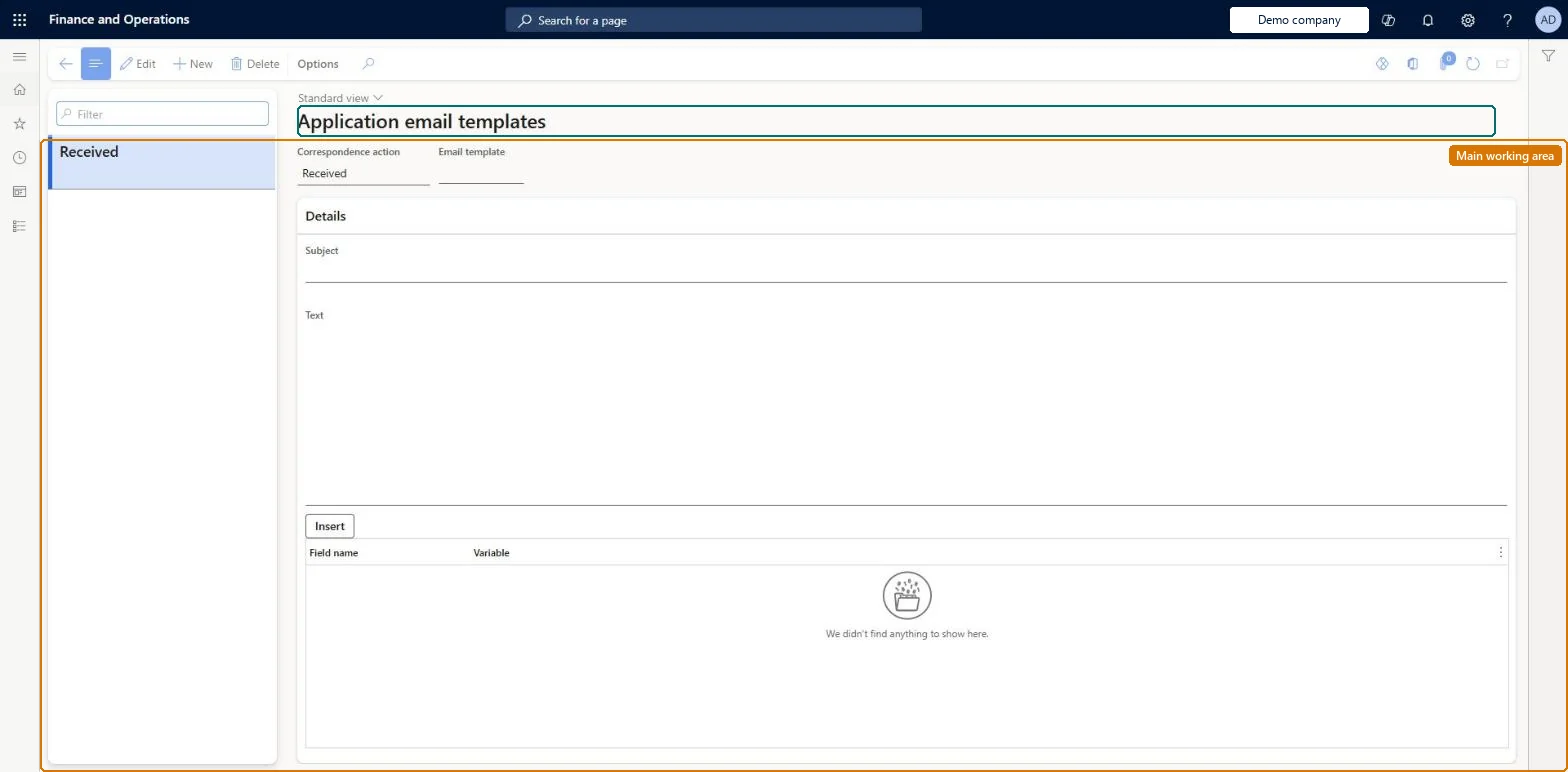
Setup step on the Application email templates page · Human resources
Set up Application email templates
Use this page to write the subject and text of emails for correspondence actions such as Received, Interview, Rejection, Offer and Employed, inserting application bookmarks so each email carries the applicant's details.
SETUP GUIDEHow to set it up8 sections. Choose a role to highlight what matters to you.
Everyone
1What it is and why
What it is
A setup page where you create email templates for correspondence actions, used to send emails to applicants.
What you do here
Use this page to write the subject and text of emails for correspondence actions such as Received, Interview, Rejection, Offer and Employed, inserting application bookmarks so each email carries the applicant's details.
Example
For example, BEAT writes the template Confirm receipt for the Received correspondence action and sends it to the 12 applications that are Received / Received for REC-0042, choosing to update their status afterwards.
The page in Dynamics 365. page title tab to open what to set or check
About the examples: Examples and screenshots in this guide use BEAT, a demo company in a Dynamics 365 test environment. Use your own company's codes and values instead of copying them.
Setup steps on this page
Set up Application email templates
Use this page to write the subject and text of emails for correspondence actions such as Received, Interview, Rejection, Offer and Employed, inserting application bookmarks so each email carries the applicant's details.
Steps from Microsoft
Go to Human resources > Recruitment > Communication > Application email templates.
Select New.
Select the correspondence action for the template.
Enter a name for the email template.
Enter the subject and text, double-clicking a bookmark to insert it.
Dear <First name>, thank you for applying for <Job>.
mailBody
Common errors and fixes
Message
What to do
Applicants get an email with blank values
The bookmark used isn't linked to the template's correspondence action. Link it on Application bookmarks. Microsoft Learn
Statuses moved for applications that should have waited
Every application with the chosen status and correspondence action is emailed and, if chosen, updated. Check the selection before you send. Microsoft Learn
Test checklist
Create an email template for the correspondence action Received with a subject and text that uses an applicant bookmark.
Create two applications with Status Received and Correspondence action Received, each with a communications email on the applicant.
Send the emails for that combination and choose to update the application status.
Check both applicants received the email with their own details and the application statuses moved as expected.
One email template per correspondence action you use, built on the bookmarks set up for that action.Email templates are picked by correspondence action, which lets you email every application with a given status and correspondence action in one go, for example all Received / Received applications.
Recruiters and HR managers use it: the live security grants it to the Human resource manager and Recruiter roles. No Feature management feature is needed for this page.
Per company: email templates belong to the legal entity you are signed in to. Data management lists the Application email templates entity as not shared. Checked in Dynamics 365
Can it be undone
Reversible: The template text can be changed at any time and affects emails sent afterwards. Emails already sent, and statuses already updated by the send, are not reversed by editing the template.
If you change it later
After sending emails from a template you can choose to update the status of the applications automatically. Microsoft Learn
Technical architect
6Technical
Menu item
HRMApplicationEmailTemplateChecked in Dynamics 365
Form
HRMApplicationEmailTemplateChecked in Dynamics 365
Table
HRMApplicationEmailTemplateShown as “APPLICATION EMAIL TEMPLATES” in Record infoChecked in Dynamics 365
Data entities
HcmApplicationEmailTemplateEntityApplication email templates Checked in Dynamics 365
Who can open it
PrivilegesMaintain application email templates HRMApplicationEmailTemplateMaintainView application email templates HRMApplicationEmailTemplateViewDutiesEnable recruitment process HcmRecruitmentProcessEnableInquire into recruitment process HcmRecruitmentProcessInquire2 security rolesHuman resource manager HcmHumanResourceManagerRecruiter HcmRecruiterChecked in Dynamics 365
Roles to set it up and use it
To set it up or change itRecruiter HcmRecruiterTo use itHuman resource manager HcmHumanResourceManagerGive people one of these roles. On this system, 2 roles can open this page.Checked in Dynamics 365
HcmApplicationEmailTemplateEntity data entity Checked in Dynamics 365
Data migration
HcmApplicationEmailTemplateEntity Application email templates, per company.Load order: Learn's default Data management templates don't include this recruitment entity, so add it to your own project. Load after the application bookmarks the templates use.Load first: HcmApplicationBookmarkEntityMicrosoft Learn