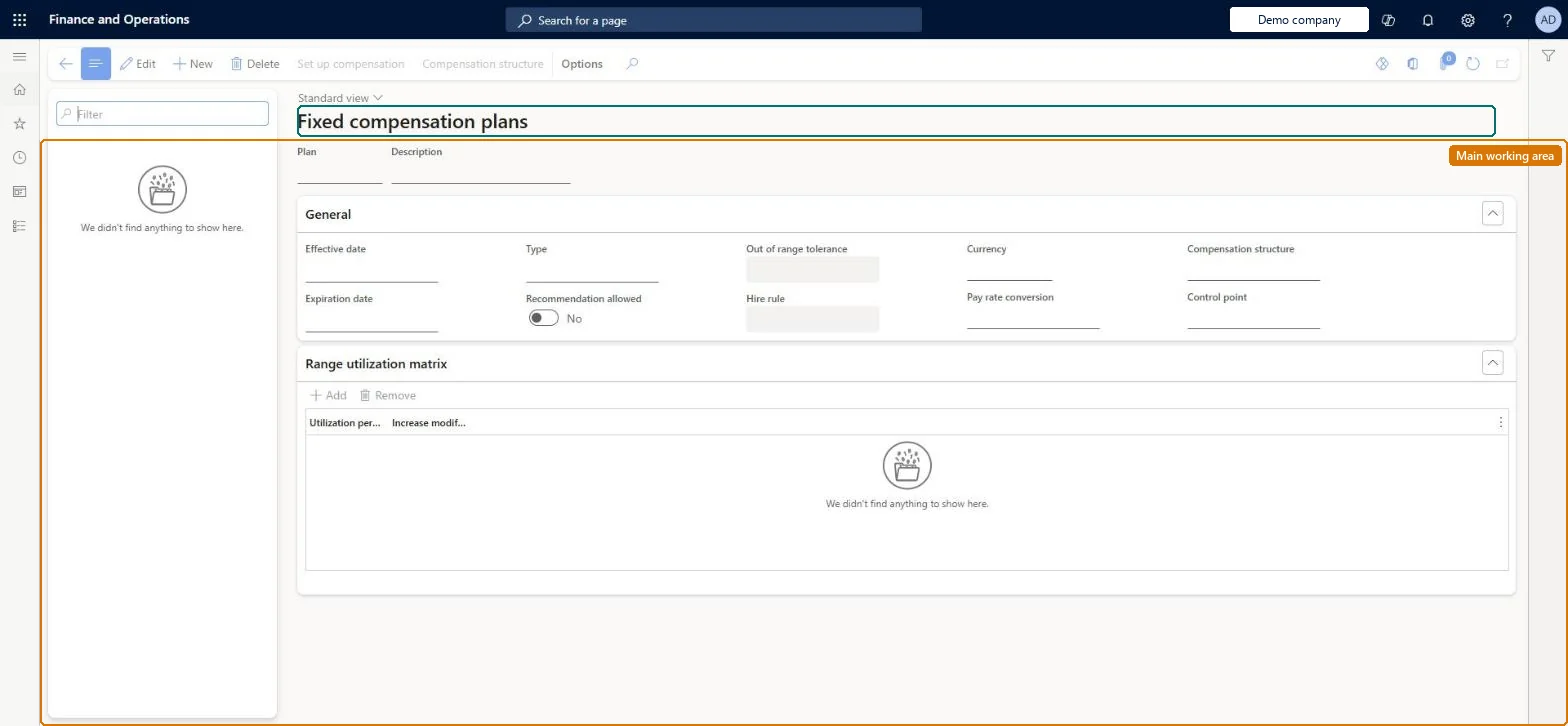
Setup step on the Fixed compensation plans page · Human resources
Set up Fixed compensation plans
Use this page to define how an employee's fixed base pay and merit increases are controlled, including the out-of-range tolerance, hire rule, range utilization matrix and control point.
Compensation and benefits manager, Human resource manager, Payroll administrator and 1 more role
Business process
Develop people strategy
Menu item
HRMCompFixedPlanTable
Main table
HRMCompFixedPlanTable
Data entity
HcmCompFixedPlanTableEntity
Setup steps
1 on this page
Show what matters for
SETUP GUIDEHow to set it up8 sections. Choose a role to highlight what matters to you.
Everyone
1What it is and why
What it is
A setup page where you create fixed compensation plans that combine the plan type, pay rate conversion, tolerance and hire rules with a compensation structure.
What you do here
Use this page to define how an employee's fixed base pay and merit increases are controlled, including the out-of-range tolerance, hire rule, range utilization matrix and control point.
Example
For example, BEAT creates the grade plan SAL-2026 in EUR with Hard tolerance, Hire rule Percent, pay frequency ANNUAL, a range utilization matrix that gives 110% of target to the bottom 25% of the range and 80% to the top 25%, the grid GRADE-2026 and control point Midpoint.
The page in Dynamics 365. page title tab to open what to set or check
About the examples: Examples and screenshots in this guide use BEAT, a demo company in a Dynamics 365 test environment. Use your own company's codes and values instead of copying them.
Setup steps on this page
Set up Fixed compensation plans
Use this page to define how an employee's fixed base pay and merit increases are controlled, including the out-of-range tolerance, hire rule, range utilization matrix and control point.
Steps from Microsoft
Go to Human resources > Compensation > Fixed compensation > Fixed compensation plans.
Select New and enter the Plan, Description and Effective date.
In the Type field, select Band, Grade or Step.
Set Out of range tolerance, Hire rule, Currency and Pay rate conversion.
Optionally add range utilization records, then select Save.
Select Set up compensation and create, copy or select a compensation grid.
In the Control point field, select the reference point to use as the control point.
Default for actions added to the plan in a process event; lets you override the calculated guideline amount.Microsoft Learn
Yes
EnableRecommendation
Out of range tolerance
How strictly pay must stay between the minimum and maximum: None, Soft (warning) or Hard (error).Microsoft Learn
Hard
Tolerance
Hire rule
Whether increases are the same for everyone (None) or prorated by time employed in the cycle (Percent).Microsoft Learn
Percent
HireRule
Pay rate conversion
The pay rate conversion (pay frequency) used for the employee's pay rate.Microsoft Learn
ANNUAL
PayFrequencyId
Range utilization matrix
Optional records that speed up reaching the midpoint and slow down reaching the maximum.Microsoft Learn
0-25%: 110%; 75-100%: 80%
Control point
The reference point treated as the ideal pay rate and used to calculate the compa-ratio.Microsoft Learn
Midpoint
ControlPoint
Common errors and fixes
Message
What to do
The plan doesn't appear in the Compensation plan field when an employee is enrolled
No eligibility rule exists for the plan, or the employee doesn't meet every criterion on it. Create the rule on Eligibility rules and check the job, position, department and labor union values of the employee. Microsoft Learn
An amount outside the range is refused
The plan's Out of range tolerance is Hard, which requires amounts between the minimum and maximum for the level. Enter an amount in range, or use Soft to warn only. Microsoft Learn
Test checklist
Create a grade plan with Out of range tolerance = Hard and set up a new compensation matrix with minimum and maximum reference points.
Create an eligibility rule for the plan.
Enroll an eligible employee with an amount inside the range and check it saves.
Try an amount above the maximum and check an error is shown.
Create a new compensation matrix (or a copy) for each plan, and use an existing matrix only when every plan sharing it should change together; add an eligibility rule before enrolling anyoneAll plans that use the same grid receive any change made to that grid. Without an eligibility rule no employee is eligible for the plan.
Compensation and benefits managers set up and run compensation; Human resource managers and payroll roles can view it. No Feature management feature is needed for this page.
Per company: fixed compensation plans belong to the legal entity you are signed in to. Data management lists the HcmCompFixedPlanTableEntity entity as not shared, so each company keeps its own. Checked in Dynamics 365
Can it be undone
Hard to reverse: Some Compensation management pages don't let users delete records once saved, and edits to a shared grid change every plan that uses it.
If you change it later
Changes to a grid selected as an existing compensation matrix also show in every other plan that uses the same grid. Microsoft Learn
Technical architect
6Technical
Menu item
HRMCompFixedPlanTableChecked in Dynamics 365
Form
HRMCompFixedPlanTableChecked in Dynamics 365
Table
HRMCompFixedPlanTableShown as “COMPENSATION FIXED PLAN” in Record infoKey field: PlanIdChecked in Dynamics 365
Data entities
HcmCompFixedPlanTableEntityCompensation fixed plan Checked in Dynamics 365HRMCompFixedPlanUtilMatrixEntityCompensation fixed plan range utilization matrix (The range utilization matrix lines of a plan.) HRMCompFixedPlanTableSetupRoleEntityFixed compensation plan security roles (The security roles a plan is restricted to.)
Who can open it
PrivilegesMaintain fixed compensation plans HRMCompFixedPlanTableMaintainView fixed compensation plans HRMCompFixedPlanTableViewDutiesInquire into compensation process HcmCompensationInquireEnable compensation process HcmCompensationProcessEnable4 security rolesCompensation and benefits manager HcmCompensationAndBenefitsManagerHuman resource manager HcmHumanResourceManagerPayroll administrator HcmPayrollAdministratorPayroll manager HcmPayrollManagerChecked in Dynamics 365
Roles to set it up and use it
To set it up or change itCompensation and benefits manager HcmCompensationAndBenefitsManagerTo use itHuman resource manager HcmHumanResourceManagerPayroll administrator HcmPayrollAdministratorPayroll manager HcmPayrollManagerGive people one of these roles. On this system, 4 roles can open this page.Checked in Dynamics 365
Actions on the page
(Action Pane without tabs): Set up compensation, Compensation structureChecked in Dynamics 365
HcmCompFixedPlanTableEntity data entity Checked in Dynamics 365
Data migration
HcmCompFixedPlanTableEntity Compensation fixed plan. Loaded for each company.HRMCompFixedPlanUtilMatrixEntity Range utilization matrix lines.Load order: Load with the Compensation management template: after the grids, compensation structure and pay frequency; then Compensation plan eligibility rules and Compensation eligibility levels, then Employee fixed compensation.Load first: HcmCompensationGridEntity, HcmCompensationStructureEntity, HcmPayRateConversionEntityMicrosoft Learn