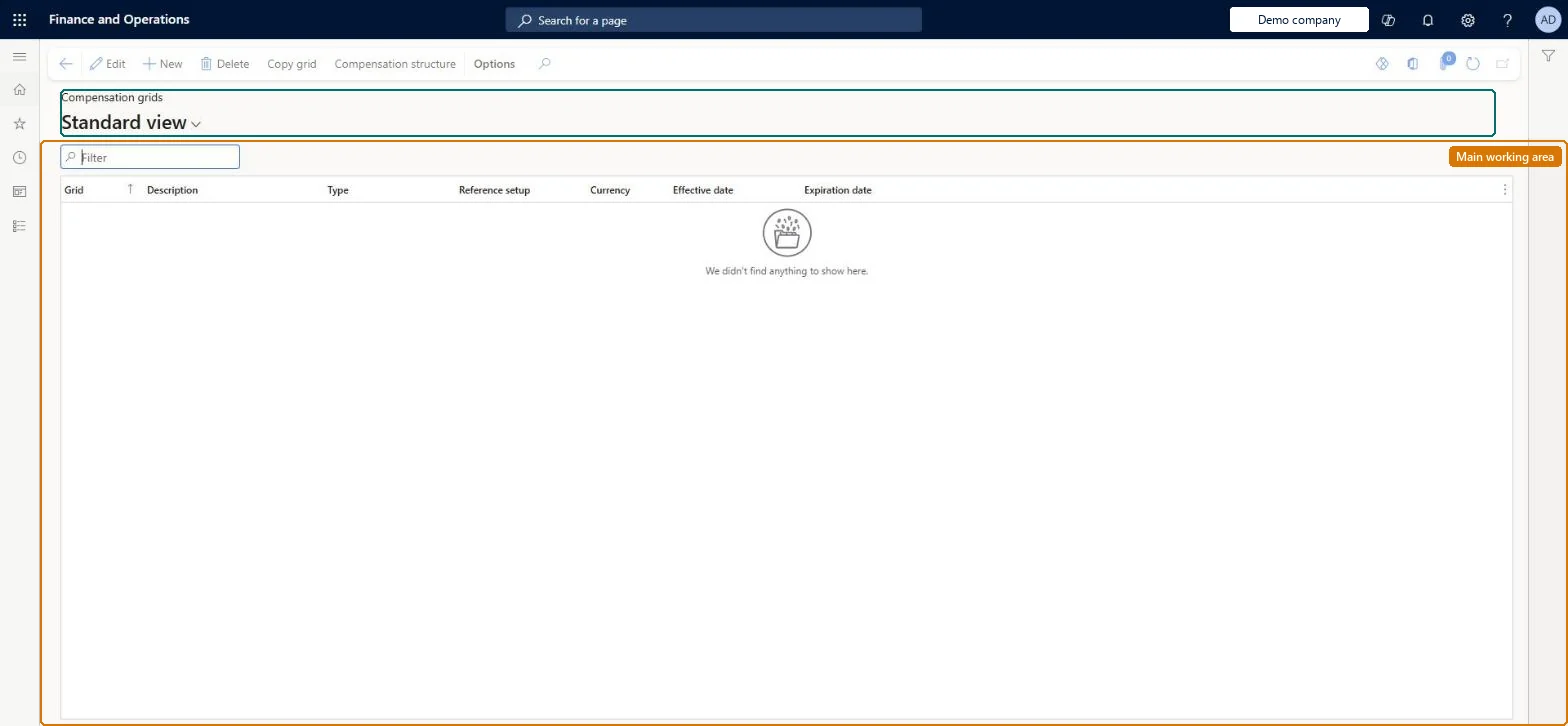
Setup step on the Compensation grids page · Human resources
Set up Compensation grids
Use this page to define and maintain the pay structures for fixed compensation plans, and open the compensation structure to enter amounts for each level and reference point.
SETUP GUIDEHow to set it up8 sections. Choose a role to highlight what matters to you.
Everyone
1What it is and why
What it is
A setup page where you combine levels and a reference point setup into a grid that holds the pay structure for fixed compensation plans.
What you do here
Use this page to define and maintain the pay structures for fixed compensation plans, and open the compensation structure to enter amounts for each level and reference point.
Example
For example, BEAT creates the EUR grade grid GRADE-2026 from 1 January 2026, sets the G1 midpoint to 32,000 EUR, uses Mass change for a 12.5% spread between midpoints (G2 36,000) and then -20% and +20% for Minimum and Maximum, so G1 runs from 25,600 to 38,400 EUR.
The page in Dynamics 365. page title tab to open what to set or check
About the examples: Examples and screenshots in this guide use BEAT, a demo company in a Dynamics 365 test environment. Use your own company's codes and values instead of copying them.
Setup steps on this page
Set up Compensation grids
Use this page to define and maintain the pay structures for fixed compensation plans, and open the compensation structure to enter amounts for each level and reference point.
Steps from Microsoft
Go to Human resources > Compensation > Fixed compensation > Compensation grids.
Select New.
Enter the Grid and Description.
Select the Type, Reference setup and Currency.
Enter the Effective date and Expiration date.
Select Compensation structure and add levels and amounts.
Use Mass change and Apply to grid to fill in amounts.
The dates between which the grid applies; Never can be used when there is no end date.Microsoft Learn
1/1/2026 to Never
Common errors and fixes
Message
What to do
Another plan's ranges changed after a grid was edited
All plans that use the same grid receive the change. Copy the grid (Create new from existing compensation matrix) for the plan that must differ. Microsoft Learn
The grid can't be set up with the needed rows and columns
Levels and reference points must be set up before the grid. Create them first, then select the Reference setup on the grid. Microsoft Learn
Test checklist
Create a grid with Type Grade, a Reference setup, Currency and effective dates.
Add levels in Compensation structure and use Mass change to set the midpoint and spread.
Assign the grid to two plans and change one amount.
One grid per pay structure, filled with Mass change; share a grid between plans only when those plans must always move together, otherwise copy it.All plans that use the same grid receive updates when the grid changes. Mass change sets initial amounts and increments them by percent or amount across levels and reference points.
Compensation and benefits managers set up and run compensation; Human resource managers and payroll roles can view it. No Feature management feature is needed for this page.
Per company: compensation grids belong to the legal entity you are signed in to. Data management lists the HcmCompensationGridEntity entity as not shared, so each company keeps its own. Checked in Dynamics 365
Can it be undone
Reversible: Amounts can be edited, but a change to a shared grid applies at once to every plan using it.
If you change it later
A grid can be shared by several plans, so changing it updates every compensation plan that uses it. Microsoft Learn
Technical architect
6Technical
Menu item
HRCCompGridChecked in Dynamics 365
Form
HRCCompGridChecked in Dynamics 365
Table
HRCCompGridShown as “COMPENSATION GRIDS” in Record infoChecked in Dynamics 365
Data entities
HcmCompensationGridEntityCompensation grids Checked in Dynamics 365HcmCompensationStructureEntityCompensation structure (The amounts per level and reference point (Compensation structure).)
Who can open it
PrivilegesMaintain compensation grids HRCCompGridMaintainView compensation grids HRCCompGridViewDutiesEnable compensation process HcmCompensationProcessEnable1 security roleCompensation and benefits manager HcmCompensationAndBenefitsManagerChecked in Dynamics 365
Roles to set it up and use it
To set it up or change itCompensation and benefits manager HcmCompensationAndBenefitsManagerGive people one of these roles. On this system, 1 role can open this page.Checked in Dynamics 365
Actions on the page
(Action Pane without tabs): Copy grid, Compensation structureChecked in Dynamics 365
Developer
7Developer
Open it by URL
https://<your-environment>/?mi=HRCCompGrid
Integrate with
HcmCompensationGridEntity data entity Checked in Dynamics 365
Data migration
HcmCompensationGridEntity Compensation grids. Loaded for each company.HcmCompensationStructureEntity Compensation structure: the amounts of each grid.Load order: Load with the Compensation management template: after Levels and the Reference point setups and Reference points; Compensation grids, then Compensation structure, then the fixed compensation plans that use the grid.Load first: HcmCompensationLevelEntity, HcmCompensationReferencePointEntity, HcmCompensationReferencePointSetupLineEntityMicrosoft Learn