Budget manager, Compensation and benefits manager, Human resource assistant and 3 more roles
Business process
Develop people strategy
Menu item
HRCCompRefPointSetup
Main table
HRCCompRefPointSetup
Data entity
HcmCompensationReferencePointEntity
Setup steps
1 on this page
Show what matters for
PAGE GUIDEWhat the page does and how to use it8 sections. Choose a role to highlight what matters to you.
Everyone
1What it is and why
What it is
A setup page where you define sets of reference points, such as minimum, midpoint and maximum, that form the columns of a compensation grid.
What you do here
Use this page to create the reference point setup that defines the pay ranges for each level in a compensation structure.
Example
For example, BEAT creates the Grade setup MIN-MID-MAX with three reference points Minimum, Midpoint and Maximum; its grade grid then shows for G3 the columns 38,000, 45,000 and 52,000 EUR, and the plan uses Midpoint as control point.
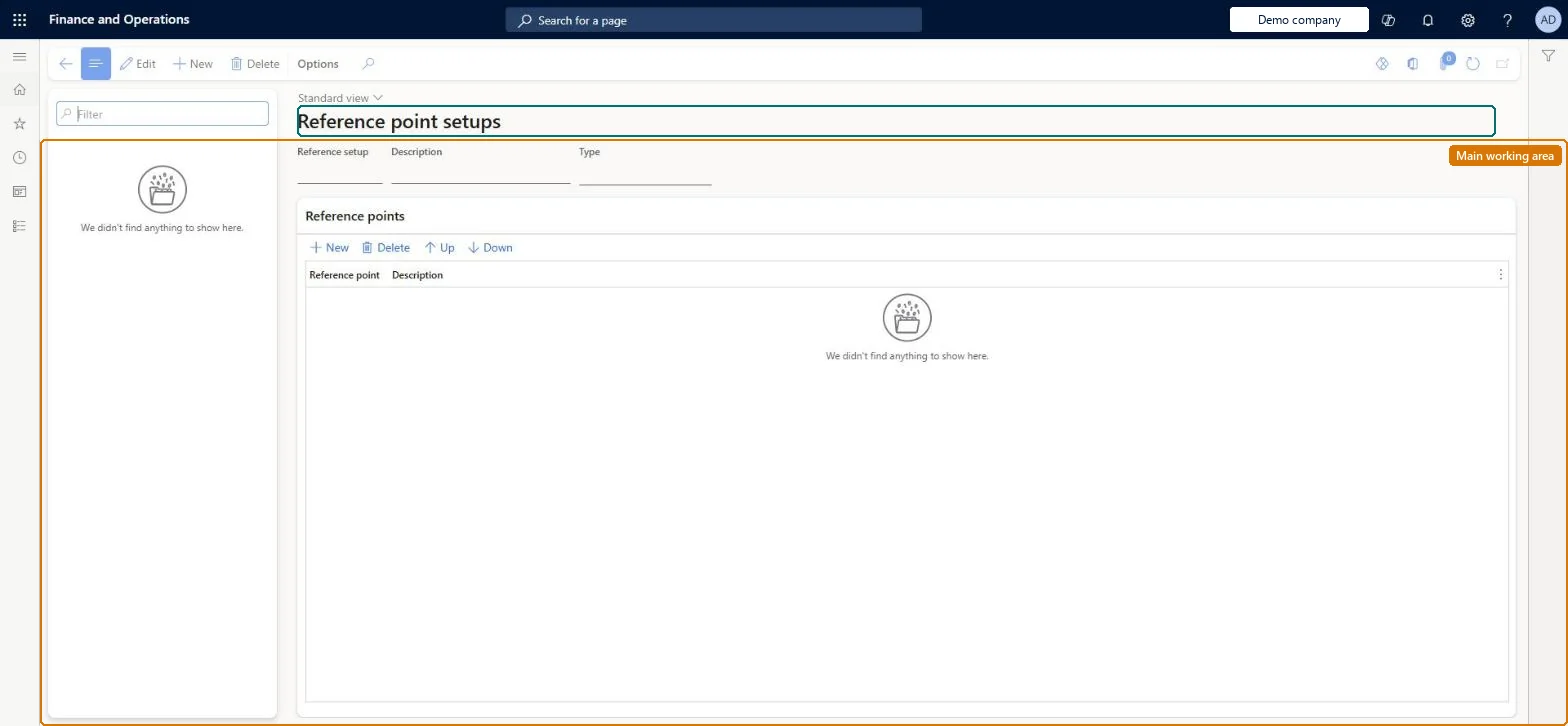
The page in Dynamics 365. page title tab to open what to set or check
About the examples: Examples and screenshots in this guide use BEAT, a demo company in a Dynamics 365 test environment. Use your own company's codes and values instead of copying them.
Setup steps on this page
Set up Reference point setups
Use this page to create the reference point setup that defines the pay ranges for each level in a compensation structure.
Steps from Microsoft
Go to Human resources > Compensation > Fixed compensation > Reference point setups.
Select New.
Enter values for Reference setup, Type and Description.
Under Reference points, specify the reference points to use, such as minimum, midpoint and maximum.
The type of plan the reference points are for, such as band or grade.Microsoft Learn
Grade
Type
Reference points
The individual reference points (columns) in the setup.Microsoft Learn
Minimum, Midpoint, Maximum
Common errors and fixes
Message
What to do
The control point can't be set to a midpoint on the plan
The control point is chosen from the reference points of the plan's compensation structure. Add a Midpoint reference point to the setup the grid uses. Microsoft Learn
A grid shows the wrong columns
The grid's columns come from the Reference setup selected on it. Select the setup with the reference points you need. Microsoft Learn
Test checklist
Create a reference setup of type Grade with Minimum, Midpoint and Maximum.
Create a compensation grid with that Reference setup.
Open Compensation structure and check the three columns appear for each level.
For grade plans, Minimum, Midpoint and Maximum, with the midpoint as the control point.Learn names minimum, midpoint and maximum as typical reference points for a grade plan, and says control points for grade structures are typically the midpoint.
Compensation and benefits managers set up and run compensation; Human resource managers and payroll roles can view it. No Feature management feature is needed for this page.
Per company: reference point setups belong to the legal entity you are signed in to. Data management lists the HcmCompensationReferencePointEntity entity as not shared, so each company keeps its own. Checked in Dynamics 365
Can it be undone
Reversible: A reference point setup can be changed, but grids built on it must be reviewed because the reference points are their columns. Microsoft Learn
If you change it later
Reference points are the columns of every grid built on the setup; the range check uses the minimum and maximum points and the plan's control point is one of them, so changing the setup means reviewing those grids and plans. Microsoft Learn
Technical architect
6Technical
Menu item
HRCCompRefPointSetupChecked in Dynamics 365
Form
HRCCompRefPointSetupChecked in Dynamics 365
Table
HRCCompRefPointSetupShown as “REFERENCE POINT SETUPS” in Record infoChecked in Dynamics 365
Data entities
HcmCompensationReferencePointEntityReference point setups HcmCompensationReferencePointSetupLineEntityReference points (The reference points (columns) of each setup.)
Who can open it
PrivilegesMaintain reference point setup HRCCompRefPointSetupMaintainView reference point setup HRCCompRefPointSetupViewDutiesInquire into compensation process HcmCompensationInquireEnable compensation process HcmCompensationProcessEnableSet up position budgeting HcmForecastPositionBudgetMaintain6 security rolesBudget manager BudgetBudgetManagerCompensation and benefits manager HcmCompensationAndBenefitsManagerHuman resource assistant HcmHumanResourceAssistantHuman resource manager HcmHumanResourceManagerPayroll administrator HcmPayrollAdministratorPayroll manager HcmPayrollManagerChecked in Dynamics 365
Roles to set it up and use it
To set it up or change itHuman resource assistant HcmHumanResourceAssistantCompensation and benefits manager HcmCompensationAndBenefitsManagerBudget manager BudgetBudgetManagerTo use itHuman resource manager HcmHumanResourceManagerPayroll administrator HcmPayrollAdministratorPayroll manager HcmPayrollManagerGive people one of these roles. On this system, 6 roles can open this page.Checked in Dynamics 365
HcmCompensationReferencePointEntity Reference point setups. Loaded for each company.HcmCompensationReferencePointSetupLineEntity Reference points: the lines of each setup.Load order: Load with the Compensation management template: Reference point setups, then Reference points, then Compensation grids and Compensation structure.Microsoft Learn