Setup step on the Journal names page · General ledger
Set up Journal names
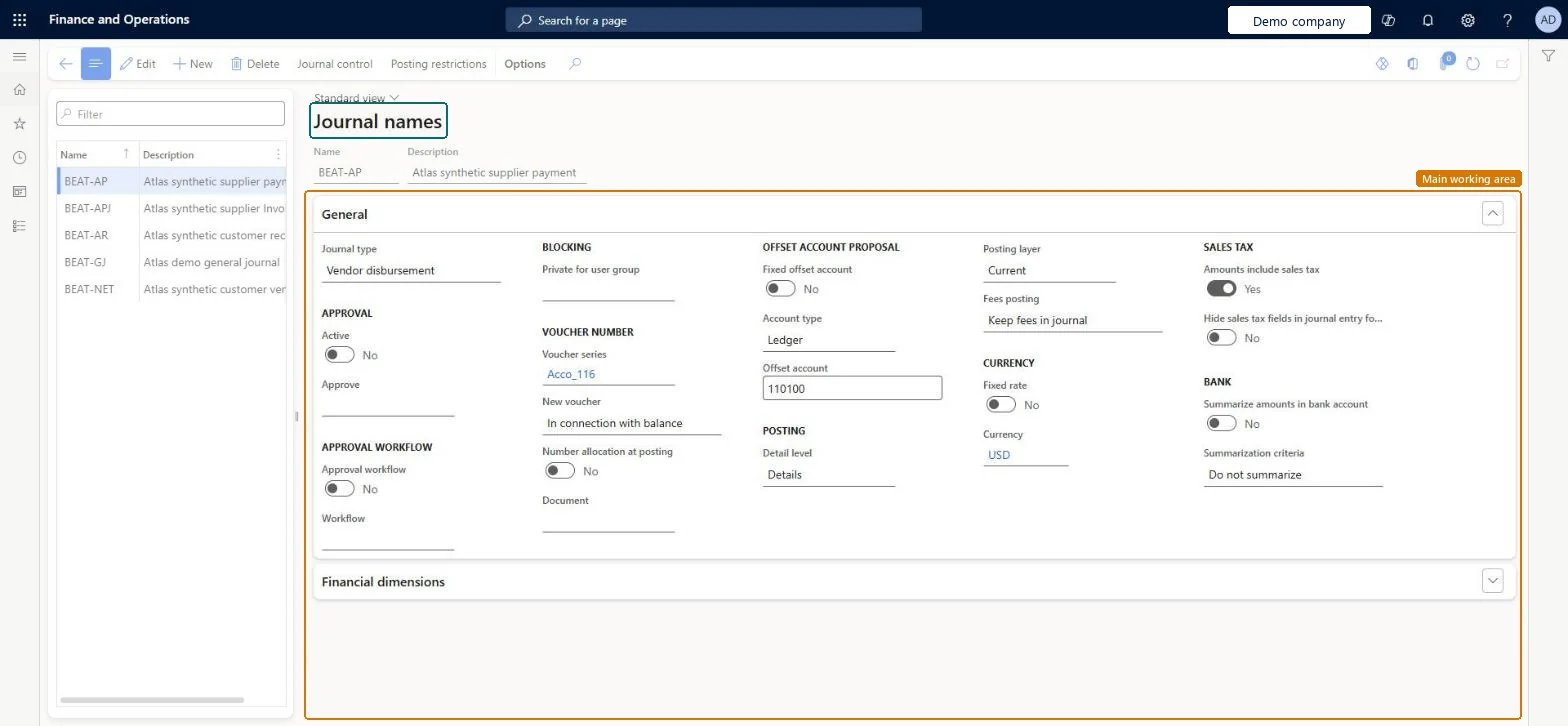
Used to define journal names with approval workflows, default offset accounts, currency, and financial dimensions, and restrictions on companies, account types, and segment values.
- Used by
- Accountant, Accounting manager, Accounting supervisor and 6 more roles
- Business process
- Configure general journal names in Dynamics 365 Finance
- Menu item
LedgerJournalSetup- Main table
LedgerJournalName- Data entity
LedgerJournalNameEntity- Setup steps
- 1 on this page
Everyone
1What it is and why
| What it is | Setup records that define a journal for each purpose, with settings such as workflow approval, default values, and journal control. |
|---|---|
| What you do here | Used to define journal names with approval workflows, default offset accounts, currency, and financial dimensions, and restrictions on companies, account types, and segment values. |
| Example | Use a journal name only for adjustments, allowing only the Ledger account type across all companies. |
Functional consultant · Solution architect
2Where it fits
| Business process | Define accounting policies › Define posting policies › Configure general journal names in Dynamics 365 Finance |
|---|---|
| Menu path | General ledger › Journal setup › Journal names |
| Set up first | General ledger workflows Microsoft Learn ↗Number sequences Microsoft Learn ↗ |
| Used next by | General journals Microsoft Learn ↗Intercompany accounting Microsoft Learn ↗ |
| Related pages | Journal descriptions Microsoft Learn ↗Default descriptions Microsoft Learn ↗ |
| In this process | — |
End user · Functional consultant
3How to do it
Step by step, with screenshots
Set up Journal names3 screens
Used to define journal names with approval workflows, default offset accounts, currency, and financial dimensions, and restrictions on companies, account types, and segment values.
Screen 1
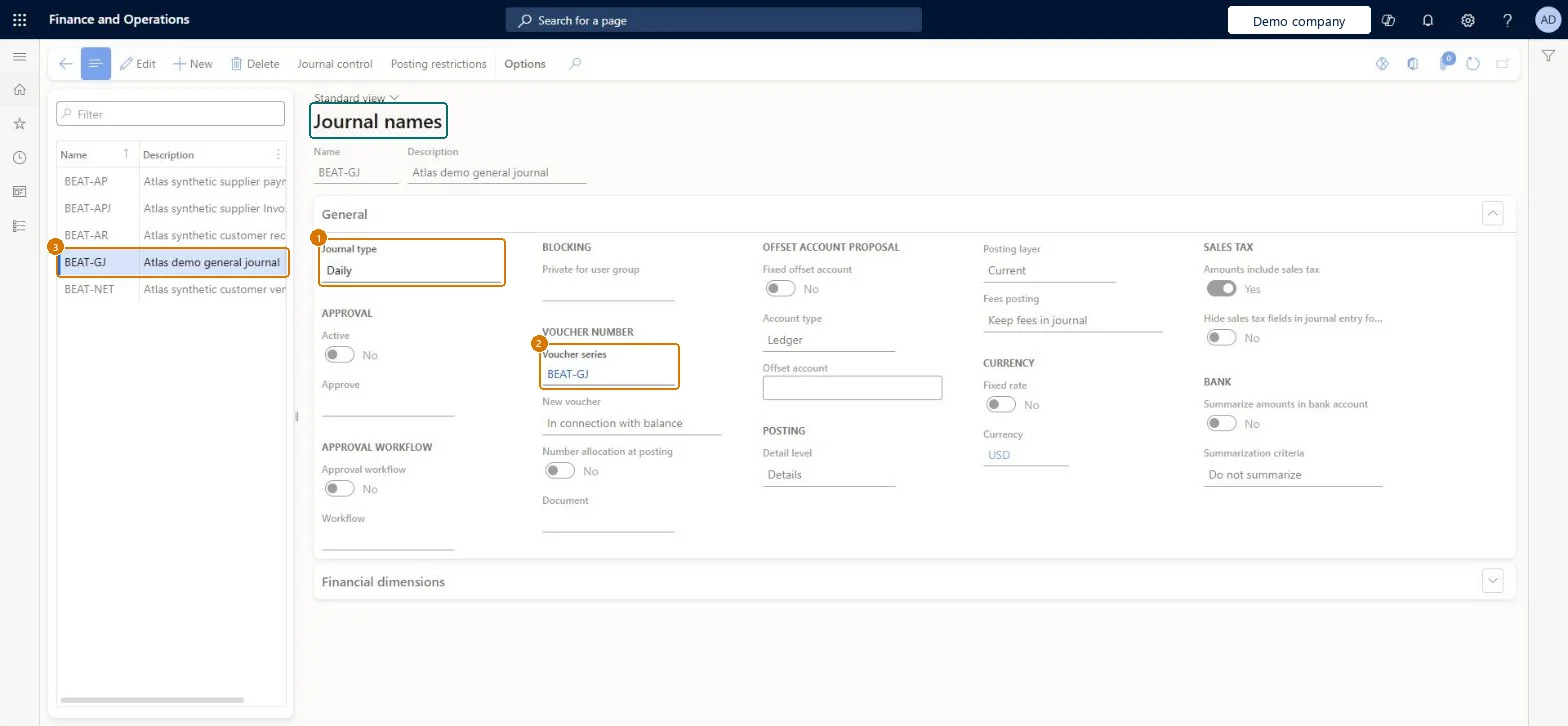
Create the general journal name
Go to General ledger > Journal setup > Journal names
- Select New and enter the name and description
- Set the journal type
- Choose the voucher series
1Journal type Daily 2Voucher series BEAT-GJ 3Name BEAT-GJ Description Atlas demo general journal 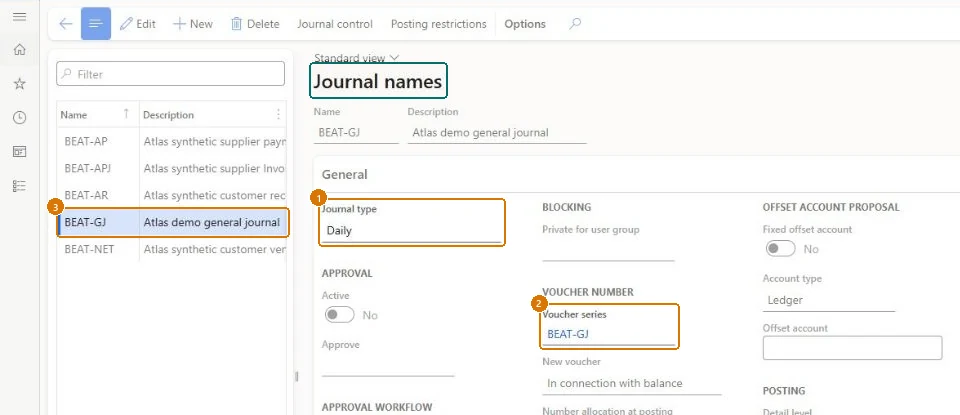
Show the full screen
page title tab to open what to set or check Screen 2
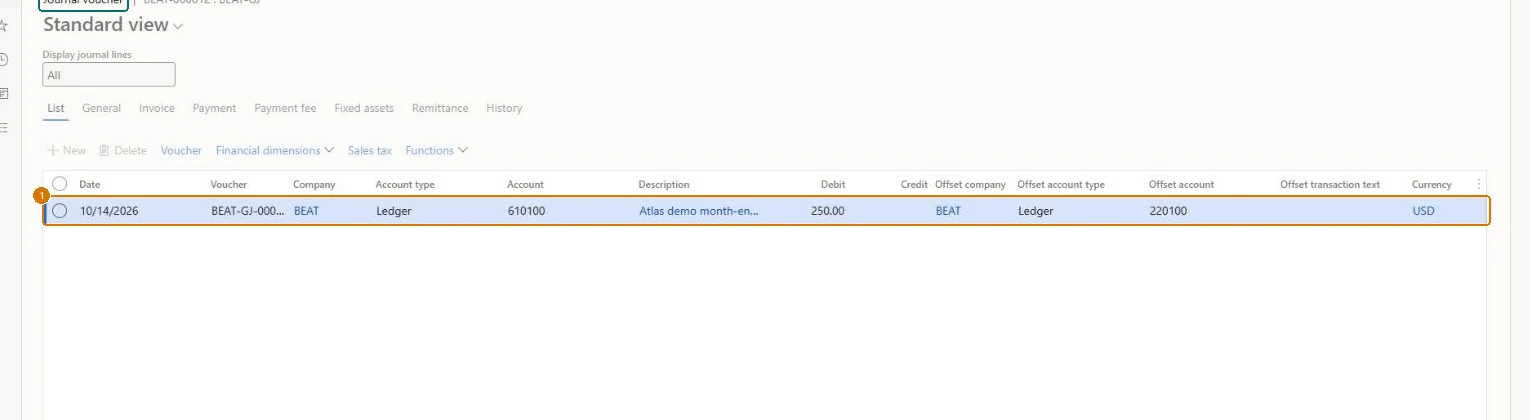
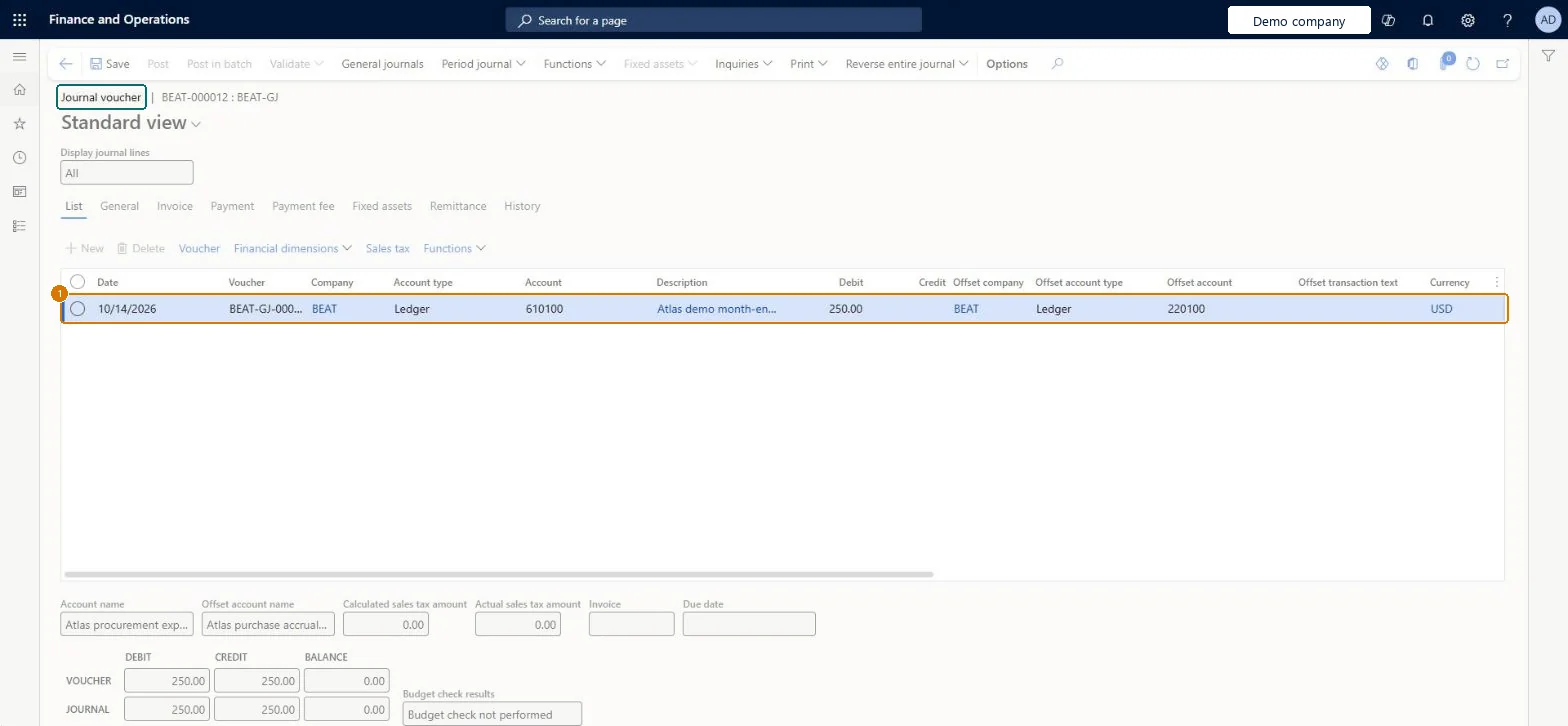
Enter and post the accrual journal
Go to General journals > Journal voucher, List tab (journal name BEAT-GJ)
- Create a journal that uses journal name BEAT-GJ
- On the List tab, add a line dated 10/14/2026 with the account, debit and offset account
- Select Post
1Account 610100 Account type Ledger Description Atlas demo month-end accrual Debit 250.00 Offset account type Ledger Offset account 220100 Currency USD Check The voucher totals show debit 250.00, credit 250.00 and balance 0.00.
Show the full screen
page title tab to open what to set or check Screen 3
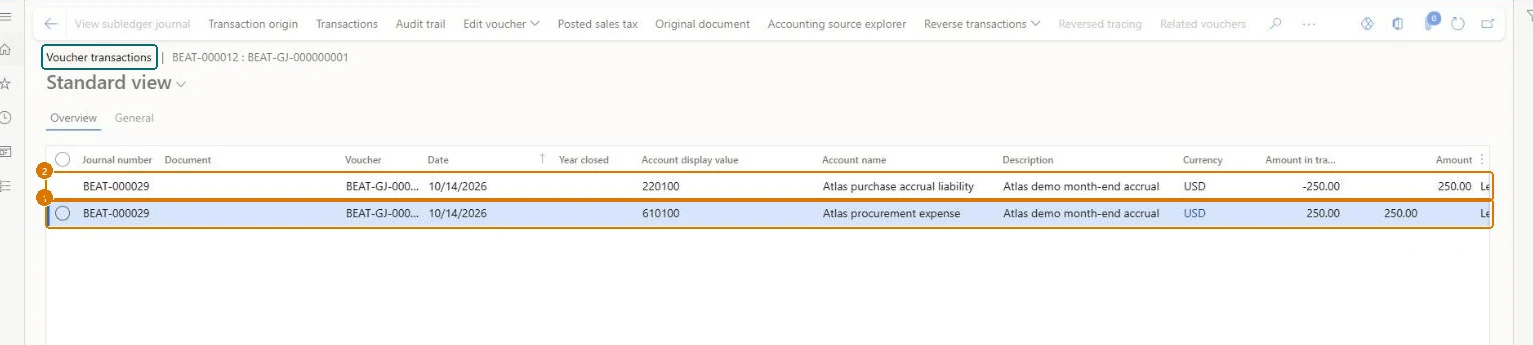
Check the posted voucher
Go to General journals > Journal voucher > Voucher transactions
- On the posted journal line, select Voucher
- Review both lines on the Overview tab
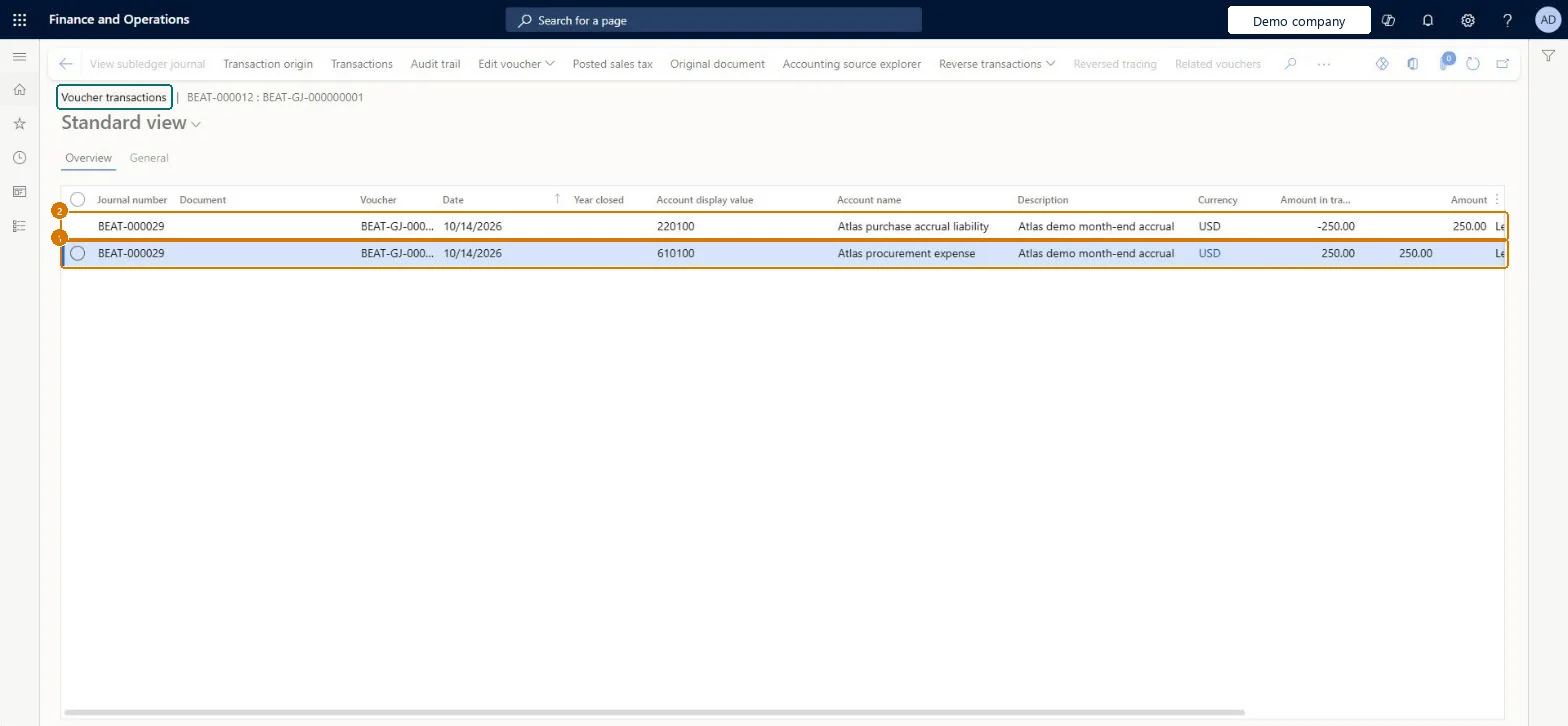
Check Voucher BEAT-GJ-000000001 shows two lines dated 10/14/2026: 610100 for 250.00 and 220100 for -250.00.
Show the full screen
page title tab to open what to set or check
Microsoft's steps
- Go to General ledger > Journal setup > Journal names.
- Select New.
- Enter a Name and a Description for the journal name.
- In the Journal type field, select the type of journal.
- In the Voucher series field, select a number sequence.
- Set up approval, default values and journal control as needed.
- Select Save.
Source: Microsoft Learn ↗
Field guide
| Field | What it means | Worked example | Table column |
|---|---|---|---|
| Journal type | The kind of journal the name is used for; for example, general and intercompany journals use Daily.Microsoft Learn ↗ | Daily | JournalType |
| Voucher series | The number sequence that gives voucher numbers to journals of this name; it must exist before journals are created.Microsoft Learn ↗ | BEAT-GJ | NumberSequenceTable |
| Posting layer | The posting layer, such as Current or Tax, that journals of this name post to.Microsoft Learn ↗ | — | — |
| Detail level | Whether each journal line posts separately (Details) or matching lines are added together into one transaction (Summary).Microsoft Learn ↗ | — | — |
| Active | Turns on manual approval, so journals must be reported as ready and approved by the chosen user group before posting.Microsoft Learn ↗ | — | ApproveActive |
| Approval workflow | Turns on workflow approval; the workflow to use is then chosen in the Workflow field.Microsoft Learn ↗ | — | WorkflowApproval |
| Posting restrictions | Limits posting of journals of this name to certain users or user groups, or to the people who created them.Microsoft Learn ↗ | — | — |
| Journal control | Restricts the companies, account types and segment values that can be used on journals of this name.Microsoft Learn ↗ | — | — |
| Name | — | BEAT-GJ | Name |
| Description | — | Atlas demo general journal | — |
| Account type | — | Ledger | — |
| Account | — | 610100 | — |
| Debit | — | 250.00 | — |
| Offset account type | — | Ledger | OffsetAccountType |
| Offset account | — | 220100 | OffsetLedgerDimension |
| Currency | — | USD | — |
Functional consultant
4Setup decisions
| Setup step | Recommended value and why | Decision · common mistake · test |
|---|---|---|
| Set up Journal names | — | — |
Solution architect
5Design impact
| Shared or per company | Per company: each legal entity has its own records. Microsoft data model ↗ |
|---|---|
| Can it be undone | — |
| Feature or country | — |
| If you change it later | The posting layer can't be changed after the journal name is created, and manual approval and workflow approval can't both be used on one journal name. A journal's name is locked once its header is saved. Microsoft Learn ↗ |
Technical architect
6Technical
| Menu item | LedgerJournalSetup Checked in Dynamics 365 |
|---|---|
| Form | LedgerJournalSetup Checked in Dynamics 365 |
| Table | LedgerJournalNameShown as “Name of journal” in Record infoChecked in Dynamics 365 |
| Data entities | LedgerJournalNameEntityJournal names Microsoft data model ↗ |
| Who can open it | PrivilegesMaintain ledger journal names LedgerJournalSetupMaintainView journal names LedgerJournalSetupViewDutiesEnable general ledger process LedgerGeneralLedgerProcessEnableInquire into general ledger reference data LedgerGeneralLedgerReferenceDataInquireEnable general ledger process RentalLedgerGeneralLedgerProcessEnable9 security rolesBudget managerBudgetBudgetManagerChief financial officer CompanyChiefFinancialOfficerAccountant LedgerAccountantAccounting manager LedgerAccountingManagerAccounting supervisor LedgerAccountingSupervisorFinancial controller LedgerFinancialControllerRental manager RentalManagerRental purchasing manager RentalPurchasingManagerRental sales manager RentalSalesManager |
| Actions on the page | Buttons: Journal control, Posting restrictionsChecked in Dynamics 365 |
Developer
7Developer
| Open it directly | https://<your-environment>/?mi=LedgerJournalSetup |
|---|---|
| Integrate with | LedgerJournalNameEntity data entity Microsoft data model ↗ |
| Table definition | LedgerJournalName columns and relations Microsoft data model ↗ |
Everyone
8Sources and checks
- learn.microsoft.com/dynamics365/finance/general-ledger/general-journal-processing
- learn.microsoft.com/training/modules/configure-ledgers-journals-dyn365-finance/5-exercise
- learn.microsoft.com/common-data-model/schema/core/operationscommon/tables/finance/accountingfoundation/group/ledgerjournalname
- learn.microsoft.com/training/modules/configure-ledgers-journals-dyn365-finance/3-setup
- learn.microsoft.com/dynamics365/finance/general-ledger/intercompany-accounting-setup
- learn.microsoft.com/training/modules/configure-ledgers-journals-dyn365-finance/journal-approvals
- learn.microsoft.com/dynamics365/finance/general-ledger/general-journal-processing
- Checked in a working Dynamics 365 system, version 10.0.49: the menu item, form, table and security, the page, the demo records and the values in the screenshots.
GL-JOURNAL-010 — Set up Journal names. Beyond ERP Atlas Hub, snapshot 2026-10-16, partly verified. https://www.beyonderp.cloud/atlas/step/GL-JOURNAL-010