Setup page · General ledger
Default descriptions
Default text, by language, for accounting entries that post automatically to the general ledger.
- Used by
- Accountant, Accounting manager, Accounting supervisor and 16 more roles
- Business process
- Define posting policies
- Menu item
TransactionTexts- Main table
TransactTxt- Data entity
LedgerDefaultDescriptionsEntity- Setup steps
- 1 on this page
Show what matters for
Everyone
1What it is and why
| What it is | Default text, by language, for accounting entries that post automatically to the general ledger. |
|---|---|
| What you do here | Used to set up the description for each transaction type with free text and variables such as %1 (the transaction date), %2, and %3. |
| Example | Enter Invoice %2 in the Text field so that the invoice number is added to the description. |
Functional consultant · Solution architect
2Where it fits
| Business process | Define accounting policies › Define posting policies |
|---|---|
| Menu path | General ledger › Journal setup › Default descriptions |
| Set up first | — |
| Used next by | — |
| Related pages | Journal descriptions Microsoft Learn ↗ |
End user · Functional consultant
3How to do it
Step by step, with screenshots
Set up Default descriptions1 screen
Used to set up the description for each transaction type with free text and variables such as %1 (the transaction date), %2, and %3.
Screen 1
Set the default description for reversing entries
Go to General ledger > Journal setup > Default descriptions
- Select New
- Choose the description type and language
- Enter the text, using %3 for the voucher
1Description Ledger - reversing entry 2Language en-us 3Text Atlas demo reversal of %3 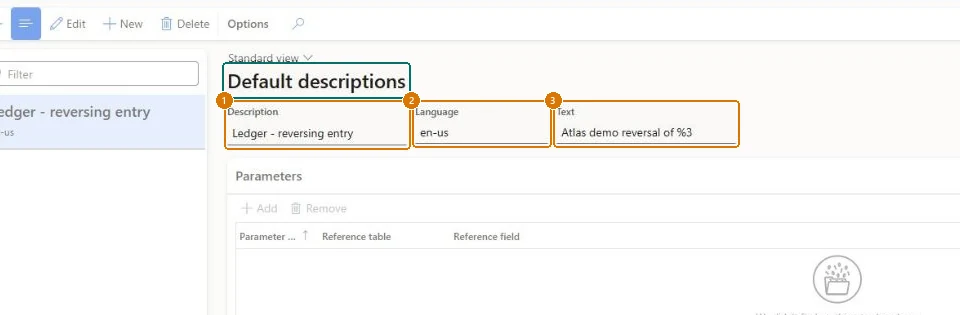
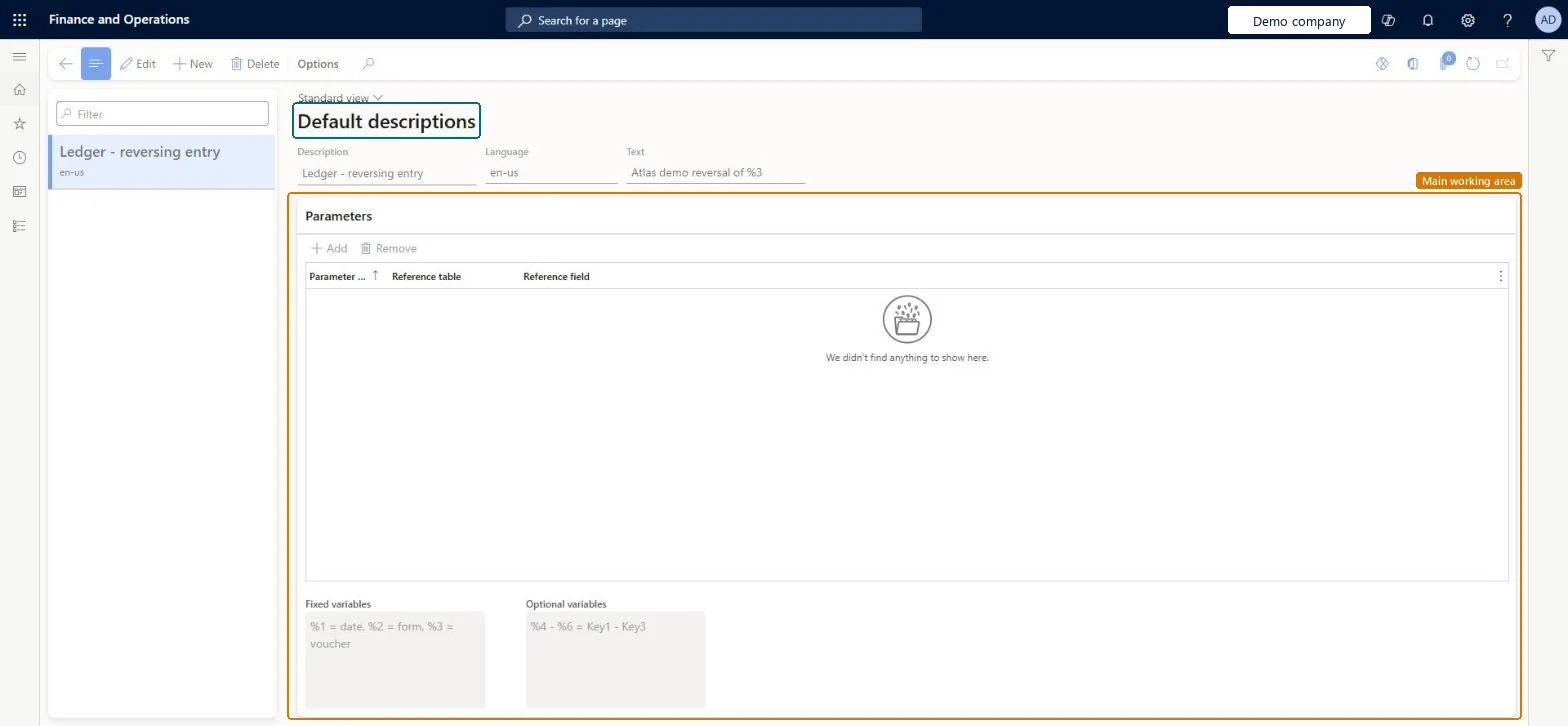
Show the full screen
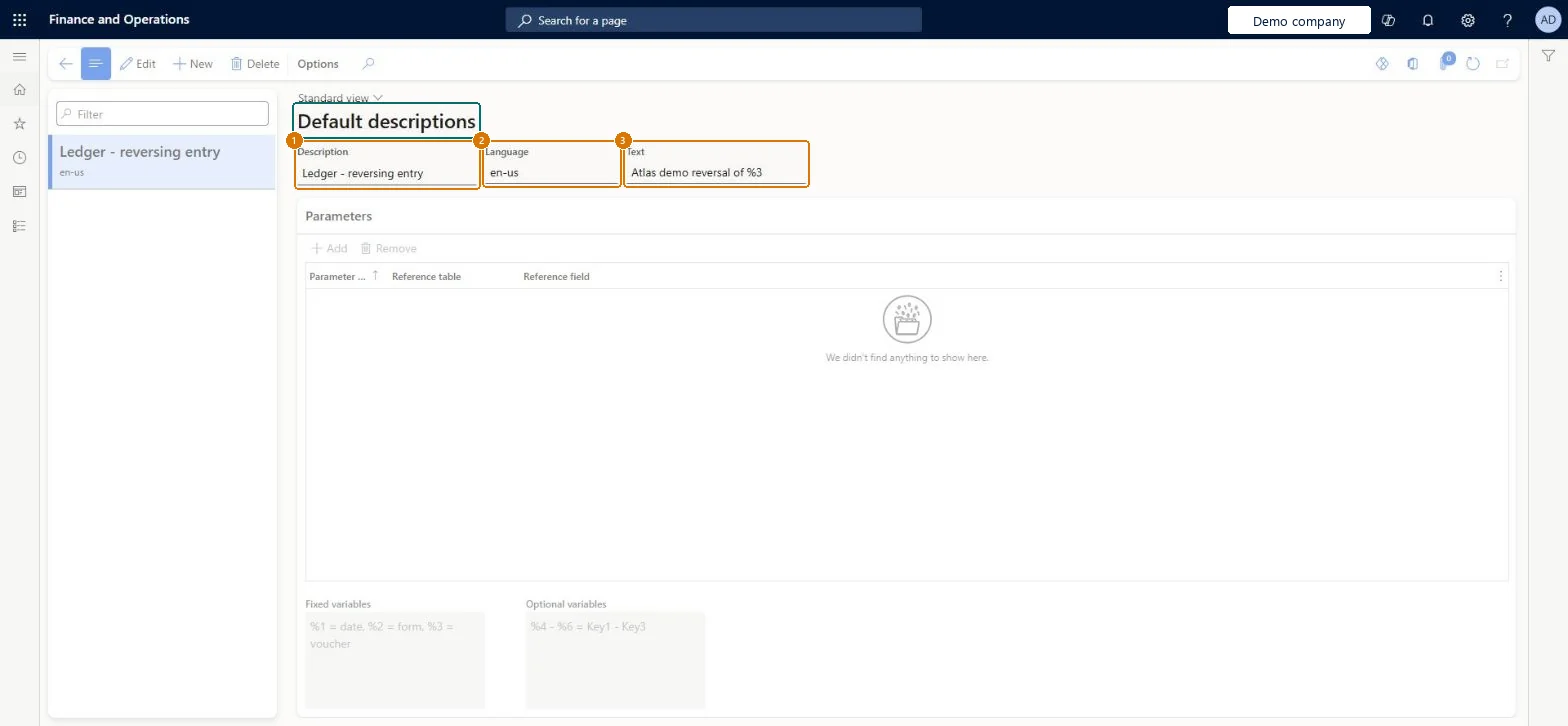
page title tab to open what to set or check
Microsoft's steps
- Go to General ledger > Journal setup > Default descriptions.
- Select New.
- In the Description field, select the transaction type, such as Transaction reversal.
- In the Language field, select the language.
- In the Text field, enter the description, using free text and the variables %1, %2 and %3.
Source: Microsoft Learn ↗
Field guide
| Field | What it means | Worked example | Table column |
|---|---|---|---|
| Description | The type of transaction the default description is for.Microsoft Learn ↗ | Ledger - reversing entry | — |
| Language | The language the description applies to.Microsoft Learn ↗ | en-us | — |
| Text | The description text, which can include %1 for the date and %2 and %3 for document identifiers such as the invoice number.Microsoft Learn ↗ | Atlas demo reversal of %3 | Txt |
| Reference table | On the Parameters FastTab, the table from which extra data is added to the description.Microsoft Learn ↗ | — | — |
| Reference field | On the Parameters FastTab, the field whose value is added to the description.Microsoft Learn ↗ | — | — |
Functional consultant
4Setup decisions
| Setup step | Recommended value and why | Decision · common mistake · test |
|---|---|---|
| Set up Default descriptions | — | — |
Solution architect
5Design impact
| Shared or per company | Per company: each legal entity has its own records. Microsoft data model ↗ |
|---|---|
| Can it be undone | — |
| Feature or country | — |
| If you change it later | — |
Technical architect
6Technical
| Menu item | TransactionTexts Checked in Dynamics 365 |
|---|---|
| Form | TransactionTexts Checked in Dynamics 365 |
| Table | TransactTxtShown as “Default descriptions” in Record infoChecked in Dynamics 365 |
| Data entities | LedgerDefaultDescriptionsEntityDefault descriptions Microsoft data model ↗ |
| Who can open it | PrivilegesMaintain transaction texts TransactionTextsMaintainView transaction texts TransactionTextsViewDutiesEnable invoice and cash process CustInvoiceInvoiceAndCashProcessEnableInquire into invoice and cash reference data CustInvoiceInvoiceAndCashRefDataInquireEnable general ledger process LedgerGeneralLedgerProcessEnableInquire into general ledger reference data LedgerGeneralLedgerReferenceDataInquireEnable invoice and cash process RentalCustInvoiceInvAndCashProcEnableEnable general ledger process RentalLedgerGeneralLedgerProcessEnableRental Inquire into sales tax process reference data RentalTaxSalesTaxProcessReferenceDataInquireInquire into sales tax process reference data TaxSalesTaxProcessReferenceDataInquireInquire into sales tax transaction status TaxSalesTaxTransactionStatusInquire19 security rolesBudget managerBudgetBudgetManagerCollections manager CollectionLetterCollectionsManagerChief financial officer CompanyChiefFinancialOfficerAccounts receivable clerk CustInvoiceAccountsReceivableClerkAccounts receivable manager CustInvoiceAccountsReceivableManagerTax accountant FBTaxAccountant_BRAccountant LedgerAccountantAccounting manager LedgerAccountingManagerAccounting supervisor LedgerAccountingSupervisorFinancial controller LedgerFinancialControllerAccounts receivable centralized payments clerk PaymAccountsReceivableCentralPaymClerkAccounts receivable payments clerk PaymAccountsReceivablePaymentsClerkRental coordinator agent RentalCoordinatorAgentRental manager RentalManagerRental purchasing manager RentalPurchasingManagerRental sales manager RentalSalesManagerSales manager TradeSalesManagerAccounts payable clerk VendInvoiceAccountsPayableClerkAccounts payable manager VendInvoiceAccountsPayableManager |
| Actions on the page | — |
Developer
7Developer
| Open it directly | https://<your-environment>/?mi=TransactionTexts |
|---|---|
| Integrate with | LedgerDefaultDescriptionsEntity data entity Microsoft data model ↗ |
| Table definition | TransactTxt columns and relations Microsoft data model ↗ |
Everyone
8Sources and checks
- learn.microsoft.com/training/modules/configure-ledgers-journals-dyn365-finance/3-setup
- learn.microsoft.com/training/modules/configure-ledgers-journals-dyn365-finance/3-setup
- learn.microsoft.com/common-data-model/schema/core/operationscommon/tables/finance/ledger/group/transacttxt
- learn.microsoft.com/dynamics365/finance/general-ledger/set-up-default-descriptions-for-automatic-posting
- Checked in a working Dynamics 365 system, version 10.0.49: the menu item, form, table and security, the page, the demo records and the values in the screenshots.