SETUP GUIDEHow to set it up8 sections. Choose a role to highlight what matters to you.
Everyone
1What it is and why
What it is
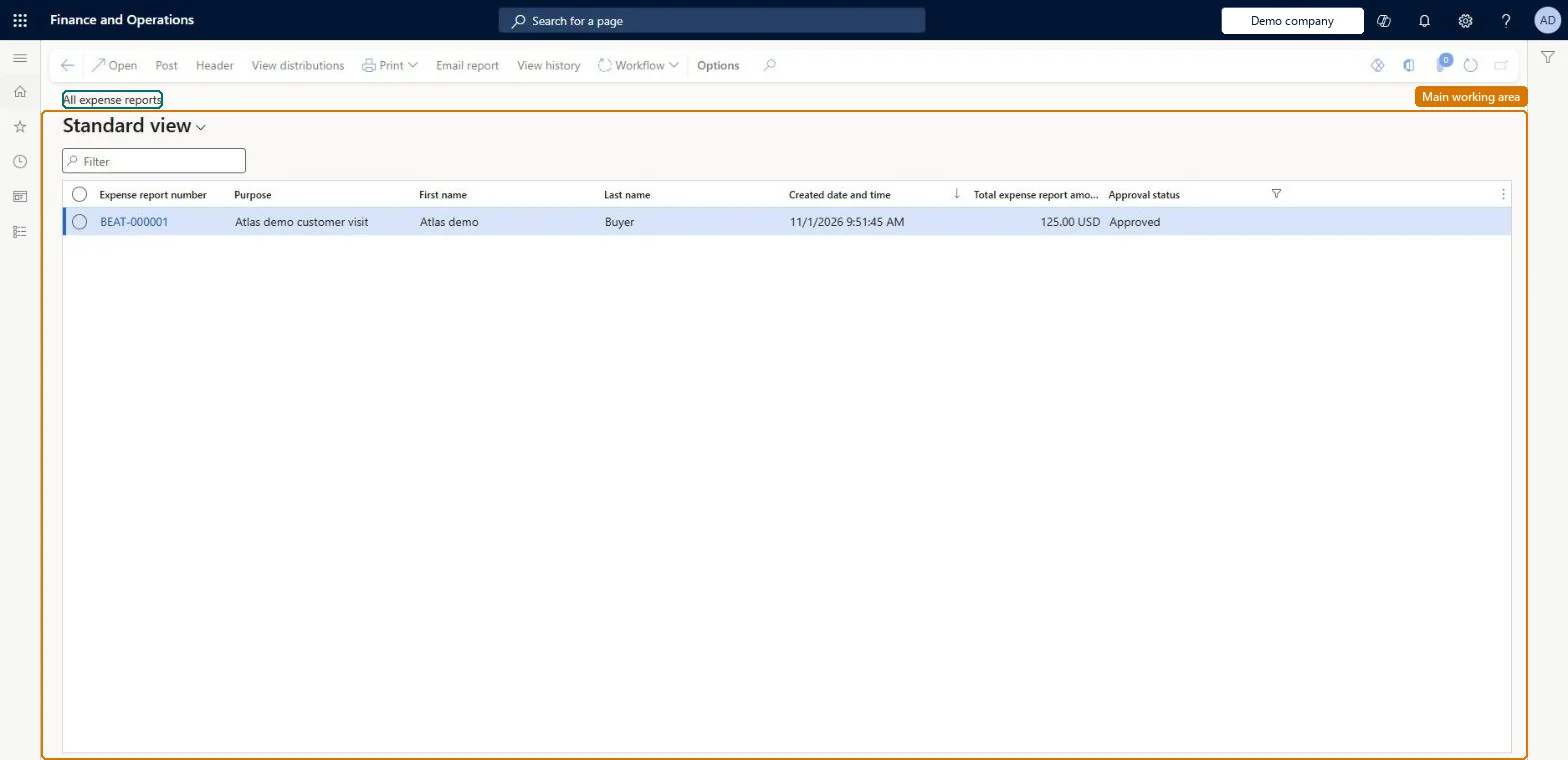
An inquiry that lists every expense report in the legal entity, whatever its status, from draft to paid.
What you do here
Use this page to find any expense report when you don't know its status, for example to answer an employee's question or to follow a report through approval and payment.
Example
For example, an employee asks why their 1,240.00 USD trip report hasn't been paid; the expense administrator finds it here by employee name, sees it is approved but not posted, and passes it to accounts payable.
The page in Dynamics 365. page title tab to open what to set or check
About the examples: Examples and screenshots in this guide use BEAT, a demo company in a Dynamics 365 test environment. Use your own company's codes and values instead of copying them.
When to run it
When to run it
When you need to find an expense report without knowing its status, for example to answer an employee's question.
How often
On demand.
What the output shows
A list of all expense reports with their number, employee, amount and status. A report you can't find may belong to another legal entity.
You do not have access to enter expense reports because you are not mapped to an employee record. Contact your manager or support team for assistance.
Link the user to an employee with active employment and set a company on the user account. In the live system the pages under My expenses, Process expense reports and Process cash advances showed this message for a user with no employee record. Checked in Dynamics 365
A report the employee mentions isn't in the list
Expense reports belong to a legal entity. Change to the employee's company; with intercompany lines, the report sits in the employing (loaning) legal entity. Microsoft Learn
Test checklist
Create one draft, one submitted and one approved expense report.
Open All expense reports and filter on the employee.
Check all three reports appear with their approval status.
Open the submitted one and view its workflow history.
Filter on the employee and the approval status first, then open the workflow history of a report in review to see whose task it is.The list holds drafts, reports in review, approved and paid reports together, so the status filter decides what you are looking at.
Who may see all expense reports?Changing a report on behalf of the employee from this list instead of returning it through the workflow, so the approval trail no longer matches the report.Test: Every status is listed
Feature management and licence
Licence or add-in
In this system Employee and Contractor enter their own expenses, and Expense administrator sets up the module and processes documents. The expense mobile app needs the Employee role, a company on the user account and a link to an employee with active employment. Expense administrators and project accountants use this list; no Feature management feature is needed.
Per company: the list shows the expense reports of the current legal entity. Microsoft Learn
Can it be undone
Reversible: The inquiry changes no data.
If you change it later
The page only lists reports. A report is changed by its owner while it is a draft, by its approvers in the workflow, and by posting. Microsoft Learn
Technical architect
6Technical
Menu item
TrvExpRptListPage_ActiveChecked in Dynamics 365
Data entities
TrvExpTableMobileEntityExpense reports (the expense report header used by the mobile app) Checked in Dynamics 365TrvExpTransEntityExpenses (the expense lines) Microsoft data model
Roles to set it up and use it
To set it up or change itExpense administrator ExpenseAdministratorTo use itProject accountant ProjProjectAccountantProject assistant ProjProjectClerkGive people one of these roles. On this system, 3 roles can open this page.Checked in Dynamics 365
Load order: The All expense reports list has no data entity in Data management, so it can't be loaded from a file or a configuration template. It shows existing reports; settle or post open reports before cutover instead of moving them.Microsoft Learn
Checked in a working Dynamics 365 system, version 10.0.49: the menu item, form, table and security, the page.
To cite this step: EM-PROC-010, Find an expense report in any status. Beyond ERP Atlas Hub, 2026-11-11. https://www.beyonderp.cloud/atlas/step/EM-PROC-010