PAGE GUIDEWhat the page does and how to use it8 sections. Choose a role to highlight what matters to you.
Everyone
1What it is and why
What it is
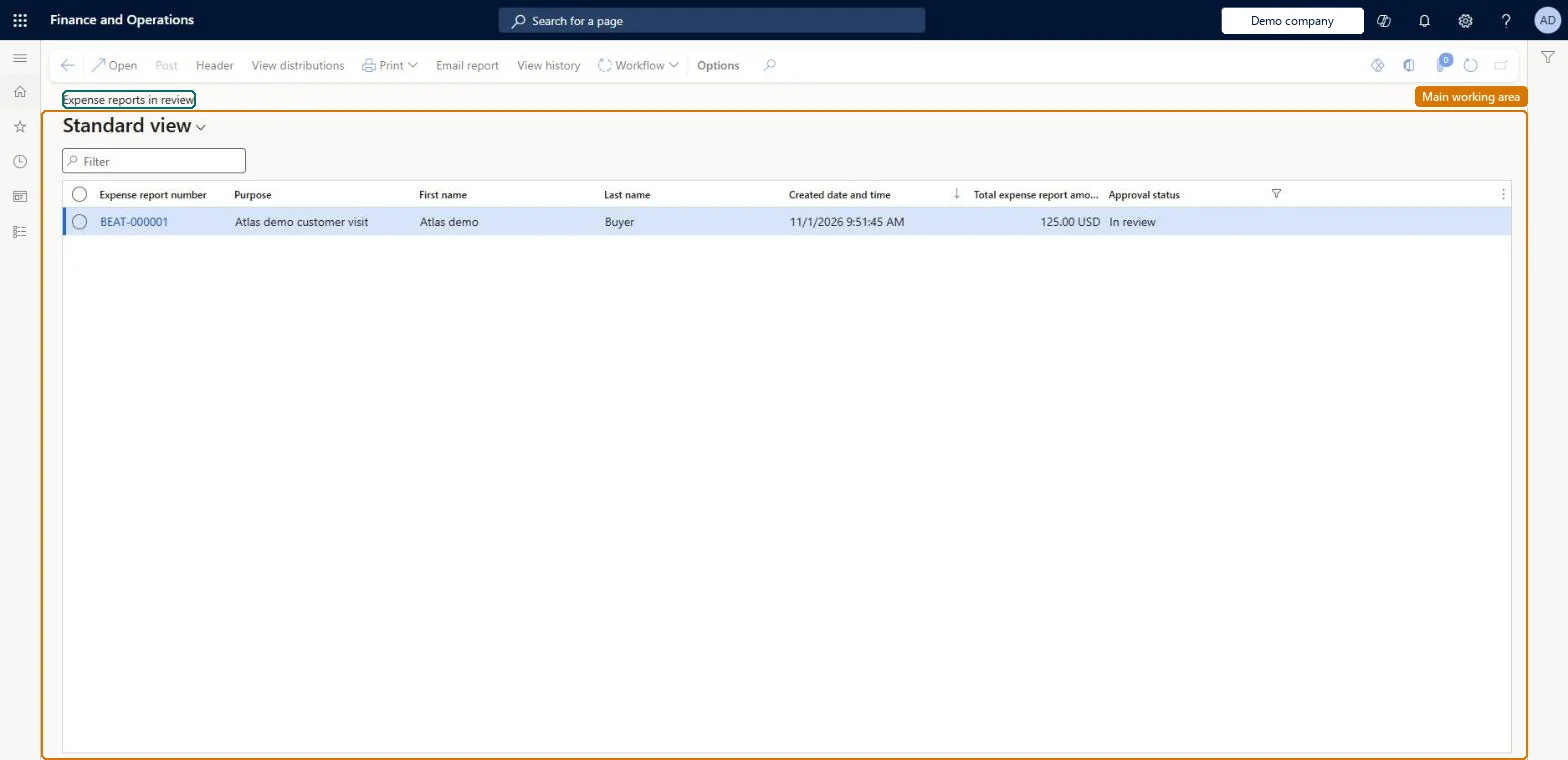
An inquiry that lists the expense reports that have been submitted and are still in the approval workflow.
What you do here
Use this page to see which reports are waiting for approval and whose task they are, so you can follow up on slow approvals.
Example
For example, at month end the expense administrator filters this list on reports submitted more than ten days ago and finds three waiting for a manager who is on leave without a workflow delegate.
The page in Dynamics 365. page title tab to open what to set or check
About the examples: Examples and screenshots in this guide use BEAT, a demo company in a Dynamics 365 test environment. Use your own company's codes and values instead of copying them.
When to run it
When to run it
When an employee asks why a reimbursement is late, or when you monitor approval times.
How often
On demand, for example weekly to follow up on slow approvals.
What the output shows
Expense reports with the status In review and their current workflow step. Reports that sit here for a long time usually wait on an approver who is absent or has no delegate.
The number of the report, from the Expense report number sequence.Microsoft Learn
Approval status
Where the report is in its life: draft, in review, approved, or processed for payment.Microsoft Learn
Workflow history (button)
Shows each step of the report's workflow and which approver it is waiting for.Microsoft Learn
Common errors and fixes
Message
What to do
You do not have access to enter expense reports because you are not mapped to an employee record. Contact your manager or support team for assistance.
Link the user to an employee with active employment and set a company on the user account. In the live system the pages under My expenses, Process expense reports and Process cash advances showed this message for a user with no employee record. Checked in Dynamics 365
A report waits for an approver who is away
Have the approver delegate the work item, or set workflow delegation for the absence; expense entry delegation doesn't pass on approvals. Microsoft Learn
Test checklist
Submit a test report.
Open Expense reports in review and check it is listed.
Open its workflow history and check the current approver.
Review the list weekly, sorted by submission date, and chase any report older than your reimbursement target through its workflow history.A report in review waits on a named approver or queue, and the workflow history shows which one.
In this system Employee and Contractor enter their own expenses, and Expense administrator sets up the module and processes documents. The expense mobile app needs the Employee role, a company on the user account and a link to an employee with active employment. The expense administrator monitors this list; the enhancements feature adds workflow history to the report.
Per company: the list shows reports in review in the current legal entity. Microsoft Learn
Can it be undone
Nothing to undo: The list only shows reports in review; it changes nothing. Microsoft Learn
If you change it later
The page only lists reports. To move a stuck report, the approver acts on it, it is delegated in the workflow, or the expense administrator returns it to draft with Reset expense document status. Microsoft Learn
Technical architect
6Technical
Menu item
TrvExpRptListPage_InReviewChecked in Dynamics 365
Data entities
TrvExpTableMobileEntityExpense reports (the expense report header used by the mobile app) Checked in Dynamics 365
Roles to set it up and use it
To set it up or change itExpense administrator ExpenseAdministratorGive people one of these roles. On this system, 1 role can open this page.Checked in Dynamics 365
Load order: The in-review list has no data entity in Data management, so it can't be loaded from a file or a configuration template. Finish or recall reports in review before cutover; workflow instances don't move between environments.Microsoft Learn