PAGE GUIDEWhat the page does and how to use it8 sections. Choose a role to highlight what matters to you.
Everyone
1What it is and why
What it is
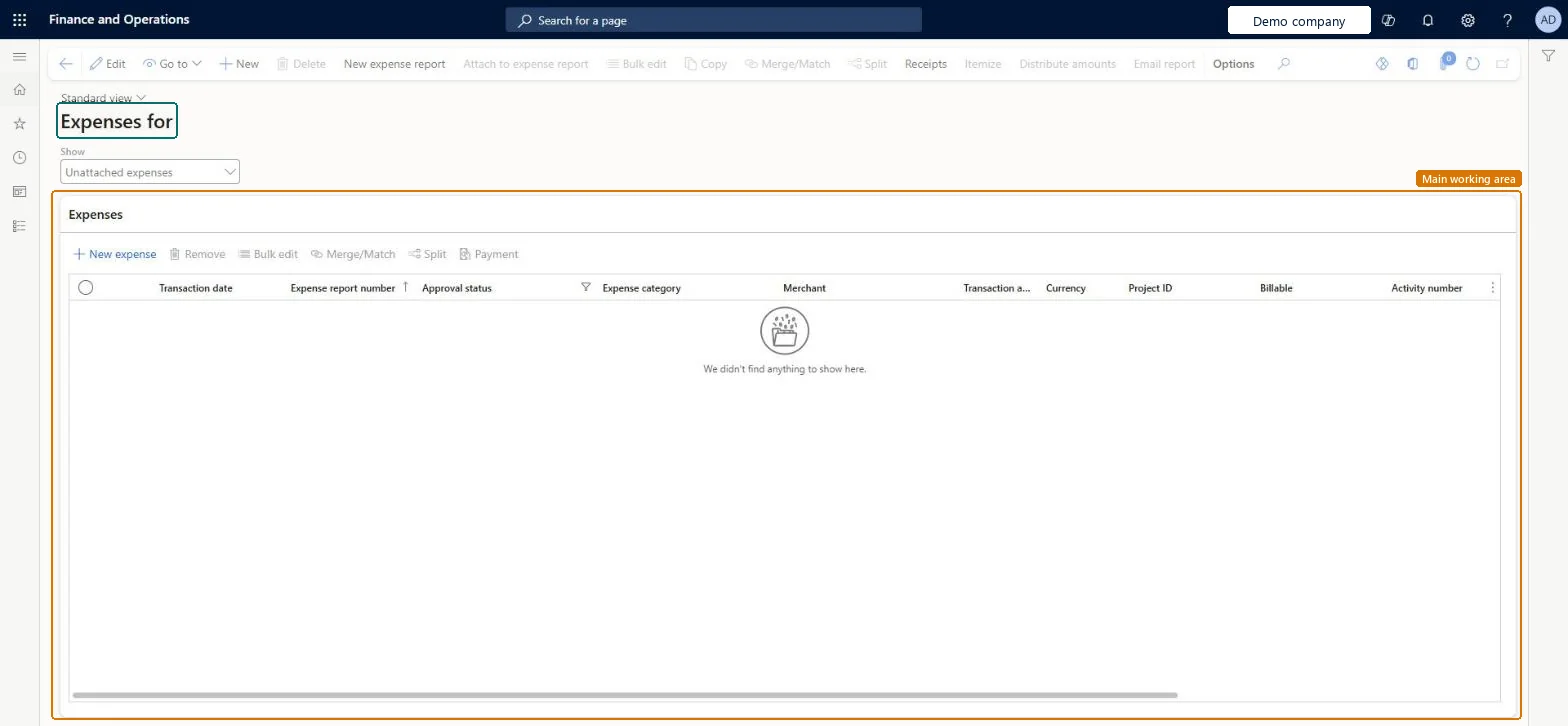
A list page of your expense lines, by default the unattached ones, where you prepare expenses before they go on an expense report.
What you do here
Use this page to add expenses, split, itemize, merge or match them, attach receipts, and then create an expense report or attach the expenses to one.
Example
For example, after a three-night hotel stay paid with the corporate card, the employee selects the imported hotel line, uses Itemize to split it into room, tax and parking, and attaches it to the trip report.
The page in Dynamics 365. page title tab to open what to set or check
About the examples: Examples and screenshots in this guide use BEAT, a demo company in a Dynamics 365 test environment. Use your own company's codes and values instead of copying them.
Setup steps on this page
Prepare unattached expenses before reporting
Clean up imported and keyed expenses so each one is reported once and in the right category.
Steps from Microsoft
Go to Expense management > My expenses > Expenses.
Use the Show list to choose which expenses to see. It opens on Unattached expenses.
Select New expense to add an expense line.
Select an expense, then select Itemize to split it into subcategory lines, Split to divide a card transaction, or Merge/Match to combine a duplicate.
Select New expense report to start a report, or select an expense and select Attach to expense report.
Select Receipts to attach receipts to the selected expense.
Chooses which expenses the list shows; it opens on Unattached expenses, the lines not yet on a report.Checked in Dynamics 365
Unattached expenses
Itemize (button)
Splits a parent expense into subcategory lines, such as a hotel folio into room rate, tax and parking.Microsoft Learn
Room rate, Tax, Parking
Merge/Match (button)
Merges a duplicate draft expense into one line, or matches an unattached expense to one already submitted.Microsoft Learn
Split (button)
Splits a card transaction into several lines; from 10.0.46 this works even with policy violations, which must be fixed before submit.Microsoft Learn
Attach to expense report (button)
Puts the selected expenses on an existing draft expense report.Microsoft Learn
Common errors and fixes
Message
What to do
You do not have access to enter expenses because you are not mapped to an employee record. Contact your manager or support team for assistance.
Link the user to an employee with active employment and set a company on the user account. In the live system the pages under My expenses, Process expense reports and Process cash advances showed this message for a user with no employee record. Checked in Dynamics 365
An employee doesn't see an imported card transaction
The card number in the file must match a card on the employee's worker record (Expense > Credit cards), and the card type must match a credit card type in setup. Correct the setup and import again, or reassign the transaction. Microsoft Learn
Itemize isn't offered for the expense
Itemization works only for expense categories that have subcategories. Add subcategories to the category, or choose a category that has them. Microsoft Learn
Test checklist
Import a card transaction and check it appears under Unattached expenses.
Itemize it into two subcategory lines and check both show under the parent expense.
Select New expense report and check the expense moves onto the report.
Itemize hotel folios and other mixed charges into subcategories, merge duplicates with Merge/Match, and only then create the report from the unattached expenses.Subcategories drive the main account and the tax handling of each part of a charge, and Merge/Match stops a keyed expense and an imported card line from both being paid.
Expense reports reimagined (Must be on)Ability to itemize recurring expenses quickly (Optional)
Licence or add-in
In this system Employee and Contractor enter their own expenses, and Expense administrator sets up the module and processes documents. The expense mobile app needs the Employee role, a company on the user account and a link to an employee with active employment. Employees and their delegates use this page.
Per company: expense lines belong to the employee's legal entity; an intercompany line names the legal entity that is charged. Microsoft Learn
Can it be undone
Reversible: Unattached expenses can be changed, merged or deleted until they are on a submitted report. Microsoft Learn
If you change it later
Itemized and split lines appear in the list with their parent expense. Deleting an expense sends its receipt back to the unattached receipts. Microsoft Learn
Technical architect
6Technical
Menu item
TrvExpenseLinesChecked in Dynamics 365
Form
TrvExpensesChecked in Dynamics 365
Data entities
TrvCopilotAutomationExpenseEntityExpense Line Expense AI Agent Entity Checked in Dynamics 365TrvExpMobileExpenseEntityExpense Line Expense Mobile Entity Checked in Dynamics 365TrvExpMobileExpenseLineAttachedToReportEntityExpense Lines Attached to a Report for Approvals Checked in Dynamics 365TrvExpTableMobileEntityExpense reports Checked in Dynamics 365TrvExpTransMobileEntityExpenses Checked in Dynamics 365TrvExpTransMobileV2EntityMobile Expenses Checked in Dynamics 365ProjExpenseExportEntityProject Operations integration project expenses export entity Checked in Dynamics 365
Who can open it
PrivilegesTrvExpenseReportMaintainDutiesMaintain travel requisitions and expenses TrvTravelRequestsAndExpensesMaintain3 security rolesExpense administrator ExpenseAdministratorContractor HcmContractorEmployee HCMEmployeeChecked in Dynamics 365
Roles to set it up and use it
To set it up or change itExpense administrator ExpenseAdministratorContractor HcmContractorEmployee HCMEmployeeGive people one of these roles. On this system, 3 roles can open this page.Checked in Dynamics 365
Actions on the page
Options: Personalize, Page options, ShareChecked in Dynamics 365
Developer
7Developer
Open it by URL
https://<your-environment>/?mi=TrvExpenseLines
Integrate with
TrvCopilotAutomationExpenseEntity data entity Checked in Dynamics 365
Data migration
TrvExpTransEntity (Expenses): the expense lines, for each company.Load order: Expense lines are transactions. Move only lines that are still open, after categories, payment methods and employees; settle the rest before cutover.Load first: Expense categories, Payment methods, EmployeesMicrosoft Learn