SETUP GUIDEHow to set it up8 sections. Choose a role to highlight what matters to you.
Everyone
1What it is and why
What it is
A periodic job that emails employees, and optionally their delegates, about expense reports they created but haven't submitted, once they are older than a number of days.
What you do here
Use this job to get draft expense reports submitted, for example before period close.
Example
For example, three working days before month end the job runs with Transactions older than (days) set to 7, and every employee with a draft report older than a week gets an email to submit it.
The page in Dynamics 365. page title tab to open what to set or check
About the examples: Examples and screenshots in this guide use BEAT, a demo company in a Dynamics 365 test environment. Use your own company's codes and values instead of copying them.
When to run it
When to run it
When draft expense reports are left unsubmitted, for example before a period close.
How often
On a recurring schedule, for example weekly or before each period end.
Batch settings
Run it as a recurring batch job so reminders go out without manual work.
What the output shows
Reminder messages to employees (and optionally delegates) with expense reports that are still unsubmitted after the given number of days. The reports themselves don't change.
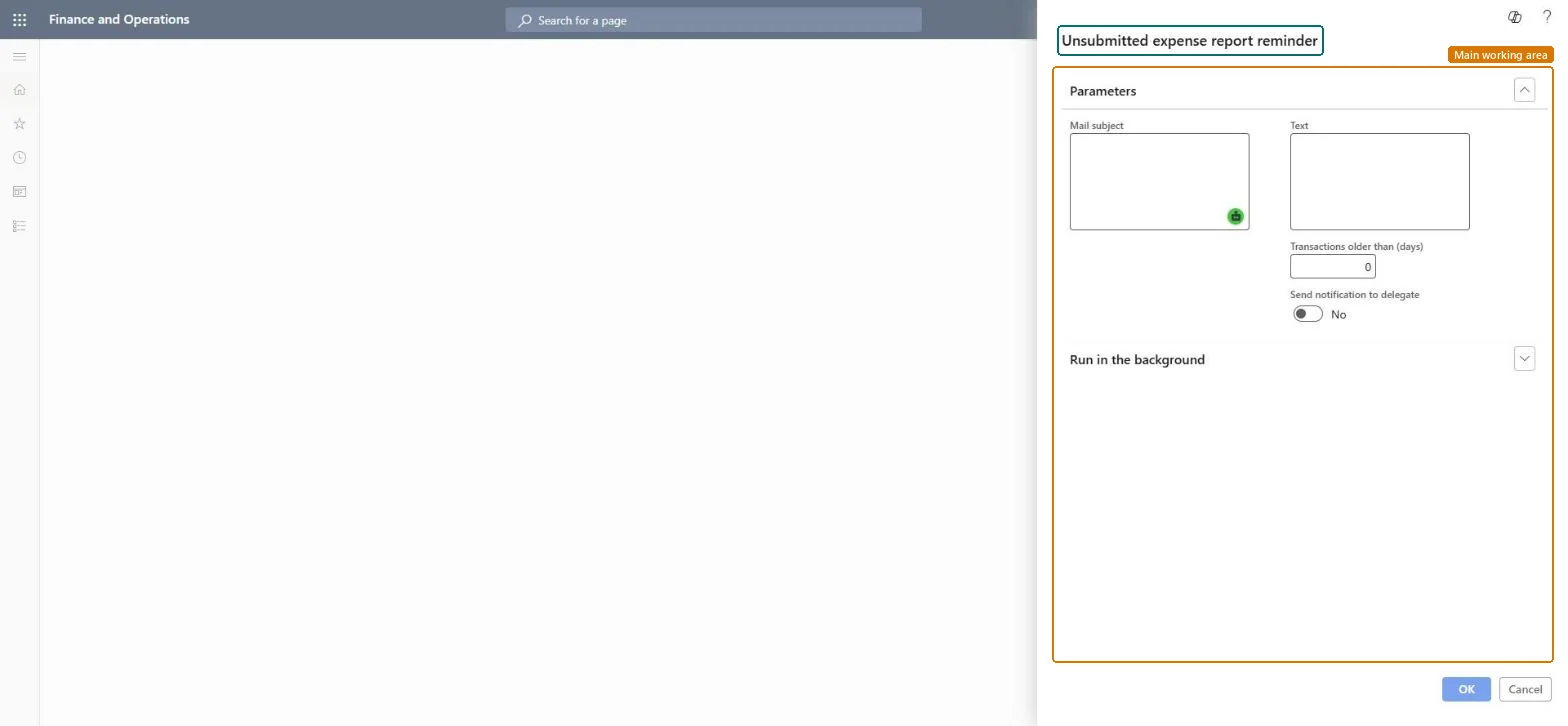
Go to Expense management > Periodic tasks > Unsubmitted expense report reminder.
Enter the Mail subject and the Text of the reminder that employees get about expense reports they haven't submitted.
In Transactions older than (days), enter how old the unsubmitted expenses must be before a reminder is sent.
Turn Send notification to delegate on if delegates who enter expenses for others should also be reminded, then run it and ask a test employee whether the reminder arrived.
Schedule it weekly and once more a few days before period end.Draft reports aren't in approval, so their cost isn't posted in the period until they are submitted and approved.
In this system Employee and Contractor enter their own expenses, and Expense administrator sets up the module and processes documents. The expense mobile app needs the Employee role, a company on the user account and a link to an employee with active employment. The expense administrator schedules this job. No Feature management feature is needed.
Load order: The job has no data entity in Data management, so it can't be loaded from a file or a configuration template. It processes data that is already in the system and keeps only its batch settings; set up and schedule it again in each environment.Microsoft Learn