BeyondERP.Newsletter
Menu

Setup step on the Unattached expenses reminder page · Expense management

Remind employees about unattached expenses

Get card charges reported on time.

Business process
Manage time and attendance
Menu item
action:TrvCreditCardReminder
Setup steps
1 on this page
Show what matters for
SETUP GUIDEHow to set it up8 sections. Choose a role to highlight what matters to you.
Everyone

1What it is and why

What it isA periodic job that emails employees, and optionally their delegates, about unattached expenses, such as imported card transactions, that are older than a number of days.
What you do hereUse this job to remind employees to put imported card charges and other unattached expenses on an expense report before they pile up.
ExampleFor example, a weekly batch with Transactions older than (days) set to 14 emails every employee who still has card charges from more than two weeks ago that aren't on a report.
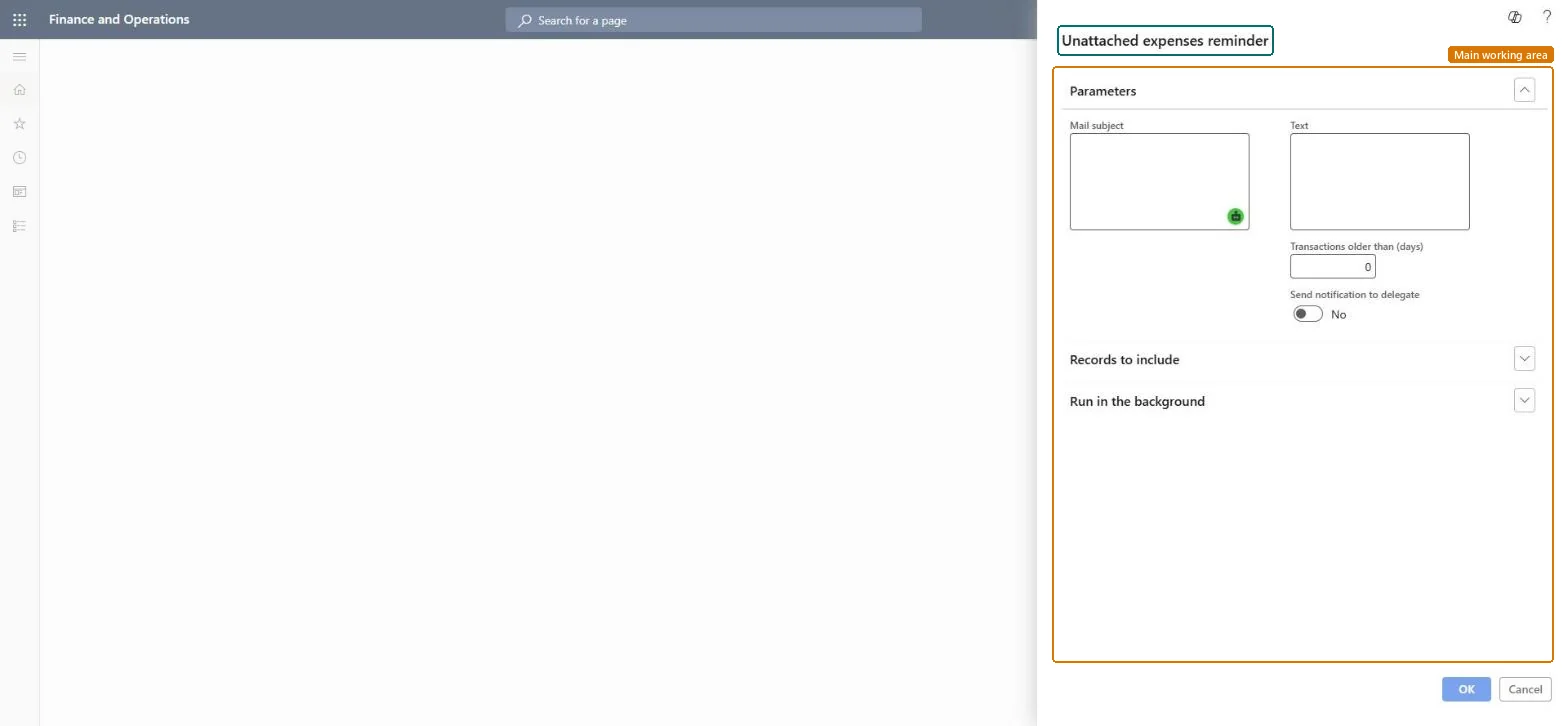
Unattached expenses reminder page in Dynamics 365
The page in Dynamics 365. page title tab to open what to set or check
Functional consultant · Solution architect

2Where it fits

End user · Functional consultant

3How to do it

About the examples: Examples and screenshots in this guide use BEAT, a demo company in a Dynamics 365 test environment. Use your own company's codes and values instead of copying them.

When to run it

When to run itWhen imported card transactions and other unattached expenses pile up without being put on expense reports.
How oftenOn a recurring schedule that matches your expense policy, for example weekly.
Batch settingsRun it as a recurring batch job so reminders go out automatically.
What the output showsReminder messages to employees (and optionally their delegates) who have unattached expenses older than the number of days. Nothing in the expenses changes.

Source: Microsoft Learn

Setup steps on this page

Remind employees about unattached expenses

Get card charges reported on time.

Steps from Microsoft

  1. Go to Expense management > Periodic tasks > Unattached expenses reminder.
  2. Enter the Mail subject and the Text of the reminder that employees get about expenses not yet attached to an expense report.
  3. In Transactions older than (days), enter how old an unattached expense, such as an imported card transaction, must be before a reminder is sent.
  4. Turn Send notification to delegate on if the employee's delegate should also be reminded.
  5. Use Records to include to limit the employees, run it, and ask a test employee whether the reminder arrived.

Source: Microsoft Learn

Fields on the page

FieldWhat it meansExample
Mail subjectThe subject line of the reminder email.Checked in Dynamics 365Expenses waiting to be reported
TextThe body of the reminder email.Checked in Dynamics 365
Transactions older than (days)How old an item must be before its owner gets a reminder.Checked in Dynamics 36514
Send notification to delegateAlso sends the reminder to the employee's expense delegates.Microsoft Learn Yes

Common errors and fixes

MessageWhat to do
No reminders arriveEmail must be set up in System administration, and the job must run (in batch, check Batch jobs for errors). Microsoft Learn

Test checklist

  1. Set up email and import a card transaction dated 20 days ago.
  2. Run the job with Transactions older than (days) = 14 for a test employee.
  3. Check the employee gets the email with the subject and text.
  4. With Send notification to delegate on, check the delegate also gets it.

Source: Microsoft Learn

Functional consultant

4Setup decisions

Setup stepRecommended value and whyDecision, common mistake and test
Remind employees about unattached expensesRun it weekly in batch with 14 days, and include delegates for employees who use them.Card charges that stay unattached delay reimbursement of the card and the close; a regular reminder keeps them moving.How often are employees reminded?Setting a very short age, so employees get reminders for charges they are still collecting receipts for.Test: Old unattached expenses trigger a reminder

Feature management and licence

Licence or add-inIn this system Employee and Contractor enter their own expenses, and Expense administrator sets up the module and processes documents. The expense mobile app needs the Employee role, a company on the user account and a link to an employee with active employment. The expense administrator schedules this job. No Feature management feature is needed.

Microsoft Learn

Solution architect

5Design impact

Shared or per companyPer company: the job looks at the unattached expenses of the legal entity it runs in. Checked in Dynamics 365
Can it be undoneIrreversible: Sent emails can't be recalled.
If you change it laterUnattached expenses are imported card transactions and keyed expenses not yet on a report; the reminder doesn't change them. Microsoft Learn
Technical architect

6Technical

Menu itemaction:TrvCreditCardReminder Checked in Dynamics 365
FormDialog Checked in Dynamics 365
Roles to set it up and use itTo use itExpense administrator ExpenseAdministratorGive people one of these roles. On this system, 1 role can run this page.Checked in Dynamics 365
Developer

7Developer

Open it by URLhttps://<your-environment>/?mi=action:TrvCreditCardReminder
Data migrationLoad order: The job has no data entity in Data management, so it can't be loaded from a file or a configuration template. It processes data that is already in the system and keeps only its batch settings; set up and schedule it again in each environment.Microsoft Learn
Everyone

8Sources