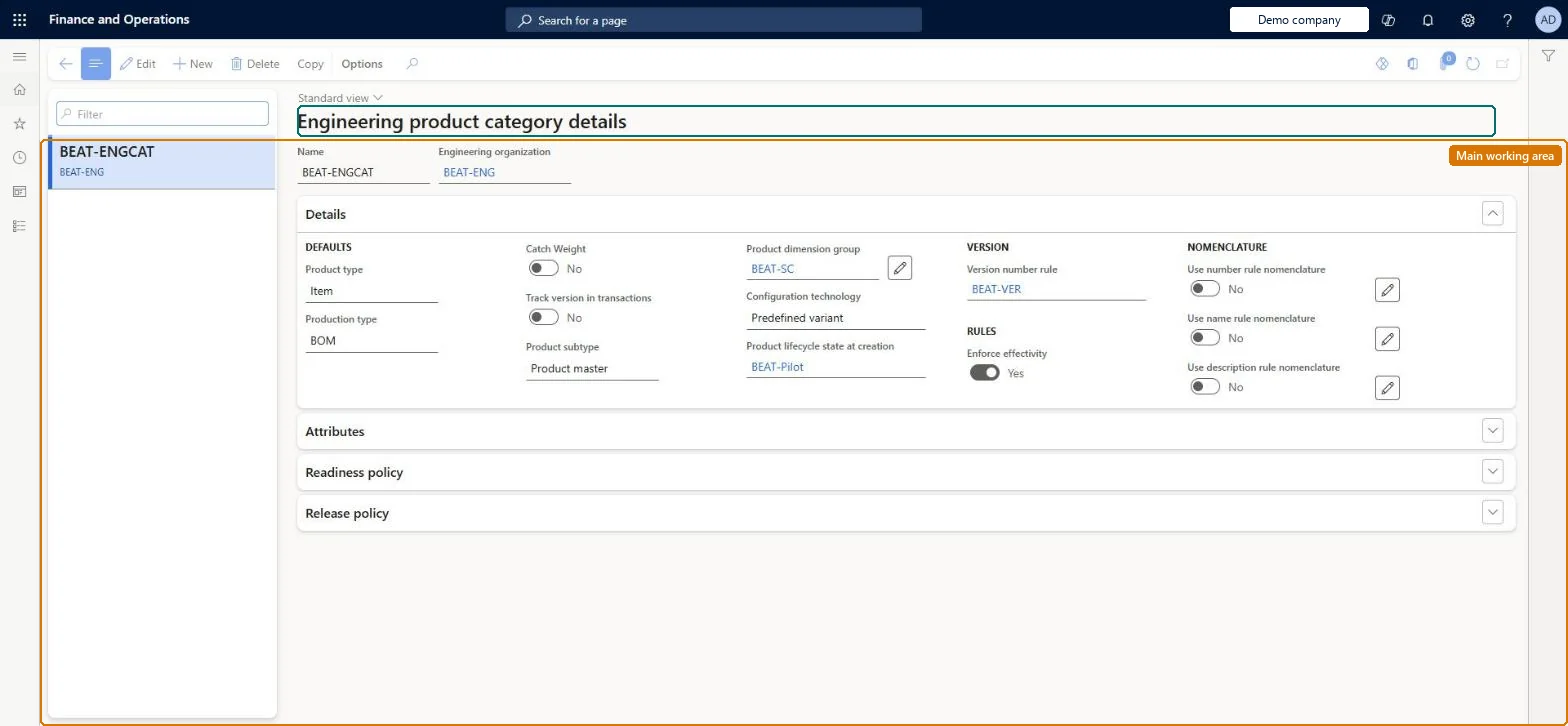
Setup step on the Engineering product category details page · Engineering change management
Set up Engineering product category details
Use this page to create a category and decide its product type, whether versions are tracked in transactions, its dimension group, lifecycle state at creation, version number rule, effectivity enforcement, nomenclature rules, attributes, readiness policy and release policy.
SETUP GUIDEHow to set it up8 sections. Choose a role to highlight what matters to you.
Everyone
1What it is and why
What it is
A setup page where you define engineering product categories, each owned by an engineering company, that supply the default values, attributes, version numbering, readiness policy and release policy for the engineering products created from them.
What you do here
Use this page to create a category and decide its product type, whether versions are tracked in transactions, its dimension group, lifecycle state at creation, version number rule, effectivity enforcement, nomenclature rules, attributes, readiness policy and release policy.
Example
For example, you create a Components category for DEMF with Track versions in transactions set to Yes, the Version dimension group, the Auto version number rule and the Components release policy.
The page in Dynamics 365. page title tab to open what to set or check
About the examples: Examples and screenshots in this guide use BEAT, a demo company in a Dynamics 365 test environment. Use your own company's codes and values instead of copying them.
Setup steps on this page
Set up Engineering product category details
Use this page to create a category and decide its product type, whether versions are tracked in transactions, its dimension group, lifecycle state at creation, version number rule, effectivity enforcement, nomenclature rules, attributes, readiness policy and release policy.
Steps from Microsoft
Go to Engineering change management > Setup > Engineering product category details.
Select New on the Action Pane and enter the Name and Engineering company.
On the Details FastTab, set Product type, Track versions in transactions, Product dimension group, Product lifecycle state at creation, Version number rule and Enforce effectivity.
Set the number, name and description rule nomenclature options as required.
On the Attributes FastTab, add the engineering attributes for products in this category.
On the Readiness policy FastTab, select the Product readiness policy.
On the Release policy FastTab, select the Product release policy, then save.
Track versions in transactions = Yes for products with a cost difference between versions or customer-specific conditions; if No, set Enforce effectivity = YesLearn says tracking versions is often used where versions differ in cost or customer conditions, and that without the version dimension Enforce effectivity should be Yes so versions don't overlap.
One-way: Warning: once the category is created you can't change Engineering company, Product type, Product subtype, Product dimension group, Configuration technology or Version number rule, and a product's category can't be changed after the product is created.
If you change it later
Several settings (engineering company, product type and subtype, dimension group, configuration technology, version number rule) are locked once the category is saved, and changing the attribute list prompts you to decide whether existing products are updated. Microsoft Learn
Technical architect
6Technical
Menu item
EngChgProductCategoryDetailsChecked in Dynamics 365
Form
EngChgProductCategoryDetailsChecked in Dynamics 365
Table
EngChgProductCategoryDetailsShown as “ENGINEERING PRODUCT CATEGORY DETAILS” in Record infoKey field: Category_NameChecked in Dynamics 365
Data entities
EngChgEngineeringProductCategoryDetailsEntityEngineering product category details Checked in Dynamics 365
Who can open it
PrivilegesMaintain engineering product category details EngChgProductCategoryDetailsMaintainView engineering product categories EngChgProductCategoryDetailsViewDutiesEnable the engineering change management process EngChgEngineeringChangeManagementProcessEnableInquire into engineering product master EngChgEngineeringProductMasterInquire2 security rolesProduct engineer EngChgProductEngineerProduct engineering manager EngChgProductEngineeringManagerChecked in Dynamics 365
Roles to set it up and use it
To set it up or change itProduct engineering manager EngChgProductEngineeringManagerTo use itProduct engineer EngChgProductEngineerGive people one of these roles. On this system, 2 roles can open this page.Checked in Dynamics 365
Actions on the page
(Action Pane without tabs): CopyChecked in Dynamics 365
Checked in a working Dynamics 365 system, version 10.0.49: the menu item, form, table and security, the page.
To cite this step: EC-SETUP-030, Set up Engineering product category details. Beyond ERP Atlas Hub, 2026-11-11. https://www.beyonderp.cloud/atlas/step/EC-SETUP-030