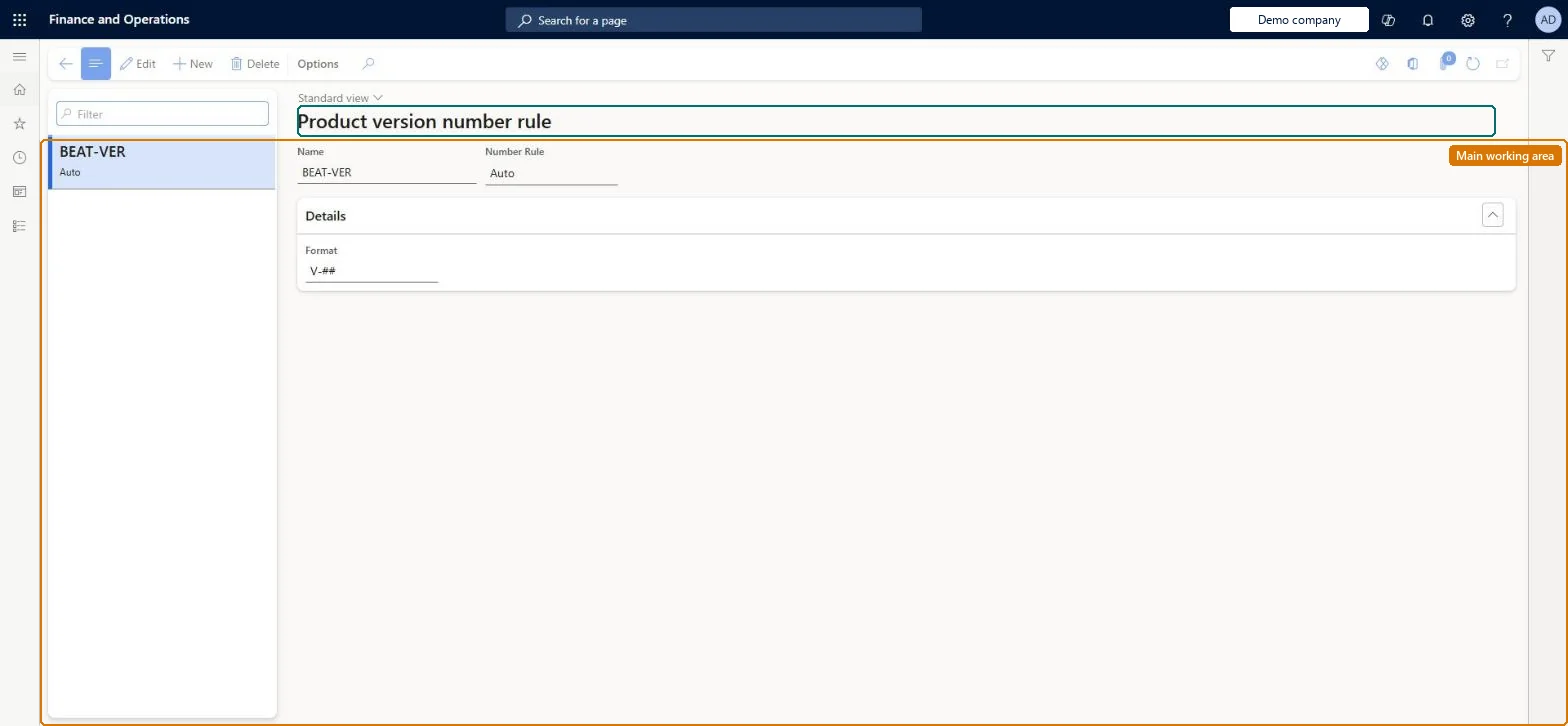
A setup page where you define the rules that decide how version numbers are assigned to engineering versions of a product, either entered manually, generated automatically from a format, or taken from a predefined list.
PAGE GUIDEWhat the page does and how to use it8 sections. Choose a role to highlight what matters to you.
Everyone
1What it is and why
What it is
A setup page where you define the rules that decide how version numbers are assigned to engineering versions of a product, either entered manually, generated automatically from a format, or taken from a predefined list.
What you do here
Use this page to create the version number rules that you then assign to engineering product categories, so that the Version field is filled in automatically when a new engineering product or version is created.
Example
For example, an automatic rule with the format V-## numbers the first version V-01 and the second version V-02.
The page in Dynamics 365. page title tab to open what to set or check
About the examples: Examples and screenshots in this guide use BEAT, a demo company in a Dynamics 365 test environment. Use your own company's codes and values instead of copying them.
Setup steps on this page
Set up Product version number rule
Use this page to create the version number rules that you then assign to engineering product categories, so that the Version field is filled in automatically when a new engineering product or version is created.
Steps from Microsoft
Go to Engineering change management > Setup > Product version number rule.
Select New to add a rule.
Enter a Name for the rule.
Set the Number rule (for example Auto).
For an automatic rule, enter the Format, using # for each digit (for example V-##).
Automatic, with a format such as V-## (# for each digit, other characters as constants).With Automatic the system sets each version number from the format (V-01, V-02 and so on), so engineers don't number versions by hand.
Assigning the wrong rule to an engineering product category. The category's version number rule can't be changed after the category is created.
Solution architect
5Design impact
Can it be undone
One-way: Warning: the version number rule on an engineering product category is locked after the category is created, and a product's engineering category can't be changed after the product exists. Microsoft Learn
Technical architect
6Technical
Menu item
EngChgProductVersionNumberRuleChecked in Dynamics 365
Form
EngChgProductVersionNumberRuleChecked in Dynamics 365
Table
EngChgVersionNumShown as “VERSION NUMBER RULES” in Record infoKey field: NameChecked in Dynamics 365
Data entities
EngChgEngineeringProductVersionNumberingRuleEntityEngineering product version numbering rules Checked in Dynamics 365
Who can open it
PrivilegesMaintain version number rule EngChgProductVersionNumberRuleMaintainView version number rule EngChgProductVersionNumberRuleViewDutiesEnable the engineering change management process EngChgEngineeringChangeManagementProcessEnableInquire into engineering change management reference data EngChgEngineeringChangeManagementReferenceDataInquire2 security rolesProduct engineer EngChgProductEngineerProduct engineering manager EngChgProductEngineeringManagerChecked in Dynamics 365
Roles to set it up and use it
To set it up or change itProduct engineering manager EngChgProductEngineeringManagerTo use itProduct engineer EngChgProductEngineerGive people one of these roles. On this system, 2 roles can open this page.Checked in Dynamics 365